Find your way around Settings: every section, who can open it, and where to read more
Use this page as the map of Settings: how to open it, how it is laid out, what each of its 27 sections is for, and which article walks you through it.
Before you start
- Settings is for administrators only. Since 22 October 2026 every Settings section, and every change made in one, needs the practice administration permission (
practice.admin). Out of the box only the Admin role holds it. Nobody else is offered Settings in the menu, and nobody else can open a section by typing its address (see "If you are not an administrator" below). - Preferences and Utilities are separate screens. Preferences is your own display, working defaults and sign-in security, and every role has it: select your name at the right of the menu bar, then Preferences (KB-131 — Set up Preferences: your start screen, calendar view, colours, notifications and privacy). Utilities holds the practice's day-to-day and operational tools: More in the menu bar, then Utilities (KB-133 — Find your way around Utilities: every section, what it is for and who can open it).
Open Settings
- In the menu bar across the top, open More (on a phone, ⋯).
- Select Settings.
You land on Overview.
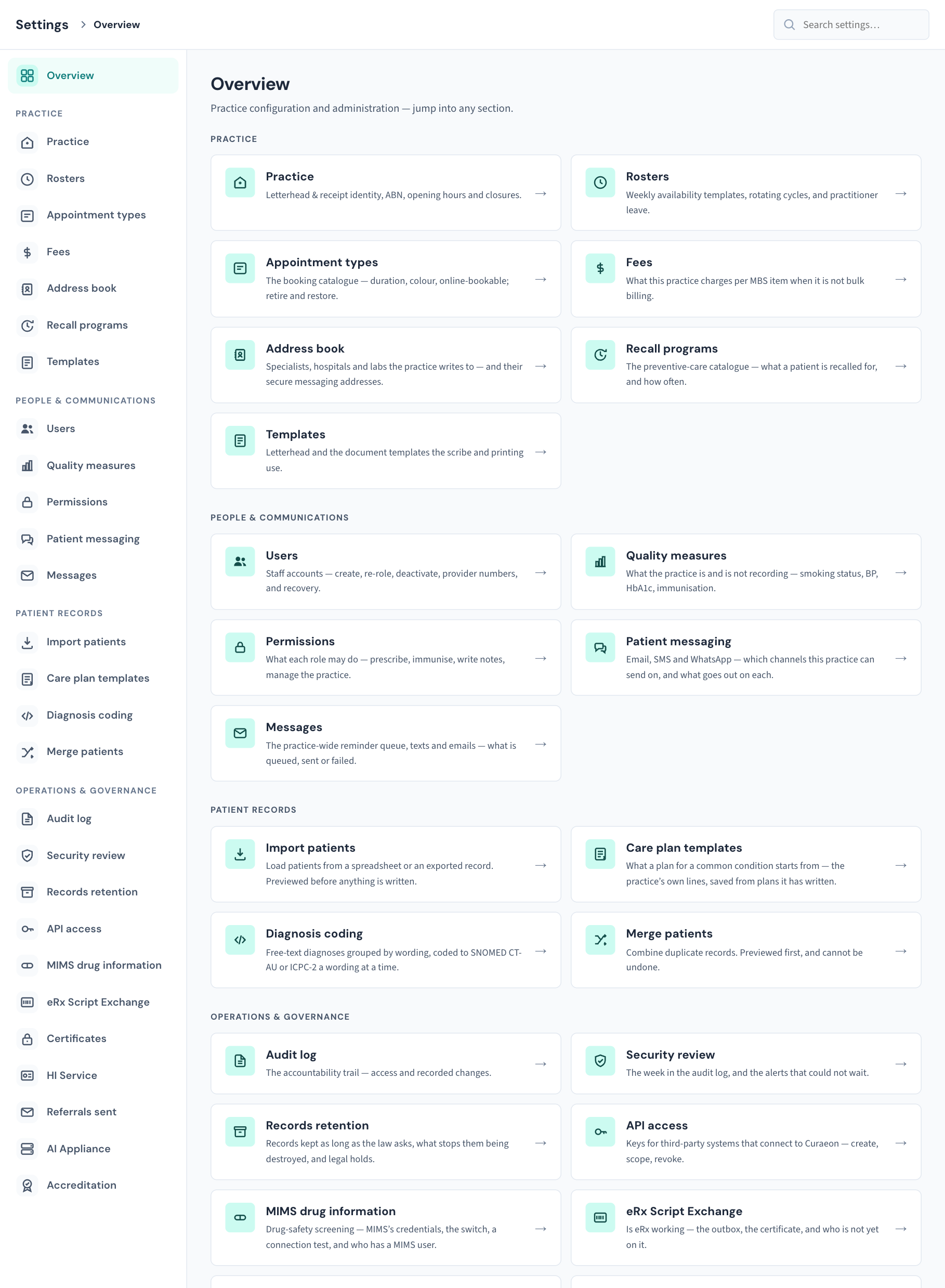
How the screen is laid out
| Part | What it does |
|---|---|
| Top bar | Says Settings and then the section you are in, so you always know where you are. |
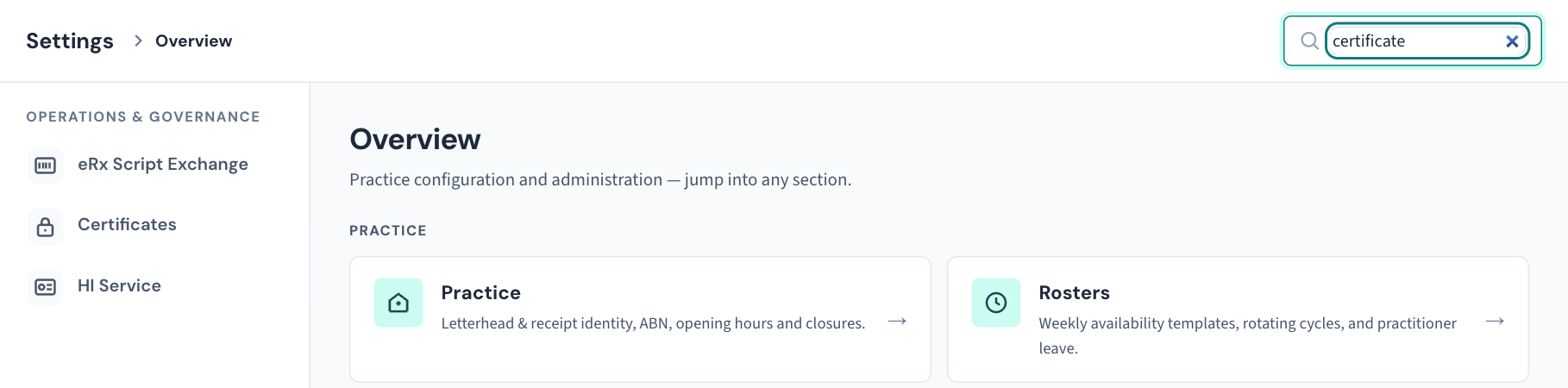
| Search settings… | Type part of a section's name or what it is about ("leave", "certificate", "SMS"). The rail on the left narrows to the sections that match. If nothing matches, the rail says No settings match "…". Clear the box to see everything again. |
| Section rail (left) | Overview at the top, then every section, under four headings: Practice, People & communications, Patient records and Operations & governance. The section you are in is highlighted. The rail stays put as you move between sections. |
| Overview (the page you land on) | The same sections as cards. Each card has the section's name and one line about what it holds. Select a card to open the section. |
| Version card (under the cards on Overview) | The Server build: a short code that names the build of Curaeon your practice's server is running, with Copy, to quote on a support call. Everyone else reads the same card under Preferences → About Curaeon, where what it can say is explained (KB-131 — Set up Preferences: your start screen, calendar view, colours, notifications and privacy). |
Tip: With keyboard shortcuts switched on in Preferences (KB-131 — Set up Preferences: your start screen, calendar view, colours, notifications and privacy), pressing / in Settings (outside a text box) puts the cursor in Search settings…. On Users and on Templates, / goes to that page's own search box instead.
The search narrows the rail only. The cards on Overview always show every section.
The four groups, section by section
Every section below is for administrators. The descriptions are close to the one-line descriptions on each card.
Practice
People & communications
Patient messaging and Messages are easy to mix up. Patient messaging is the set-up that decides what may be sent. Messages is the list of what has actually been queued and sent.
Patient records
| Section | What it is for | Read |
|---|---|---|
| Import patients | Load patients from a spreadsheet or an exported record. Everything is previewed before anything is written. | KB-070 — Import patients, documents, appointments and balances from your previous system, and read the reconciliation report |
| Care plan templates | What a care plan for a common condition starts from. | KB-102 — Start a care plan from a template, share templates between sites, and keep Plan reviews and INR clear |
| Diagnosis coding | Free-text diagnoses grouped by wording, to be coded to SNOMED CT-AU or ICPC-2 one wording at a time. | KB-126 — Code a backlog of free-text diagnoses in Settings → Diagnosis coding |
| Merge patients | Combine duplicate records. Previewed first; it cannot be undone. | KB-042 — Find and merge duplicate patient records |
Operations & governance
What is not in Settings
Some things people look for here live elsewhere:
If you are not an administrator
You will not see Settings under More. If you open a Settings address anyway, from an old bookmark or a link, the page says:
Settings are kept by the practice’s administrators. Ask one of them to change Fees for you.
with the name of the section you tried to open. Nothing on the page is drawn, so there is nothing to half-change. The server makes the same decision as the screen, and a refused attempt is recorded in the Audit log.
What this means day to day:
- Reception can no longer correct the practice's phone, address or script paper in Settings → Practice, or read the fee list in Settings → Fees. Ask an administrator.
- Clinicians can no longer code the diagnosis backlog, keep care plan templates, use Save as template on a care plan, open Quality measures, or open Templates for their own templates. A single patient's diagnosis is still coded from Code on their chart.
- A role given
templates.manageno longer reaches the template library. That permission now opens nothing (KB-121 — Change what each role may do in Settings → Permissions).
Your administrator can do the task for you. Granting a permission under Settings → Permissions does not open Settings: only practice.admin does, and that is the administrator's whole set of keys, so think before granting it (KB-121 — Change what each role may do in Settings → Permissions).
If that didn't work
- I am an administrator and Settings is not under More. Sign out and in again so Curaeon reads your permissions afresh. If it is still missing, ask another administrator to check your role in Settings → Users: the menu offers Settings to the Admin role, whose
practice.adminpermission cannot be taken away. - I am an administrator and a section is missing from the rail. Clear Search settings….
- Sections are greyed out and marked "Not checked". Curaeon could not read who is signed in, so it cannot tell whether a section is yours to open. The section is listed but is not a link. Reload the page; if it keeps happening, see KB-170 — When part of a screen says it could not be loaded: Try again, and what Loading… means.
- The only thing I can open is Practice, and it shows a licence card. The installation has no confirmed Curaeon licence yet. See KB-114 — Your Curaeon licence: seats, renewal, and requesting more from Settings → Practice.
- Everything is closed and I am kept on Preferences → Sign-in security. Your practice requires administrators to sign in with a passkey and you have not added one yet. Add one, then choose Continue (KB-171 — Sign in with a passkey: add one, use it, remove it, and when your practice requires one).
Still stuck? Raise a ticket at support.curaeon.com.au or call 1300 XXX XXX. If your clinic can't see patients right now, call and choose option 1. Support is staffed Monday to Friday, 8:00–18:00 Sydney time; outside those hours a call or text to the same number is answered on a best-effort basis.
Related articles
- KB-131 — Set up Preferences: your start screen, calendar view, colours, notifications and privacy — Set up Preferences: your start screen, calendar view, colours, notifications and privacy
- KB-133 — Find your way around Utilities: every section, what it is for and who can open it — Find your way around Utilities: every section, what it is for and who can open it
- KB-034 — Choose the right role and permissions for a new staff member — Choose the right role and permissions for a new staff member
- KB-121 — Change what each role may do in Settings → Permissions — Change what each role may do in Settings → Permissions
- KB-171 — Sign in with a passkey: add one, use it, remove it, and when your practice requires one — Sign in with a passkey: add one, use it, remove it, and when your practice requires one
- KB-178 — Find your way around Curaeon: the menu bar, More and your account menu — Find your way around Curaeon: the menu bar, More and your account menu
- KB-083 — Practice-manager setup checklist: everything to configure before your first consulting day — Practice-manager setup checklist: everything to configure before your first consulting day
- KB-112 — Quick reference: practice manager — Quick reference: practice manager