Start a care plan from a template, share templates between sites, and keep Plan reviews and INR clear
Set up the practice's own care-plan starting points, write a plan that files as a plan, and work the two chronic-disease worklists — Plan reviews and INR — before a plan quietly stops working.
Before you start
Two things are both called "template", and they live in different places:
- Settings → Templates → Care plans holds the MBS-structured plan documents the letter composer offers on its Care plans tab. These are what you write and issue to the patient.
- Settings → Care plan templates holds the practice's own starting points: the conditions, goals, actions and services a new plan of that kind opens with. Curaeon ships none; the practice writes them or saves them from a plan.
Care plan templates are an administrator's page; writing a plan is a clinician's work. Since 22 October 2026 every Settings section is for administrators only, so both kinds of template are kept by an administrator (KB-115 — Find your way around Settings: every section, who can open it, and where to read more).
On a patient's chart, a record with no plans yet says "No care plans. A GPCCMP, a mental health plan and their reviews start here." The GP chronic condition management plan (GPCCMP) replaced the GP management plan (item 721) and team care arrangements (item 723), which ceased on 1 July 2025. A new plan cannot be either. Plans made before then keep their type and show as GPMP (ceased) or TCA (ceased).
Write a plan that files as a plan
- From the consult, open the letter composer and choose the Care plans tab.
- Pick the MBS-structured plan. It is filed as a care plan, not a generic document, so it can be found as one later — and it is issued to the patient the way a certificate is.
- An allied-health referral written alongside it stays a referral, because it is one; filing it as a plan would misfile it (KB-048 — Refer a patient: find a provider in HealthLink/HealthShare, or record a referral without a letter).
A plan written this way is a document with no plan on the chart behind it. It has no Send to patient on the record's Reports tab: print it for the patient. A plan written on the chart, below, can be sent from its own page.
Write and finalise a plan on the chart
- On the patient's chart, open Care Plans and choose + New care plan.
- Choose the Plan type and what to Start from, then Create draft. The plan opens as a draft on its own page.
- Work down the page. Each part has its own button: Add condition, Add goal, Add patient action, Add treatment or service, Save review date, Save for consent, and Save details for the title. Words in a box are not on the plan until you press it.
- On a GPCCMP, the Finalise card lists what the MBS describes, ticked once recorded. It says nothing about whether what is there is right.
- Choose Finalise plan. The plan becomes active, and the start date goes on the record.
Finalise plan waits while anything is typed and not yet on the plan. The card says what, such as "Not on the plan yet: a condition, a goal." Add or save it, or clear the box, and the button opens.
Send a plan to the patient
A plan written on the chart can be sent to the patient from the plan's own page. It goes the way a letter does: by the channel your practice set up for letters, to a patient who has consented to it, with a password on an attached copy (KB-050 — Email a letter to a patient: password, refused characters, "I can't open it").
Send to patient is beside Print / hand over at the top of the plan's page once the plan is finalised: while it is active, on hold or completed. It is not there:
- on a draft, which is not agreed with the patient yet;
- on a plan that was revoked or entered in error;
- on an asthma action plan, whose written plan is printed from its own page (KB-150 — Write and print an asthma action plan);
-
for anyone whose role cannot both write to the record and write notes (
chart.writeandnotes.write). The Admin and Clinician roles hold both by default. A nurse or receptionist does not see the button, and prints the plan instead (KB-121 — Change what each role may do in Settings → Permissions). -
Open the plan from the Care Plans tab of the patient's record.
- Choose Send to patient. The box a letter is sent from opens, with the plan's title under the heading.
- Check Send to. It is the address on the patient's record; change it to send somewhere else.
- Read the Message. It starts as a short built-in sentence about a care plan, and you can change it.
- Where the copy is attached, type a Password on the attached PDF, or leave it blank to use the patient's date of birth as DDMMYYYY.
- Read the note above the buttons, then choose Send. Curaeon answers "Queued for" the address, then "It will send within a minute. A copy of the plan was filed to the patient record."
Send to patient waits for typed work. If you have typed something on the plan and not added or saved it (the plan's details, a condition, a goal, a patient action, a treatment or service, the review date, the consent details, or a review you have written and not recorded), the button is greyed out and a line under the plan's heading says what, for example "Not on the plan yet: a goal. Add or save it, or clear it, before sending the plan to the patient: what is sent is the plan as it is saved."
What Send does
- It files a copy, then sends that copy or tells the patient it is ready. A copy of the plan as it stands at that moment is filed to the record's Reports tab under Issued to the patient. The copy carries what the printed plan carries: the practice's letterhead, who prepared the plan and their provider number, and the practice's own note for care plans.
- The note above the buttons says which of two things will happen. Where your practice attaches documents, it reads "Send files a copy of this plan as it stands now to the patient record, under Issued to the patient, and sends that copy." Where your practice sends a notice only, it reads "… and tells the patient it is ready; the copy itself is not sent."
- Every send files another copy, including when one is already there. Each is the record of what the patient was sent that day. The copies carry the plan's title and the day, so two sent on the same day look alike on the Reports tab.
- Nothing is filed for a send Curaeon refuses. Closing the box without sending files nothing, and so does a refused send. The exception is a failure part-way through: the message then says a copy was filed and the message was not queued (see the table below).
- Every send is listed under Sent to patient on the record's Reports tab, with what was said and whether it went.
- On WhatsApp the patient reads your practice's approved message, not what you type, as for a letter. That message calls the plan a letter: its wording was approved by Meta and is the same for every document (KB-140 — Arrange WhatsApp with Meta: the account, the number and the message templates Curaeon needs before it can send).
- A signed consult does not stop it. A plan can be sent after the note of its consult has been signed.
If the plan does not go
The reason is shown in the box, which moves to it if it is out of view. When you close the box after a send that did not go, the plan is read again, so a plan revoked or put on hold somewhere else is shown as it now is.
| The box says | What it means | What to do |
|---|---|---|
| "This patient cannot be sent a care plan yet:" and a line for each channel | The patient has not consented to the channel, or has no address on file for it | Record the consent or the address on the patient's record, then send again (KB-050 — Email a letter to a patient: password, refused characters, "I can't open it") |
| "This practice has no channel configured for letters, which is how a care plan is sent." | No channel is set up for letters | A practice administrator sets one up under Settings → Patient messaging (KB-122 — Set up Settings → Patient messaging: email, SMS and WhatsApp channels, DKIM, the bounce mailbox and message wording) |
| A refusal saying the patient "has no date of birth on file, so there is no default password" | The copy is attached, the record has no date of birth, and no password was typed | Type a password in the box, or record the date of birth |
| "Nothing was filed or sent. This plan is now revoked, so it is not sent to the patient." (or "entered in error") | The plan stopped being current after the page was opened | Close the box. The page shows the plan as it now is |
| "This plan’s copy cannot be made into a PDF, so it is not filed for sending: it contains “≤”, which the PDF cannot show." | The plan holds a character the PDF cannot show, such as "≤" or "≥", or a name written in another script. The message names the character | If it is in the plan's own words, change it on the plan (write "at most" for "≤") and send again. If it is in a name, print the plan and hand it over |
| "No answer came back from the server, so it is not known whether the copy was filed or the message queued." | The connection dropped. The send may or may not have gone | Look before you send again. On the record's Reports tab, a copy that was filed is under Issued to the patient and a message that was queued is under Sent to patient. Sending again when the first one went files a second copy and sends a second message |
| A message saying nothing was filed, such as "The care plan could not be sent. Nothing was filed." | Curaeon failed before the copy was filed | Send again. If it repeats, raise a ticket |
| A message containing "A copy of the plan was filed to the patient record, but the message was not queued." | Curaeon failed part-way. The copy is in the record and the patient has been sent nothing | Send again, knowing it files another copy. If it repeats, raise a ticket |
A care plan whose copy cannot be made into a PDF is not sent at all, even where your practice sends the patient a notice and does not attach documents.
Care plan documents on the Reports tab
A care plan document on the Reports tab has no Send to patient: a copy filed earlier with File to patient record on the plan's print page, a plan written from a template in the letter composer, and a plan brought from another system are opened or printed from there, not emailed. A copy on the record cannot say whether its plan has changed or been withdrawn since, so only the plan's own page sends one.
One exception: a care plan that somebody uploaded and filed as outgoing correspondence is sent as a letter, as any outgoing document is. Nothing then checks that a plan behind it is still current (KB-146 — Find, open and upload documents on the Reports tab of a patient's record).
Give the practice its own starting points
You need to be an administrator.
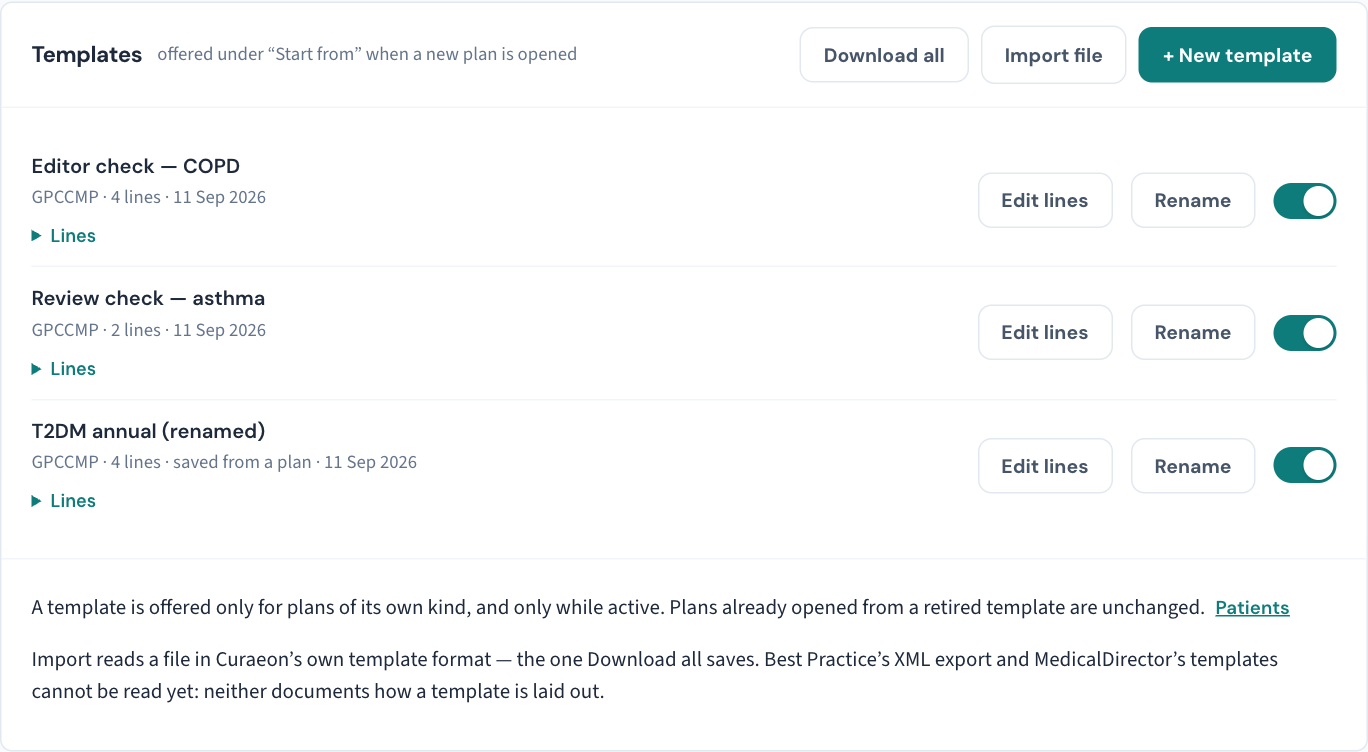
- Open More in the menu bar, then Settings → Care plan templates, and choose + New template. Or save one from a plan already written with Save as template on the plan page. That button is shown only to administrators who may also write in the chart, because it adds to the practice's library; a GP who wants a plan kept as a template asks an administrator to save it.
- Give it a name, and fill in the lines — conditions, goals, actions and services.
- Leave it active. A template is offered under Start from only for plans of its own kind and only while active; plans already opened from a retired template are unchanged.
Move templates to another Curaeon site
Download all saves every template in Curaeon's own template format; Import file on the other site reads that file. This is for a second practice, or a group standardising its plans.
What cannot be imported yet: Best Practice's and MedicalDirector's care plan templates. Neither system documents how a template is laid out, so Curaeon does not guess at one. Bring those across by writing them here once, or by writing one plan and saving it as a template.
Work Plan reviews
Plan reviews (open More in the menu bar, then Plan reviews) lists active plans due for review, most overdue first, with counts of how many are overdue and how many fall due within the period you are looking ahead. Filter by clinician, by plan type, and by how far ahead to look. A plan nobody reviews is a plan that has stopped working, which is what the screen exists to prevent.
Work INR
INR is the warfarin monitoring worklist, opened from INR monitoring in the Monitoring card on Today: every patient on anticoagulation whose INR is due or past due, most overdue first, with the last INR, the target range, the indication and when they were last reminded. Recording an INR result is bookkeeping; what this screen answers is who should have been tested and has not been. Remind a patient from the row, or open their anticoagulation record.
What the lists leave out
Both worklists leave a restricted record's rows out for anyone not named on it, and say how many they left out, so a list never looks finished when it is not. See KB-061 — Restrict a patient's record, and open one in an emergency.
If that didn't work
A template that is not offered under Start from is usually inactive or of a different kind from the plan being opened. An import that is refused is usually a file from another system rather than Curaeon's own format.
Still stuck? Raise a ticket at support.curaeon.com.au or call 1300 XXX XXX. If your clinic can't see patients right now, call and choose option 1. Support is staffed Monday to Friday, 8:00–18:00 Sydney time; outside those hours a call or text to the same number is answered on a best-effort basis.
Related articles
- KB-049 — Build and import letter templates: Word upload, merge fields, pronoun fields, snippets — Build and import letter templates: Word upload, merge fields, pronoun fields, snippets
- KB-051 — Run recalls: book from a recall, and why a recall stays open or comes back — Run recalls: book from a recall, and why a recall stays open or comes back
- KB-061 — Restrict a patient's record, and open one in an emergency — Restrict a patient's record, and open one in an emergency
- KB-078 — Print a medication summary chart, or a whole aged-care round — Print a medication summary chart, or a whole aged-care round
- KB-050 — Email a letter to a patient: password, refused characters, "I can't open it" — Email a letter to a patient: password, refused characters, "I can't open it"
- KB-146 — Find, open and upload documents on the Reports tab of a patient's record — Find, open and upload documents on the Reports tab of a patient's record
- KB-150 — Write and print an asthma action plan — Write and print an asthma action plan