Find and merge duplicate patient records
Spot two records that are really one person and combine them — with a person, never the software, making the call.
Before you start
Finding duplicates is a Utilities task (open to admin and reception by default; an administrator can grant it to other roles in Settings → Permissions). Merging is done in Settings → Merge patients, and Settings is kept by the practice's administrators: only an administrator can merge. Duplicates are common straight after a migration from a previous system, so plan a pass through the list in the first weeks (KB-024 — Migrating from your legacy PMS — what to expect).
Before you merge anything, know the one rule that matters: nothing merges automatically, and Curaeon never deletes a record. A merge is a deliberate decision by a named person, and it is recorded.
Find likely duplicates
- Open More in the menu bar, then Utilities → Duplicate patients.
- Read the list. It shows pairs of records that look like one person — the same Medicare number, or the same family name and date of birth.
- Treat it as a list of suggestions. Twins share a family name and date of birth; a parent and child can share a Medicare card. Nothing on this screen merges anything.
- Choose Open merge on a pair to open it in Settings → Merge patients. Only an administrator sees Open merge. Anyone else sees An administrator merges records in its place: note the pair and ask an administrator.
Merge a pair
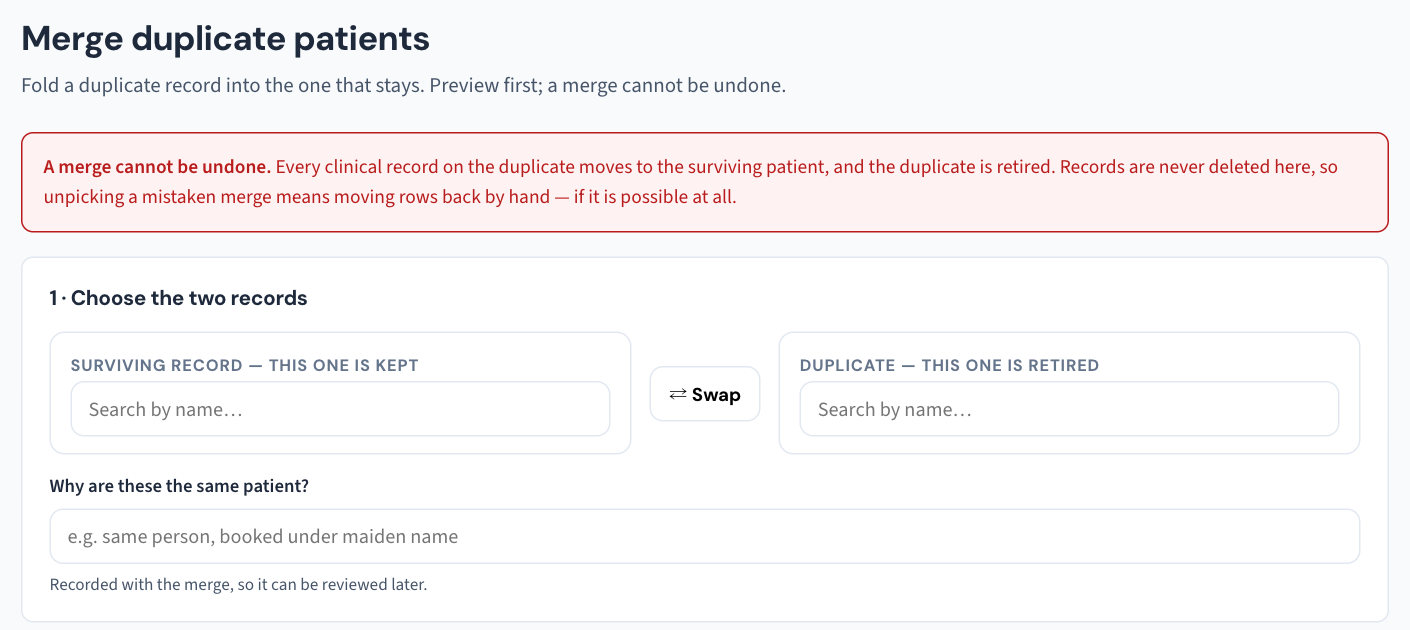
- In Settings → Merge patients, choose the two records: the Surviving record — this one is kept and the Duplicate — this one is retired. You decide which is which, and can swap them.
- Satisfy yourself they are the same person. If in doubt, don't: leave the pair and confirm with the patient at their next visit. Putting one person's clinical history onto another person's record is exactly the kind of error the manual tells you to call support about rather than fix yourself.
- Under Why are these the same patient?, type the reason. It is recorded with the merge.
- Choose Preview merge and read it. It says how many records will move from the duplicate to the surviving record, which blank fields on the surviving record will be filled from the duplicate, and, where the two hold different details, which of the duplicate's values will be discarded. The surviving record's own values are kept. Anything that cannot move is listed too.
- Type the family name of the record being retired to confirm, then choose Merge permanently.
Important: A merge cannot be undone. The screen says so before you start: every clinical record on the duplicate moves to the surviving patient, and the duplicate is retired.
After the merge, the combined patient's Audit log history includes the records merged into theirs, and a Print access report for them covers the merged records too. The merge itself appears in the weekly Security review under "rare changes worth a second look" — that is not an accusation, just the practice keeping an eye on an action that changes whose record is whose.
Restricted records
A record that has been restricted to named staff cannot be merged by anyone not named on it — the screen says the record is restricted. An administrator who must merge one names themselves on the restriction first, and that change is recorded. See KB-061 — Restrict a patient's record, and open one in an emergency for how restrictions work.
Keep the list short
Most duplicates are created at the desk: a patient searched under a maiden name, a typo in a date of birth, a walk-in registered fresh. Utilities → Data quality lists active patients missing a Medicare number, date of birth, mobile or street address — filling those in while the patient is in front of you is also what stops the next duplicate from being created.
If that didn't work
If the preview shows something you did not expect, such as a detail being discarded that you want to keep, stop there. Correct the surviving record first, or raise a ticket before merging and we'll walk it through with you. If a merge has already been made between two different people, call support and do not try to move anything back by hand.
If Utilities → Duplicate patients shows a red message with Try again where the pairs should be, the sweep could not run. That is not the same as "No likely duplicates found." Choose Try again (KB-170 — When part of a screen says it could not be loaded: Try again, and what Loading… means).
Still stuck? Raise a ticket at support.curaeon.com.au or call 1300 XXX XXX. If your clinic can't see patients right now, call and choose option 1. Support is staffed Monday to Friday, 8:00–18:00 Sydney time; outside those hours a call or text to the same number is answered on a best-effort basis.
Related articles
- KB-024 — Migrating from your legacy PMS — what to expect — Migrating from your legacy PMS — what to expect
- KB-061 — Restrict a patient's record, and open one in an emergency — Restrict a patient's record, and open one in an emergency
- KB-070 — Import patients, documents, appointments and balances from your previous system, and read the reconciliation report — Import patients, documents, appointments and balances from your previous system, and read the reconciliation report