Sign in with a passkey: add one, use it, remove it, and when your practice requires one
Add a passkey to your Curaeon account, sign in with it instead of typing a code, and know what happens when your practice requires its administrators to use one.
Applies once passkeys are switched on for your practice's server. They are off until whoever looks after the server turns them on, and they need the server to be reached by a name, not a number. Until then, Sign-in security says so and your authenticator app stays your second step (KB-031 — Set up two-factor sign-in for Curaeon, and fix a code that is rejected, already used or timed out).
What a passkey is
The screen puts it this way: a passkey is "a security key, or a phone or computer that unlocks with your fingerprint, face or PIN."
A passkey is a second sign-in step, like the six-digit code from your authenticator app. The difference is that a fake sign-in page cannot use it. Someone who copies Curaeon's sign-in page can ask you for a code and use it within its 30 seconds. A passkey only works on your practice's own Curaeon address, so a look-alike page gets nothing it can use.
Your password still comes first. A passkey replaces the code, not the password. Your authenticator app and your ten recovery codes keep working beside it.
Before you start
- You have signed in at least once and set up your authenticator app (KB-031 — Set up two-factor sign-in for Curaeon, and fix a code that is rejected, already used or timed out).
- You know your password. Curaeon asks for it again before it adds a passkey.
- You have the security key to hand, or you are on the computer or phone that will hold the passkey.
- Use a browser that can make a passkey. If it cannot, the screen says "This browser cannot make a passkey. Add one from a browser that can, on any computer in the practice."
Every role can add a passkey. It is your own setting, not a practice setting.
Add a passkey
- Select your name at the right of the menu bar, then Preferences.
- Choose Sign-in security, under Account.
- Under Passkeys, choose Add a passkey.
- In Name, type something that tells your passkeys apart, such as "YubiKey on my keyring" or "Consult room 2 PC".
- In Your password, type your Curaeon password.
- Choose Add passkey. The button reads Waiting for your passkey….
- Answer your browser: touch the key, or use your fingerprint, face or PIN.
You see "Passkey “name” added", and the passkey appears in the list with the date it was Added and when it was Last used ("Not yet" until you sign in with it).
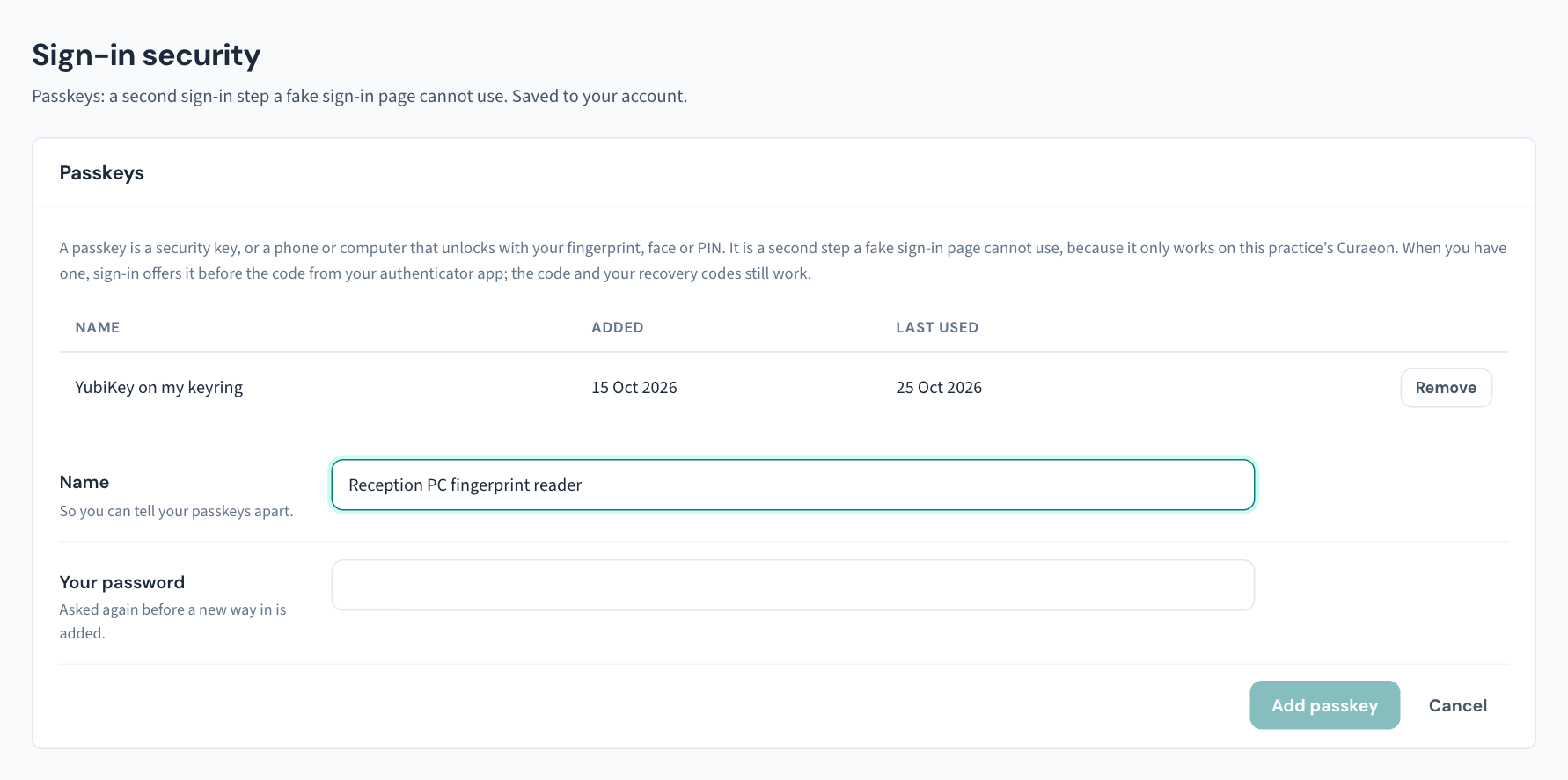
You can add more than one: a security key on your keyring and the computer in your consult room, say. Each has its own row.
Sign in with it
- Open Curaeon and sign in with your email address and password as usual.
- On the second step, choose Use your passkey. It is offered first, above "or use a code".
- Answer your browser: touch the key, or use your fingerprint, face or PIN.
You are signed in. If the passkey is not to hand, type the code from your authenticator app in Six-digit code and choose Verify & sign in, or choose Use a recovery code instead. That works unless you are an administrator at a practice that requires a passkey (see below).
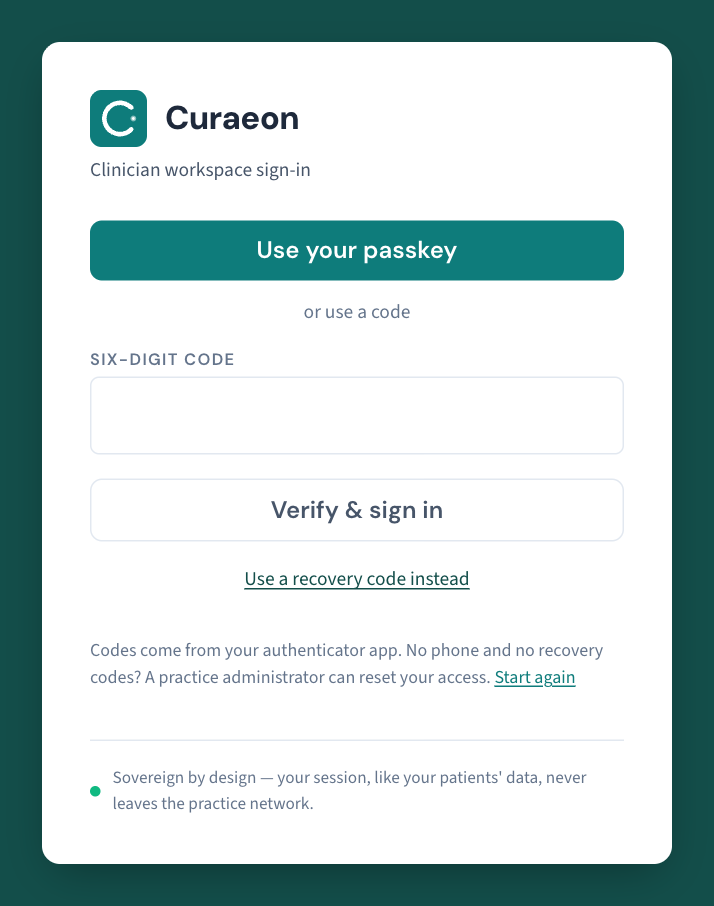
Use your passkey only appears once you have a passkey, and only in a browser that can use one. Otherwise the step looks as it always has.
Remove a passkey, or when a device is lost
You can still sign in. Remove the passkey you no longer have:
- Open Preferences → Sign-in security.
- Choose Remove on its row.
It goes at once, with no confirmation, and you see "Passkey “name” removed". It can never be used again. Curaeon keeps the record that it existed and when it was removed.
You cannot sign in. Use your authenticator app, or one of your recovery codes. If you have neither, ask a practice administrator to choose Reset MFA on your row in Settings → Users. That stops every passkey you added from working and clears your authenticator app. At your next sign-in you set up a fresh authenticator with new recovery codes, then add your passkeys again (KB-032 — Reset a colleague's password or 2FA, or recover when the only administrator is locked out).
What Curaeon records
- Passkey added, with its name, and Passkey removed, in the Audit log under your name.
- Every Signed in row in the Audit log says how the second step was given: "With a code.", "With a recovery code." or "With a passkey." (KB-101 — Find who did what in the Audit log: kinds, Sign-ins, Exactly, Who and a bookmarkable view).
- A passkey answer that does not check out counts as a failed sign-in, like a wrong code. Five failures lock the account for 15 minutes.
- If Curaeon sees signs that a passkey has been copied, it removes that passkey itself. The Audit log says "Removed because its signature counter went backwards: a copy of the key was in use." Tell your practice administrator if you see that against your name.
When your practice requires administrators to use a passkey
A practice can decide that anyone in the Admin role must sign in with a passkey. An administrator's account is the one a stolen code costs most. Clinicians, nurses and reception are not affected.
Turn the requirement on
You need to be an administrator.
- Open More in the menu bar, then Settings → Practice.
- Under Practice identity, set Administrators sign in with a passkey to Required.
- Choose Save changes.
Before you do, make sure each administrator knows. The setting is Not required unless your practice changes it. While passkeys are not switched on for your server it cannot be set, and the line under it says "Passkeys are not switched on for this installation, so they cannot be required. Your support provider turns them on first."
The change is recorded as Practice details updated, with the old and new value.
What an administrator sees from then on
| The administrator | What happens at sign-in |
|---|---|
| Has a passkey and chooses Use your passkey | Signs in as usual. |
| Has a passkey and types an authenticator code | Refused, and sent back to the email and password step with "This practice requires administrators to sign in with a passkey. Use your passkey — or, if it is lost, one of your recovery codes." The refusal is recorded, but it does not count towards a lockout. |
| Has a passkey and uses a recovery code | Signs in. A recovery code is the way back for a lost key. Remove the lost passkey and add a new one. |
| Has no passkey yet | Signs in with a code, then stays on Preferences → Sign-in security until they add one. |
The administrator with no passkey sees this line above the Passkeys card: "Add a passkey to continue. This practice requires administrators to sign in with a passkey — a security key, or this computer’s or phone’s own." Every other screen is closed to them until they do. To finish:
- Add a passkey as described in Add a passkey above.
- Choose Continue in that line.
The rest of Curaeon opens straight away. There is no need to sign out and in again.
Important: The standalone admin console at
http://<practice-server>:8080/admincannot take a passkey. Under this requirement, an administrator with a passkey can only sign in there with a recovery code. An administrator who has no passkey yet is refused everything there until they add one in the main app (KB-068 — Use the standalone admin console when the main app won't load).
If that didn't work
| What you see | What it means | What to do |
|---|---|---|
| "Passkeys are not set up on this practice’s server. …" on Sign-in security | Passkeys are not switched on for your server, or the server is reached by an address of numbers only | Keep using your authenticator app. Ask whoever looks after your server whether passkeys can be switched on. |
| "The passkey request was cancelled, timed out, or no passkey on this device matched." | You cancelled the browser's prompt, waited too long, or this device holds no passkey for your account | Try again with the right key or device, or use a code. |
| "This passkey is already on your account." | You tried to add a key that is already in your list | Nothing to do. |
| "This browser will not use a passkey on this address. Ask the practice administrator how Curaeon is reached here." | This computer opens Curaeon at an address the passkey does not belong to | Open Curaeon at the practice's usual address. |
| "This browser or device does not support passkeys." | The browser or device cannot make or use a passkey | Use another browser, or your code. |
| "The passkey was not accepted. Try again, or use the code from your authenticator app." | The browser's answer did not check out. It counts as a failed attempt | Try again once. If it fails again, use a code and remove that passkey. |
| "That passkey request expired. Try again." | The request waited too long | Choose Use your passkey again. |
| "Account locked after repeated failures. Try again in 15 minutes." | Five failed passwords, codes or passkey answers in a row | Wait 15 minutes, or ask an administrator to reset your password (KB-032 — Reset a colleague's password or 2FA, or recover when the only administrator is locked out). |
Still stuck? Raise a ticket at support.curaeon.com.au or call 1300 XXX XXX. If your clinic can't see patients right now, call and choose option 1. Support is staffed Monday to Friday, 8:00–18:00 Sydney time; outside those hours a call or text to the same number is answered on a best-effort basis.
Related articles
- KB-031 — Set up two-factor sign-in for Curaeon, and fix a code that is rejected, already used or timed out — Set up two-factor sign-in for Curaeon, and fix a code that is rejected, already used or timed out
- KB-032 — Reset a colleague's password or 2FA, or recover when the only administrator is locked out — Reset a colleague's password or 2FA, or recover when the only administrator is locked out
- KB-086 — Signing-in FAQ — Signing-in FAQ
- KB-116 — Set up your practice's details, opening hours and closures in Settings → Practice — Set up your practice's details, opening hours and closures in Settings → Practice
- KB-068 — Use the standalone admin console when the main app won't load — Use the standalone admin console when the main app won't load
- KB-101 — Find who did what in the Audit log: kinds, Sign-ins, Exactly, Who and a bookmarkable view — Find who did what in the Audit log: kinds, Sign-ins, Exactly, Who and a bookmarkable view