Write a letter in the editor: Insert from the record, { } Field, and the formatting that survives print and email
Bring the patient's diagnoses, medications and results into a letter with one deliberate click, fill the administrative fields without retyping them, and use the few formatting choices that look the same on paper and in the emailed PDF.
Before you start
The editor is the same whether the letter is written from the consult or from the chart's New from template. Who the letter is to comes first (KB-048 — Refer a patient: find a provider in HealthLink/HealthShare, or record a referral without a letter); templates and the pronoun fields are an administrator's topic (KB-049 — Build and import letter templates: Word upload, merge fields, pronoun fields, snippets). What prints, downloads as .rtf or goes out as a PDF is what is on screen — there is no separate print layout to check.
A letter can also be drafted from the consult: it opens in the same editor, from what the consult already contains, as a draft to edit and sign — never correspondence that leaves on its own.
Put the record into the letter
- Place the cursor where the content should go.
- Choose Insert from the record and pick what to insert: active diagnoses, past history, current medications (as a list or a table), allergies, recent observations, immunisations, family history, social history or recent results.
- Read what arrived and edit it like anything you typed.
This is an explicit click on purpose: the clinician sees exactly what enters the letter. Clinical content is never a merge field for that reason. Confidential diagnoses are never inserted, and the letter carries no mention that anything was withheld — the count of withheld items is shown to you alone.
Fill the administrative fields
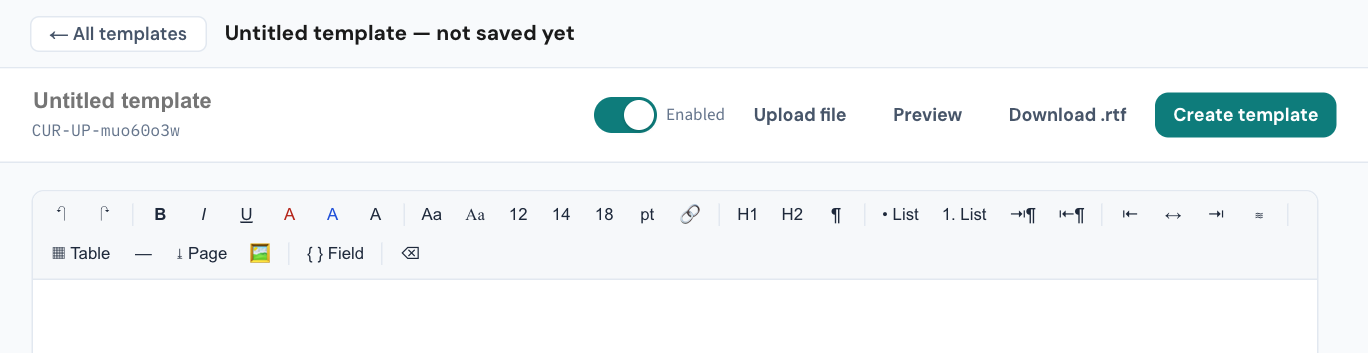
{ } Field on the toolbar opens the merge-field picker — every administrative field in the record, grouped (patient, pronouns, contact, identifiers and funding, the signing doctor, the practice, the recipient, the referral, dates) and searchable. In a letter it inserts the value, and shows the current value beside each field so a blank is seen before it goes in. Snippet… on the same bar inserts one of the practice's quick-text snippets with its fields already filled.
Format with what survives
- Typeface and size — two typefaces, sans serif and serif, and three sizes: 12, 14 and 18 point, where 12 is the body. Nothing below 12 is offered: it is the floor for anything printed, and these choices survive every way a letter leaves the practice.
- Colour — red and blue, to flag rather than decorate.
- Links — they survive to the emailed PDF as working links.
- Tables — emailed as ruled grids with the text wrapped inside each cell.
- Headings, lists, indent, alignment, a rule and a page break — as in the toolbar, with undo and redo.
What happens on the way out
- Printed: at 12 point on the letterhead; drafts are watermarked, so an unsigned letter cannot be handed over as final. A printed letter of more than one page carries no per-page patient header, so staple it.
- Emailed: a password-protected PDF set from the letter, with the patient's name and date of birth on every page after the first (KB-050 — Email a letter to a patient: password, refused characters, "I can't open it"). A character the PDF's fonts cannot show stops the send and names the character.
- Sent securely: with a status badge you can act on (KB-059 — Secure-messaging referral "Not delivered" or stuck on "Sent — awaiting confirmation").
- Filed: to the patient's record as outgoing correspondence whether or not it is sent electronically.
If that didn't work
Insert from the record brought nothing. The record holds nothing of that kind, or the items are confidential — the withheld count tells you which.
A field printed blank. The picker showed the value beside the field before you inserted it; a blank there means the record is blank. Fix the record, not the letter. The exception is a letter with one of the notices below above it: there the blank is something Curaeon could not load, not something missing from the record.
A notice above the letter says something could not be loaded. A letter's body is put together once, when you choose the template, from several things read at that moment. If one of them could not be read, the letter is still composed and the notice says what it was composed without.
| The notice says | What it means | What to do |
|---|---|---|
| "Could not be loaded when this letter was composed:" and a list, such as "the practice's details; your provider details", then "Anything in it that prints those is blank — check the letter before filing." | The fields filled from those are blank in this letter. The list can also name the referral the letter is for and the patient's usual doctor | Choose Try again beside the notice. The letter is composed afresh with the missing details |
| The same notice ending "It has been edited since, so it is not composed again: add what is missing by hand." | You have typed in the letter. Composing again would discard what you typed, so Try again is no longer offered | Fill in the blank details by hand and check the letter before filing |
| "The practice's own wording for this template could not be loaded (…), so this letter starts from the standard body." | The letter was written from the template as supplied, not your practice's version of it | Choose Try again to compose it from the practice's wording |
| The same notice about the practice's wording, ending "It has been edited since, so it is not composed again." | You have typed in the letter, so it is kept as the standard body and Try again is no longer offered | Leave it if the standard body will do. For the practice's wording, remove what you typed: Try again is offered again |
| "The practice's own wording for this template could not be loaded when this letter was composed, so this letter is the standard body. The wording has been read since, but the letter had been edited by then, so it is not composed again." | The practice's wording was read after you had started typing in the letter. The letter you typed in was kept, so it is still the standard body | Leave it if the standard body will do. For the practice's wording, remove what you typed: the notice then ends "Nothing is typed in it now, so Try again composes it again with the practice's wording." and Try again is offered again |
| In the chart's New from template window: "The practice's own template library could not be read, so these are the templates as supplied: the practice's wording, and anything it has switched off, are not applied." | The list is the templates as supplied with Curaeon, not your practice's versions | Choose Try again beside the notice before picking a template. A letter can still be written from the supplied wording |
| On the letter page opened from the patient's record: "The referral this letter is for could not be loaded, so the fields that come from it — who it is to, the reason for referral, its date — are blank in this letter. Nothing has been typed in it, so Try again reads the referral and writes the letter again with them filled in." | The letter was started from a referral that could not be read | Choose Try again. The letter is written again, whole, with those fields and the referral's number. It changes on screen even if you have clicked into it, and your cursor is then at the end of the letter |
| The same notice ending "It has been edited since, so it is not composed again: add what is missing by hand." | You have typed in the letter, so it is left as you built it | Add who it is to, the reason for referral and its date by hand |
| "…could not be loaded when the letter was composed, so the fields that come from it … were not filled in and are blank in this letter. The referral has been read since, but the letter had been edited by then, so it is not composed again: add what is missing by hand. Referral fields inserted from here on are filled." | The referral was read after you had typed in the letter. Its number is now on the letter. The fields that were blank stay blank | Add what is missing by hand. A referral field you insert from now on is filled |
| "The referral this letter is for could not be loaded. The letter is not written yet: Try again reads the referral before it is written." | The template is still asking its questions, or a certificate its details, so there is no letter yet | Choose Try again before you finish answering. Written without the referral, the same fields will be blank |
| On a draft: "The referral this draft is for could not be loaded. The draft is still linked to it, but recipient and referral fields inserted from here on will be blank until it is read." | The draft is still linked to its referral. A draft is never written again | Choose Try again beside the notice before inserting those fields. The notice goes once the referral is read |
| "The recipient's address-book entry could not be loaded. The letter is still addressed to them, but recipient fields inserted from here on — their name, address, salutation — will be blank. Reload the page to load their details." | The letter is still addressed to its recipient | Reload the page before inserting those fields. This notice has no Try again |
| "Your own letterhead could not be loaded, so this letter is shown under the practice's. Reload the page before printing or filing it if you write under your own." | The letter is drawn under the practice's letterhead | Reload the page if you write under your own letterhead |
These notices are on screen only. They are never printed. What a part that could not be loaded means in general is in KB-170 — When part of a screen says it could not be loaded: Try again, and what Loading… means.
The referral's number could not be read. A letter written for a referral carries that referral's number under its date, as Referral no. 1042 (KB-048 — Refer a patient: find a provider in HealthLink/HealthShare, or record a referral without a letter). If the referral could not be read when you opened its letter, Curaeon does not know the number. A notice above the letter says so, in the consult's letter window and on the letter page alike, and the letter is held back until the number is read or you decide it must go without it.
| The notice or line says | What it means | What to do |
|---|---|---|
| "The number of the referral this letter is for could not be read, so the letter does not carry its referral number. It is held back from filing and sending until the number is read, or you choose to carry on without it." On the letter page it reads "held back from filing, the PDF and the download", and adds "A print from the browser prints the page as it is, without the number." | The number is not on this letter yet | Choose Try again beside the notice. It reads the referral and never changes what you have written. If it cannot wait, choose Carry on without the number |
| "The referral's number still could not be read, so the letter was held back: it would go without its referral number. Try again, or choose "Carry on without the number" if it must go now." | You pressed a button that files, sends, makes the PDF or downloads the letter. Curaeon asked for the number once more and still could not read it. Nothing was filed, sent or made | Choose Try again, or Carry on without the number, then press the button again. The line goes once the number is read or you choose to carry on |
| "…You chose to carry on without it: the letter will go without its referral number unless the number can be read when it goes." | You chose Carry on without the number | Nothing more. Curaeon still asks for the number when the letter goes, and uses it if it comes |
| "The referral could be read this time, so the letter has been written again with who it is to, the reason for referral, its date and its number. Nothing was filed or sent: check the letter, then press the button again." On the letter page: "Nothing was filed, printed or downloaded". | The referral was first read when you pressed the button, and you had typed nothing in the letter, so the letter was written again whole. What would have left is not what was on screen when you pressed | Check the letter, then press the button again. In the consult the line is above the letter; on the letter page it is under the buttons |
| In the consult: "The letter was changed while it was being filed. Nothing was filed or sent: check the letter, then press the button again." | The letter on screen changed between your press and the filing | Check the letter, then press the button again |
The buttons that ask for the number are File to record in the consult (or File & send securely and File only, where the letter can be sent), and File to patient, Print as PDF and Download .rtf on the letter page. Three more things to know:
- Once the letter is filed, the number is not asked for again. A PDF or a download made from the letter page afterwards carries what the filed letter carries, its number or none, so a copy never differs from the letter in the record.
- A draft is not held back. It is saved either way, and the number is asked for again when you continue it.
- The letter page's own Print prints the page as it is on screen. It is the one way a letter can still be printed without its number, and the notice says so.
In the consult, the letter cannot be typed in while it is being saved as a draft, filed or sent, so what is filed is what is on screen.
Still stuck? Raise a ticket at support.curaeon.com.au or call 1300 XXX XXX. If your clinic can't see patients right now, call and choose option 1. Support is staffed Monday to Friday, 8:00–18:00 Sydney time; outside those hours a call or text to the same number is answered on a best-effort basis.
Related articles
- KB-049 — Build and import letter templates: Word upload, merge fields, pronoun fields, snippets — Build and import letter templates: Word upload, merge fields, pronoun fields, snippets
- KB-050 — Email a letter to a patient: password, refused characters, "I can't open it" — Email a letter to a patient: password, refused characters, "I can't open it"
- KB-088 — Letters and referrals FAQ — Letters and referrals FAQ