Manage staff accounts in Settings → Users: add, change a role, seats, provider numbers, deactivate
Add a new member of staff, give them the right role, record a doctor's or nurse's registration numbers, decide who holds a licence seat, and close an account on someone's last day without losing anything they did.
Before you start
- Open More in the menu bar, then Settings, then Users under People & communications.
- You need the
practice.adminpermission, which the Admin role always holds (KB-121 — Change what each role may do in Settings → Permissions). Nobody else is offered Settings, and anyone else who tries the address is told "Settings are kept by the practice’s administrators. Ask one of them to change Users for you." (KB-115 — Find your way around Settings: every section, who can open it, and where to read more). - Everything here is done inside your practice. Curaeon Support cannot add, reset or remove a Curaeon user for you: the server and its accounts are on your network.
A tour of the screen
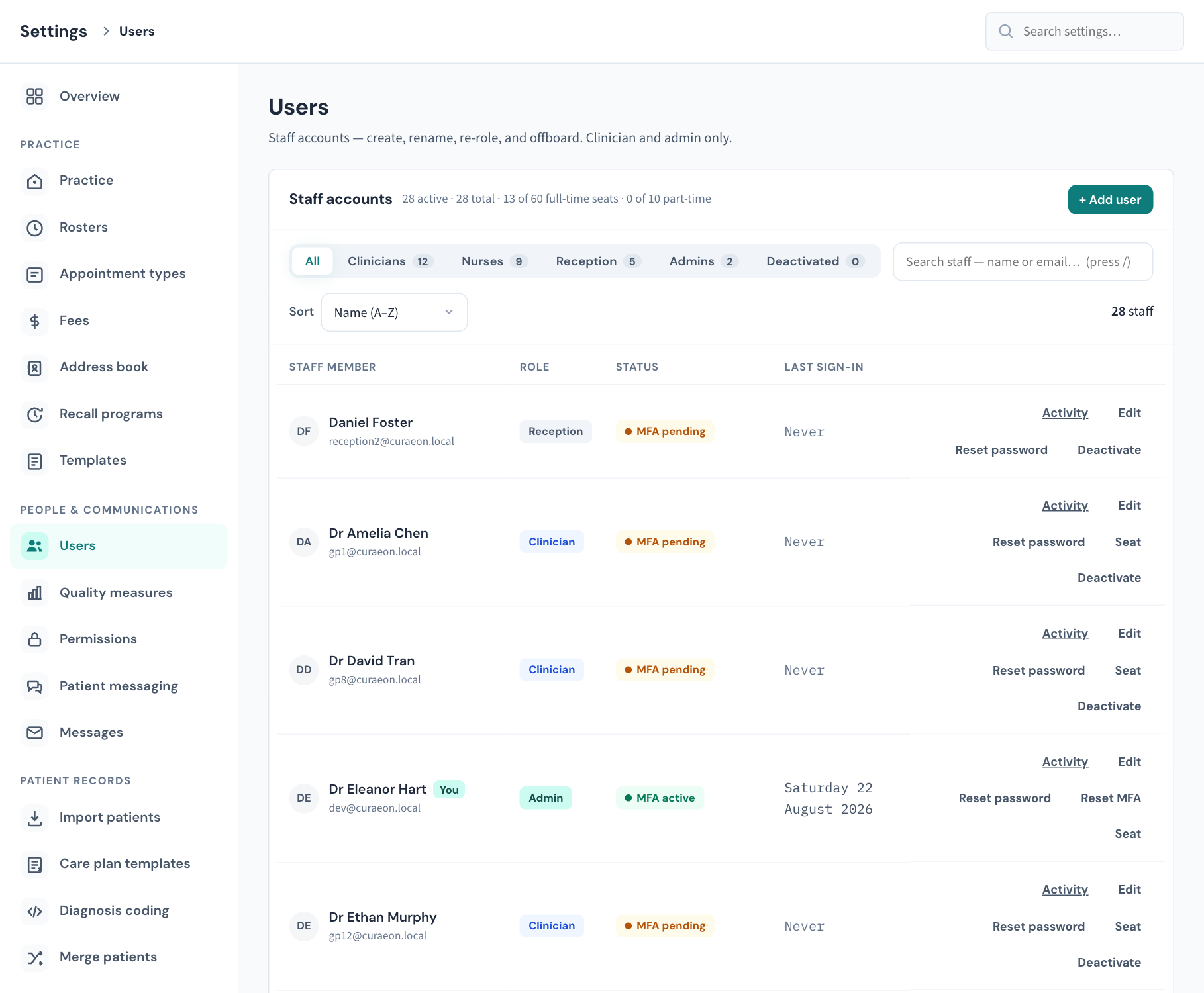
The header line. Beside Staff accounts you see "N active · N total", or a dash while the list has not been read or could not be (a dash is "not known", never "none"), then the licence seats: "N of N licensed seats", or separate full-time and part-time counts on a licence that has both. When no seat is free it says none free, which links to the licence card under Settings → Practice. If any clinician has no seat it adds "N clinicians without a seat". The licence itself is explained in KB-114 — Your Curaeon licence: seats, renewal, and requesting more from Settings → Practice.
+ Add user opens the New user window.
The filter buttons. All, Clinicians, Nurses, Reception, Admins and Deactivated, each with a count. No seat appears only when at least one clinician has no seat. The role filters show active accounts only; All includes deactivated ones.
Search. Type part of a name or an email address. With keyboard shortcuts on (KB-131 — Set up Preferences: your start screen, calendar view, colours, notifications and privacy), press / to jump to the search box; the box says "(press /)" only while they are on. Esc clears it either way.
Sort. Name (A–Z), Recently signed in, or Role (admins first, then clinicians, nurses and reception).
The table. One row per person: Staff member (name and sign-in email; your own row is marked You), Role, Status, Last sign-in, and the action buttons. Selecting a person's name opens the same window as Edit.
What the Status column says
| Badge | Meaning |
|---|---|
| MFA active | Two-factor sign-in is set up and in use. |
| MFA pending | The person has not yet enrolled an authenticator app. They do it at their next sign-in (KB-031 — Set up two-factor sign-in for Curaeon, and fix a code that is rejected, already used or timed out). |
| Temp password | The account is on a temporary password that must be changed at the next sign-in. New accounts and accounts after a password reset show this. |
| No seat | A clinician with no licence seat. They are on the staff list and the roster, and cannot sign in. |
| Part-time seat | A clinician holding one of the practice's part-time seats. |
| Scribe off | The AI scribe is switched off for this person. Nothing is shown while it is on, which is how everyone starts. See "Switch the AI scribe off or on for one person" below. |
| Disabled | The account is deactivated. |
| Never (in Last sign-in) | The person has not signed in yet. |
The buttons on each row
| Button | Shown | What it does |
|---|---|---|
| Activity | Every row, including deactivated accounts | Opens Settings → Audit log filtered to that person. |
| Edit | Active accounts | Opens the account window. |
| Reset password | Active accounts | Sets a new temporary password. |
| Reset MFA | Active accounts with MFA active | Clears their authenticator, and stops every passkey they added working, so they enrol again. |
| Assign seat / Release seat, or Seat | Doctors only: clinicians, and administrators with a provider or prescriber number | Gives or takes back a licence seat. |
| Deactivate | Active accounts other than your own | Closes the account. |
| Reactivate | Deactivated accounts | Opens the account again. |
Your own row has no Deactivate and no Release seat. You cannot lock yourself out from here. Nor can the practice be left with nobody who can open Settings: demoting or deactivating the last active administrator is refused, whoever does it, with "this is the practice's only administrator. Make someone else an administrator first".
Add a member of staff
- Choose + Add user.
- Under Identity, choose a Title (or the dash for none) and enter the First name and Surname.
- Choose the Role: Admin, Clinician, Nurse or Reception. The line underneath says what that role signs in as. Choose the narrowest role that covers their everyday work (KB-034 — Choose the right role and permissions for a new staff member).
- Under Contact & sign-in, enter their work Email. This is what they sign in with.
- Enter a Temporary password (min 12 characters).
- Optionally enter Mobile, Home phone and Pager. Every role has these, so the practice knows how to reach the person out of hours.
- For a clinician or a nurse, fill in Provider & registration on the right (see the next section).
- For a clinician, check Licence seat under Account (see "Licence seats" below).
- Choose Create user. The button stays off until there is a name, an email and a temporary password of 12 characters, and the note beside it says what is missing.
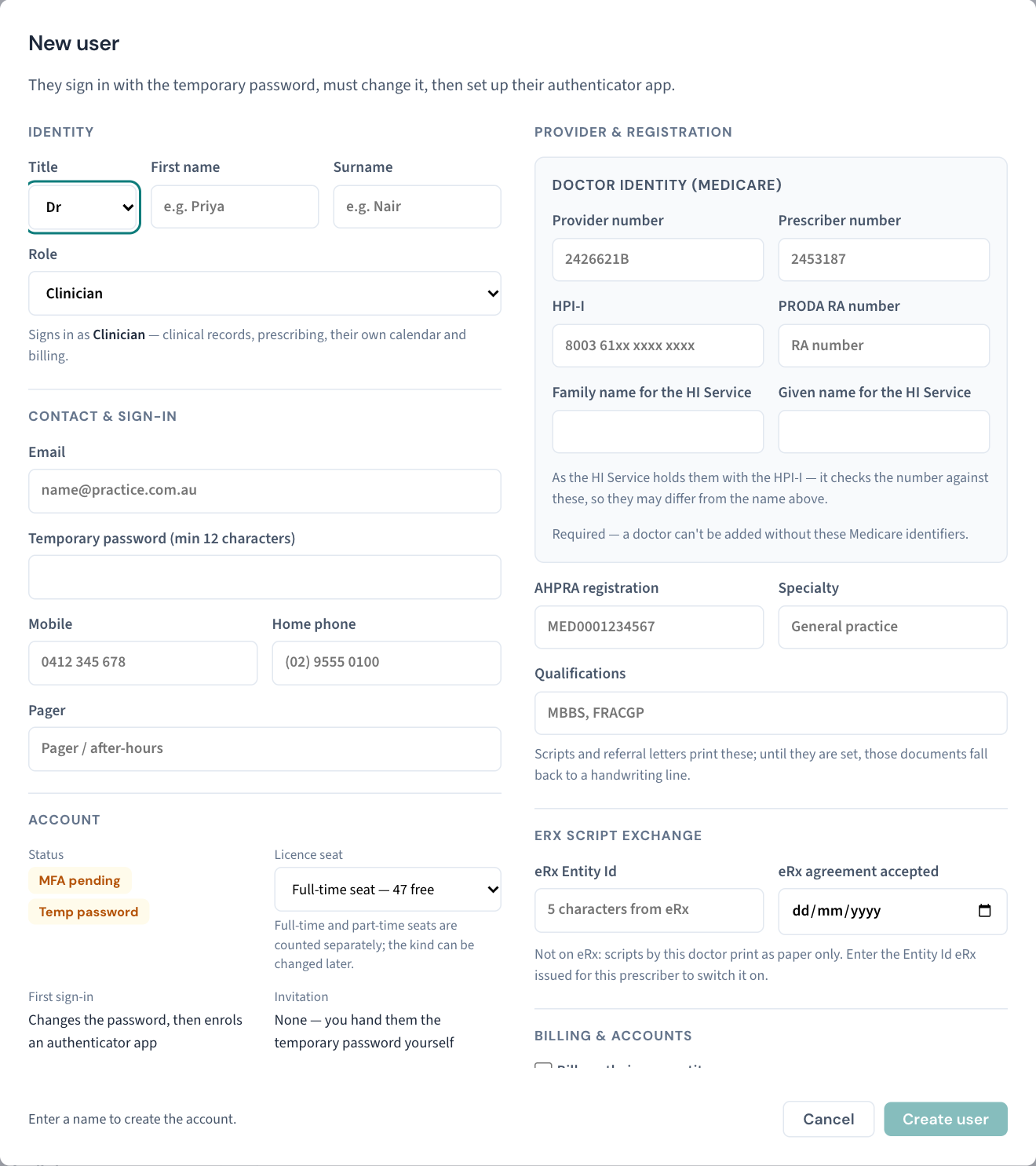
The Account panel tells you what will be true the moment you create the account: MFA pending, Temp password, and "Invitation: None — you hand them the temporary password yourself". Curaeon does not email the new person. Give them the temporary password in person or by another safe route. At their first sign-in they change it, then set up their authenticator app, and patient data is out of reach until both steps are done.
Tip: For a practitioner or nurse, add their roster next under Settings → Rosters, or the Calendar cannot book them. The full first-day list is in KB-084 — New staff onboarding and offboarding checklist.
Provider and registration details
What the right-hand column asks for depends on the role.
| Role | What is recorded |
|---|---|
| Clinician | Provider number, Prescriber number, HPI-I and PRODA RA number; the family and given name the HI Service holds; AHPRA registration, Specialty, Qualifications; the eRx details; and how they bill. |
| Nurse | HPI-I and PRODA RA number (both optional), the HI Service names, AHPRA registration, Specialty and Qualifications. No provider or prescriber number: those are a doctor's. |
| Admin | Nothing when the account is created. Once the account exists, opening it shows the same fields as a clinician, for a practice owner who is an administrator and also prescribes. |
| Reception | Nothing. The column says so. |
A new clinician needs all four Medicare identifiers. Without a provider number, prescriber number, HPI-I and PRODA RA number the account is refused: "A doctor needs a provider number, prescriber number, HPI-I and PRODA RA number." Editing an existing doctor is different. You can save other changes while a number is missing, and the window warns "Incomplete — Medicare claims under this doctor will be refused until all four are set."
A nurse's HPI-I and PRODA registration are what give them access to the Australian Immunisation Register. Without them, immunisations the nurse records cannot be reported (KB-079 — Record an immunisation and work the AIR backlog). They are optional so that a nurse who has not finished registering can still have an account.
One number, one person. A provider number, prescriber number, AHPRA number or HPI-I already recorded against another practitioner in your practice is refused, and the message names who holds it.
The names for the HI Service. Family name for the HI Service and Given name for the HI Service are the names the HI Service holds with the HPI-I. They may differ from the name at the top of the window. When your practice is connected to the HI Service, a new or changed HPI-I is checked against these names before it is saved, and refused if it does not validate. On an existing account the window also shows what the HI Service last said about the HPI-I, any alert raised about it, and a Check HPI-I with the HI Service button. See KB-129 — Read Settings → HI Service: the connection, the NASH certificate, and what the HI Service returned and disclosed.
A practitioner with one name. Tick This practitioner has one name under the two HI Service names. Their name goes in Family name for the HI Service, the given name is emptied and cannot be typed, and the HI Service is asked for the HPI-I with its one-name indicator. A given name typed beside the tick is refused: a practitioner with one name has no given name — clear it, or untick "has one name". Ticking or unticking counts as a change of names, so the HPI-I is checked again.
AHPRA, specialty and qualifications print on scripts and referral letters. Until they are set, those documents fall back to a handwriting line.
eRx Script Exchange. eRx Entity Id is the five-character id eRx issues for the prescriber, and eRx agreement accepted is the date they accepted eRx's prescriber agreement. With the Entity Id set, new scripts by that doctor carry a barcode and are uploaded when printed. Left blank, their scripts print as paper only. See KB-128 — Is eRx working? Read Settings → eRx Script Exchange: the outbox, the certificate and who is not yet on it.
Billing & accounts (clinicians only). Leave Bills as their own entity unticked for a doctor who bills under the practice's name and ABN. Tick it for a contractor who invoices under their own, then enter the Business name and ABN. With the box ticked and no ABN, Save changes (or Create user) stays off and the note beside it reads "Enter their ABN, or untick “Bills as their own entity” to bill under the practice." The ABN is checked when you save, because it prints on invoices. A doctor whose business name was recorded before this was asked, with no ABN, can still have other details saved; the gap is the same kind as a missing provider number.
Medicare and DVA benefits paid to (on an existing account). A bulk bill or a DVA claim pays the doctor who gave the service. Where another provider is paid instead, such as the practice's principal for a registrar or an employed doctor, enter that provider's number here. Every bulk bill and DVA claim queued for the doctor from then on names that provider as the payee, and Curaeon's summary of the claim reads Benefit paid to provider.
- Leave the box empty when the doctor is paid. A patient claim is always paid to the patient.
- The number is checked when you save. A mistyped character is refused with The account is saved, but not its provider details. The payee provider number is not a valid provider number — its check letter is wrong, so a character has been mistyped. The rest of the account is saved; the payee is not. Correct the number and save again. The doctor's own number is refused too: leave the box empty for that.
- The line under the box, Once saved, bulk bill and DVA claims queued for this doctor name provider … as the payee, describes what saving would do. It does not mean the number has been accepted.
- Claims already queued keep what they were queued with.
- The box is not on the New user window. Create the account, then open it to enter the number.
- If the number is well formed and Medicare does not know it, Tyro Health refuses each claim when it is sent, and the claim's line says A valid benefit payee provider number is required. Correct the number here, then send the claim again (KB-156 — Follow a Medicare or DVA claim: its status, Check now and the claims list).
A doctor with no provider number cannot be claimed under. Curaeon will not queue a Medicare or DVA claim for them, and says so on New Medicare claim and in the queue window (KB-052 — Raise, correct and claim an invoice, including when "Send to Medicare…" is blocked). Add the number here first.
Note: This screen holds one provider number per doctor. It has no field for a different provider number at a second location. If one of your doctors bills under a different number at another site, raise a ticket.
Change someone's details or role
- Find the person and choose Edit, or select their name.
- Change the title, name, role, phone numbers or registration details.
- Choose Save changes.
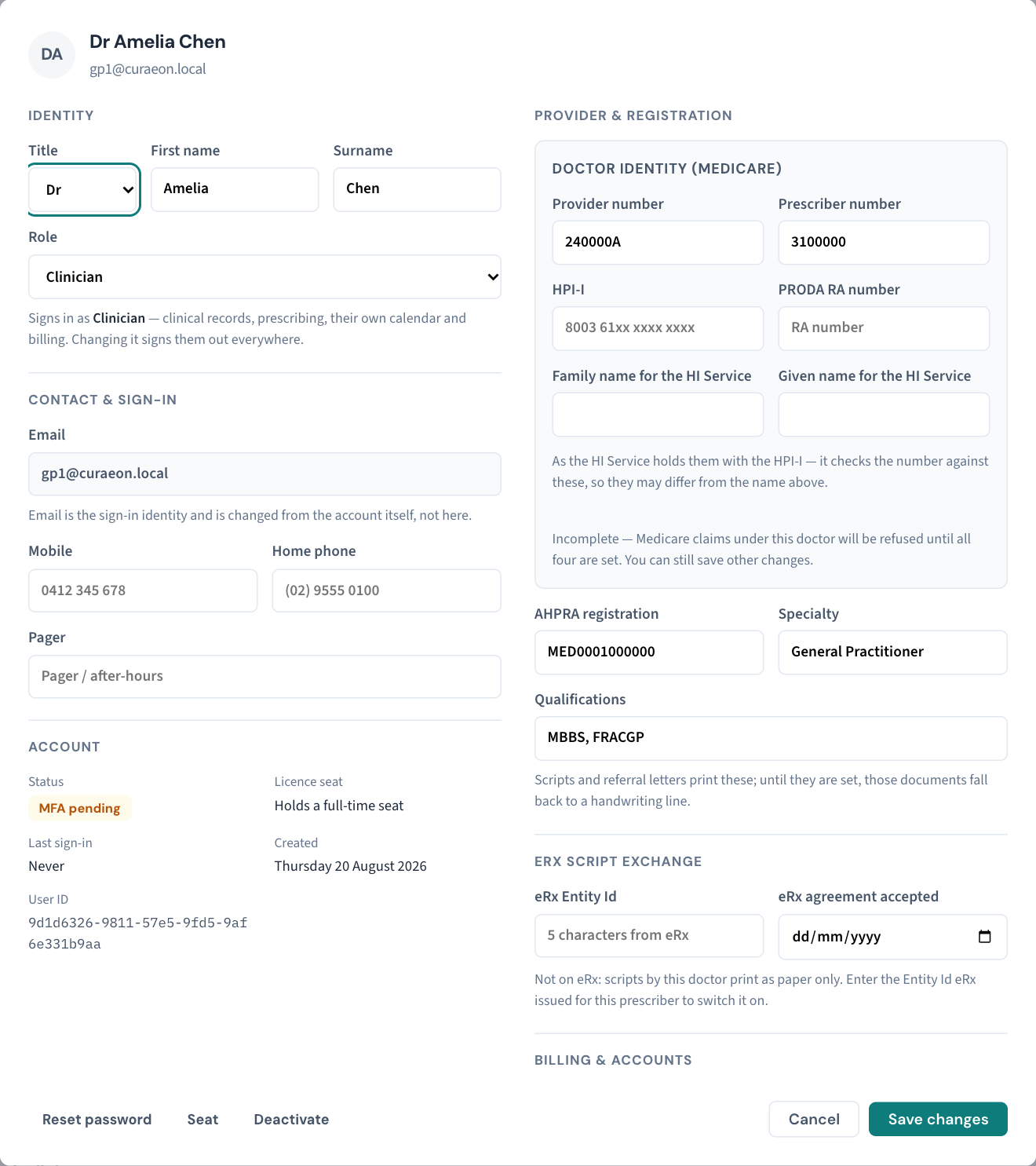
What to know before you change a Role:
- It signs the person out everywhere, at once. Their next sign-in is under the new role. Warn them first if they are mid-consult.
- Becoming a clinician takes a licence seat: a full-time one, or a part-time one when no full-time seat is free. If neither is free the change is refused.
- Leaving the clinician role frees their seat.
- A role change is listed in the weekly Security review.
- The screen lets you change your own role too, but not away from Admin while you are the practice's only active administrator: that is refused, with "this is the practice's only administrator. Make someone else an administrator first". Make a colleague an administrator first (KB-032 — Reset a colleague's password or 2FA, or recover when the only administrator is locked out).
A doctor's or nurse's provider details are read when the window opens, and Save changes stays off until they are. It reads "Loading their provider details…" while it waits. If they cannot be read, it says "Their provider details could not be loaded, and saving now would clear them. Try again first." with Try again beside the fields. Saving over a failed read would have blanked the provider number, prescriber number and HPI-I, so the window will not (KB-170 — When part of a screen says it could not be loaded: Try again, and what Loading… means).
Email is greyed out in this window, and Save changes never changes it. It is the address the person signs in with, and it has its own button, Change email, under the box. See the next section.
The Account panel on an existing account shows the status, the licence seat, whether the AI scribe is switched on or off for the person, the last sign-in, when the account was created and the User ID. The User ID is the account's identifier in the Audit log; quote it if Support asks which account you mean.
Change the email address someone signs in with
Use this when a person's work address changes, for example after a change of name. The account stays the same account, so the person's history stays in one place. Do not create a second account for a new address.
- Find the person and choose Edit, or select their name.
- Under Contact & sign-in, read the line under the greyed-out Email box: "This is the address they sign in with. Changing it signs them out everywhere, and they sign in with the new address from then on."
- Choose Change email. The account window closes and a window headed "Change sign-in email for name" opens. It says which address they sign in with now and what the change will do.
- Type the address in New email address and choose Continue. Continue stays off until what you have typed reads as an email address; the note beside it says "Enter the new email address.", "That is not a whole email address yet." or "That is the address they sign in with now."
- The window, now headed "Change the sign-in email for name?", reads the change back: the old address becomes the new one, followed by what will happen. Check the new address letter by letter. It is the only address the person can sign in with afterwards.
- Choose Change email. To leave the address as it is, choose Keep current email.
You see "Name now signs in with new address. They are signed out everywhere."
What to know before you change it:
- It signs the person out everywhere, at once. Warn them first if they are mid-consult. They sign in with the new address from then on.
- Their password, authenticator app and passkeys stay as they are. The entry in their authenticator app keeps the old address as its label, and still works.
- Capital letters do not matter. An address is read the way sign-in reads it, so an address another account at your practice already signs in with is refused in whatever capitals it is typed. Nobody is signed out by a refusal, and the window goes back to the box with what you typed still in it.
- Change email is not offered while the account window holds changes you have not saved. The button is greyed out, and the line under it says "You have changes in this window that are not saved. Save them or cancel them first: changing the email closes this window, and they would be lost." Choose Save changes or Cancel, then open the person again.
- Your own address is changed the same way, and it signs you out. The line under the box reads "This is the address you sign in with. Changing it signs you out, and you sign in with the new address from then on." As soon as you choose Change email you are taken to the sign-in screen, so check the new address before you confirm.
- A deactivated account's address can be changed too. Choose the Deactivated filter and select the person's name. The line under the box reads "This is the address they sign in with. It can be changed while the account is deactivated." Afterwards you see "Name signs in with new address once the account is reactivated."
- Only an administrator changes an address. A person cannot change their own from Preferences.
If Curaeon cannot read which account is yours, a red message at the top of the screen says "Which of these accounts is yours could not be read, so none is marked “You” and a sign-in email cannot be changed from here until it is", with Try again beside it. Until that read succeeds Change email is switched off, because the window could not say truthfully who will be signed out. Choose Try again (KB-170 — When part of a screen says it could not be loaded: Try again, and what Loading… means).
Licence seats
Seats are for doctors: every clinician, and an administrator who has a provider or prescriber number recorded, such as a principal GP who runs the practice. Nurses, reception staff and administrators without either number sign in without a seat, and their rows show nothing about seats. Recording a provider or prescriber number on an administrator's account takes a seat as it is saved. When you change such an administrator's role, the window says "They keep their licence seat: an administrator with a provider or prescriber number is a doctor." What a seat costs and how to get more are in KB-114 — Your Curaeon licence: seats, renewal, and requesting more from Settings → Practice; this is how you assign them.
On a licence with full-time seats only
- A new clinician takes a seat unless you untick Holds a seat, so can sign in in the New user window. When every seat is held, the box is already unticked and the window says the account will be created without one.
- Assign seat on a clinician's row gives them a seat in one press.
- Release seat asks you to confirm. The person is signed out everywhere and cannot sign in until a seat is assigned again. They stay on the staff list, the roster and the appointment book, and nothing about their account is reset.
On a licence with part-time seats
- The New user window offers Full-time seat, Part-time seat or No seat — cannot sign in yet, with the number free beside each.
- Each clinician's row has one Seat button. It opens a window with Full-time seat, Part-time seat and No seat, shows how many of each are free, and saves with Save seat. Moving a doctor between full-time and part-time does not sign them out.
- You can change the kind of seat you hold yourself, but you cannot choose No seat for your own account.
Full-time and part-time seats are counted separately. Curaeon does not measure hours; the difference is the price your practice pays.
Switch the AI scribe off or on for one person
Everyone starts with the AI scribe switched on. You can switch it off for one person while everyone else keeps it. This is how a training practice follows its college's guidance for a first-term registrar.
- Find the person and choose Edit, or select their name.
- In the Account panel, read the AI scribe line: Switched on, or Switched off followed by "They start no new recording, dictation or draft".
- Choose Switch scribe off among the account actions beside Save changes. The button reads Switching… until the server has answered.
- Read the line across the bottom of the window, just above its buttons: "The AI scribe is switched off for name. Anything already started can still be finished."
To give it back, choose Switch scribe on in the same place. The line reads "The AI scribe is switched on for name. They see it the next time they open a consult."
The switch acts where it is. The account window stays open, anything you have typed in it is kept, and the AI scribe line changes. In the list, the person's Status shows Scribe off for as long as it is off.
What it does, and what it leaves alone:
- The person starts no new recording, dictation or draft. In a consult they see no consent card, no Start recording and no Dictate. One line takes their place: "The AI scribe is switched off for you. An administrator can change this in Settings › Users." The note is written by hand, as it always can be. The server refuses the same things, so this does not depend on the screen (KB-054 — Scribe option missing, "appliance is busy", or the draft never arrives).
- Anything already started is finished as usual. A recording that is running carries on to its end and is written up as a draft, and a draft that exists can still be accepted, edited or rejected.
- Nobody is signed out, no licence seat changes, and nothing else about what the person may do changes. The patient's consent is a separate thing and is asked as before (KB-015 — AI scribe consent workflow explained).
- The person sees the change the next time they open a consult. They do not need to sign out and in.
- You can switch it for any active account, including your own. It is not a permission and is not on Settings → Permissions (KB-121 — Change what each role may do in Settings → Permissions).
- If your installation does not have the AI scribe, the AI scribe line says "Not in use on this installation" and no switch is offered. Where the scribe is switched off for the whole installation it is off for everyone, whatever a person's own switch says.
If the switch could not be made, the line at the bottom of the window is red and says what failed and for whom: "The AI scribe was not switched off for name:" followed by the reason. If the server failed or the connection dropped, it says "No confirmation came back that the AI scribe was switched off for name, and it may have been. The Users list has been read again and shows the switch as it now is." Read the AI scribe line again before you press the button a second time. If it says instead "The Users list could not be read again to check: read it again before switching it a second time.", choose Cancel, then Try again in the message where the list should be, and open the person again to see how the switch stands. Either sentence ends with "What came back:" and the server's own words.
Deactivate a leaver, and reactivate someone who returns
Deactivate
- Choose Deactivate on the person's row.
- Confirm. They are signed out everywhere immediately and can no longer sign in.
Their history and audit trail stay, and so does the account: it moves to the Deactivated filter with the status Disabled. A clinician's seat is freed at once. Nothing is ever deleted here, because the Audit log needs to keep naming the person who did each thing. Never hand a leaver's account to the next starter; create a new one. The full last-day list is in KB-084 — New staff onboarding and offboarding checklist.
Reactivate
- Choose the Deactivated filter and find the person.
- Choose Reactivate.
A nurse, receptionist or administrator simply comes back. A clinician comes back onto a seat. If every seat is held, Curaeon asks whether to Reactivate without a seat instead; on a licence with part-time seats it asks which seat they come back on.
Reset a password or two-factor sign-in
Both are on the person's row and in their account window. KB-032 — Reset a colleague's password or 2FA, or recover when the only administrator is locked out has the full procedure, including what to check first and what to do when the only administrator is locked out. In short:
- Reset password: you type a new temporary password of at least 12 characters. Any lockout clears immediately, every session ends, and the person must choose their own password at sign-in. Their authenticator app keeps working.
- Reset MFA: for a lost phone, authenticator or passkey. The confirmation reads "For a lost authenticator or passkey. They are signed out everywhere and any passkeys they added stop working; at next sign-in they set up a fresh authenticator with new recovery codes. Their password is unchanged." Choose Reset MFA to go ahead, or Keep current setup. The button appears only when the status is MFA active. Afterwards the person adds their passkeys again (KB-171 — Sign in with a passkey: add one, use it, remove it, and when your practice requires one).
See what someone did
Activity on a row opens the Audit log filtered to that person: what they opened, sent and changed, and their sign-ins. It is on deactivated accounts too, because questions about who opened what are often about someone who has left. To search the log further see KB-101 — Find who did what in the Audit log: kinds, Sign-ins, Exactly, Who and a bookmarkable view; to print a staff member's activity report see KB-099 — Print a staff member's activity report for an investigation or a handover.
What is recorded
Every action on this screen goes to the Audit log under your name: Staff account created, updated, deactivated and reactivated; Licence seat assigned and released; Staff password reset; Staff two-step sign-in reset; Staff sign-in email changed; and AI scribe switched on or off for a person. An update records what changed, including the role before and after. A changed sign-in email records the address before and after. A scribe switch says which way: "Switched off: this person starts no new recording, dictation or draft." or "Switched on."
The weekly Security review lists accounts created, deactivated, reactivated and reset, any change of role, and a new sign-in address, under Changes to who may do what (KB-064 — Sign off the weekly Security review, and act on alerts and audit-log check warnings).
If that didn't work
| The message says | What to do |
|---|---|
| "A user with that email already exists." | The address is already an account, possibly a deactivated one, in whatever capitals it was typed. When adding a person, look under Deactivated and reactivate that account rather than creating a second. When changing an email, the address belongs to another account at your practice: check what you typed. Nobody was signed out. |
| "That email address doesn't look right." | Check the address for a typing slip. |
| "That is already the email address this account signs in with." | The address you typed is the one the account has. Nothing was changed. |
| "No confirmation came back that the sign-in email for … was changed, and it may have been. The Users list has been read again: check the address it shows before changing it again." | The server failed or the connection dropped after you chose Change email. Curaeon does not say the address was left alone, because it may not have been. The window closes and the list is read again. Check the address shown under the person's name before you change it again. If the message says the list could not be read again, choose Try again beside the list first. |
| Change email is greyed out | The account window holds changes you have not saved, or Curaeon could not read which account is yours. The line under the button, or the red message at the top of the screen, says which. |
| A red line at the bottom of the account window after Switch scribe off or Switch scribe on | The switch was refused or was not confirmed, and the line says which. Read the AI scribe line in the Account panel, then press the button again if it still shows the old state. |
| "temporary password must be at least 12 characters" | Use a longer temporary password. |
| "A doctor needs a provider number, prescriber number, HPI-I and PRODA RA number." | Enter all four before creating a clinician. If the doctor does not have them yet, wait until they do. |
| A number is refused as already recorded against another practitioner | The message names who holds it. Correct whichever account is wrong. |
| "Account saved, but the practitioner details were rejected: …" | The name, role and phone numbers were saved; the registration details were not. Read the reason, fix that field, and save again. |
| "all 12 licensed seats are in use" (your number will differ) | Release a seat from someone who does not need it, create the clinician without a seat, or request more (KB-114 — Your Curaeon licence: seats, renewal, and requesting more from Settings → Practice). |
| "you cannot deactivate your own account" or "you cannot release your own seat" | Ask another administrator to do it. |
| "this is the practice's only administrator. Make someone else an administrator first" | You tried to demote or deactivate the last active administrator. Give a colleague the Admin role, then try again. |
| The header shows a dash instead of the counts, and a red message where the list should be | The staff list could not be read. It does not mean there are no accounts. Choose Try again beside the message (KB-170 — When part of a screen says it could not be loaded: Try again, and what Loading… means). |
| "a name must be 100 characters or fewer" | Shorten the name. |
| The person still cannot sign in | Check their row: No seat, Disabled and Temp password each explain a refused sign-in. The Audit log's Sign-ins tab gives the exact reason (KB-101 — Find who did what in the Audit log: kinds, Sign-ins, Exactly, Who and a bookmarkable view). |
Still stuck? Raise a ticket at support.curaeon.com.au or call 1300 XXX XXX. If your clinic can't see patients right now, call and choose option 1. Support is staffed Monday to Friday, 8:00–18:00 Sydney time; outside those hours a call or text to the same number is answered on a best-effort basis.
Related articles
- KB-115 — Find your way around Settings: every section, who can open it, and where to read more — Find your way around Settings: every section, who can open it, and where to read more
- KB-034 — Choose the right role and permissions for a new staff member — Choose the right role and permissions for a new staff member
- KB-121 — Change what each role may do in Settings → Permissions — Change what each role may do in Settings → Permissions
- KB-032 — Reset a colleague's password or 2FA, or recover when the only administrator is locked out — Reset a colleague's password or 2FA, or recover when the only administrator is locked out
- KB-084 — New staff onboarding and offboarding checklist — New staff onboarding and offboarding checklist
- KB-114 — Your Curaeon licence: seats, renewal, and requesting more from Settings → Practice — Your Curaeon licence: seats, renewal, and requesting more from Settings → Practice
- KB-031 — Set up two-factor sign-in for Curaeon, and fix a code that is rejected, already used or timed out — Set up two-factor sign-in for Curaeon, and fix a code that is rejected, already used or timed out
- KB-099 — Print a staff member's activity report for an investigation or a handover — Print a staff member's activity report for an investigation or a handover
- KB-054 — Scribe option missing, "appliance is busy", or the draft never arrives — Scribe option missing, "appliance is busy", or the draft never arrives