NASH certificate renewal — step-by-step
Renew your clinic's NASH PKI certificate before it expires, so the services that sign in with it are not interrupted.
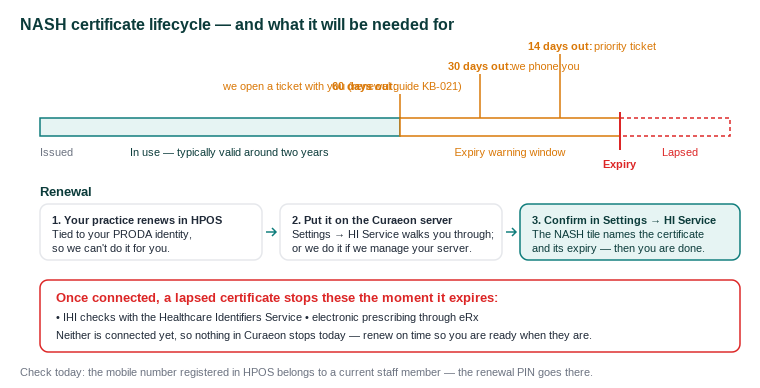
When to do this: start about 60 days before the expiry date. Settings → HI Service shows the days left on its NASH certificate tile, and the tile turns red with 30 days left (KB-129 — Read Settings → HI Service: the connection, the NASH certificate, and what the HI Service returned and disclosed). On the same day Curaeon also raises a security alert, A certificate is about to expire, which every administrator sees on Security alerts in the menu bar (KB-064 — Sign off the weekly Security review, and act on alerts and audit-log check warnings). That is later than the 60 days a renewal is best started at, and support does not yet open a ticket for you as the date approaches, so put it in the practice's own calendar as well. If you would like help, raise a ticket and say it is for a NASH certificate renewal.
Before you start
- You'll need access to HPOS (Health Professional Online Services) via your PRODA account — typically the practice manager or practice principal holds this.
- Allow 20–30 minutes. Renewal is free.
- Why it matters: the Healthcare Identifiers Service and eRx Script Exchange sign in with this certificate, and a lapsed one stops them the moment it expires, with no grace period. Neither is connected at Curaeon practices yet, so today nothing in Curaeon stops if the certificate lapses; consulting and printed prescriptions do not depend on it. Renew on time anyway, so it is valid on the day those connections are switched on. (Background: KB-020 — NASH certificates — why they matter and how renewal works; the screen that shows the certificate: KB-129 — Read Settings → HI Service: the connection, the NASH certificate, and what the HI Service returned and disclosed.)
- NASH has a new chain of certificate authorities. Since 13 August 2026 Services Australia issues NASH certificates under a new chain, and one of the old chain's issuing authorities — a Medicare Australia Organisation Certification Authority — expired on 19 October 2026. A certificate it issued no longer chains to a valid authority and has to be renewed, whatever its own expiry date says. Settings → HI Service does not show which authority issued yours. Before eRx is switched on at your practice, Curaeon checks the certificate and refuses one issued by the expired authority, saying "renew the practice's NASH certificate". A certificate you request now is issued under the new chain, and Curaeon accepts it.
Steps
- Sign in to PRODA and open HPOS.
- Go to My programs → Healthcare Identifiers and PKI, then your organisation's record. (HPOS menus change from time to time; if yours reads differently, look for the Healthcare Identifiers tile.)
- Select Certificates, then Request a NASH PKI site certificate (this both renews and issues).
- Confirm your organisation details and the mobile number for the download PIN — the PIN goes to this number, so make sure it's someone on site today.
- Submit. The new certificate is usually ready within minutes; you'll get an SMS when it's available to download.
- Download the certificate file from HPOS on the computer you'll do the next step from, and note the PIN from the SMS.
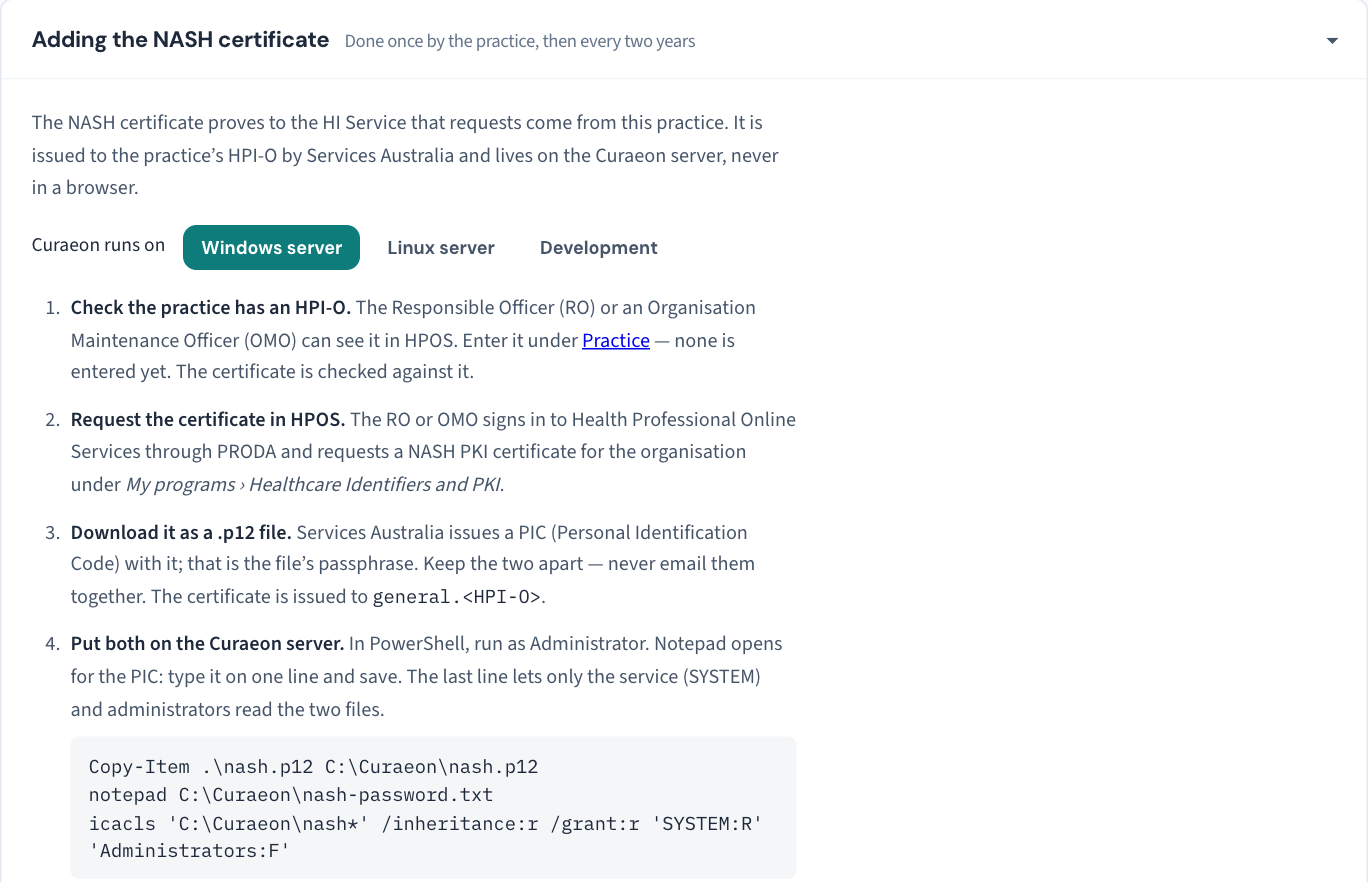
- Install onto the Curaeon server: the certificate lives on the practice server, never in a browser. Settings → HI Service → Adding the NASH certificate walks whoever looks after your server through it — copy the
.p12file and the PIC into place and restrict who can read them. If Curaeon manages your server, raise a ticket saying it is for a NASH certificate renewal, and we do this step; never email the certificate and its PIC together. - Back in Settings → HI Service, the NASH tile should now name the certificate and its expiry. Confirm that before you consider this done.
- If a security alert was open for the certificate, leave it. The server clears it by itself once the API has been restarted with the new file, and it is then listed under All on Settings → Security review, marked Cleared, with "Nobody needed to acknowledge it." (KB-064 — Sign off the weekly Security review, and act on alerts and audit-log check warnings). Copying the new file into place is not enough: the API reads the certificate when it starts, so until the restart the alert stays and the tile goes on counting down the old one.
Once eRx is switched on at your practice, eRx has an alert of its own for its certificate. eRx usually signs in with the same NASH certificate, so this one renewal usually clears both.
If that didn't work
The two common snags: the PRODA account lacks the HPOS delegation for certificates (fix: your practice principal grants it in PRODA), and the SMS PIN going to a former staff member's number (fix: update the mobile in HPOS before requesting).
Still stuck? Raise a ticket at support.curaeon.com.au or call 1300 XXX XXX, option 2. An expired certificate does not stop consulting or printed prescriptions, so it is not a clinic-down emergency; renew it and tell us on the ticket.
Related articles
- KB-020 — NASH certificates — why they matter and how renewal works — NASH certificates — why they matter and how renewal works
- KB-018 — eRx not reaching the pharmacy — checklist — eRx not reaching the pharmacy — checklist
- KB-129 — Read Settings → HI Service: the connection, the NASH certificate, and what the HI Service returned and disclosed — Read Settings → HI Service: the connection, the NASH certificate, and what the HI Service returned and disclosed