Read Settings → HI Service: the connection, the NASH certificate, and what the HI Service returned and disclosed
Know what every part of the HI Service screen is telling you, get the practice's NASH certificate onto the server so its expiry is watched, and know which parts wait for the connection to be switched on at your practice.
First, where things stand today
The connection is built and tested, and no practice is switched on yet. Curaeon can search the Healthcare Identifiers (HI) Service for a patient's IHI by number or by Medicare card, for a practitioner's HPI-I, and for an organisation in the Provider Directory, signed with the practice's NASH certificate. That has been tested against Services Australia's vendor environment, not against the live service. Before a practice can use it, Services Australia must issue its Notice of Connection and the Australian Digital Health Agency must finish its conformance assessment. Both are in progress, and there is no date to give you.
So at every practice the screen shows a grey Not connected badge and this sentence:
This installation is not connected to the Healthcare Identifiers Service: the server needs the practice's NASH certificate and the HI Service's address (CURAEON_HI_ENDPOINT). Production access follows Services Australia's Notice of Connection and ADHA's conformance assessment, both in progress. IHIs entered by hand are stored as not checked until then.
Until your practice is switched on:
- a patient's IHI is typed by hand under their demographics and stored as not checked (KB-058 — What Curaeon connects to Services Australia today (AIR, IHI, PBS authorities, Medicare, MyMedicare), and the manual workaround for each);
- the Refresh IHIs button is not offered;
- the two tables at the foot of the screen read None recorded.
What you can do today is put the practice's NASH certificate on the server, so the screen shows who it names and counts down to its expiry. The HI Service's address is the other half, and Curaeon gives it to you when your practice is switched on. The rest of this article marks what applies today and what applies once connected.
Before you start
- Who can open it. Practice administrators only (the practice.admin permission, KB-034 — Choose the right role and permissions for a new staff member).
- Where it is. Open More in the menu bar, then Settings, and choose HI Service in the Operations & governance group.
- Background. What a NASH certificate is and why it matters: KB-020 — NASH certificates — why they matter and how renewal works. Renewing one in HPOS: KB-021 — NASH certificate renewal — step-by-step.
What the screen shows
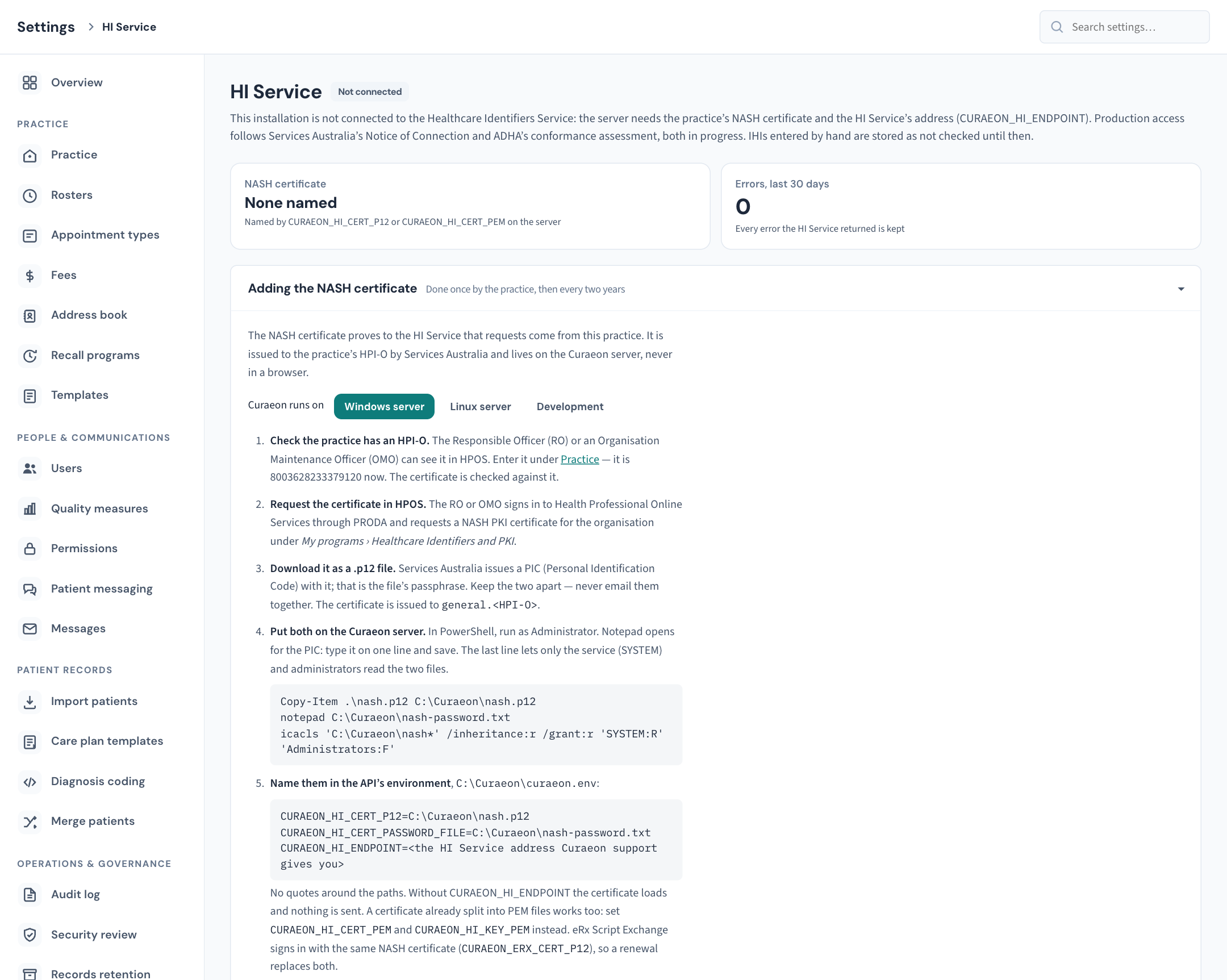
The badge beside the heading
| Badge | Meaning |
|---|---|
| Not connected (grey) | The server has no working NASH certificate, no HI Service address, or neither. Nothing is sent. This is the state at every practice today. |
| Connected (green) | IHIs are validated with the HI Service under the practice's NASH certificate, and nothing needs attention. |
| Needs attention (amber) | Connected, but the certificate tile is red, or the HI Service has returned at least one error in the last 30 days. |
No badge at all means the screen could not read the HI Service's status. A red message at the top says why, with Try again beside it. Until the status is read, the heading is the screen's name alone with no sentence under it, both tiles show a dash, the steps for the certificate are not shown, Refresh IHIs shows neither its button nor Available once the HI Service is connected., and the three tables show their column headings with no rows under them, which does not mean None recorded. None of that is the same as Not connected: choose Try again (KB-170 — When part of a screen says it could not be loaded: Try again, and what Loading… means).
The NASH certificate tile
This tile works today, connected or not.
| The tile says | Meaning | What to do |
|---|---|---|
| None named | The server has not been told where a certificate is. Under it: Named by CURAEON_HI_CERT_P12 or CURAEON_HI_CERT_PEM on the server. | Follow Put the NASH certificate on the server, below. |
| Did not load (red) | A certificate is named but could not be read. The reason is printed under it: usually a wrong PIC, or a file the server is not allowed to read. It may instead say the file is in an older encoding (BER) that Curaeon cannot read, and how to re-export it. | Fix what the reason names, then restart the API as in step 6 of the on-screen steps. |
| A number of days | The certificate loaded. This is how long until it expires. Under it is the certificate's common name (general.<HPI-O>…) and, after a comma, the organisation it names. Hold the pointer over the line to see the whole subject. Red with 30 days or fewer left. |
Once it is red, renew it (KB-021 — NASH certificate renewal — step-by-step). A security alert is raised on the day it turns red: see Renew or replace the certificate, below. |
| Expires today (red) | The certificate's last day. The tile says this until the certificate's end has passed. | Renew it now (KB-021 — NASH certificate renewal — step-by-step). |
| Expired (red) | The certificate's end has passed. | Renew it now (KB-021 — NASH certificate renewal — step-by-step). |
| Loaded | The certificate loaded but carries no expiry date Curaeon could read. | Raise a ticket; this is unusual. |
The tile also turns red, with Issued to … not the practice's HPI-O … underneath, when the certificate that loaded belongs to a different organisation from the HPI-O entered in Settings → Practice. A NASH certificate is issued to general.<HPI-O>, and another organisation's certificate loads without complaint, so Curaeon checks. Either the wrong file was installed, or the HPI-O in Settings → Practice is wrong (KB-116 — Set up your practice's details, opening hours and closures in Settings → Practice).
A bad or missing certificate never stops Curaeon from running. Loading is not connecting: with the certificate loaded and no HI Service address, the badge stays Not connected and nothing is sent.
The Errors, last 30 days tile
A count of errors the HI Service returned in the last 30 days, amber when above zero. Under it: Every error the HI Service returned is kept. Until your practice is switched on it reads 0, because nothing is being asked.
Adding the NASH certificate
A fold-out card with six numbered steps. It is open while no working certificate is loaded, headed Adding the NASH certificate. Once one loads it folds away and is headed Renewing or replacing the NASH certificate, because you will want it again: NASH certificates last two years.
Refresh IHIs
The heading shows how many IHIs were due when this page opened, and how many of those are new records waiting for a first search. An IHI is due when the patient has one on file that has not been checked in the last day, or when the patient was registered or imported without one being searched for. Former (inactive) and merged-away records are not counted; deceased patients are, because their status is exactly what may have changed.
Until your practice is switched on, the card ends with Available once the HI Service is connected.
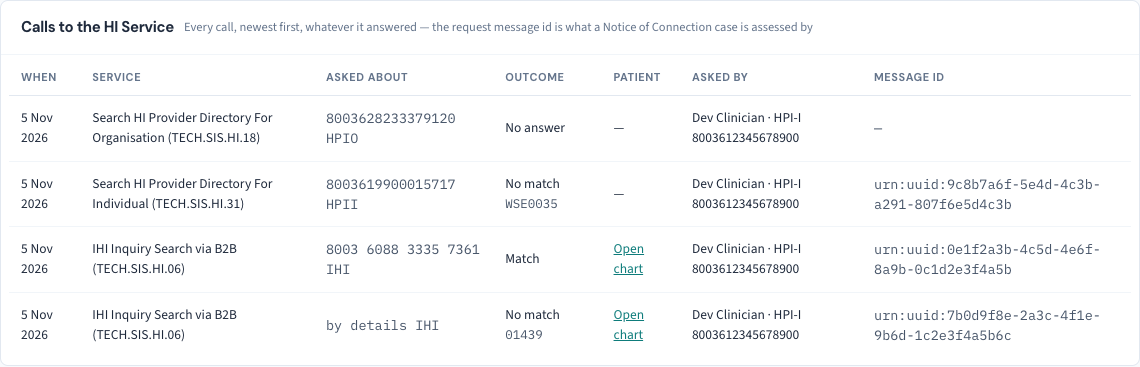
Calls to the HI Service
Every call the practice's server made to the HI Service, most recent first, whatever it answered. The two tables below it keep what was disclosed and what came back as an error; this one keeps the calls themselves, so a search that found nobody is on record too, with the reference Services Australia uses when it assesses a Notice of Connection case.
| Column | What it shows |
|---|---|
| When | Date of the call. |
| Service | Which HI web service was called, and its version. |
| Asked about | What the request was sent with. For a patient, every identifier the call carried: the IHI, the Medicare number and IRN, the DVA file number, or more than one of them. For a provider, the HPI-I or the HPI-O. An older call that went by Medicare or DVA number, logged before Curaeon kept that number on the call, reads Medicare or DVA number (not kept on older calls). |
| Outcome | Match, No match (with the HI Service's own code beside it, such as 01439 or WSE0035), Error (with its number), or No answer when the service could not be reached. |
| Patient | Open chart, when the call concerned a patient. |
| Asked by | The staff member whose action made the call, and their HPI-I where they have one. |
| Message id | The request's message id (urn:uuid:…). Quote it on a ticket, and give it to Services Australia when they ask which call a test case was. |
Message id is the last column. In a narrow window the table is wider than its card: scroll it sideways inside the card to reach the message id. The table takes the keyboard's focus, so the arrow keys scroll it too. The two tables under it, Errors from the HI Service and Identifiers disclosed by the HI Service, scroll the same way.
Find calls by identifier
The table lists the newest 100 calls. The box above it, Find calls by identifier, searches every call in the log, however old, for one identifier. Use it to answer "what was done with this IHI?", or to find a call from months ago that Services Australia asks about.
- Type the identifier in the box. Its hint reads IHI, HPI-I, HPI-O, Medicare or DVA number. Spaces and punctuation are ignored, so type it as it is written down: an IHI in groups of four, a DVA file number with its hyphen or without.
- Choose Find calls. While the answer is on its way the card reads "Searching the call log for …".
- Read the calls it found, newest first, fifty at a time. The line above them says how many were found, or which are showing, such as "Calls 1–50 of …". Older calls and Newer calls step through them.
- Choose Show the newest calls to put the search away and return to the list.
What it finds:
- Each call that asked about the identifier, and each call that was answered with it. The results carry one more column, Answered with: the identifier the HI Service gave in answer. A patient's IHI is first learnt by a search sent with their Medicare or DVA number, so a search for the IHI finds that call too.
- The whole identifier must match. Part of a number finds nothing.
- A Medicare number finds everyone on the card. Add the IRN as an eleventh digit for one person.
What it does not find:
- Calls by who made them. That is the Asked by column. Searching for the practice's own HPI-O, or a practitioner's HPI-I, finds only the calls made to check that identifier.
- An older call by its Medicare or DVA number, where the call was logged before Curaeon kept that number on it. Search for the IHI instead.
Disclosed before the call log was kept. Curaeon has recorded every identifier the HI Service disclosed for longer than it has kept a log of calls. A disclosure from before the log has no call to find, so the search lists it under the calls, under this heading, with the same columns as Identifiers disclosed by the HI Service. Older disclosures and Newer disclosures step through a long list.
| The card says | Meaning |
|---|---|
| "No call to the HI Service asked about …, or was answered with it. No disclosure of it is recorded from before the call log was kept." | The whole call log and every disclosure were searched, and hold none. Until your practice is switched on this is the answer to every search, because nothing has been asked. |
| "No call in the log asked about …, or was answered with it. The HI Service disclosed it before the call log was kept, as listed here." | There is no call, and there are disclosures from before the log. They are listed underneath. |
| "Enter the identifier to search for." | The box was empty. |
| "That holds no letters or digits. Enter the identifier to search for." | Only spaces or punctuation were typed. |
| "That is longer than any identifier the log holds. An IHI, HPI-I or HPI-O is 16 digits." | More than 20 letters and digits were typed. Check the number. |
| A red message with Try again | The search itself failed. That is not the same as finding none: choose Try again (KB-170 — When part of a screen says it could not be loaded: Try again, and what Loading… means). |
The results name no patient. Like the rest of the screen, a row links to the chart with Open chart.
Errors from the HI Service
Every error the HI Service returns, most recent first, including those Curaeon dealt with by itself (marked (handled) after the code). The log is kept so that someone at the practice can review each error and act on it.
| Column | What it shows |
|---|---|
| When | Date of the error. |
| Error | The HI Service's error code. |
| Message | Its wording. |
| Patient | Open chart, when the error concerned a patient. |
| Asked by | The staff member whose action asked the HI Service. |
| Message id | The HI Service's reference for the exchange. Quote it on a ticket. |
Identifiers disclosed by the HI Service
Every identifier the HI Service has given the practice, most recent first. Every disclosure is kept.
| Column | What it shows |
|---|---|
| When | Date of the disclosure. |
| Identifier | The number, and beside it the kind of identifier: a patient's IHI, a practitioner's HPI-I or an organisation's HPI-O. |
| Patient | Open chart, when it was a patient's identifier. |
| Asked by | The staff member, and their HPI-I where they have one. |
| For HPI-O | The organisation the request was made for. |
| Service | Which HI web service answered, and its version. |
| Message id | The HI Service's reference. |
Each of the three tables shows the most recent 100 rows. Older rows are kept. Find calls by identifier, above, reaches the older calls for one identifier, and its disclosures from before the call log was kept. The screen has no way to page back through everything, to reach older errors, or to export any of the three, so raise a ticket if you need those.
Note: Neither table shows a patient's name. Each row links to the chart instead, and opening it is treated like any other chart opening: it asks for your purpose, respects a restricted record (KB-061 — Restrict a patient's record, and open one in an emergency), and is written to the patient's access history (KB-063 — Answer "who has seen my record?": print a patient access report). A list of names here would be a second way to learn who a restricted patient is.
Put the NASH certificate on the server
This is done by whoever looks after the practice server, with the practice's Responsible Officer (RO) or Organisation Maintenance Officer (OMO) for the HPOS part. If Curaeon manages your server, raise a ticket saying it is for a NASH certificate renewal, and we do the server part.
The steps on the screen are complete, with the exact commands. In outline:
- Check the practice has an HPI-O, and that it is entered in Settings → Practice. Step 1 on the screen shows the HPI-O Curaeon currently holds, or says none is entered yet. If the practice's details could not be read, it says what is entered could not be read just now instead; that is not the same as none, so reload before you act on it. The certificate is checked against the HPI-O.
- Request the certificate in HPOS. The RO or OMO does this through PRODA (KB-021 — NASH certificate renewal — step-by-step).
- Download it as a
.p12file. It comes with a PIC (Personal Identification Code), which is the file's passphrase. Keep the two apart and never email them together. - On the screen, under Curaeon runs on, choose Windows server or Linux server to match your server. (Development is for our engineers.) Steps 4 to 6 change to match.
- Put both on the Curaeon server using the commands in step 4 of the screen. They copy the file into place and restrict who can read it.
- Name them in the API's environment file, as step 5 of the screen shows. The lines it gives name the certificate file, the file holding its PIC, and a third line,
CURAEON_HI_ENDPOINT, for the HI Service address Curaeon support gives you. Leave that third line out until Curaeon gives you the address. As the screen says, Without CURAEON_HI_ENDPOINT the certificate loads and nothing is sent. - Restart the API, as step 6 of the screen shows. The certificate is read once, when the API starts. A restart takes a few seconds, and anyone saving at that moment sees one failed save they can retry, so do it between patients. There is deliberately no restart button in the browser.
- Reload Settings → HI Service. The NASH certificate tile should now show the days until the certificate expires, with its common name under them. The badge stays Not connected until the address is set as well.
Important: The certificate and its PIC are a credential. They live on the practice server, never in a browser, and never need to leave the building. Do not attach either to a ticket or an email.
The screen notes that eRx Script Exchange signs in with the same NASH certificate, so a renewal replaces both (KB-128 — Is eRx working? Read Settings → eRx Script Exchange: the outbox, the certificate and who is not yet on it).
Renew or replace the certificate
The tile turns red with 30 days left. Request the renewal in HPOS (KB-021 — NASH certificate renewal — step-by-step), then open Renewing or replacing the NASH certificate on this screen and repeat steps 3 to 8 above with the new file.
You do not have to open this screen to find out. On the same day, with 30 days left, Curaeon raises a security alert, A certificate is about to expire, naming the certificate NASH (HI Service). Every administrator sees it on Security alerts in the menu bar and on Settings → Security review (KB-064 — Sign off the weekly Security review, and act on alerts and audit-log check warnings). As the foot of the steps on this screen says, it "waits in every administrator's menu bar until it is acknowledged or the API is restarted with the new certificate." The server clears the alert by itself after that restart, because the certificate is read once, when the API starts: replacing the file is not enough. A certificate loaded on the server is watched whether or not your practice is switched on yet. One that Did not load raises no alert; the tile says why.
Once connected: what changes
When your practice is switched on, Curaeon asks the HI Service in three places: for a patient's IHI once a new patient is saved with a Medicare number and IRN (KB-142 — Register a new patient) and from the IHI panel on their record, for a practitioner's HPI-I when one is recorded, and for the sender of an incoming message (below). A patient's IHI on file is then validated rather than stored as not checked, and the Refresh IHIs card gains its button.
Once connected: refresh IHIs in batches
This does not apply until your practice is switched on. When the badge reads Connected:
- Click Refresh a batch. Curaeon asks the HI Service for the current status of up to 50 IHIs, skipping any checked in the last day, and searches for an IHI for new and imported patients who do not have one.
- Read the result line: how many were checked, and of those how many were confirmed, not matched, unchanged, or could not be checked, plus any alerts raised.
- If it says more are due, click Refresh the next batch and repeat until it says That was the end of the register.
Changes and alerts land on each patient's chart for a clinician or the front desk to work through; the screen reports counts and names nobody. Only a signed-in person can run a batch, because the HI Service is asked in that person's name.
Once connected: incoming messages whose sender is not listed
This does not apply until your practice is switched on either. Once connected, Curaeon validates the sender of every incoming result or letter with the HI Service before filing it. A sender's organisation (its HPI-O) can be checked only through the HI Service's Provider Directory, which lists only organisations that chose to be listed. So a message from an unlisted sender is held on the Lab feed every time, however genuine it is, and its reason says the listing "is for the sender to arrange, through its own HI Service account; it is not something this practice does." Nothing on this screen changes that. A person checks the message and assigns it by hand (KB-019 — Pathology results not filing — what to check).
What is recorded
Once connected, the Audit log (KB-101 — Find who did what in the Audit log: kinds, Sign-ins, Exactly, Who and a bookmarkable view) carries a row for each identifier received (Healthcare identifier received from the HI Service), for an IHI search made with details changed for the search, and for each identifier alert raised or resolved. The two tables on this screen are the HI Service's own required trail and are kept in addition to the Audit log.
Nothing on this screen can be edited or deleted.
If that didn't work
- The tile still says None named after the restart. The environment file was not saved, was edited on a different server, or the API did not restart. Step 6 on the screen includes a command that shows the certificate line the API logged when it started; run it.
- Did not load. Read the reason under the tile. A wrong PIC and a file the server cannot read are the usual two. On Windows, check there are no quotes around the paths.
- Issued to another HPI-O. Check the HPI-O in Settings → Practice against HPOS before assuming the file is wrong.
- A red message at the top of the screen. The screen could not read the HI Service's status and logs. Choose Try again beside the message; if it persists, raise a ticket. While the status is unread the heading shows no badge, which is not the same as Not connected.
- The certificate loaded, and the badge still says Not connected. That is as expected: the server also needs the HI Service's address, and no practice has been given one yet. See the top of this article and KB-058 — What Curaeon connects to Services Australia today (AIR, IHI, PBS authorities, Medicare, MyMedicare), and the manual workaround for each.
Still stuck? Raise a ticket at support.curaeon.com.au or call 1300 XXX XXX. If your clinic can't see patients right now, call and choose option 1. Support is staffed Monday to Friday, 8:00–18:00 Sydney time; outside those hours a call or text to the same number is answered on a best-effort basis.
Related articles
- KB-115 — Find your way around Settings: every section, who can open it, and where to read more — Find your way around Settings: every section, who can open it, and where to read more
- KB-020 — NASH certificates — why they matter and how renewal works — NASH certificates — why they matter and how renewal works
- KB-021 — NASH certificate renewal — step-by-step — NASH certificate renewal — step-by-step
- KB-036 — A certificate is red in Settings → Certificates: what it means and who to tell — A certificate is red in Settings → Certificates: what it means and who to tell
- KB-058 — What Curaeon connects to Services Australia today (AIR, IHI, PBS authorities, Medicare, MyMedicare), and the manual workaround for each — What Curaeon connects to Services Australia today (AIR, IHI, PBS authorities, Medicare, MyMedicare), and the manual workaround for each
- KB-116 — Set up your practice's details, opening hours and closures in Settings → Practice — Set up your practice's details, opening hours and closures in Settings → Practice
- KB-128 — Is eRx working? Read Settings → eRx Script Exchange: the outbox, the certificate and who is not yet on it — Is eRx working? Read Settings → eRx Script Exchange: the outbox, the certificate and who is not yet on it
- KB-019 — Pathology results not filing — what to check — Pathology results not filing — what to check
- KB-142 — Register a new patient — Register a new patient