Set what your practice charges for private and DVA billing in Settings → Fees
Record your practice's own fee against each MBS item it bills, so a private invoice line starts at your price and not at the MBS schedule fee, see which DVA and WorkCover rates your server holds, and know how to change a fee, remove one, or switch the whole list off for a while.
Before you start
- Open More in the menu bar, then Settings → Fees.
- Administrators only. Since 22 October 2026 the page is for administrators, like every Settings section (KB-115 — Find your way around Settings: every section, who can open it, and where to read more). Setting a fee, clearing one, and switching the list on or off need the practice administration permission. Reception, who used to read the list here to quote a fee, now see "Settings are kept by the practice’s administrators. Ask one of them to change Fees for you." See "If you are reception" below.
- The items you can price come from the MBS schedule loaded on your server (KB-138 — Read Utilities → Storage and Clinical datasets: how big the database is, and which reference data is loaded).
Important: This page holds prices. It does not choose items. Curaeon never suggests which MBS item to bill: a Medicare claim is a statement by the billing practitioner, and the item is theirs to choose (KB-056 — Why the scribe never writes the Assessment or suggests item numbers).
What a practice fee is, and when it is used
When an MBS item is added to an invoice and nobody types a fee, Curaeon has to start from some figure. Which one depends on how the invoice is billed:
| The invoice is | The line starts at the first of these that exists |
|---|---|
| Bulk billed | The Medicare benefit. With bulk billing the benefit is the payment, so nothing on this page applies. |
| Private | Your practice's fee from this page, while the list is In use; otherwise the MBS schedule fee. |
| DVA | A DVA fee the practice set for the item, while the list is In use; then DVA's published rate, where DVA's fee schedule is loaded on your server; then your practice's fee; then the MBS schedule fee. |
| WorkCover | A WorkCover fee the practice set for the item, while the list is In use; then your state's published WorkCover rate (Victoria, South Australia and Queensland); then your practice's fee; then the MBS schedule fee (KB-179 — Bill a WorkCover consultation: the state's rates and its own codes). |
DVA's rate is used whether or not the list is in use: it is DVA's price, not the practice's. For a DVA line it is DVA's GP rate for the item, or else its out-of-hospital procedure, pathology or imaging rate. The in-hospital rate never prices a line. When DVA pays a claim for a different amount, Curaeon brings the invoice to what DVA paid (KB-156 — Follow a Medicare or DVA claim: its status, Check now and the claims list). The same goes for the state's WorkCover rate. The state is the one recorded in Settings → Practice (KB-116 — Set up your practice's details, opening hours and closures in Settings → Practice).
New claim shows each line's price before the invoice is saved, and says which of these it came from (KB-052 — Raise, correct and claim an invoice, including when "Send to Medicare…" is blocked).
The MBS schedule fee is the government's reference figure. It is not a private price, and it is almost always lower than what a practice charges. Before this page existed, the only protection against under-charging was somebody remembering the real price and typing it over every line. This page is that memory, written down.
Three things to know:
- A typed fee still wins. If someone types a fee on an invoice line, that is what the line bills at. The practice fee is the starting figure, not a lock.
- Invoices already raised are not repriced. A new fee applies to lines added from then on.
- Old fees are kept. Changing a fee closes the old one and opens a new one from today. Nothing is overwritten, so an invoice raised last March can still be explained against the fee that applied in March.
A tour of the screen
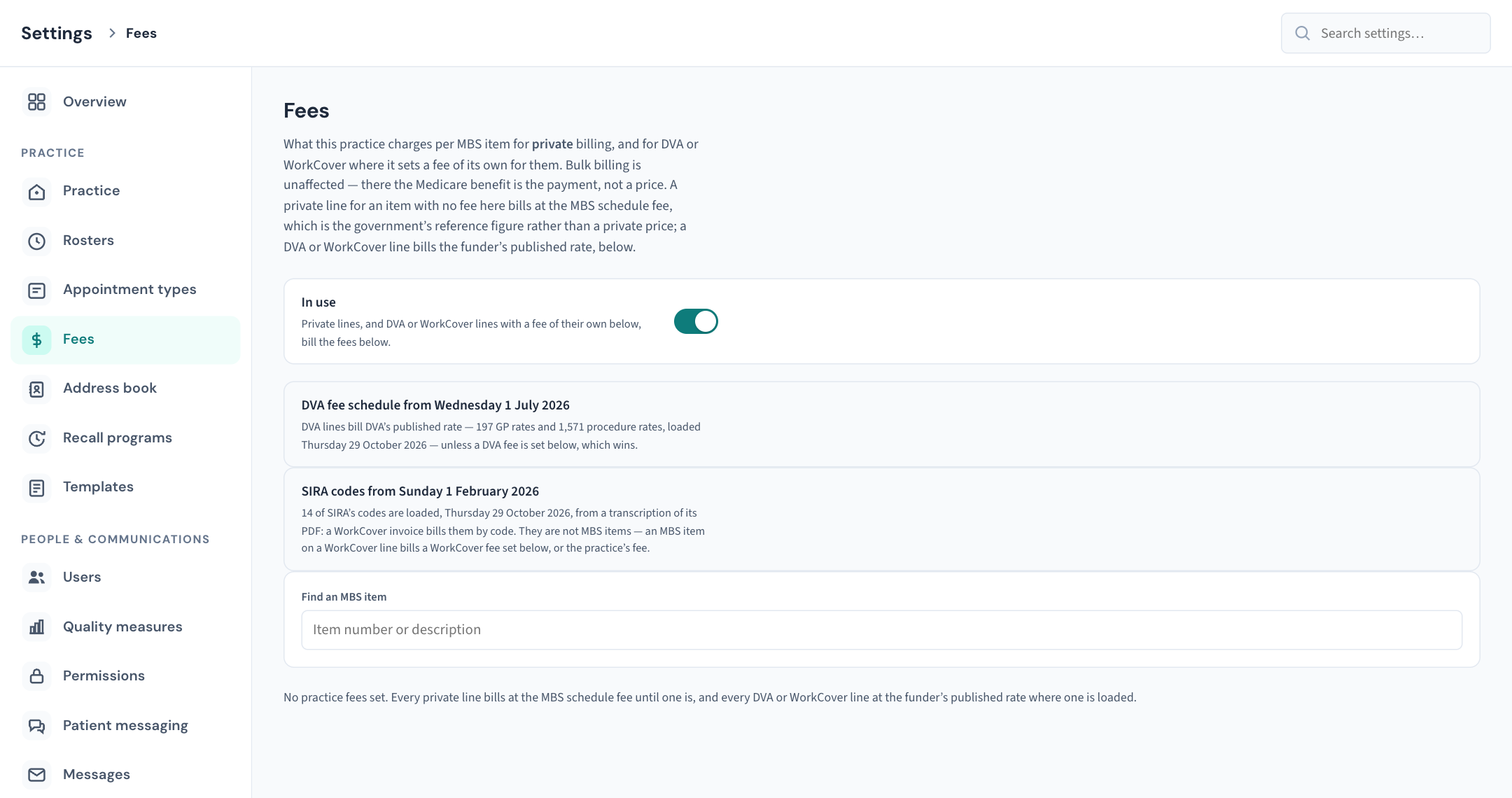
From top to bottom:
- The explanation. A reminder that the list is for private billing, and for DVA or WorkCover where the practice sets a fee of its own for them; that bulk billing is unaffected; and that a DVA or WorkCover line bills the funder's published rate.
- In use / Not in use. Whether the list is being applied at all, with the Use practice fees switch.
- The DVA fee schedule. Which of DVA's schedules DVA lines are priced from: DVA fee schedule from the date it took effect, with how many GP and procedure rates it holds and when it was loaded. It is amber when none is loaded (No DVA fee schedule loaded), or when it took effect before the latest 1 July, when DVA's rates usually change: then it says If DVA has published a newer file, load it. Loading a schedule is done on the server; raise a ticket.
- WorkCover. What your practice's state pays, which depends on the state in Settings → Practice:
- WorkCover: the practice's state is not recorded, in amber. Record the state (KB-116 — Set up your practice's details, opening hours and closures in Settings → Practice).
- WorkCover in your state, for Tasmania, the ACT and the NT, which publish no WorkCover fees for GPs.
- The insurer's schedule from a date, for Victoria, South Australia and Queensland, with how many MBS items and own codes it holds and when it was loaded. No … schedule loaded, in amber, if none is.
- For NSW and WA, the state's codes and how many are loaded, or that the state publishes its rates only as PDFs and no codes are loaded yet.
- Find an MBS item. Where you set a fee.
- The list. One row per priced item, in item-number order:
| Column | What it shows |
|---|---|
| Item | The MBS item number. |
| Description | The item's description. A fee for one funder only is labelled DVA or WorkCover before it. Hover to read the description in full if it is cut short. |
| Schedule fee | The government's figure for the item. |
| DVA's rate | DVA's published rate for the item, or a dash. |
| The insurer's rate, such as WorkSafe Victoria's rate | Shown only where your state's WorkCover schedule is loaded. |
| This practice | What your practice charges, in bold. Beside a DVA fee that differs from DVA's rate it says DVA pays $…, and beside a WorkCover fee that differs from the state's rate, the insurer's name and pays $…. |
| Clear | Removes that row's fee. |
The schedule fee is shown beside your own on purpose. Reading one without the other is how a fee gets set below the schedule by accident.
If no fees have been set, the page says "No practice fees set. Every private line bills at the MBS schedule fee until one is, and every DVA or WorkCover line at the funder's published rate where one is loaded."
If the DVA or WorkCover panel could not be read, the page says so in red, with Try again, rather than saying what those lines bill (KB-170 — When part of a screen says it could not be loaded: Try again, and what Loading… means).
Set a fee for an item
- In Find an MBS item, type at least two characters: the start of the item number, or a word from its description.
- Choose the item from the matches. Each shows its number, description and schedule fee. Up to eight matches are shown; type more to narrow them.
- Under For, choose who the fee is for:
- Private — the practice's own fee (the usual choice). It prices private lines, and DVA or WorkCover lines where no published rate applies.
- DVA claims only — instead of DVA's rate, for a DVA fee of the practice's own.
- WorkCover claims only — instead of the state's rate, for a WorkCover fee of the practice's own.
- In This practice charges, type the amount as a plain number, such as
95or95.00. Do not type a dollar sign or a comma. The box shows the schedule fee in grey as a guide. - Select Set fee.
You will see "Item … now bills at $…", or "Item … now bills at $… on DVA claims." (or WorkCover) for a funder's fee. The item appears in the list, labelled DVA or WorkCover for a funder's fee, and the box clears ready for the next one.
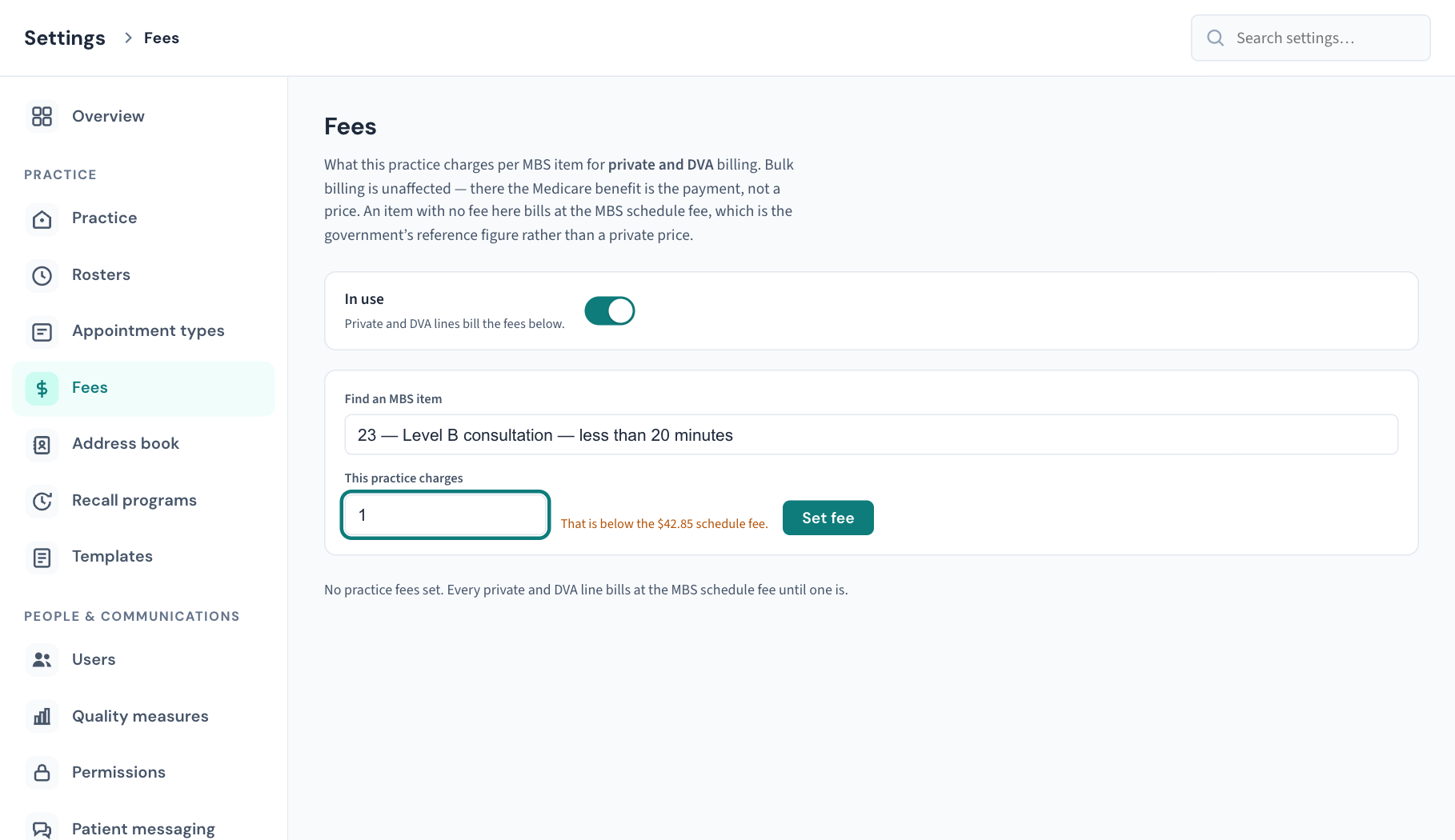
If the amount is lower than the schedule fee, the page says "That is below the $… schedule fee." This is a warning, not a block. Charging below the schedule fee is allowed and occasionally intended, but it is almost always a typing slip, and it is the direction nobody notices. Read the amount again before you select Set fee.
Set fee stays switched off, with "Enter what the practice charges for this item first.", until you have typed an amount.
The search finds only items in the schedule that are current today. That is deliberate: a fee is set against a real item number, not one typed from memory.
Change a fee
There is no edit button on a row. To change a fee, set it again.
- In Find an MBS item, find the same item.
- Under For, choose the same funder as the fee you are changing.
- Type the new amount.
- Select Set fee.
The new fee replaces the old one from today, and the row in the list shows the new amount. The old fee is kept on the record with the date it ended.
Remove a fee
- Find the item in the list.
- Select Clear.
It happens at once, without a confirmation. You will see "Item … falls back to the MBS schedule fee." The row leaves the list, and from then on private lines for that item start at the schedule fee again. DVA and WorkCover lines start at the funder's published rate where one is loaded.
Clear on a row labelled DVA removes only the DVA fee: "Item …'s DVA fee is cleared — DVA lines bill DVA's published rate, or the practice's fee." On a row labelled WorkCover it removes only the WorkCover fee, and says the item now bills at the practice's fee.
Clearing does not erase history. The fee that priced past invoices stays on the record.
Switch the whole list off, and back on
Use this when the practice stops charging its own fees for a period, such as a spell of bulk billing everything, without losing the prices.
- At the top of the page, flip the Use practice fees switch.
| State | What happens |
|---|---|
| In use | "Private lines, and DVA or WorkCover lines with a fee of their own below, bill the fees below." |
| Not in use | "Private lines bill the MBS schedule fee, and DVA and WorkCover lines the funder's published rate where one is loaded. The fees below are kept and will apply again when this is switched back on." |
The list is In use unless somebody has switched it off. Switching it off changes no fee and removes nothing; it only stops the list being applied. That is why it exists: clearing every fee would do the same job, but someone would then have to remember them all to switch back.
If you are reception
Settings → Fees no longer opens for you. The practice's fees still apply as before: when you add an MBS item to a private invoice, the line starts at the practice's fee while the list is In use. On New claim, each line shows the price it will bill and where it came from (KB-052 — Raise, correct and claim an invoice, including when "Send to Medicare…" is blocked).
To quote a fee at the desk, ask an administrator, or keep a copy of the price list an administrator gives you. Curaeon has no other screen that lists the practice's fees. If a price on an invoice looks wrong, tell your practice manager; a price list is the practice's decision.
What is recorded
Every change is in the Audit log with who made it:
| What was done | How it reads in the Audit log |
|---|---|
| A fee set or changed | Practice fee set, naming the MBS item, with the old and new amount |
| A fee cleared | Practice fee removed, naming the MBS item, with the amount it was |
| The list switched on | Practice fee list turned on |
| The list switched off | Practice fee list turned off |
Setting a fee to the amount it already is (typing 95 over 95.00) is not recorded as a change, because the price did not move.
What the screen does not do
- It does not pick an item for a consult. See the note at the top.
- It does not price bulk-billed invoices. Those use the Medicare benefit.
- It does not load DVA's or a state's schedule. Those are loaded on the server. The panels say which are held.
- It does not set a fee to start on a future date. A fee applies from the day you set it.
- It does not show past fees. Only the fees in force now are listed. For what an item was priced at on an earlier date, look for Practice fee set in the Audit log (KB-101 — Find who did what in the Audit log: kinds, Sign-ins, Exactly, Who and a bookmarkable view).
- It does not price things that are not MBS items. A fee here is always against an MBS item number.
If that didn't work
- "Settings are kept by the practice’s administrators. Ask one of them to change Fees for you." You are not an administrator. Ask one (KB-115 — Find your way around Settings: every section, who can open it, and where to read more).
- "No MBS item matches “…”." Nothing current in the schedule starts with that number or contains that word. Type at least two characters, and try the start of the item number or a word from the description. If nothing is ever found, the MBS schedule may not be loaded on your server: see KB-138 — Read Utilities → Storage and Clinical datasets: how big the database is, and which reference data is loaded.
- "The MBS items could not be searched (…). That is not the same as no such item." The search itself failed, with the reason in brackets. The item may well exist. Try again; if it keeps failing, raise a ticket.
- "fee must be an amount like 95.00". Type digits only, with at most two decimal places and no dollar sign, comma or space.
- "No current MBS item with that number." The item is not in the schedule in force today.
- "your role does not permit this action". Only an administrator can change fees.
- A red message where the list should be. Curaeon could not read the fees. Do not treat this as "no fees set". Reload the page, and raise a ticket if it continues.
- A private invoice line came out at the schedule fee. Check, in order: the list says In use; the item is in the list; the invoice is private and not bulk billed.
- A DVA or WorkCover line did not bill the practice's fee. That is expected where DVA's schedule, or your state's WorkCover schedule, is loaded: the funder's published rate comes before the practice's fee. See the table at the top. If a different figure was typed on the line, the typed figure wins. To fix an invoice that has already gone out, see KB-052 — Raise, correct and claim an invoice, including when "Send to Medicare…" is blocked.
- A line came out at the old price after I changed the fee. The line was added before the change. Existing lines are not repriced.
Still stuck? Raise a ticket at support.curaeon.com.au or call 1300 XXX XXX. If your clinic can't see patients right now, call and choose option 1. Support is staffed Monday to Friday, 8:00–18:00 Sydney time; outside those hours a call or text to the same number is answered on a best-effort basis.
Related articles
- KB-115 — Find your way around Settings: every section, who can open it, and where to read more — Find your way around Settings: every section, who can open it, and where to read more
- KB-052 — Raise, correct and claim an invoice, including when "Send to Medicare…" is blocked — Raise, correct and claim an invoice, including when "Send to Medicare…" is blocked
- KB-053 — Month-end and end of day: aged debtors, statement runs and bank reconciliation — Month-end and end of day: aged debtors, statement runs and bank reconciliation
- KB-056 — Why the scribe never writes the Assessment or suggests item numbers — Why the scribe never writes the Assessment or suggests item numbers
- KB-138 — Read Utilities → Storage and Clinical datasets: how big the database is, and which reference data is loaded — Read Utilities → Storage and Clinical datasets: how big the database is, and which reference data is loaded
- KB-101 — Find who did what in the Audit log: kinds, Sign-ins, Exactly, Who and a bookmarkable view — Find who did what in the Audit log: kinds, Sign-ins, Exactly, Who and a bookmarkable view
- KB-179 — Bill a WorkCover consultation: the state's rates and its own codes — Bill a WorkCover consultation: the state's rates and its own codes
- KB-159 — Claim for a DVA patient, and lodge a private patient's Medicare claim for them — Claim for a DVA patient, and lodge a private patient's Medicare claim for them