Set up your practice's details, opening hours and closures in Settings → Practice
Get the practice's name, logo, contact details and Medicare identifiers right so they print correctly on every receipt, invoice and letter, then set the hours and closure dates that decide when appointments can be booked.
Before you start
- Open More in the menu bar, then Settings → Practice.
-
The whole page is for administrators. Since 22 October 2026 every Settings section, and every change made in one, needs the practice administration permission (KB-115 — Find your way around Settings: every section, who can open it, and where to read more). Reception used to correct the practice's phone, address and script paper here; they now ask an administrator. Anyone else who opens the page is told "Settings are kept by the practice’s administrators. Ask one of them to change Practice for you."
-
Have to hand: your ABN, your Medicare Location Certificate (for the Minor ID), your HPI-O and your PRODA Organisation ID.
- Every change on this page is recorded in the Audit log with what it was before and after.
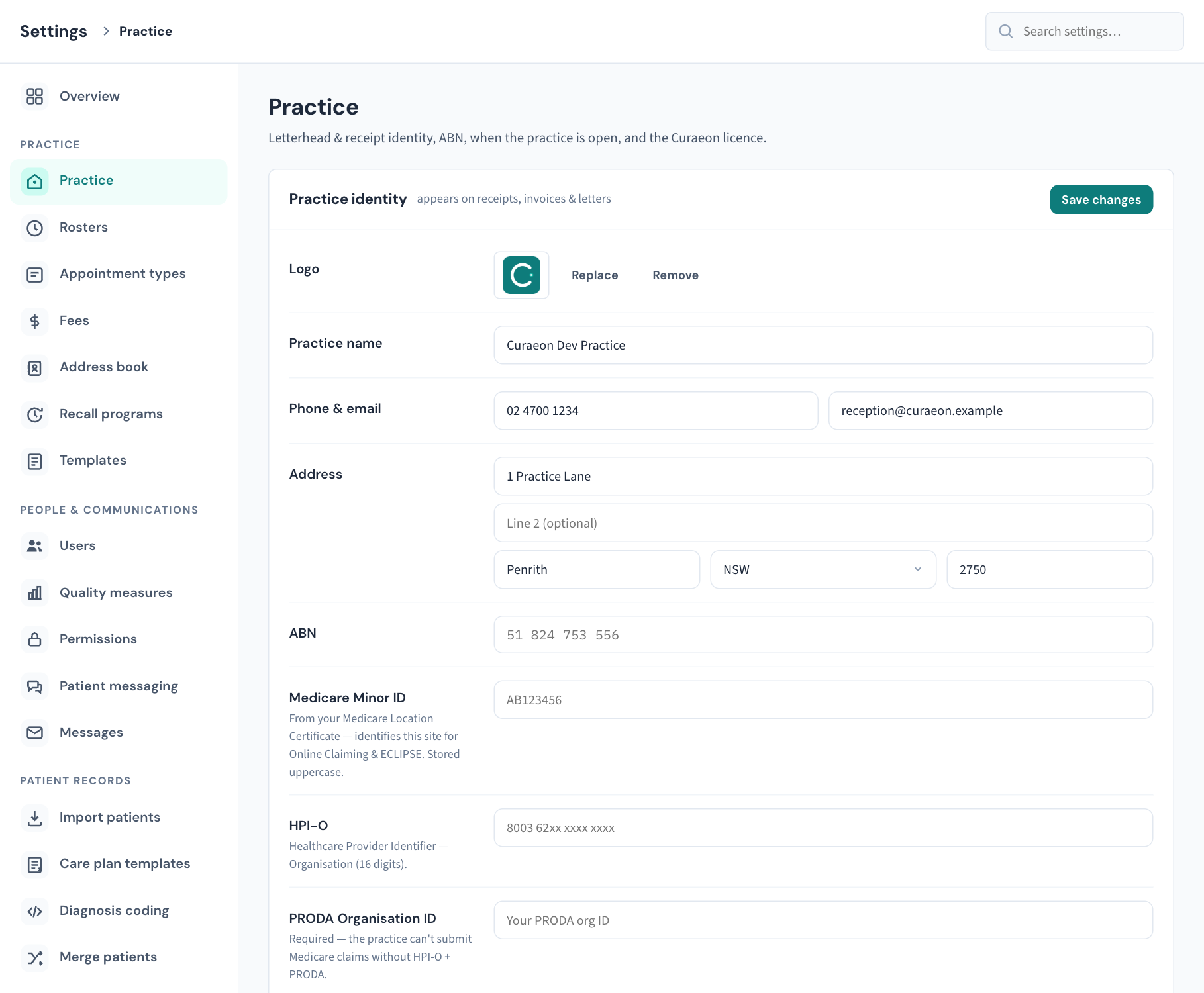
A tour of the page
The page has four cards, top to bottom.
- Practice identity: what appears on receipts, invoices and letters, plus the identifiers Medicare claiming needs, what scripts print on, the practice's Modified Monash area, whether administrators must sign in with a passkey, and the timezone. It has its own Save changes button.
- Business hours: when the practice is open, day by day. It has its own Save hours button.
- Holidays & one-off closures: dates the practice is shut whatever the hours say.
- Curaeon licence: seats, renewal and requests. This is covered in full in KB-114 — Your Curaeon licence: seats, renewal, and requesting more from Settings → Practice and not repeated here.
Important: The two save buttons are separate. Save changes saves the identity card only. Save hours saves the week of opening hours only. Closures save as you add or remove them.
If you have changed something on the identity card and then choose a link, or close the tab, before selecting Save changes, Curaeon asks first: "There are changes here that are not saved. Leave without saving them?" Cancel to stay and save. The Business hours card asks the same question when the week you have changed is not yet saved with Save hours.
Fill in the practice identity
- Open Settings → Practice.
- Fill in or correct the fields in the table below.
- Select Save changes at the top of the card.
You will see "Practice settings saved — letterheads update immediately." Nothing needs to be re-issued: the next receipt, invoice or letter printed uses the new details.
| Field | What to enter | Rules |
|---|---|---|
| Logo | Select Upload and choose a PNG, JPEG or SVG image. Once there is a logo the buttons read Replace and Remove. | Must be under 500 KB, and must really be a picture: the file's contents are read, not just its name, so a file renamed logo.png is refused with "that file is not a picture: choose a PNG or JPEG". With no logo the letterhead shows the practice name only. A new or removed logo is not saved until you select Save changes. |
| Practice name | The name as it should print. | Required. Curaeon will not save without it. |
| Phone & email | The practice's main phone number and email address. | Optional. The email must be an address if it is filled in: "nope" is refused with "nope" is not an email address. |
| Address | Street address, an optional second line, suburb, state and postcode. | State is chosen from the list. The postcode must be 4 digits. The state also decides which WorkCover rates and codes your WorkCover invoices use (KB-179 — Bill a WorkCover consultation: the state's rates and its own codes). |
| ABN | Your 11-digit ABN. Spaces are fine. | Must be 11 digits and must pass the ABN's own check, which catches most typing mistakes. After saving it is shown in the usual spaced form. |
| Medicare Minor ID | The letters and numbers from your Medicare Location Certificate. It identifies this site for Online Claiming and ECLIPSE. | 2 to 20 letters and numbers, no punctuation. Stored in capitals; spaces and hyphens are removed. |
| HPI-O | Your Healthcare Provider Identifier – Organisation. | 16 digits. See "The HPI-O and the HI Service" below. |
| PRODA Organisation ID | Your PRODA organisation ID. | The practice can't submit Medicare claims without both the HPI-O and the PRODA Organisation ID. You can still save the page without them, so a missing number never stops you fixing a phone number. |
| Script paper | PB023 stationery — values only or Plain paper — form and values. | See "Choose what scripts print on" below. |
| Modified Monash area | Where the practice is, as the Health Workforce Locator gives it: Not recorded, or MM 1 — metropolitan through MM 7 — very remote. | See "Record the Modified Monash area" below. |
| Administrators sign in with a passkey | Not required or Required. | See "Require administrators to use a passkey" below. |
| Timezone | The zone your practice is in. | See "Change the timezone" below. |
Clearing a field and saving removes that detail from the letterhead.
A practitioner's own numbers (AHPRA, provider, prescriber, HPI-I) are not on this page. They are kept on the person's account in Settings → Users (KB-120 — Manage staff accounts in Settings → Users: add, change a role, seats, provider numbers, deactivate), which only an administrator can open. Letterhead layouts, including a letterhead for each location or practitioner, are in Settings → Templates (KB-049 — Build and import letter templates: Word upload, merge fields, pronoun fields, snippets); those editors apply the same rules to a letterhead's postcode, email and logo, and ask before typed work is left, as KB-049 — Build and import letter templates: Word upload, merge fields, pronoun fields, snippets describes.
The HPI-O and the HI Service
Under the HPI-O field, Curaeon shows what the HI Service has said about the number that is saved.
| What you see | What it means |
|---|---|
| Not confirmed with the HI Service and "Well formed, but only the HI Service can say it is the right one." | The number has the right shape, and nobody has checked it with the HI Service yet. |
| Validated with the HI Service, with the date | The HI Service confirmed this is the practice's number. |
| Not validated by the HI Service, with the date it was last checked | The HI Service was asked and could not match the number. Check it against your HPI-O paperwork. |
| HI Service: Retired, Deactivated or Resolved | The HI Service confirmed the number but says it is no longer one to keep using without looking into it. |
| "The HI Service is not connected for this practice yet, so the HPI-O cannot be checked." | The connection has not been set up. See KB-129 — Read Settings → HI Service: the connection, the NASH certificate, and what the HI Service returned and disclosed. |
| HPI-O alert. followed by a sentence | The HI Service raised something about the number. |
To check the number at any time, select Check HPI-O with the HI Service. The result appears beside the button.
When the HI Service is connected, a new or changed HPI-O is checked with it as you save, before it is stored. If the check does not pass, the page is not saved and the message says why. Whatever the HI Service said about the old number is cleared when the number changes, because that answer was about a different number.
To clear an alert:
- Select Resolve on the alert.
- Type how it was resolved, for example that the name was corrected to match the HI Service. The Resolve alert button stays off until you have typed something.
- Select Resolve alert.
Choose what scripts print on
Curaeon prints paper prescriptions in one of two ways.
- PB023 stationery — values only prints just the details, to land in the boxes of the pre-printed PB023 prescription stationery in the printer tray. This is the setting Curaeon starts with.
-
Plain paper — form and values prints the form itself along with the details, for when the stationery has run out.
-
Under Script paper, choose the option that matches what is in the tray.
- Select Save changes.
Only an administrator can change this, so whoever stocks the printer tells an administrator when the stationery runs out, and again when it arrives.
Record the Modified Monash area
The bulk billing incentive items differ by where the practice is. MBS note MN.1.1 gives one set for each Modified Monash area. Curaeon cannot look your area up, and does not guess.
- Find your practice's area in the Health Workforce Locator.
- Under Modified Monash area, choose it: MM 1 — metropolitan, MM 2 — regional centre, MM 3–4 — large or medium rural town, MM 5 — small rural town, MM 6 — remote or MM 7 — very remote.
- Select Save changes.
As the line under the field says, with the area recorded "Billing says when a bulk billing incentive is another area’s, and lists bulk-billed consults that carry none, from the day it is recorded or changed. Changing the area starts that list again from today: earlier consults are no longer listed for it. Curaeon never adds an incentive itself." The item on each invoice stays the billing practitioner's choice. While the area is Not recorded, which is how Curaeon starts, none of those checks run. What the warnings say is in KB-177 — Why an item is warned about or refused on an invoice: MBS co-claiming rules and the bulk billing incentive.
The list it speaks of is No incentive on Consults to bill (KB-161 — Find consults that were never billed: the Consults to bill list). It is counted from the day the area is recorded, so recording it for the first time does not list the bulk-billed consults the practice had before that day.
Important: Changing the area, even to correct it, starts that list again from today. Consults before today are no longer listed for No incentive, and rows set aside for consults before today are no longer shown under Set aside. Curaeon does not ask you to confirm the change.
When a save changes the area, the message after Save changes says what happened, after its usual words, and stays on screen until you close it:
| What you changed | The message adds |
|---|---|
| Recorded an area for the first time | "No incentive on Consults to bill is counted from today." |
| Changed one area to another | "The No incentive list on Consults to bill starts again from today: earlier consults are no longer listed for it." |
| Set it back to Not recorded | "No incentive on Consults to bill is no longer counted." |
A save that leaves the area as it was says nothing about the list.
Require administrators to use a passkey
A passkey is a second sign-in step that a fake sign-in page cannot use (KB-171 — Sign in with a passkey: add one, use it, remove it, and when your practice requires one). Set Administrators sign in with a passkey to Required and select Save changes, and anyone in the Admin role must sign in with one from then on. An administrator who has none is asked to add one at their next sign-in, before anything else opens. Recovery codes still work if a passkey is lost. Clinicians, nurses and reception are not affected.
The setting is Not required unless your practice changes it. It cannot be changed while passkeys are not switched on for your server; the line under it then says "Passkeys are not switched on for this installation, so they cannot be required. Your support provider turns them on first." Tell every administrator before you turn it on. The full story, including what an administrator sees, is in KB-171 — Sign in with a passkey: add one, use it, remove it, and when your practice requires one.
Change the timezone
Every time in Curaeon is shown and booked in the practice's timezone, never the zone of the computer someone happens to be using. That is what keeps a doctor working remotely from booking into the wrong day.
Important: Changing the timezone does not just relabel things. Every appointment, opening hour and roster already recorded is a clock time read in this zone, so all of them are read differently afterwards. Set it once, when the practice is set up, and leave it alone.
- Under Timezone, choose the zone. The list covers Sydney, Melbourne, Brisbane, Adelaide, Perth, Hobart, Darwin, Broken Hill and Lord Howe Island, each with its offset so you can check it against a clock.
- Select Save changes.
- Read the confirmation. It names the old and new zone and what will be re-read. Choose OK to go ahead.
- Arrange for the Curaeon server to be restarted. The change takes effect only then.
Until the restart, the page shows a red line: "Saved as … but this server is still running in … — every time in Curaeon is being read in … until it is restarted." That line is the thing to act on. The screen does not offer a restart button; ask whoever looks after your server, or raise a ticket.
If Curaeon answers that another practice on this server is set to a different zone, the change is refused. One server serves one timezone. Raise a ticket.
Set your opening hours
Opening hours are enforced, not just displayed. Once saved:
- an appointment cannot be booked or moved outside them;
- the calendar draws its day from them;
- a roster line cannot be added outside them (KB-119 — Set up rosters, rotating cycles and leave in Settings → Rosters: the complete walkthrough);
- the weekly Security review judges "after hours" by them (KB-064 — Sign off the weekly Security review, and act on alerts and audit-log check warnings).
An appointment that is already outside the hours stays where it is and stays visible.
Until you save hours for the first time, every day reads Not set and the note under the card says "Not set yet — nothing is restricted." Nothing is refused until you save.
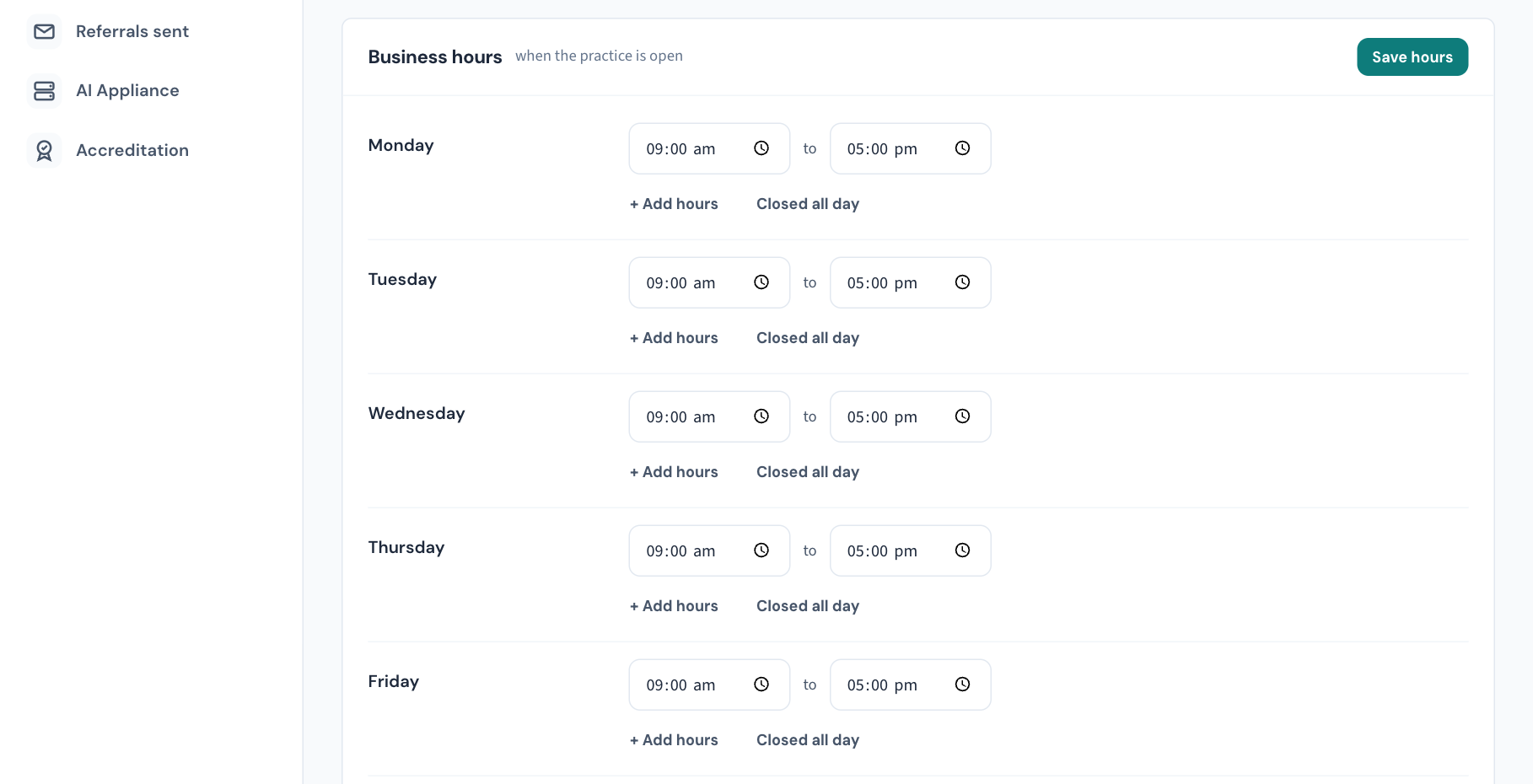
- In Business hours, find the first day you open.
- Select Set hours (or Open this day if the week has been saved before). The day opens as 09:00 to 17:00.
- Change the opening and closing times to yours.
- If you close over lunch, select + Add hours. A second block appears, starting when the first one ends. Set it to your afternoon hours. For example, 08:30 to 12:30 and 13:30 to 17:30.
- Repeat for each day you open.
- For a day you do not open, leave it as it is. To close a day that has hours, select Closed all day.
- Select Save hours.
You will see "Business hours saved — bookings outside them are refused from now on." From then on, days without hours read Closed.
The whole week is saved at once, on purpose. Opening hours are read as a set, and saving one day at a time would leave a week that is half old and half new.
| Button | What it does |
|---|---|
| Set hours / Open this day | Opens a closed day as 09:00 to 17:00. |
| + Add hours | Adds a one-hour block starting where the day currently ends. It is switched off, with "No room for another block — the day is open until 23:00 or later", when there is no room. |
| Remove | Removes that block. |
| Closed all day | Removes every block on that day. |
| Save hours | Saves all seven days. Nothing is saved until you select it. |
Curaeon refuses a week it cannot make sense of, and names the day:
| Message says | Fix |
|---|---|
| A block is missing a time | Fill in both the opening and closing time, or remove the block. |
| A block closes at or before it opens | Check the two times are the right way round. |
| Overlapping blocks, with both named | Two blocks on that day cover the same time. Move one or remove it. |
| "your role does not permit this action" | Only an administrator can save opening hours. |
Note: If practitioners already have rosters, tighten the hours with care. Existing roster lines are not changed, but any new roster line has to fit inside the day's earliest opening and latest closing.
Add a public holiday or a one-off closure
A closure shuts the whole practice for one date, whatever the opening hours say. Bookings on that date are refused, for every practitioner.
- In Holidays & one-off closures, under Add a closure, choose the date. Only today or a later date can be chosen.
- Type a reason, such as the name of the public holiday or "Staff training day". If you leave it empty, the reason is saved as "Practice closed".
- Select Add closure.
You will see "Closure added — bookings on that date are refused." The date joins the list below, which shows every closure in the next year with its Date and Reason.
A closure covers one date. For a run of days, such as the days between Christmas and New Year, add each date. A date that is already closed cannot be closed twice: the second one is refused with "The practice is already marked closed on that day." To change the reason, remove the closure and add it again.
Important: Adding a closure does not cancel or move appointments that are already booked on that date. Check the calendar for that day first, and rebook anyone affected (KB-038 — Book, reschedule and track appointments in the Calendar).
Remove a closure
- Find the date in the list.
- Select Remove.
It is removed straight away, without a confirmation, and you will see "Closure removed." The date can be booked again.
Closures and leave are different things
- The whole practice is shut: add a closure here.
- One practitioner is away: add leave in Settings → Rosters (KB-119 — Set up rosters, rotating cycles and leave in Settings → Rosters: the complete walkthrough).
These closures are the same ones the roster and the calendar read. They are set in one place and honoured everywhere.
What the page does not do
- Open the practice on a day it is normally closed, for one date only (a one-off Saturday clinic, say). The page has no control for this. Raise a ticket and we will help.
- Restart the server after a timezone change.
- Practitioner numbers: see Settings → Users (KB-120 — Manage staff accounts in Settings → Users: add, change a role, seats, provider numbers, deactivate).
- Letterhead layout, and letterheads per location or practitioner: see Settings → Templates (KB-049 — Build and import letter templates: Word upload, merge fields, pronoun fields, snippets).
- Recall programs: they have their own section (KB-125 — Set up recall programs in Settings → Recall programs: add a program, set its interval, retire one).
What is recorded
| What you did | How it reads in the Audit log |
|---|---|
| Saved the identity card | Practice details updated, with each field's old and new value. A logo is recorded only as set, replaced or removed, never the image itself. |
| Saved opening hours | Opening hours changed, with the week before and after. |
| Added a closure | Roster exception added |
| Removed a closure | Roster exception deleted, which keeps what the closure said. |
If that didn't work
- "The practice needs a name — it appears on every receipt and letter." The name is empty. Type it and save again.
- "Logo must be under 500 KB. Try a smaller PNG or JPEG." Shrink the image and upload it again.
- "that file is not a picture: choose a PNG or JPEG" The file is not an image, whatever it is named. Export the logo again from the program that made it, as a PNG or JPEG.
- "… is not an email address" The practice email is not an address. Correct it or clear it.
- "The practice is already marked closed on that day." That date is in the closures list already. Remove it first if the reason needs changing.
- "There are changes here that are not saved. Leave without saving them?" You are leaving the identity card or the business hours with unsaved changes. Choose Cancel to stay, then Save changes or Save hours.
- The ABN is refused. "ABN must be 11 digits" means a digit is missing or extra. "That ABN fails its checksum — check for a typo" means the digits are there but two are probably swapped or one is wrong. Check it against the Australian Business Register.
- The Minor ID is refused. Enter only the letters and numbers from the Medicare Location Certificate, with no punctuation.
- The postcode or state is refused. The postcode must be 4 digits and the state one from the list.
- "Settings are kept by the practice’s administrators." The page is for administrators only. Ask one to make the change (KB-115 — Find your way around Settings: every section, who can open it, and where to read more).
- Administrators sign in with a passkey is greyed out. Passkeys are not switched on for your server. Ask whoever looks after it (KB-171 — Sign in with a passkey: add one, use it, remove it, and when your practice requires one).
- The page shows only a licence card and says the installation is not licensed yet. The rest of the page opens once the licence is installed and confirmed. See KB-114 — Your Curaeon licence: seats, renewal, and requesting more from Settings → Practice.
- Reception can't book a time that should be open. Check the day in Business hours, then Holidays & one-off closures for that date, then the practitioner's roster and leave (KB-119 — Set up rosters, rotating cycles and leave in Settings → Rosters: the complete walkthrough).
- "Business hours couldn't be loaded" or "Closures couldn't be loaded". Curaeon could not read them. Reload the page. If it keeps happening, raise a ticket; do not assume there are no hours or closures.
Still stuck? Raise a ticket at support.curaeon.com.au or call 1300 XXX XXX. If your clinic can't see patients right now, call and choose option 1. Support is staffed Monday to Friday, 8:00–18:00 Sydney time; outside those hours a call or text to the same number is answered on a best-effort basis.
Related articles
- KB-115 — Find your way around Settings: every section, who can open it, and where to read more — Find your way around Settings: every section, who can open it, and where to read more
- KB-114 — Your Curaeon licence: seats, renewal, and requesting more from Settings → Practice — Your Curaeon licence: seats, renewal, and requesting more from Settings → Practice
- KB-119 — Set up rosters, rotating cycles and leave in Settings → Rosters: the complete walkthrough — Set up rosters, rotating cycles and leave in Settings → Rosters: the complete walkthrough
- KB-117 — Add, change, reorder and retire appointment types in Settings → Appointment types — Add, change, reorder and retire appointment types in Settings → Appointment types
- KB-129 — Read Settings → HI Service: the connection, the NASH certificate, and what the HI Service returned and disclosed — Read Settings → HI Service: the connection, the NASH certificate, and what the HI Service returned and disclosed
- KB-177 — Why an item is warned about or refused on an invoice: MBS co-claiming rules and the bulk billing incentive — Why an item is warned about or refused on an invoice: MBS co-claiming rules and the bulk billing incentive
- KB-161 — Find consults that were never billed: the Consults to bill list — Find consults that were never billed: the Consults to bill list
- KB-171 — Sign in with a passkey: add one, use it, remove it, and when your practice requires one — Sign in with a passkey: add one, use it, remove it, and when your practice requires one
- KB-083 — Practice-manager setup checklist: everything to configure before your first consulting day — Practice-manager setup checklist: everything to configure before your first consulting day
- KB-038 — Book, reschedule and track appointments in the Calendar — Book, reschedule and track appointments in the Calendar