New staff onboarding and offboarding checklist
Bring a new starter into Curaeon with the right access on day one, and close a leaver's access on their last day without losing a single thing they did.
Both halves are done inside the practice by your own administrator — Curaeon Support cannot add, reset or remove a Curaeon user remotely, because the server and its accounts live on your network. Nothing in Curaeon is deleted when someone leaves: their sign-ins, what they opened and why, and what they changed stay in the Audit log for at least seven years, and Activity on their entry in Users shows it all.
Every Settings step below needs an administrator: Settings is shown only to the Admin role, under More in the menu bar. Utilities is under More too.
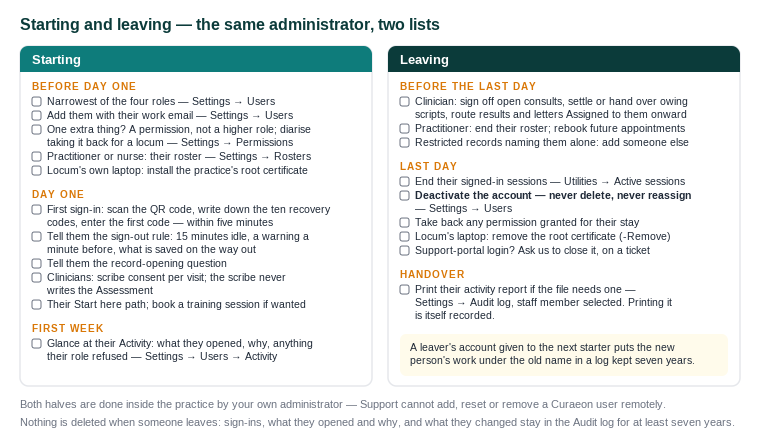
Starting
| When | Task | Where | What is recorded |
|---|---|---|---|
| Before day one | Choose the narrowest of the four roles — Reception, Nurse, Clinician, Admin — that covers their everyday work (KB-034 — Choose the right role and permissions for a new staff member) | Settings → Users | Staff and permission changes go to the Audit log and the weekly Security review |
| Before day one | Add them with their work email address | Settings → Users | As above |
| Before day one | If they need one extra thing, grant it as a permission rather than a higher role — and diarise taking it back for a locum | Settings → Permissions | Each change, listed under "changes to who may do what" in the Security review |
| Before day one | For a practitioner or nurse: enter their roster so the Calendar can book them | Settings → Rosters | Roster lines with old and new values |
| Before day one | For a locum's own laptop: install the practice's root certificate | Whoever looks after the computers (KB-035 — Make a new PC, Mac or locum laptop trust Curaeon ("Your connection is not private")) | — |
| Day one | First sign-in: they scan the QR code, write down their ten recovery codes and enter the first code, within five minutes (KB-031 — Set up two-factor sign-in for Curaeon, and fix a code that is rejected, already used or timed out) | The sign-in screen | Every sign-in, with the browser and device it came from |
| Day one | For a new administrator, where your practice requires administrators to sign in with a passkey: they add one straight after their first sign-in, before anything else opens (KB-171 — Sign in with a passkey: add one, use it, remove it, and when your practice requires one). Anyone else may add one if they wish | Preferences → Sign-in security | Passkey added, with its name |
| Day one | Tell them the sign-out rule: 15 minutes idle (or your practice's limit), a warning a minute before, and what is saved on the way out (KB-033 — Change how long Curaeon waits before signing you out, and end a session left open) | — | Each idle sign-out as Signed out after inactivity |
| Day one | Tell them the record-opening question: they will be asked why they are opening a record unless the patient is booked in today or in a consult with them (KB-062 — Why Curaeon asks your reason for opening a record) | — | The purpose, on the opening itself, in the log and on access reports |
| Day one | For clinicians: scribe consent is asked and recorded per visit, and the scribe never writes the Assessment (KB-015 — AI scribe consent workflow explained, KB-056 — Why the scribe never writes the Assessment or suggests item numbers) | The consult screen | The patient's answer, each time, with the wording used |
| Day one | For a clinician who should not use the AI scribe, such as a first-term registrar where your practice follows its college's guidance: choose Switch scribe off on their account. Everyone starts with it on (KB-120 — Manage staff accounts in Settings → Users: add, change a role, seats, provider numbers, deactivate) | Settings → Users | AI scribe switched on or off for a person, saying which way |
| Day one | Point them at their Start here path — reception KB-093 — Start here: I work at reception, GP and nurse KB-094 — Start here: I'm a GP or nurse, practice manager KB-095 — Start here: I'm the practice manager, IT KB-096 — Start here: I look after the computers — and book a training session if you want one (KB-025 — Booking training for new clinic staff) | — | — |
| First week | Glance at their Activity: what they opened, why, and anything their role refused | Settings → Users → Activity, or Settings → Audit log with them selected | A refused page is recorded as well as the ones they reached |
Tip: A new person who says "it won't let me in" is usually looking at a page their role does not include, and the Audit log's Sign-ins tab says exactly what was refused. Check that before changing their role.
Leaving
| When | Task | Where | What is recorded |
|---|---|---|---|
| Before the last day | For a clinician: sign off open consults (KB-043 — Correct or amend a note after it's signed), settle or hand over their owing scripts (KB-044 — Record and settle an owing script), and route results and letters Assigned to them back to the pool or a colleague (KB-046 — Work the results Inbox: Practitioner vs Assigned to, routing, COPY and corrected results, Follow-up) | Their open-consults list; Owing scripts (just yours); the Inbox detail pane | Each routing change, with previous and new addressee |
| Before the last day | For a practitioner: end their roster and rebook any future appointments under their name | Settings → Rosters; the Calendar | Each cancelled booking's own history says who did it |
| Before the last day | Check restricted records that name them alone, and add someone else | The banner on each chart, by those named or an administrator (KB-061 — Restrict a patient's record, and open one in an emergency) | Every change to a restriction is kept |
| Last day | Deactivate the account — never delete it. Deactivate ends every session the person has open, at once | Settings → Users | A later sign-in attempt is refused and recorded as a deactivated account |
| Last day | Check nothing of theirs is still signed in | More → Utilities → Active sessions | — |
| Last day | Take back any permission granted for their stay | Settings → Permissions | As for granting |
| Last day | For a locum's laptop: remove the root certificate with the install script's -Remove option (KB-035 — Make a new PC, Mac or locum laptop trust Curaeon ("Your connection is not private")) |
The laptop | — |
| Last day | If they had a support-portal login, ask us to close it (KB-003 — Add or deactivate a portal user for your clinic) | A ticket | — |
| Handover | Print their activity report for the file if you need one — records opened, why, documents sent, every change with before and after, and their sign-ins | Settings → Audit log, staff member selected, Print activity report | Printing the report is itself recorded |
Important: Deactivate, do not reassign. Giving a leaver's account to the next starter would put the new person's work under the old name in a log that is kept for seven years and shown to accreditors.
What the manual does not say
The control is Deactivate on the person's row in Settings → Users (KB-120 — Manage staff accounts in Settings → Users: add, change a role, seats, provider numbers, deactivate). There is no bulk tool for a departing practitioner's future bookings beyond clearing one day at a time (KB-039 — Clear a practitioner's day when they call in sick). A departing clinician's style memory is a note saved to their own account (KB-131 — Set up Preferences: your start screen, calendar view, colours, notifications and privacy); nobody else's drafts use it. If either of these matters for a departure you are planning, raise a ticket under Accounts & access with the date.
Still stuck? Raise a ticket at support.curaeon.com.au or call 1300 XXX XXX. If your clinic can't see patients right now, call and choose option 1. Support is staffed Monday to Friday, 8:00–18:00 Sydney time; outside those hours a call or text to the same number is answered on a best-effort basis.
Related articles
- KB-034 — Choose the right role and permissions for a new staff member — Choose the right role and permissions for a new staff member
- KB-032 — Reset a colleague's password or 2FA, or recover when the only administrator is locked out — Reset a colleague's password or 2FA, or recover when the only administrator is locked out
- KB-083 — Practice-manager setup checklist: everything to configure before your first consulting day — Practice-manager setup checklist: everything to configure before your first consulting day
- KB-120 — Manage staff accounts in Settings → Users: add, change a role, seats, provider numbers, deactivate — Manage staff accounts in Settings → Users: add, change a role, seats, provider numbers, deactivate