Start here: I'm a GP or nurse
Ten articles in the order a clinician needs them — sign in, get the scribe working for you, then the parts of the record that differ from the system you came from.
One page to pin beside the monitor: the quick-reference guide for this role is KB-111 — Quick reference: GP or nurse. The Help Centre's print view drops the navigation, so it prints as one sheet.
How to use this page
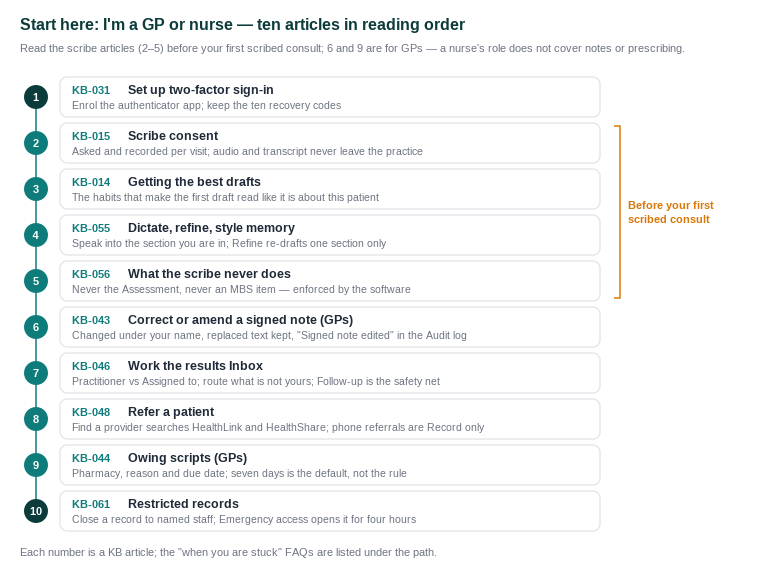
Read the scribe articles (2–5) before your first scribed consult; the rest can wait until the situation arises. A nurse's role covers observations (KB-145 — Record allergies, history and observations) and immunisations rather than notes and prescribing, so 6 and 9 are for GPs. Recording an assessment tool needs the chart.write permission, which the Nurse role does not hold unless your practice has given it (KB-149 — Use the assessment tools: K10, PHQ-9, DASS-21, GDS-15, MMSE, AUDIT-C, AUSDRISK and cardiovascular risk).
The path
-
KB-031 — Set up two-factor sign-in for Curaeon, and fix a code that is rejected, already used or timed out — Set up two-factor sign-in. First sign-in enrols an authenticator app and gives you ten recovery codes. A passkey can be your second step instead (KB-171 — Sign in with a passkey: add one, use it, remove it, and when your practice requires one). Afterwards: you sign in every day and know what each rejection message means. To find your way around once you are in — the menu bar, More and the menu under your name — see KB-178 — Find your way around Curaeon: the menu bar, More and your account menu.
-
KB-015 — AI scribe consent workflow explained — Scribe consent. Consent is asked and recorded per visit, never assumed from last time, and nothing leaves the practice — audio and transcript are processed on the appliance on your LAN. Afterwards: you can ask for consent in plain words and answer what patients actually ask.
-
KB-014 — AI scribe — getting the best transcription quality — Getting the best drafts. The scribe is very good and not magic; a few habits separate practices that love it from practices that fight it. Afterwards: your first draft reads like it is about this patient.
-
KB-055 — Dictate into a section, refine a draft, and manage style memory and suggested follow-ups — Dictate, refine, style memory. Dictation puts what you say into the section you are in; Refine a section re-drafts one section and leaves the rest alone; style memory learns your phrasing and can be cleared. Afterwards: you can speak a paragraph straight into a note and turn a Plan into offered follow-ups and a draft letter.
-
KB-056 — Why the scribe never writes the Assessment or suggests item numbers — What the scribe never does. It never writes the Assessment and never suggests an MBS item — enforced by the software, not by convention. Afterwards: a blank Assessment stops looking like a fault.
-
KB-043 — Correct or amend a note after it's signed — Correct or amend a signed note (with KB-143 — Write and sign off a consult note for writing and signing a note without the scribe). A signed note can be changed, never silently: the edit is saved under your name, the replaced text is kept, and the Audit log shows "Signed note edited". Afterwards: you can fix a mistake or add an amendment knowing what the record will show.
-
KB-046 — Work the results Inbox: Practitioner vs Assigned to, routing, COPY and corrected results, Follow-up — Work the results Inbox. Practitioner shows your usual patients' items; Assigned to shows what is routed to you. Afterwards: you can clear your queue, route what is not yours, read COPY and corrected results, and use Follow-up as the safety net.
-
KB-048 — Refer a patient: find a provider in HealthLink/HealthShare, or record a referral without a letter — Refer a patient. Find a provider searches HealthLink and HealthShare with a badge saying whose each row is, and a referral made by phone is still recorded with Record only — no letter. Afterwards: you can address a referral first time and read each delivery badge.
-
KB-044 — Record and settle an owing script — Owing scripts (with KB-144 — Write a prescription: repeats, authority, Schedule 8, brands, reprint and cancel for writing, printing and cancelling a script, and KB-153 — Follow up scripts that were never filled: the Unfilled scripts list for scripts that were never dispensed). A script phoned to a pharmacy or given after hours is marked owing with the pharmacy, the reason and its due date; seven days is the default, not the rule. Afterwards: the Owing scripts screen stays honest and each one is settled the right way.
-
KB-061 — Restrict a patient's record, and open one in an emergency — Restricted records. A clinician can close a record to named staff; anyone else sees who it is open to, not why, and Emergency access opens it for four hours with your reason and your password. Afterwards: you can restrict a record when warranted and know what the practice sees when someone opens one.
When you are stuck
The clinical FAQs are KB-087 — AI scribe FAQ (the scribe), KB-088 — Letters and referrals FAQ (letters and referrals) and KB-090 — Results and incoming letters FAQ (results and incoming letters). If the scribe stops mid-clinic, the consultation does not: type the note as you would anywhere else (KB-143 — Write and sign off a consult note) and report the fault when convenient. Allergies, diagnoses, family and social history and observations are recorded on the patient's record, and each is corrected in its own way (KB-145 — Record allergies, history and observations); observations and immunisations can also be recorded from the consult's Do now (KB-143 — Write and sign off a consult note, KB-079 — Record an immunisation and work the AIR backlog). One more to know early: interactions and allergies are screened by MIMS only where your practice has set MIMS up. Then the prescriber shows MIMS's alerts for you to acknowledge, and links to each medicine's product information and CMI (KB-172 — Drug-safety alerts from MIMS: what is screened, what an alert shows, and acknowledging one, KB-174 — Open MIMS's product information and the CMI leaflet from the prescriber and the patient's record). Where it is not set up, or a check could not run, the screen says nothing was checked (KB-045 — "Not checked": what the drug-safety line says when screening is not set up, is held, or did not complete).
For the clinical tools: the assessment tools open from the Observations tab (KB-149 — Use the assessment tools: K10, PHQ-9, DASS-21, GDS-15, MMSE, AUDIT-C, AUSDRISK and cardiovascular risk); an asthma action plan is a care plan you write and print (KB-150 — Write and print an asthma action plan); warfarin patients are followed on the INR monitoring screen (KB-151 — Manage warfarin patients on the INR monitoring screen); a pregnancy is recorded on the Obstetric History tab (KB-152 — Record a pregnancy on the patient's record); a medical certificate starts from a built-in template (KB-154 — Write a medical certificate, and the other built-in letter templates); and Print summary gives the patient a one-page health summary (KB-155 — Print a patient health summary).
Related articles
- KB-093 — Start here: I work at reception — Start here: I work at reception
- KB-095 — Start here: I'm the practice manager — Start here: I'm the practice manager
- KB-096 — Start here: I look after the computers — Start here: I look after the computers
- KB-085 — Glossary: the words Curaeon uses — Glossary: the words Curaeon uses
- KB-098 — Read a child's or teenager's growth chart on the Observations tab — Read a child's or teenager's growth chart on the Observations tab
- KB-102 — Start a care plan from a template, share templates between sites, and keep Plan reviews and INR clear — Start a care plan from a template, share templates between sites, and keep Plan reviews and INR clear
- KB-104 — Add or lift a DNR, interaction or red-flag alert above a patient's chart — Add or lift a DNR, interaction or red-flag alert above a patient's chart
- KB-131 — Set up Preferences: your start screen, calendar view, colours, notifications and privacy — Set up Preferences: your start screen, calendar view, colours, notifications and privacy
- KB-132 — Set up your clinical defaults and pathology favourites once, so every consult starts your way — Set up your clinical defaults and pathology favourites once, so every consult starts your way
- KB-172 — Drug-safety alerts from MIMS: what is screened, what an alert shows, and acknowledging one — Drug-safety alerts from MIMS: what is screened, what an alert shows, and acknowledging one