Write and sign off a consult note
Open a consult, type the note in its four sections, sign it and complete the visit. This is the consult without the AI scribe.
Before you start
- You need the
notes.writepermission. Clinicians and administrators hold it by default; nurses and reception do not (KB-121 — Change what each role may do in Settings → Permissions). Without it the consult opens to read, with nothing to type in and no Sign Off Note. - You can have several patients' consults open at once, but only one for each patient. A second start for the same patient is refused, with Go to it to open the one you already have.
- A patient recorded as departed or deceased has no Start Consult button (KB-041 — Find a departed patient, reactivate them, or record a death or departure).
- The scribe has its own articles, starting at KB-015 — AI scribe consent workflow explained. Nothing here needs it.
Open a consult
| From | Do this |
|---|---|
| Today | On the Up next card, choose ▶ Start Consult. If the patient has not been marked as arrived, Curaeon marks them arrived first. |
| Calendar | Select the appointment. Once it is marked as arrived, choose Start consult. |
| The patient's record | Choose Start Consult at the top of the record. Use this when there is no appointment: a walk-in or a phone call. |
To return to a consult you left, choose Resume on the Open consults card on Today, or Open consult → beside the visit on the patient's Past Visits tab.
Find your way around
The note is in the middle. On the left are Active Diagnoses, Current Medications, Recent Visits and Issued this visit. On the right, Do now holds:
| Button | What it does | When it is there |
|---|---|---|
| Order investigations | A pathology or imaging request (KB-107 — Order a test, add copy-to recipients, and chase a result that never came back on the Requests screen) | Always. Off once the note is signed, or without notes.write; the line under the buttons says why |
| Prescribe | The four-step prescriber (KB-144 — Write a prescription: repeats, authority, Schedule 8, brands, reprint and cancel) | Always. Off in the same cases, and for the reasons in If that didn't work |
| Letters & certificates | A letter, certificate or care plan (KB-106 — Write a letter in the editor: Insert from the record, { } Field, and the formatting that survives print and email) | Always. Off in the same cases as Order investigations |
| Record observations | The Record observations window. What you save is added to this consult's Examination (KB-145 — Record allergies, history and observations) | With observations.record. Stays on after signing |
| Record immunisation | The Record immunisation window, recorded against this consult (KB-079 — Record an immunisation and work the AIR backlog) | With immunise. Stays on after signing |
| Open full record | The patient's whole record, without leaving the consult | Always |
Below them are Care gaps and, for a patient on warfarin, INR. Each column scrolls by itself, so the toolbar and any allergy banner above it stay on screen.
In a window 1280 pixels wide or narrower there is no right-hand column. The Do now buttons run in a row across the top of the consult, and Care gaps and INR sit under the left column.
Where your practice has MIMS drug-safety screening set up, the patient's current medications are screened under Current Medications. It shows only when MIMS have something to say (KB-172 — Drug-safety alerts from MIMS: what is screened, what an alert shows, and acknowledging one).
The toolbar also says how the consult is held: In person, Video or Phone. Change it while the consult is in progress. A phone consult offers the patient's numbers to call (KB-175 — Book and hold a phone or video consult).
Under the toolbar, Allergies says one of three things (KB-145 — Record allergies, history and observations):
- the patient's recorded allergies;
- No known allergies and the date it was recorded, when somebody has asked the patient and recorded that;
- None recorded, which means nobody has recorded an allergy status. It does not mean the patient has none.
If part of the patient's record cannot be loaded, the consult says so where that part would be and offers Try again. It never shows a part it could not load as empty (KB-170 — When part of a screen says it could not be loaded: Try again, and what Loading… means).
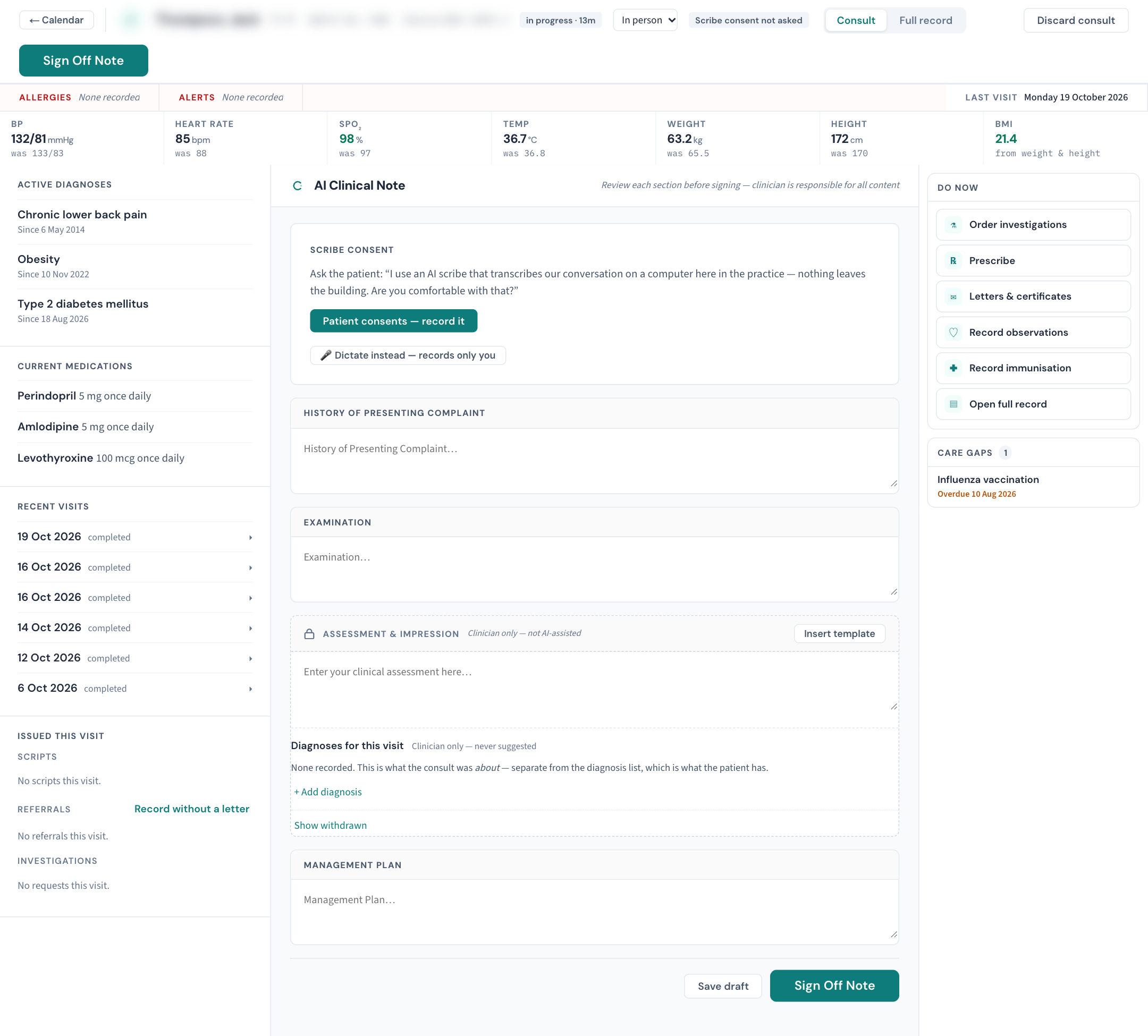
The top of the note shows a Scribe consent card. For a typed note, leave it alone. The badge in the toolbar reads Scribe consent not asked, which is the true record. If an administrator has switched the AI scribe off for your account, there is no consent card: a card headed AI scribe says "The AI scribe is switched off for you. An administrator can change this in Settings › Users." Nothing else in this article changes (KB-054 — Scribe option missing, "appliance is busy", or the draft never arrives).
Write the note
The note has four sections, in this order: History of Presenting Complaint, Examination, Assessment & Impression and Management Plan. The Assessment is marked Clinician only — not AI-assisted, and Insert template and Diagnoses for this visit sit inside it.
- Click in a section and type.
- Move to the next section. A section is saved when you click or tab out of it. There is no save button on each one.
- Choose Save draft at the foot of the note if you want to be sure before you turn away.
Three things save typing:
- Quick text. Type a snippet's shortcut and press Space, Enter or Tab, and it expands with the patient's details filled in. The practice's shared snippets are kept by its administrators in Settings → Templates (KB-049 — Build and import letter templates: Word upload, merge fields, pronoun fields, snippets). Your own are under My snippets in Preferences → Clinical defaults, and where your shortcut and the practice's are the same word, yours is used (KB-132 — Set up your clinical defaults and pathology favourites once, so every consult starts your way).
- Scores recorded this visit. If an assessment tool was scored for this patient since the consult started (KB-149 — Use the assessment tools: K10, PHQ-9, DASS-21, GDS-15, MMSE, AUDIT-C, AUSDRISK and cardiovascular risk), a line above the note's sections lists each score, such as K10 28. Choose Add to Examination and each is written into Examination as a line with its date, for example "K10: 28 (11 Oct 2026)". Only the number is written, never a band: what the score means for this patient is yours to write under Assessment. The line then reads In Examination, and a score already there is not added twice. The button is not offered once the note is signed.
- Insert template adds a headed structure to the Assessment for you to complete. It adds to what is there and never replaces it. Star a template to keep it under Your favourites.
- Diagnoses for this visit records what the consult was about, which is separate from the patient's diagnosis list. Choose + Add diagnosis, then Record diagnosis. Tick Also add to the diagnosis list for a standing condition diagnosed today. Each row has Make primary and Retract; a retracted diagnosis is kept under Show withdrawn. Curaeon never suggests a diagnosis. If the terminology search fails, the form says "The terminology could not be searched … that is not the same as no match. It can still be recorded as free text." with Try again beside it.
Sign off
- Choose Sign Off Note, in the toolbar or at the foot of the note. From the keyboard, with keyboard shortcuts on, Ctrl+Enter does the same from anywhere in the consult, the note fields included. It opens the window and stops there: the shortcut never signs a note, and you answer the window with the mouse, or with Tab and Enter (KB-131 — Set up Preferences: your start screen, calendar view, colours, notifications and privacy).
- The window Sign off this note? asks How good was this note before you edited it? Choose 1 to 5, or skip it. It is optional and never stops a signature.
- Choose Sign off. Keep editing takes you back.
Sign off waits for anything typed or drafted that is not yet in the record: a diagnosis chosen or typed under + Add diagnosis and not recorded, or an AI draft of a section not yet accepted or rejected. The button is off and the window says what it is, for example Not in the record yet: a diagnosis. Add it, accept or reject it, or clear it, then sign.
Sign off also stops if a section could not be saved first, or could not be read back after its AI draft was accepted, edited or rejected. Nothing is signed, and a message names the section: "Nothing was signed: Examination could not be saved or read back first. Try again." The Sign off this note? window stays open: choose Sign off again.
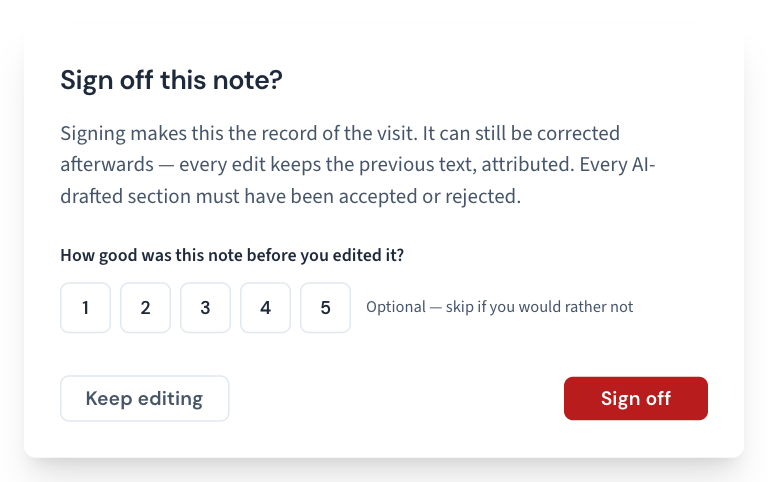
What signing does:
- Saves anything you had not yet left, then stamps the note with your name and the time.
- Makes the four sections and the visit's diagnoses read-only on the consult screen.
- Switches off Order investigations, Prescribe, Letters & certificates and Record without a letter, and with them ↻ Repeat this script on an earlier visit and Write letter on a referral's row. The screen says: "The note is signed — this consult is closed to new orders, scripts, letters and referrals."
- Leaves what was already started. Scripts already written can still be printed or cancelled. A letter saved as a draft before you signed can still be finished and filed: choose Continue on the draft on the record's Reports tab (KB-154 — Write a medical certificate, and the other built-in letter templates).
- Leaves Record observations and Record immunisation on. A reading or a dose given is always recorded. After signing, observations are not added to the note: the message says so, and you amend the note if it should mention them (KB-043 — Correct or amend a note after it's signed).
- Opens a draft invoice for the visit, if there is not one already.
- Replaces Sign Off Note with Complete Visit.
- Is recorded in the Audit log as Clinical note signed (KB-101 — Find who did what in the Audit log: kinds, Sign-ins, Exactly, Who and a bookmarkable view).
The confirmation reads "Note signed. The record is now immutable." A signed note can still be corrected, with the text it replaced kept: see KB-043 — Correct or amend a note after it's signed.
The closure is the server's rule as well as the screen's. If the note was signed somewhere else while your screen still shows the consult as open, for example in a second tab, a script, request, referral or new letter you try to save is refused and nothing is written. A script, request, referral or letter that does not belong to a consult is not affected: a script reissued from the patient's Medications tab, or a letter started from the Reports tab, can still be written.
Complete the visit
Choose Complete Visit. The appointment moves to At reception (KB-076 — Appointment statuses from pending to completed, and what "At reception" means) and Curaeon opens the visit's draft invoice. A script written in the visit can still be reprinted or cancelled afterwards, from the Prescriptions table on the patient's Medications tab (KB-144 — Write a prescription: repeats, authority, Schedule 8, brands, reprint and cancel). The draft carries the item your practice attached to that appointment type, if it attached one, and otherwise has no lines. Nothing is issued until someone issues it (KB-052 — Raise, correct and claim an invoice, including when "Send to Medicare…" is blocked).
If you do not sign
- The note stays a draft and the consult stays in progress. It is listed under Open consults with how long it has been open, until you sign it and choose Complete Visit, which is offered only once the note is signed, or discard it because it was opened by mistake (see below). Curaeon never signs or closes a consult for you.
- On Today, a consult open for a day or more reads in days, such as "3 days open", marked as a warning. The card's heading counts them, for example "2 open over a day", and the Open consults tile reads how long the oldest has been open, such as "oldest 3 days". They are told to you, not closed for you.
- If you are signed out for inactivity, Curaeon first saves what you had typed. The note is saved unsigned (KB-033 — Change how long Curaeon waits before signing you out, and end a session left open).
- Another clinician can edit or sign your unsigned note. The Audit log records both: Unsigned note edited by someone other than its author, and a signature by someone else says so.
Discard a consult opened by mistake
A consult opened on the wrong patient, or before the patient was in the room, is closed with Discard consult. Do not sign a note into it to make it go away.
- Open the consult. If you left it, find it under Open consults.
- Make sure nothing is in it. Clear anything typed in the note. Cancel any script, request or referral written in it, and mark any reading taken in it as entered in error (KB-145 — Record allergies, history and observations).
- Choose Discard consult at the top of the consult, beside Sign Off Note.
- Read the window, then choose Discard consult. To leave the consult open, choose Keep it open.
- The window reads Consult discarded. Choose Back to the calendar.
What discarding does:
- Nothing is billed. No invoice is raised.
- The appointment goes back to where it was before the consult began: Arrived, Confirmed or Booked (KB-076 — Appointment statuses from pending to completed, and what "At reception" means). The patient can be taken in again, which starts a new consult.
- The consult is kept. It stays in the patient's Past Visits, marked abandoned, and the Audit log records who discarded it. It cannot be reopened.
Only an empty consult can be discarded. If it holds anything, a window headed This consult cannot be discarded names what it holds, for example "a note with text in it and an observation". Clear or withdraw those, then discard it.
Discard consult is not offered once the note is signed. A signed note is a record that the consult took place, so finish it with Complete Visit.
What each message means
| Message | What it means | What to do |
|---|---|---|
| Cannot sign an empty note. Write the note first. | All four sections are empty | Write the note, then sign |
| Nothing was signed: a section's name, then could not be saved or read back first. Try again. | What you typed in that section could not be saved, or the section could not be read back after its AI draft was accepted, edited or rejected. The note is not signed | Choose Sign off again in the window, which stays open. If it repeats, see KB-170 — When part of a screen says it could not be loaded: Try again, and what Loading… means |
| Nothing was saved: a section's name, then could not be read back after its AI draft was accepted or rejected. Try again. | Curaeon could not read the note again after that section's AI draft was accepted, edited or rejected, so it did not save over it. It can appear when what you typed in that section is being saved, and with the message above when you sign | Nothing was saved over the note. When signing, choose Sign off again. If it repeats, see KB-170 — When part of a screen says it could not be loaded: Try again, and what Loading… means |
| You already have a consult open for the patient | You started a second consult for a patient you already have open | Choose Go to it |
| This note is signed and can no longer be edited. Add an amendment instead. | The note was already signed, for example in another tab | Reload the page. To change a signed note, see KB-043 — Correct or amend a note after it's signed |
| This visit is no longer in progress. | The visit has already been completed or closed | Reload. Add to it from Past Visits (KB-043 — Correct or amend a note after it's signed) |
| This consult cannot be discarded because it holds … | You chose Discard consult on a consult with something in it. The sentence names each thing | Clear the note and cancel or withdraw what it names, then choose Discard consult again. If the consult did take place, sign the note and choose Complete Visit |
| the note for this consult is signed, so the consult is closed to new scripts (or orders, referrals, letters) | The note was signed after your screen loaded, so the server refused what you tried to save. Nothing was written | Reload the page. If it is still needed, write it from the patient's record or in a new consult |
| This consult's note could not be loaded. Nothing is shown in its place… | The note did not load. The four sections are not shown, nothing can be saved to the note, and Sign Off Note, Complete Visit and the Do now actions are held until it has | Choose Try again on the card (KB-170 — When part of a screen says it could not be loaded: Try again, and what Loading… means) |
| The note could not be read back after the last change… | Your last change was sent, but the note could not be read again afterwards. It is shown as it was and cannot be typed in | Choose Try again on the card |
If that didn't work
- No Sign Off Note button. The note is already signed, the visit is no longer in progress, the note could not be loaded, or your role does not have
notes.write. - Prescribe is off, but Order investigations and Letters & certificates are on. Read the line under Do now. The patient's details could not be loaded, or, where your practice has MIMS screening on, MIMS have ended your MIMS subscription (KB-172 — Drug-safety alerts from MIMS: what is screened, what an alert shows, and acknowledging one).
- A consult opened by mistake. Empty it and choose Discard consult, as above. If there is no Discard consult button, the note is signed, the note could not be loaded, or your role does not have
notes.write. - The section names look different on the patient's record. On Past Visits the same four sections are labelled Subjective, Objective, Assessment and Plan.
Still stuck? Raise a ticket at support.curaeon.com.au or call 1300 XXX XXX. If your clinic can't see patients right now, call and choose option 1. Support is staffed Monday to Friday, 8:00–18:00 Sydney time; outside those hours a call or text to the same number is answered on a best-effort basis.
Related articles
- KB-043 — Correct or amend a note after it's signed — Correct or amend a note after it's signed
- KB-144 — Write a prescription: repeats, authority, Schedule 8, brands, reprint and cancel — Write a prescription: repeats, authority, Schedule 8, brands, reprint and cancel
- KB-145 — Record allergies, history and observations — Record allergies, history and observations
- KB-175 — Book and hold a phone or video consult — Book and hold a phone or video consult
- KB-172 — Drug-safety alerts from MIMS: what is screened, what an alert shows, and acknowledging one — Drug-safety alerts from MIMS: what is screened, what an alert shows, and acknowledging one
- KB-055 — Dictate into a section, refine a draft, and manage style memory and suggested follow-ups — Dictate into a section, refine a draft, and manage style memory and suggested follow-ups
- KB-056 — Why the scribe never writes the Assessment or suggests item numbers — Why the scribe never writes the Assessment or suggests item numbers
- KB-076 — Appointment statuses from pending to completed, and what "At reception" means — Appointment statuses from pending to completed, and what "At reception" means
- KB-052 — Raise, correct and claim an invoice, including when "Send to Medicare…" is blocked — Raise, correct and claim an invoice, including when "Send to Medicare…" is blocked