Record allergies, history and observations
Add an allergy, a diagnosis, family and social history, or a set of observations to a patient's record, and correct an entry that is wrong.
Before you start
Who can do what is set by permission (KB-121 — Change what each role may do in Settings → Permissions):
| To record | You need | Held by default by |
|---|---|---|
| Allergies, diagnoses, medications, family and social history | chart.write |
Clinicians and administrators |
| Observations | observations.record |
Clinicians, administrators, nurses and reception |
Everyone who can open the record can read these. Without the permission the + Add, Edit and + Record buttons are not shown.
Everything here is on the patient's record. In a consult, choose Full record in the toolbar to reach the same tabs without leaving the room.
Important: Records are corrected, not deleted. Each kind of entry has its own way of being put right, listed at the end of this article. An entry that should never have been recorded is marked Entered in error, which is not the same as resolving or ceasing it.
Allergies and adverse reactions
- Open the Clinical History tab.
- On the Allergies & reactions panel, choose + Add.
- Enter the Substance and the Manifestation. Set Severity to Mild, Moderate or Severe, and Certainty to Confirmed or Suspected.
- Choose Save. The message confirms that a critical alert was raised.
The allergy now shows in the alerts above the chart (KB-104 — Add or lift a DNR, interaction or red-flag alert above a patient's chart), in the consult, and in the prescriber when a script is written (KB-144 — Write a prescription: repeats, authority, Schedule 8, brands, reprint and cancel). An allergy brought across from your previous system shows in the same places.
Where your practice has MIMS drug-safety screening set up, recording an allergy or a diagnosis screens the patient's current medications against it straight away, under the Medications list. It does not wait for the next script (KB-172 — Drug-safety alerts from MIMS: what is screened, what an alert shows, and acknowledging one). MIMS match an allergy by its substance, so record the substance rather than a description.
If the patient has no allergies, say so. On the Overview tab, under Allergies & Alerts on the Active Diagnoses card, choose Record none known. The card then reads No known allergies with the date, and so do the Allergies line in the consult and the banner in the prescriber. Until someone does this the card reads "None recorded — ask before prescribing." and the prescriber's banner says, in red, that nothing has been recorded and asks the prescriber to record it. It does not stop the script (KB-144 — Write a prescription: repeats, authority, Schedule 8, brands, reprint and cancel).
If the front desk was told about an allergy. Reception and nurses cannot record an allergy. What a patient tells them at registration is saved as a task (KB-142 — Register a new patient), and shows in amber under Allergies & Alerts, headed Told to the front desk, not yet recorded by a clinician, with the words, who noted them and when. The consult shows the same line under the alerts, and the prescriber under its allergy banner. It is not on the allergy list: the card still reads "None recorded" or lists only what has been recorded.
- Ask the patient.
- Record the allergy on the Allergies & reactions panel, or choose Record none known if they have none.
- Under the amber note, choose Recorded — mark the task done.
The note leaves the record when the task is done. Recording the allergy does not close the task for you, because what you record may not be what was reported. Only a role that can record allergies is offered the button. If the note was made for the wrong patient, cancel the task on the Tasks screen with a reason (KB-147 — Work the Tasks screen: follow-ups about a patient, due by a date).
Record none known is offered only when the record has been read and holds no allergy: the patient's reactions and alerts have both loaded, and neither lists one. If either could not be loaded, the card says so, with Try again, and the button is not there. For example: "This patient's alerts could not be loaded — an allergy may be recorded only as an alert. Not the same as none recorded." While they are loading it reads Loading… (KB-170 — When part of a screen says it could not be loaded: Try again, and what Loading… means).
To correct one:
- Resolve is for a reaction the patient did have that no longer applies. The row stays on the panel, greyed, marked resolved, and its alert comes off the chart.
- Entered in error is for a reaction the patient never had, or one recorded with the wrong substance or severity. The row leaves the panel and its alert comes off the chart. The panel has no edit, so for a wrong substance or severity, mark the entry entered in error and add the right one.
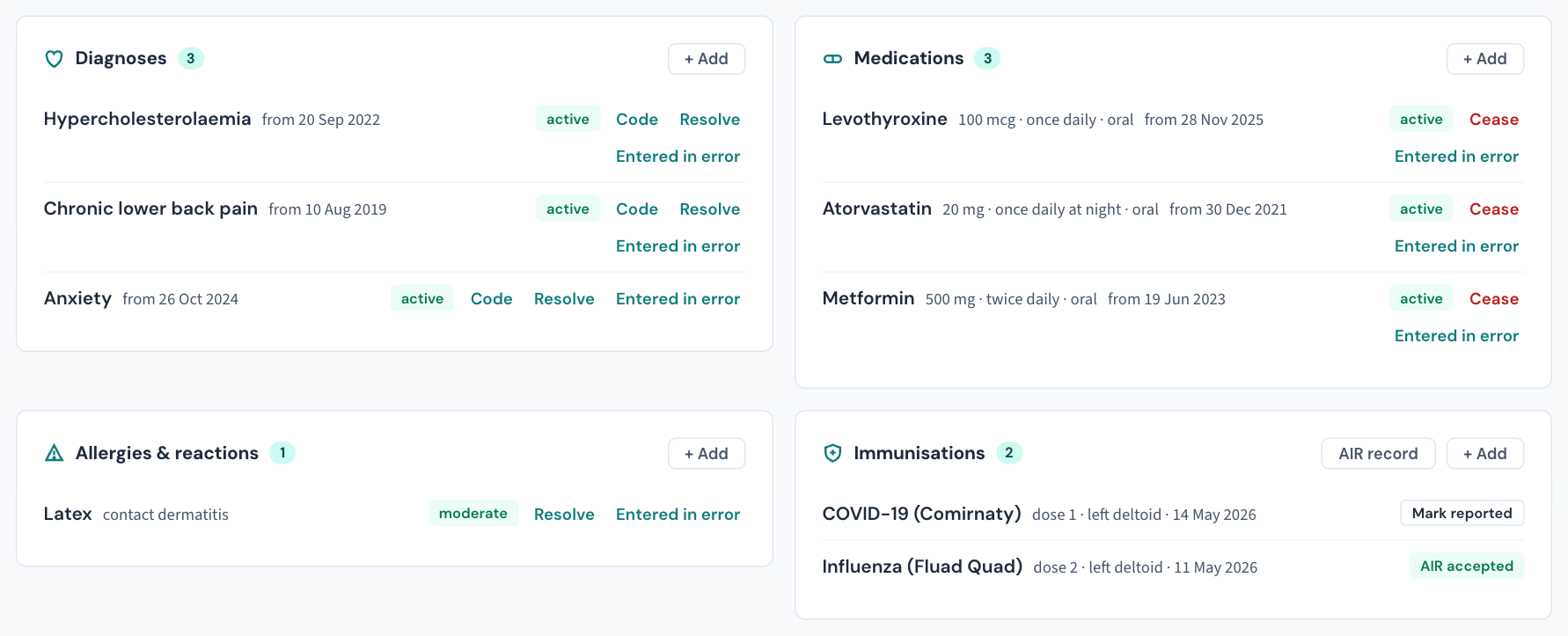
Diagnoses
- On the Clinical History tab, on the Diagnoses panel, choose + Add.
- Type the Description. If your practice has a clinical terminology loaded, matching coded terms are offered underneath: choose one to record the code with it. If not, the diagnosis is saved as free text.
- Choose Save.
A diagnosis is also added when a prescriber ticks Add to past history on a script's reason, or Also add to the diagnosis list on a consult's diagnosis (KB-143 — Write and sign off a consult note).
If the terminology could not be searched, the form says so in red: "The terminology could not be searched (…) — that is not the same as no match. It can still be saved as free text." Choose Try again beside it (KB-170 — When part of a screen says it could not be loaded: Try again, and what Loading… means). If it still fails, save the wording as free text and attach a code later with Code. The Code and Recode windows say the same, ending "The diagnosis stays as it is." A family history condition is searched the same way.
To correct one:
- Resolve is for a diagnosis the patient had and no longer has. It stays on the list, greyed.
- Entered in error is for a diagnosis the patient never had, such as one added to the wrong record. It leaves the list. It is offered on a resolved diagnosis too.
- Code or Recode attaches or changes its code. The wording does not change. For a whole backlog, see KB-126 — Code a backlog of free-text diagnoses in Settings → Diagnosis coding.
- The panel has no way to change the wording of a diagnosis. Mark it entered in error and add it again.
Medications taken but not prescribed here
Scripts written in Curaeon add their medicine to the list themselves. For anything else, choose + Add on the Medications panel and enter the Drug name, Dose, Frequency, Route and Started. Leave Started blank if the date is not known. Tick When required (PRN) if it applies.
To stop one: choose Cease and give the Reason, which is required. The medicine stays on the record as ceased, with the reason.
To take off one the patient was never on: choose Entered in error. It leaves the list. A script already written for it is not cancelled: cancel that from the Medications tab (KB-144 — Write a prescription: repeats, authority, Schedule 8, brands, reprint and cancel).
Family and social history
- On the Clinical History tab, choose Edit social & family history. The pencil on the Family & Social History card on Overview opens the same window.
- Work through the tabs you need: Family, Social, Occupation, Alcohol and Tobacco.
- Choose Save.
| Tab | What it holds |
|---|---|
| Family | Unknown (e.g. adopted), No significant family history, whether each parent is alive, a grid of common conditions for mother and father, and a list of conditions for any relative |
| Social | Living situation, accommodation, who the patient lives with, carers, advance care directive, enduring power of attorney, and Do you feel safe in your own home? |
| Occupation | Work status, employer, industry, retirement and occupational exposures |
| Alcohol | Status, standard drinks a week, and the three AUDIT-C questions. The score is worked out when you save |
| Tobacco | Current smoking, quantity, years started and quit, Vaping, and what cessation help was given |
Marital status and occupation are shown here but changed on the Demographics card on Overview.
The window saves the whole of the social history at once, so it opens only when that history has been read. While the family or social history is loading, or if it could not be loaded, Edit social & family history and the pencil are switched off. Point at the button to see why.
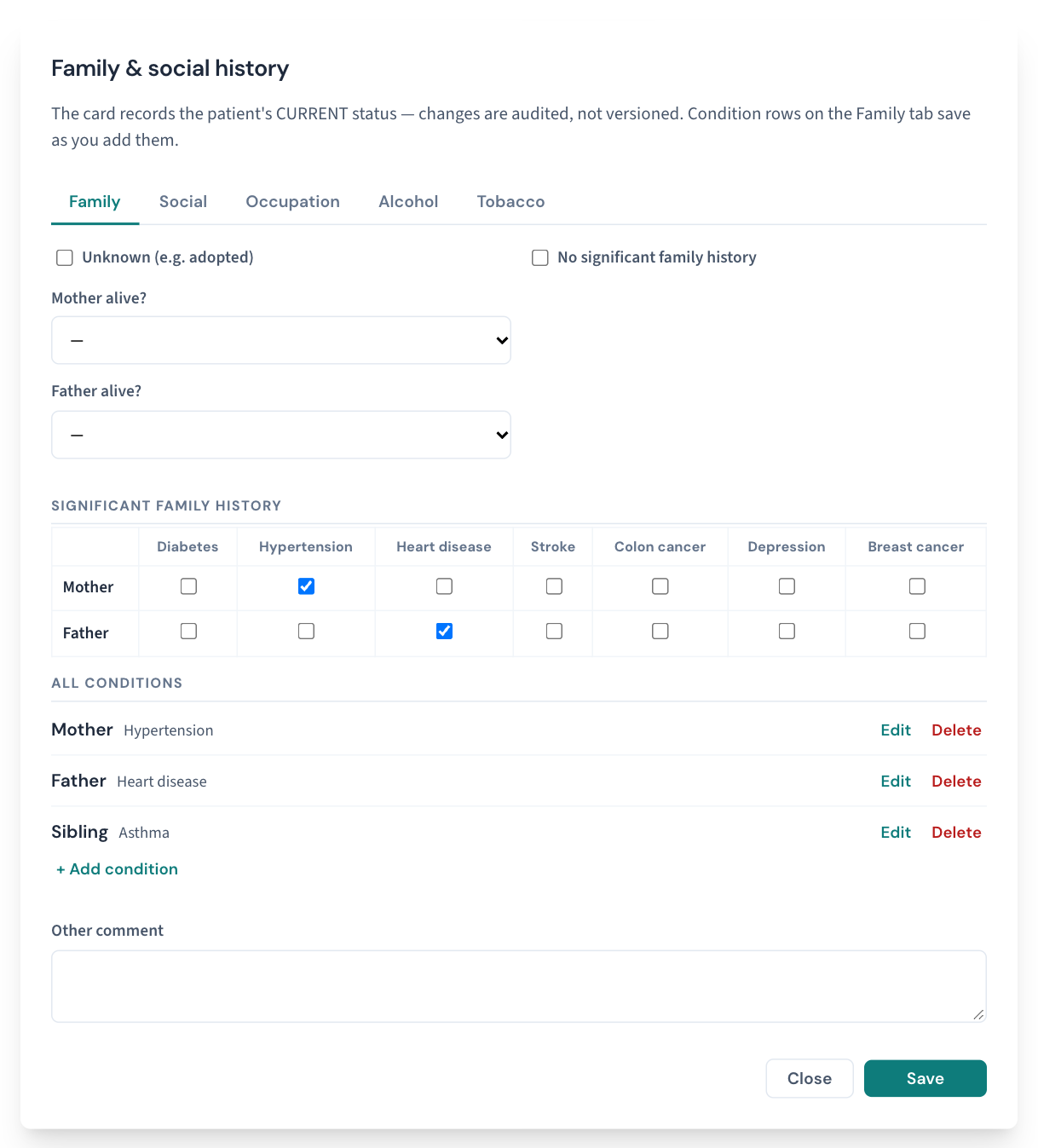
Two things save differently. On the Family tab, ticking a box in the grid, + Add condition and Edit save at once. Everything else in the window is saved together by Save, and closing without it discards those changes. While a row is typed in + Add condition and not added, Save is off on every tab and the window says A family history row is typed and not added. Add it or cancel it before saving. Moving to another tab keeps what you typed.
To correct:
- A family condition: Edit it, or Delete it. Delete takes the row off the list and keeps it in the record as entered in error. Unticking a grid box does the same.
- Anything else: change it and Save. The record shows the current answer only. What it said before is in the Audit log (KB-101 — Find who did what in the Audit log: kinds, Sign-ins, Exactly, Who and a bookmarkable view).
Observations
- Open the Observations tab and choose + Record. In a consult, choose Record observations under Do now instead.
- Fill in what you measured. Blanks are skipped.
- For the seated blood pressure, choose Add BP reading 2, then Add BP reading 3, to enter up to three readings taken minutes apart. Each is kept as its own reading, in order.
- Choose Save all.
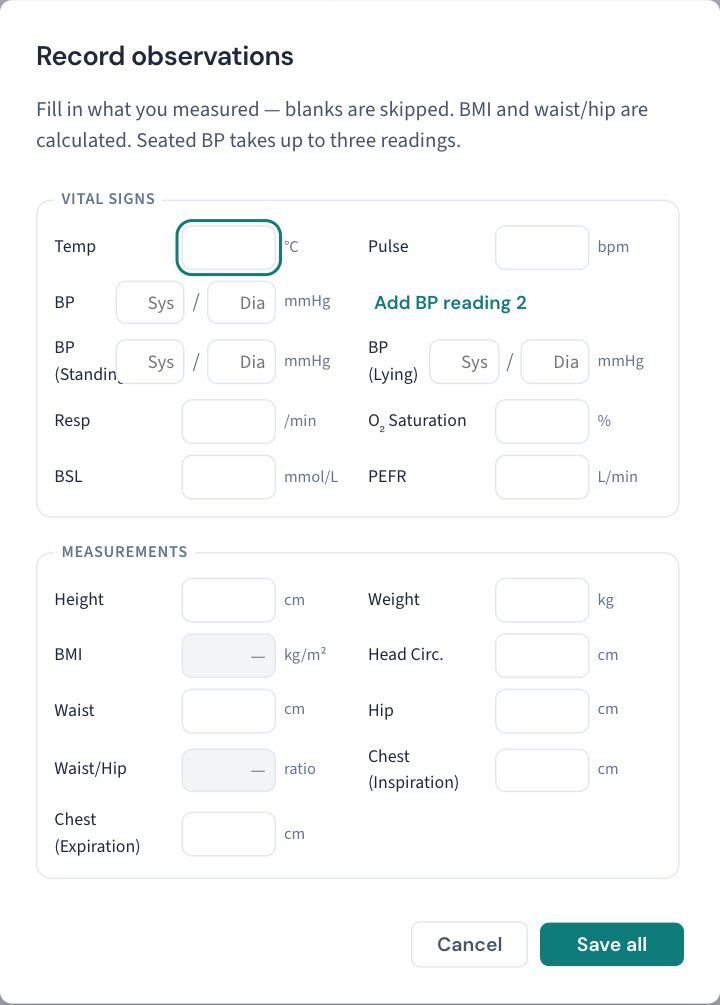
The window takes temperature, pulse, blood pressure (sitting, standing and lying), respiratory rate, oxygen saturation, blood sugar, peak flow, height, weight, and head, waist, hip and chest measurements. BMI and Waist/Hip are calculated. Readings are dated when you save. Curaeon does not average three blood pressures: which to average is your reading of them.
Recorded from a consult
Readings saved from Record observations in a consult belong to that consult, and Curaeon adds one line for the set to the note's Examination, starting "Observations:". Three blood pressures read as one part, in the order taken, for example "BP systolic 142, 138, 136 mmHg". Anything you had typed in Examination is saved first, and the note is read again afterwards, so nothing you typed is lost.
The message says what happened:
- "Recorded 3 observations and added them to Examination."
- If the note is already signed: "Recorded 3 observations. The note for this visit is signed, so they were not added to it — amend the note if it should mention them." The readings are recorded either way (KB-043 — Correct or amend a note after it's signed).
Readings recorded from the Observations tab belong to no consult and touch no note.
A reading that cannot be right is refused
Curaeon refuses a number outside what a living patient can measure, before anything is saved, for example a temperature typed in Fahrenheit into a Celsius box, or a weight in grams. The message names the reading and the limits, such as "Temp 98.6 °C is outside what can be recorded (20–45 °C)." These limits are far wider than any normal range: a pulse of 180 is alarming, and is recorded.
A blood pressure whose diastolic is not lower than its systolic is refused too, usually two numbers swapped.
Each vital then has a card with its latest value and the change since the last reading. A card marked outside has a latest reading outside the typical adult range. Choose a card for its chart and the list of readings.
Scores such as K10 and PHQ-9 are not typed here. They arrive from the assessment tools linked at the top of the tab. A child's or teenager's growth charts are drawn below the cards (KB-098 — Read a child's or teenager's growth chart on the Observations tab).
To correct one: choose the vital's card, find the reading in the list under the chart, and choose Entered in error on its row. The reading leaves the trend and the list. Then record the right reading. A blood pressure is marked as one reading, both numbers together.
- If the reading was added to a visit's note when it was recorded, the note is not changed. Correct a draft note by hand, or amend a signed one (KB-043 — Correct or amend a note after it's signed).
- A score from an assessment tool and an INR have no Entered in error here. They are filed by the tool, and the list says so. Mark the saved result on the tool's page (KB-149 — Use the assessment tools: K10, PHQ-9, DASS-21, GDS-15, MMSE, AUDIT-C, AUSDRISK and cardiovascular risk) or on the Anticoagulation screen (KB-151 — Manage warfarin patients on the INR monitoring screen), and its reading goes with it.
- A BMI is worked out from a weight and a height. Mark the weight or the height it came from.
How each entry is put right
| Entry | What the screen offers | What happens to the original |
|---|---|---|
| Allergy or reaction | Resolve, Entered in error | Resolved: stays, greyed. Entered in error: leaves the panel. Either way its alert is lifted |
| Diagnosis | Resolve, Entered in error, Code, Recode | Resolved: stays, greyed. Entered in error: leaves the list |
| Medication | Cease, with a reason, or Entered in error | Ceased: stays, with the reason. Entered in error: leaves the list |
| Family condition | Edit, Delete | Delete keeps it as entered in error, off the list |
| Social history | Change it and Save | Current answer only. The Audit log has the change |
| Observation | Entered in error on the reading, then record it again | Leaves the trend and the list of readings |
Entered in error, or Resolve and Cease
Resolve and Cease are part of the patient's history: they say the patient had the condition, or was on the medicine, and no longer is. Entered in error says the entry was a mistake and was never true of this patient.
Choosing Entered in error opens a window that says what will leave the record and names the button to use instead if the entry was not a mistake. Choose Mark entered in error to go ahead, or Keep it.
- The entry leaves its list and anything written from the record afterwards, such as a new health summary or letter. A care plan or a letter already written that names it is not changed.
- It stays on the record marked entered in error, with your name and the time. The Audit log shows it (KB-101 — Find who did what in the Audit log: kinds, Sign-ins, Exactly, Who and a bookmarkable view).
- Undo puts it back. For a diagnosis, a medication, an allergy or reaction, and a reading, the message that appears after the mark has Undo and stays for fifteen seconds. Choose it and the same entry returns as it was, with its own date and author. A diagnosis that was resolved is resolved again, a medication that was ceased is ceased again, and an allergy's alert returns to the top of the record. The message then reads "put back, as it was".
- Once that message has gone, the entry cannot be put back from the screen. If you marked the wrong row and missed Undo, record the entry again.
- A link to another patient has no Undo.
What each message means
| Message | What it means | What to do |
|---|---|---|
| Enter at least one observation. | Every box was empty | Fill in at least one |
| A label, then enter a plain number (e.g. 37.5). | That box holds something other than a number | Type the number only. The unit is already set |
| BP: enter both systolic and diastolic. (or BP reading 2: …) | Only one of the two was entered | Enter both, or clear both |
| A reading, then is outside what can be recorded and the limits | The number cannot be a real measurement in that unit | Check the unit and the number, and type it again |
| A blood pressure, then the diastolic must be lower than the systolic. | The two numbers are the wrong way round | Swap them |
| A condition is required. | A family history row has no condition | Type the condition |
If that didn't work
If a button named here is missing, your role does not have the permission in the table at the top. If a panel shows an error message where its list should be, the list could not be read. Choose Try again beside the message before assuming it is empty. A panel that reads Loading… has not answered yet, which is not the same as empty (KB-170 — When part of a screen says it could not be loaded: Try again, and what Loading… means).
Still stuck? Raise a ticket at support.curaeon.com.au or call 1300 XXX XXX. If your clinic can't see patients right now, call and choose option 1. Support is staffed Monday to Friday, 8:00–18:00 Sydney time; outside those hours a call or text to the same number is answered on a best-effort basis.
Related articles
- KB-104 — Add or lift a DNR, interaction or red-flag alert above a patient's chart — Add or lift a DNR, interaction or red-flag alert above a patient's chart
- KB-098 — Read a child's or teenager's growth chart on the Observations tab — Read a child's or teenager's growth chart on the Observations tab
- KB-126 — Code a backlog of free-text diagnoses in Settings → Diagnosis coding — Code a backlog of free-text diagnoses in Settings → Diagnosis coding
- KB-149 — Use the assessment tools: K10, PHQ-9, DASS-21, GDS-15, MMSE, AUDIT-C, AUSDRISK and cardiovascular risk — Use the assessment tools: K10, PHQ-9, DASS-21, GDS-15, MMSE, AUDIT-C, AUSDRISK and cardiovascular risk
- KB-144 — Write a prescription: repeats, authority, Schedule 8, brands, reprint and cancel — Write a prescription: repeats, authority, Schedule 8, brands, reprint and cancel
- KB-143 — Write and sign off a consult note — Write and sign off a consult note
- KB-078 — Print a medication summary chart, or a whole aged-care round — Print a medication summary chart, or a whole aged-care round
- KB-121 — Change what each role may do in Settings → Permissions — Change what each role may do in Settings → Permissions
- KB-172 — Drug-safety alerts from MIMS: what is screened, what an alert shows, and acknowledging one — Drug-safety alerts from MIMS: what is screened, what an alert shows, and acknowledging one