Start here: I'm the practice manager
Ten articles in the order a practice manager needs them — staff and setup first, then the monthly and weekly routines, then what your agreement with us covers.
One page to pin beside the monitor: the quick-reference guide for this role is KB-112 — Quick reference: practice manager. The Help Centre's print view drops the navigation, so it prints as one sheet.
How to use this page
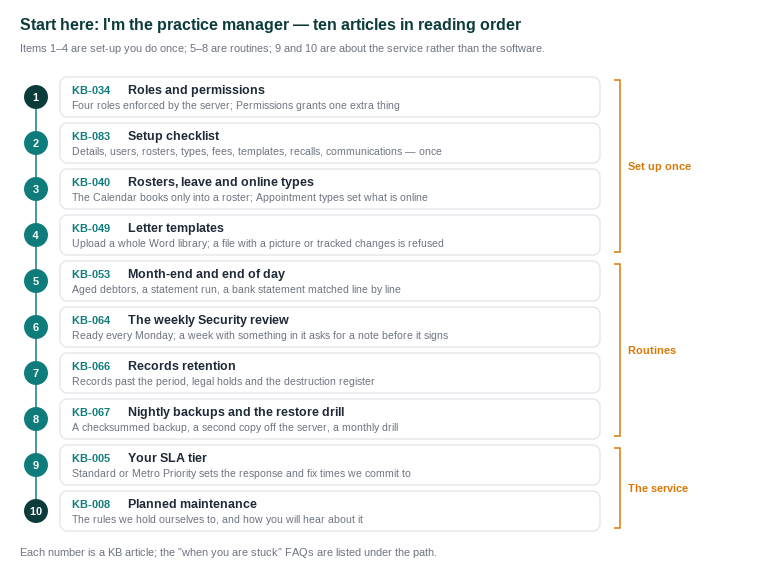
Items 1–4 are set-up you do once; 5–8 are routines; 9 and 10 are about the service rather than the software.
The path
-
KB-034 — Choose the right role and permissions for a new staff member — Roles and permissions. Four roles decide what appears, enforced by the server rather than hidden in the screen, and Settings → Permissions grants one extra thing without moving someone up a role. All of Settings is yours as an administrator: since 22 October 2026 nobody else can open it (KB-115 — Find your way around Settings: every section, who can open it, and where to read more). Afterwards: you can pick the narrowest role that covers a new starter's work.
-
KB-083 — Practice-manager setup checklist: everything to configure before your first consulting day — Setup checklist. Practice details, users, rosters, appointment types, fees, templates, recall programs and communications, worked through once before the first consulting day. Afterwards: the calendar offers the right slots, claims can be sent, letters arrive and a backup has already run.
-
KB-040 — Set up rosters, leave and online-bookable appointment types, and handle online booking requests — Rosters, leave and online types. The Calendar books only into a practitioner's roster, and Settings → Appointment types says which types patients may book online. Afterwards: the diary offers the right slots and the Bookings queue holds only requests you want.
-
KB-049 — Build and import letter templates: Word upload, merge fields, pronoun fields, snippets — Letter templates. Upload brings a whole Word library in at once; a file holding a picture, a header or tracked changes is refused with the reason. Afterwards: your existing letters are in, and templates read correctly for every patient.
-
KB-053 — Month-end and end of day: aged debtors, statement runs and bank reconciliation — Month-end and end of day. Aged debtors, a statement run that prints itself, and a bank statement imported and matched line by line with the reason in words. Afterwards: you can close the day and the month from the ledger without guessing.
-
KB-064 — Sign off the weekly Security review, and act on alerts and audit-log check warnings — The weekly Security review. Every Monday a review of the week before is ready, and a week with something in it asks for a note before it will sign. Afterwards: ten minutes produces accreditation evidence, and you know which warnings mean "contact support".
-
KB-066 — Keep, hold or destroy patient records past retention — Records retention. Settings → Records retention lists records past the period, what stops any of them being destroyed, legal holds and the destruction register. Afterwards: you can set the practice's period, hold what must be held, and read what "Not destroyed" means.
-
KB-067 — Set up nightly backups, a second copy and a monthly restore drill — Nightly backups and the restore drill. A backup every night with a checksum, a verified second copy off the server, and a monthly drill that proves it restores; every place a backup is kept must be encrypted. Afterwards: "would we recover?" has an answer with evidence.
-
KB-005 — Your SLA tier — Standard vs Metro Priority — Your SLA tier. Standard or Metro Priority sets the response and fix times we are committed to; your tier is on your agreement. Afterwards: you can set the right expectation when something breaks.
-
KB-008 — Planned maintenance — how you'll be notified — Planned maintenance. The rules we hold ourselves to when we work on your systems, and how you will hear about it. Afterwards: you can plan a clinic day around a notice rather than be surprised by it.
When you are stuck
Point new staff at their own Start-here page below. To protect administrators' accounts with a passkey, and to require one, see KB-171 — Sign in with a passkey: add one, use it, remove it, and when your practice requires one. For seats, tier changes or invoices, KB-071 — Add or reduce seats, change SLA tier, get an invoice copy or fix a failed direct debit names the request to raise. For consults that were finished and never billed, Consults to bill is the list (KB-161 — Find consults that were never billed: the Consults to bill list). Before the first Medicare or DVA claim, each provider must be registered with Tyro (KB-162 — Register each provider with Tyro before the first claim), and once claims are going KB-156 — Follow a Medicare or DVA claim: its status, Check now and the claims list shows how to follow them. For the day Curaeon cannot be opened on any computer, KB-164 — What to do when Curaeon cannot be reached is the procedure to have printed beforehand. KB-163 — Read the Reports screen: My dashboard, Performance and the Billing & claims summary explains what each number under Reports counts, KB-166 — Check that the server's disks are encrypted is the monthly check that the server's disks are encrypted, and KB-165 — Replace or rebuild your server and keep the licence is the one to read before the server is replaced. Before any ticket, KB-082 — What to have ready before you contact support says what to have ready and KB-007 — Why we never need patient details in a support ticket why it never includes a patient's details.
Important: Only administrators read the Audit log, and your own reading of it is recorded too. That is the design.
Related articles
- KB-093 — Start here: I work at reception — Start here: I work at reception
- KB-094 — Start here: I'm a GP or nurse — Start here: I'm a GP or nurse
- KB-096 — Start here: I look after the computers — Start here: I look after the computers
- KB-085 — Glossary: the words Curaeon uses — Glossary: the words Curaeon uses
- KB-105 — Read Quality measures, registers and preventive care due — and why they are not the PIP QI extract — Read Quality measures, registers and preventive care due — and why they are not the PIP QI extract
- KB-108 — Bank lines that won't match, statement reprints and brought-forward balances: the ledger FAQ — Bank lines that won't match, statement reprints and brought-forward balances: the ledger FAQ
- KB-115 — Find your way around Settings: every section, who can open it, and where to read more — Find your way around Settings: every section, who can open it, and where to read more
- KB-133 — Find your way around Utilities: every section, what it is for and who can open it — Find your way around Utilities: every section, what it is for and who can open it
- KB-163 — Read the Reports screen: My dashboard, Performance and the Billing & claims summary — Read the Reports screen: My dashboard, Performance and the Billing & claims summary
- KB-164 — What to do when Curaeon cannot be reached — What to do when Curaeon cannot be reached
- KB-165 — Replace or rebuild your server and keep the licence — Replace or rebuild your server and keep the licence
- KB-166 — Check that the server's disks are encrypted — Check that the server's disks are encrypted