Set up two-factor sign-in for Curaeon, and fix a code that is rejected, already used or timed out
Enrol your authenticator app the first time you sign in to Curaeon, keep your recovery codes safe, and know what each sign-in message means when a code does not go through.
This article is about signing in to Curaeon itself, on your practice's own server. For the support portal, see KB-002 — Reset your password or MFA for the support portal.
Before you start
You need the practice's Curaeon address (your installer provides it), your email address and password, and an authenticator app on your phone — Google Authenticator, Microsoft Authenticator, 1Password and the like all work. Allow five minutes: the setup screen times out after that.
Enrol at your first sign-in
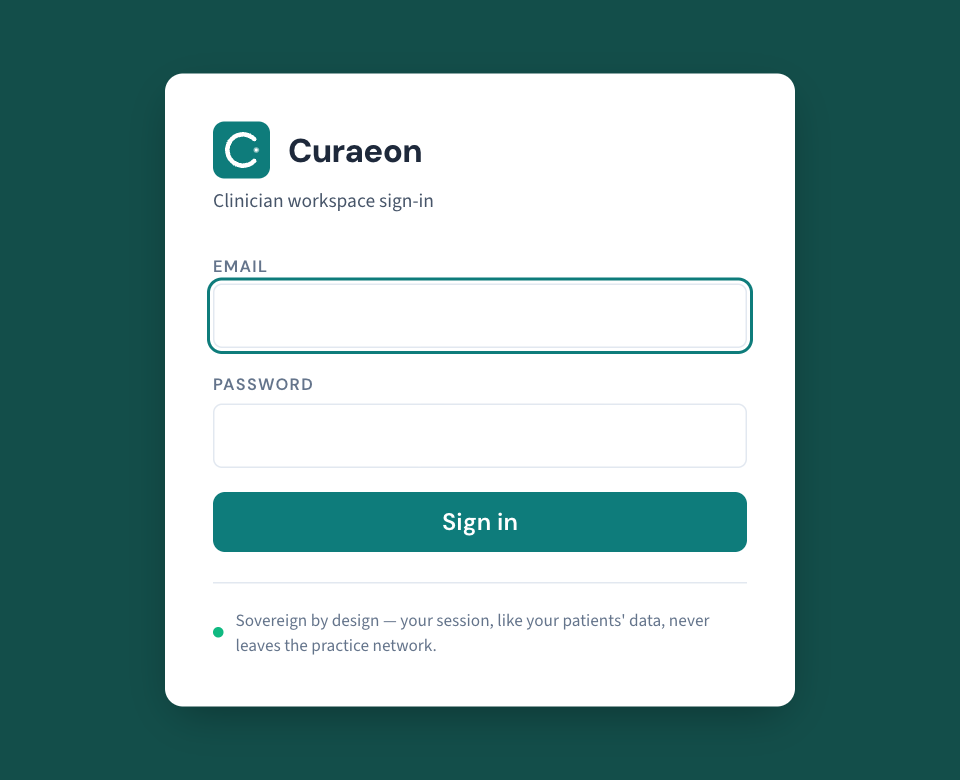
- Open the practice's Curaeon address in a browser and sign in with your email address and password.
- A QR code appears. Scan it with your authenticator app.
- If the camera will not read it, choose the app's option to enter a setup key and type the key shown under the QR code.
- Write down or print the ten recovery codes. Each signs you in once if your phone is not to hand. Keep them where you keep other work passwords — not on the monitor.
- Enter the six-digit code the app shows. You are in.
From now on you need a code at every sign-in, and each code works once. If your phone is unavailable, choose Use a recovery code instead and type one of your ten. Every sign-in is recorded with the browser and device it came from, and with how the second step was given.
Once you are in, you can also add a passkey: a security key, or a computer or phone that unlocks with your fingerprint, face or PIN. Sign-in then offers Use your passkey before the code. A fake sign-in page cannot use a passkey the way it can use a code, and some practices require one for administrators. See KB-171 — Sign in with a passkey: add one, use it, remove it, and when your practice requires one.
When a code does not work
| What you see | What it means | What to do |
|---|---|---|
| Code rejected at sign-in | Your phone's clock has drifted, or you scanned the QR code into the wrong account in the app | Check the phone's date and time are set automatically, then try the next code. If it still fails, ask an administrator to reset your enrolment (KB-032 — Reset a colleague's password or 2FA, or recover when the only administrator is locked out). |
| "That code has already been used" | You signed in with this code moments ago — perhaps on another computer. Each code works once | Wait for the app to show the next code (at most 30 seconds) and enter that. |
| "Setup timed out before it was confirmed" | More than five minutes passed on the QR-code screen | Sign in again for a fresh QR code. First delete the Curaeon entry you already added in the app — it will never show a working code, and two entries side by side is how people read the wrong one. |
Good to know
- Being signed out after a quiet spell (15 minutes unless your practice changed it) is not a two-factor problem — see KB-033 — Change how long Curaeon waits before signing you out, and end a session left open.
- Five failed attempts in a row lock the account for 15 minutes: wrong passwords, wrong codes and passkey answers that do not check out all count. The sign-in page says "Account locked after repeated failures. Try again in 15 minutes." and sends you back to the password step. Wait, or ask an administrator to reset your password from Settings → Users, which clears the lockout at once (KB-032 — Reset a colleague's password or 2FA, or recover when the only administrator is locked out).
- An administrator at a practice that requires passkeys for administrators cannot finish with a code once they have a passkey. See KB-171 — Sign in with a passkey: add one, use it, remove it, and when your practice requires one.
If that didn't work
Clock right, code fresh, still rejected? An administrator resets your enrolment and you enrol again as above.
Still stuck? Raise a ticket at support.curaeon.com.au or call 1300 XXX XXX. If your clinic can't see patients right now, call and choose option 1. Support is staffed Monday to Friday, 8:00–18:00 Sydney time; outside those hours a call or text to the same number is answered on a best-effort basis.
Related articles
- KB-032 — Reset a colleague's password or 2FA, or recover when the only administrator is locked out — Reset a colleague's password or 2FA, or recover when the only administrator is locked out
- KB-033 — Change how long Curaeon waits before signing you out, and end a session left open — Change how long Curaeon waits before signing you out, and end a session left open
- KB-002 — Reset your password or MFA for the support portal — Reset your password or MFA for the support portal
- KB-171 — Sign in with a passkey: add one, use it, remove it, and when your practice requires one — Sign in with a passkey: add one, use it, remove it, and when your practice requires one
- KB-086 — Signing-in FAQ — Signing-in FAQ