Record a pregnancy on the patient's record
Add a pregnancy to a patient's record from the last menstrual period or a dating scan, keep the antenatal visits and results with it, and record how it ended.
Before you start
- The Obstetric History tab appears only when Sex (Medicare) on the record is Female. A record with another value, or none, does not have the tab (KB-142 — Register a new patient).
- Recording needs the
chart.writepermission. Clinicians and administrators have it. Other roles do not unless your practice has granted it (KB-121 — Change what each role may do in Settings → Permissions). Anyone who can open the record can read the tab. - A patient has one pregnancy in progress at a time. Record the outcome of one before adding the next.
Add a pregnancy
- Open the patient's record and choose the Obstetric History tab.
- On the Pregnancies panel, choose + Add pregnancy.
- Enter Date of LMP. Cycle length (days) opens at 28. Change it if the cycle is known.
- If there is a dating scan, enter the Dating scan date and the Weeks and Days it measured, then tick Date by the scan rather than the LMP.
- Read the line under the boxes. It shows the due date each method gives and the gestation today, before anything is saved.
- Choose Record pregnancy.
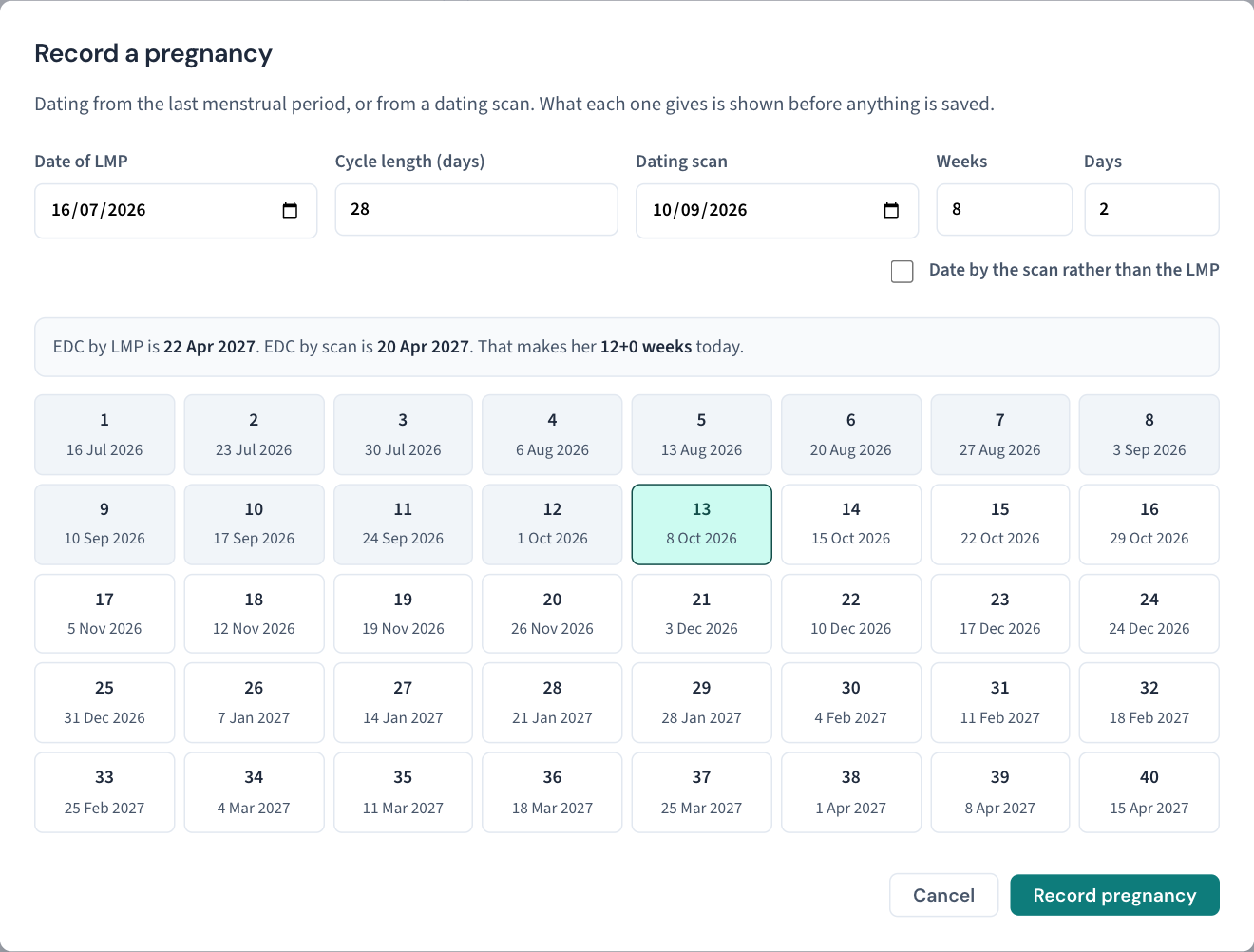
What Curaeon calculates
- EDC by LMP is the LMP plus 280 days. A cycle longer or shorter than 28 days moves it by the difference.
- EDC by scan is worked back from the gestation the scan measured on the scan date.
- A scan, when you choose it, is used ahead of the LMP. The LMP stays on the record beside it. The EDC line on the tab says which was used: by scan or by LMP.
- Gestation today is worked out each day from the EDC, as weeks and days. It is not stored. After 40 weeks it is marked past term.
- The grid under the boxes lists the 40 weeks and the date each begins.
Change the dating later
While a pregnancy is in progress the button on Pregnancies reads Re-date pregnancy. It opens the same window, called Gestational age, with what is already recorded. Add the scan, or correct the LMP, and choose Save dating. The same pregnancy is updated. The gestation shown beside every antenatal visit changes with it.
Gestational age on the This pregnancy panel opens the same window, and is the place to read the week-by-week dates.
What the tab holds
| Panel | What it records |
|---|---|
| This pregnancy | The dating above, and through Edit: Pregnancy no., Gravidity, Parity, Miscarriages, Terminations, IVF pregnancy, Delivery, Delivery detail, Gestation at end (wks) and four complications |
| Antenatal results | Six results at a glance. Open results has the full sheet, in three groups: First visit, 26–28 weeks, and 36 weeks & low vaginal swab |
| Pregnancies | A row for each pregnancy on this record: LMP, EDC, when it ended, weeks, outcome and delivery. Choose a row to show that pregnancy in the other panels |
| Antenatal visits | A row for each visit to the selected pregnancy |
G / P / M / T is typed, not counted. Curaeon does not work it out from the list, because a pregnancy managed elsewhere is not on the list.
The antenatal results sheet is saved whole. Clearing a box and saving removes that result.
Record an antenatal visit
- Choose the pregnancy on Pregnancies, then + Record visit on Antenatal visits.
- Enter the Date and what was measured: blood pressure, Weight (kg), Oedema, urine, the two Size boxes, Fundal height (cm), Foetal rate (bpm), Foetal heart, Foetal movements, Presentation, Position, Engagement and Comments.
- Choose Save visit.
A box left empty is left unrecorded, and nothing is assumed normal. Oedema, Urine — protein and Urine — glucose open on —: choose Nil only when you looked and found none. One box does not start empty: while the pregnancy is in progress and the visit is dated today, Size — calculated (wks) opens on today's gestation. Change the Date to another day and that box empties, unless you have typed in it.
In the visits table the Urine column reads NAD only when both sticks were recorded as Nil. A visit with no urine recorded shows a dash.
The visit joins the table with its gestation on that date. It also appears on the record's Past Visits tab as an antenatal visit.
A visit cannot be edited. If one is wrong, choose Withdraw on its row, confirm with Withdraw visit, and record it again. A withdrawn visit leaves the table and stays on the record marked as entered in error.
Record how the pregnancy ended
- On This pregnancy, choose Record outcome.
- Choose the Outcome: Live birth, Stillbirth, Miscarriage, Termination, Ectopic pregnancy or Other.
- Check Ended on and Gestation at end (wks). Add Delivery, Delivery detail and any Complications.
- Choose Record outcome.
The pregnancy stops counting a gestation and shows its outcome in the Pregnancies list. After that the outcome and the date it ended are fixed. View outcome still lets you correct the delivery and the complications. + Add pregnancy is offered again.
What each refusal means
| Message | What it means | What to do |
|---|---|---|
| Enter an LMP, or a scan date with its gestation. | Neither was given | Enter one of them |
| a dating scan needs the gestation it measured | A scan date with no weeks or days | Enter the weeks and days |
| scan gestation must be 0–45 weeks and 0–6 days | The weeks or days are outside that | Correct them |
| cycle length must be 20–45 days | The cycle length is outside that | Correct it, or set it back to 28 |
| those dates give an EDD of …, which is not a current pregnancy | The due date is more than a year from today, either way | Check the dates. A pregnancy from years ago cannot be added here. Count it in G / P / M / T |
| the visit is before the LMP for this pregnancy or the visit is after this pregnancy ended | The visit date is outside the pregnancy | Correct the date |
Where the pregnancy shows
On the Obstetric History tab, on Past Visits for each antenatal visit, and in the Audit log (Pregnancy recorded, Pregnancy re-dated, Pregnancy details changed, Pregnancy outcome recorded).
It does not show on Overview or in the patient's header, and no other screen reads it. A pathology or imaging request has its own Pregnant tick box, which you tick on the request.
If that didn't work
If the Obstetric History tab is missing, check Sex (Medicare) in the patient's details. If the buttons are missing, your role does not have chart.write.
Still stuck? Raise a ticket at support.curaeon.com.au or call 1300 XXX XXX. If your clinic can't see patients right now, call and choose option 1. Support is staffed Monday to Friday, 8:00–18:00 Sydney time; outside those hours a call or text to the same number is answered on a best-effort basis.
Related articles
- KB-142 — Register a new patient — Register a new patient
- KB-145 — Record allergies, history and observations — Record allergies, history and observations
- KB-121 — Change what each role may do in Settings → Permissions — Change what each role may do in Settings → Permissions
- KB-061 — Restrict a patient's record, and open one in an emergency — Restrict a patient's record, and open one in an emergency