Start here: I work at reception
Ten articles, in the order a new receptionist meets the work — read them across your first week and you will be able to run the desk on your own.
One page to pin beside the monitor: the quick-reference guide for this role is KB-110 — Quick reference: reception. The Help Centre's print view drops the navigation, so it prints as one sheet.
Finding your way: every screen has one menu bar across the top. Calendar, Patients, Recalls and Billing are on it; Tasks and Utilities are under More; Preferences, Help and Sign out are under your name at the right (KB-178 — Find your way around Curaeon: the menu bar, More and your account menu).
How to use this page
Read them in order; each assumes the ones before it, and none takes more than ten minutes.
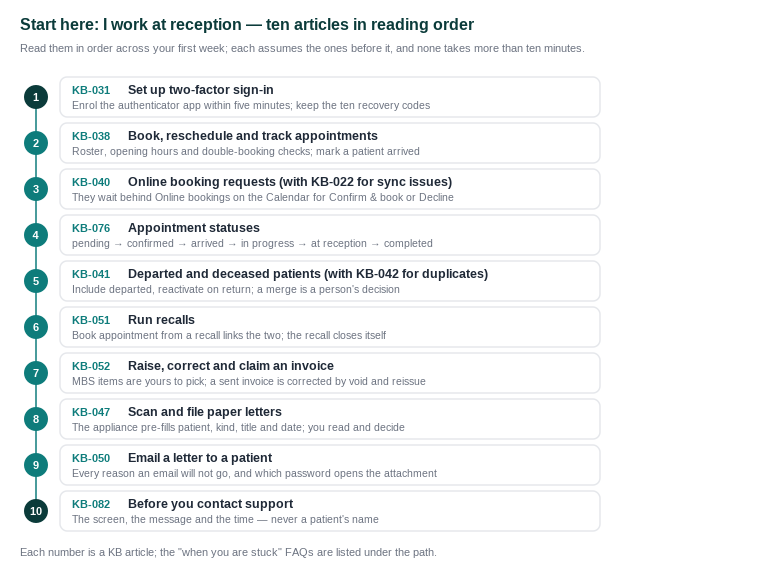
The path
-
KB-031 — Set up two-factor sign-in for Curaeon, and fix a code that is rejected, already used or timed out — Set up two-factor sign-in. Your first sign-in enrols an authenticator app and gives you ten recovery codes; finish within five minutes or the QR code expires. Afterwards: you sign in with a code every day and know what "that code has already been used" means.
-
KB-038 — Book, reschedule and track appointments in the Calendar — Book, reschedule and track appointments (with KB-175 — Book and hold a phone or video consult for phone and video appointments). Booking checks the roster, the opening hours and existing appointments, and tells you when you are double-booking. Today's calendar opens at the current time, with the next patient in view. Afterwards: you can book into the right slot, book a phone or video consult as one, mark a patient arrived, and know what a cancellation does to a recall.
-
KB-040 — Set up rosters, leave and online-bookable appointment types, and handle online booking requests — Online booking requests (with KB-022 — Booking system sync issues — first steps for when the diary and the online service disagree). Requests from the public booking page wait behind Online bookings on the Calendar for Confirm & book or Decline, and the note under each says when it matches nobody, or replaces an earlier one. Afterwards: you can work that queue, register a new patient straight from a request, and run the first checks when something is missing.
-
KB-076 — Appointment statuses from pending to completed, and what "At reception" means — Appointment statuses. A visit runs pending → confirmed → arrived → in progress → at reception → completed; "at reception" is the gap between the doctor finishing and the patient paying and rebooking. Afterwards: you can read the Calendar at a glance and see who is in front of you.
-
KB-041 — Find a departed patient, reactivate them, or record a death or departure — Departed and deceased patients (with KB-042 — Find and merge duplicate patient records for duplicates, KB-142 — Register a new patient to register someone new and KB-176 — Record a patient's MyMedicare registration, and what reads it to record a MyMedicare registration). On Patients, the Still to see today chip lists the patients booked today who have not yet been seen, and the Left the practice chip finds someone who has left; reactivate them when they return, and record a death or departure so recalls, reminders and letters stop. Afterwards: you can find any patient, and know that a merge is a person's decision, never the software's.
-
KB-051 — Run recalls: book from a recall, and why a recall stays open or comes back — Run recalls. Book appointment from a recall links the two, and the recall closes itself when the visit is completed. Afterwards: you can work the worklist from due to done, and explain why a recall stayed open or came back.
-
KB-052 — Raise, correct and claim an invoice, including when "Send to Medicare…" is blocked — Raise, correct and claim an invoice (with KB-148 — Take a payment, give a receipt, void or correct an invoice for payments, receipts and voids). Items come from the MBS schedule the practice has loaded — Curaeon never suggests one — and a sent invoice is corrected by void and reissue. Afterwards: you can bill a visit, take payment, and read what Send to Medicare… is telling you.
-
KB-047 — Scan and file paper letters, including the appliance's pre-filled suggestions — Scan and file paper letters (with KB-146 — Find, open and upload documents on the Reports tab of a patient's record for finding a filed document on the record). The appliance pre-fills patient, kind, title and date from the page; you read the page and decide. Afterwards: the day's paper is in the right record, dated by the letter, in front of the right doctor.
-
KB-050 — Email a letter to a patient: password, refused characters, "I can't open it" — Email a letter to a patient. Every message Curaeon shows when an email will not go — no consent, no address, a refused address, a character it cannot show. Afterwards: you can clear most refusals yourself and tell a patient which password opens their attachment.
-
KB-082 — What to have ready before you contact support — Before you contact support. Screens that went blank on every computer straight after an update usually need a server restart, not a call. Afterwards: you can raise a ticket that is answered first time — the screen, the message and the time, never a patient's name (KB-007 — Why we never need patient details in a support ticket).
Good to know
- Times are the practice's. Every appointment time, on the Calendar and in the Today · badge on the Patients list, is on the practice's clock and your 12- or 24-hour setting, not your computer's clock.
- A record's browser tab names the patient. With a patient's record open, the tab reads their name, then "— Chart — Curaeon", so several open records can be told apart. Like any page title, it is kept in the browser's history.
When you are stuck
The desk's FAQs are KB-091 — Recalls and reminders FAQ (recalls and reminders), KB-092 — Documents and scanning FAQ (documents and scanning) and KB-089 — Emailing patients FAQ (emailing patients). What somebody has to chase about a patient by a date is on Tasks (KB-147 — Work the Tasks screen: follow-ups about a patient, due by a date). Once your practice's Tyro connection is switched on, the desk also follows each Medicare or DVA claim on Billing → Medicare claims (KB-156 — Follow a Medicare or DVA claim: its status, Check now and the claims list), checks a card with Medicare from the patient's record (KB-157 — Verify a patient's Medicare card with Medicare), gets the patient's agreement to a bulk bill (KB-158 — Assignment of benefit for a bulk bill: Tyro's text to the patient, or signed on paper) and can take a card payment on the Tyro terminal (KB-160 — Take a card payment on the Tyro terminal). If the clinic cannot see patients right now, call and choose option 1. And when Curaeon asks why you are opening a record, the prompt is normal — KB-062 — Why Curaeon asks your reason for opening a record explains it.
Related articles
- KB-094 — Start here: I'm a GP or nurse — Start here: I'm a GP or nurse
- KB-095 — Start here: I'm the practice manager — Start here: I'm the practice manager
- KB-096 — Start here: I look after the computers — Start here: I look after the computers
- KB-085 — Glossary: the words Curaeon uses — Glossary: the words Curaeon uses