Write a prescription: repeats, authority, Schedule 8, brands, reprint and cancel
Write a script in the four-step prescriber, print it on script paper, and know how to reprint or cancel it.
Note: Every script Curaeon writes today is a paper script. Electronic prescriptions, where the patient receives a token, are not offered to prescribers yet. Interactions and allergies are screened by MIMS only once your practice has set MIMS up (KB-173 — Set up MIMS drug-safety screening in Settings: the three credentials, the switch, the test and each doctor's MIMS user); until then the prescriber says nothing was checked (KB-045 — "Not checked": what the drug-safety line says when screening is not set up, is held, or did not complete).
Before you start
- You need the
prescribepermission. Clinicians and administrators hold it by default (KB-121 — Change what each role may do in Settings → Permissions). - A new script starts from a consult, before the note is signed. Signing switches Prescribe and ↻ Repeat this script off, and the server refuses a script for a consult whose note is signed (KB-143 — Write and sign off a consult note).
- Your practice chooses what scripts print on in Settings → Practice, under Script paper: pre-printed PB023 stationery, or plain paper (KB-116 — Set up your practice's details, opening hours and closures in Settings → Practice).
- The prescriber shows the patient's allergy status on every step. Where nothing has been recorded it says so in red and asks you to record it, but it does not hold the script (KB-145 — Record allergies, history and observations). Where MIMS screening is on, it also screens the medicine against the allergies recorded by substance (KB-172 — Drug-safety alerts from MIMS: what is screened, what an alert shows, and acknowledging one).
- Where MIMS screening is on and MIMS have ended your MIMS subscription, you cannot prescribe: see KB-172 — Drug-safety alerts from MIMS: what is screened, what an alert shows, and acknowledging one.
Choose where to start
| You want to | Do this |
|---|---|
| Write a new script | In the consult, choose Do now → Prescribe. The New prescription window opens. |
| Repeat a script from an earlier visit | In the consult, open the visit under Recent Visits and choose ↻ Repeat this script. A one-screen Repeat script window opens, filled in: see Repeat a script from an earlier visit. |
| Reissue a script outside a consult | On the patient's Medications tab, under Prescriptions, choose ↻ Reissue. The prescriber opens on its last step with the old script's items loaded. |
| Start from a medicine prescribed at a previous practice | Same tab, under Prescribed at a previous practice, choose Prescribe again. It runs a search for the name and carries nothing else over. |
Note: A script written from the patient's record, by ↻ Reissue or Prescribe again, belongs to no consult, so no consult lists it. It is listed under Prescriptions on the Medications tab as draft, and you print it from there: see Print, view or cancel from the patient's record.
The Repeat script window holds only the drug, strength, quantity, directions, repeats, schedule and funding. For a brand, an authority number or the Active Script List tick, use Prescribe.
Drug-safety screening and MIMS documents
Both the four-step prescriber and the Repeat script window carry a drug-safety panel. In the four-step prescriber it sits under the step names, so it is on every step; in the Repeat script window it sits under the items.
- Where your practice has MIMS set up, the panel screens what you are writing against the patient's current medications, allergies and coded diagnoses, and shows MIMS's alerts. You can acknowledge each one. Nothing in it blocks the script (KB-172 — Drug-safety alerts from MIMS: what is screened, what an alert shows, and acknowledging one). Under it, once a listing is picked, are links to MIMS's product information and CMI leaflet for that medicine (KB-174 — Open MIMS's product information and the CMI leaflet from the prescriber and the patient's record).
- Where it is not set up, the panel reads "Interaction & allergy screening is available with a MIMS licence — not currently configured. Review interactions manually." Nothing was checked (KB-045 — "Not checked": what the drug-safety line says when screening is not set up, is held, or did not complete).
A medicine typed by hand, or written under Custom, has no code, so MIMS cannot screen it. Pick from the PBS list where you can.
Repeat a script from an earlier visit
The Repeat script window opens with the earlier script's drug, strength, quantity, directions, repeats, schedule and funding filled in. Check them, change what needs changing, and choose Save.
The list of matching medicines under Drug name stays closed when the window opens, so the fields below it are in view. It opens when you ask for it:
| You want to | Do this |
|---|---|
| See the PBS listings for the name that is filled in | Press ↓ in Drug name. The cursor is already in that field when the window opens |
| Search for a different medicine | Type in Drug name. The list opens once you have typed two characters |
| Move through the list | Press ↓ and ↑ |
| Take a listing | Press Enter on the listing that is marked, or click one |
| Close the list without choosing | Press Esc. The window stays open. Esc again closes the window |
- Typing over the name removes the PBS code that came with the earlier script. Choose a listing to put a code back. Choosing one also fills Form / strength from the listing.
- After typing, no listing is marked, so Enter takes nothing until you press ↓.
- Tab closes the list and moves to Form / strength.
- + Add item adds a blank item, up to three. Its Drug name works the same way.
- If the medicines could not be searched, Drug name says so: "The medicines could not be searched (…) — that is not the same as no listing. A name typed here is still used as written." Choose Try again beside it (KB-170 — When part of a screen says it could not be loaded: Try again, and what Loading… means). Typing on, choosing a listing or pressing ↓ clears the message.
The prescriber has four steps: Medication, Directions, Supply & PBS and Reason. Next › and ‹ Back move between them. The line at the foot of the window says what is still missing. Nothing is written until you choose Finish.
The allergy banner, on every step
A banner is pinned to the top of the window and stays there on all four steps, however far you scroll. It says one of three things:
- Recorded allergies: and the list.
- No known allergies and the date that was recorded (KB-145 — Record allergies, history and observations).
- In red, No allergy or adverse-reaction information has been recorded. It goes on: "Ask the patient and record it. The script can still be written, but an empty list is not the same as no known allergies." Nobody has recorded either, and only the record not loading holds a script (next section).
Under whichever of the three applies there may be a second banner, in amber: Told to the front desk, not yet recorded by a clinician, with what the patient said at registration, who noted it and when. Reception cannot record an allergy, so it is not on the list above. Ask the patient, and record it on the record (KB-145 — Record allergies, history and observations).
The banners show what is recorded. Comparing the medicine against it is the drug-safety panel's job, where MIMS screening is on (KB-172 — Drug-safety alerts from MIMS: what is screened, what an alert shows, and acknowledging one).
If the patient's allergies or medications did not load
The prescriber reads two parts of the record before a script is written: the patient's allergies and alerts, and their current medications. If either could not be loaded, a panel above the banner says which, and Finish stays off. For the allergies, the banner itself turns red and reads This patient's allergies could not be loaded. The foot of the window reads, for example, This patient's allergies and alerts could not be loaded. Try again, or tick the acknowledgement to prescribe without them.
- Choose Try again on the panel. If the record loads, the panel goes and you carry on.
- If it still will not load and the script cannot wait, check the patient's allergies or medications another way, with the patient or from another record.
- Tick the acknowledgement. It reads: "I have checked this patient's allergies and alerts another way — with the patient, or from another record — and am prescribing without Curaeon's list." For the medications it names current medications instead.
The tick is recorded with the script, under your name. From then on the script's row, in the consult and on the patient's Medications tab, reads Written with the patient's allergies and alerts not loaded — acknowledged by and your name.
Scripts written this way are also listed, for a period, under Reports → All reports → Prescribing → Scripts written with allergies or medications unread. You see the ones you wrote; a practice administrator sees the practice's. It is a list of acknowledgements, not of mistakes: it shows how often the record could not be read (KB-163 — Read the Reports screen: My dashboard, Performance and the Billing & claims summary).
- A tick covers only what it names. If a later Try again fails a second part, the tick clears and you are asked again.
- While the record is still loading, Finish stays off and there is nothing to tick. Wait for it.
- The Repeat script window has the same panel, and its Save stays off in the same way.
Step 1: Medication
- Under Search by, keep Product name, or choose Therapeutic class, Custom or Favourites.
- Type at least two characters, then choose the drug under Drug name.
- In the table, choose the listing you mean. Each row is one PBS listing: its code, its maximum Quantity and Rpts, and its Restriction, which reads Unrestricted, Restricted, Streamlined or Authority. One strength can be listed more than once under different restrictions, so read the code.
- Read the panel underneath: brand, class, route, cautions and the PBS restriction wording. Where the schedule states criteria, they are listed under Patient must meet ALL of: or Patient must meet ANY of:.
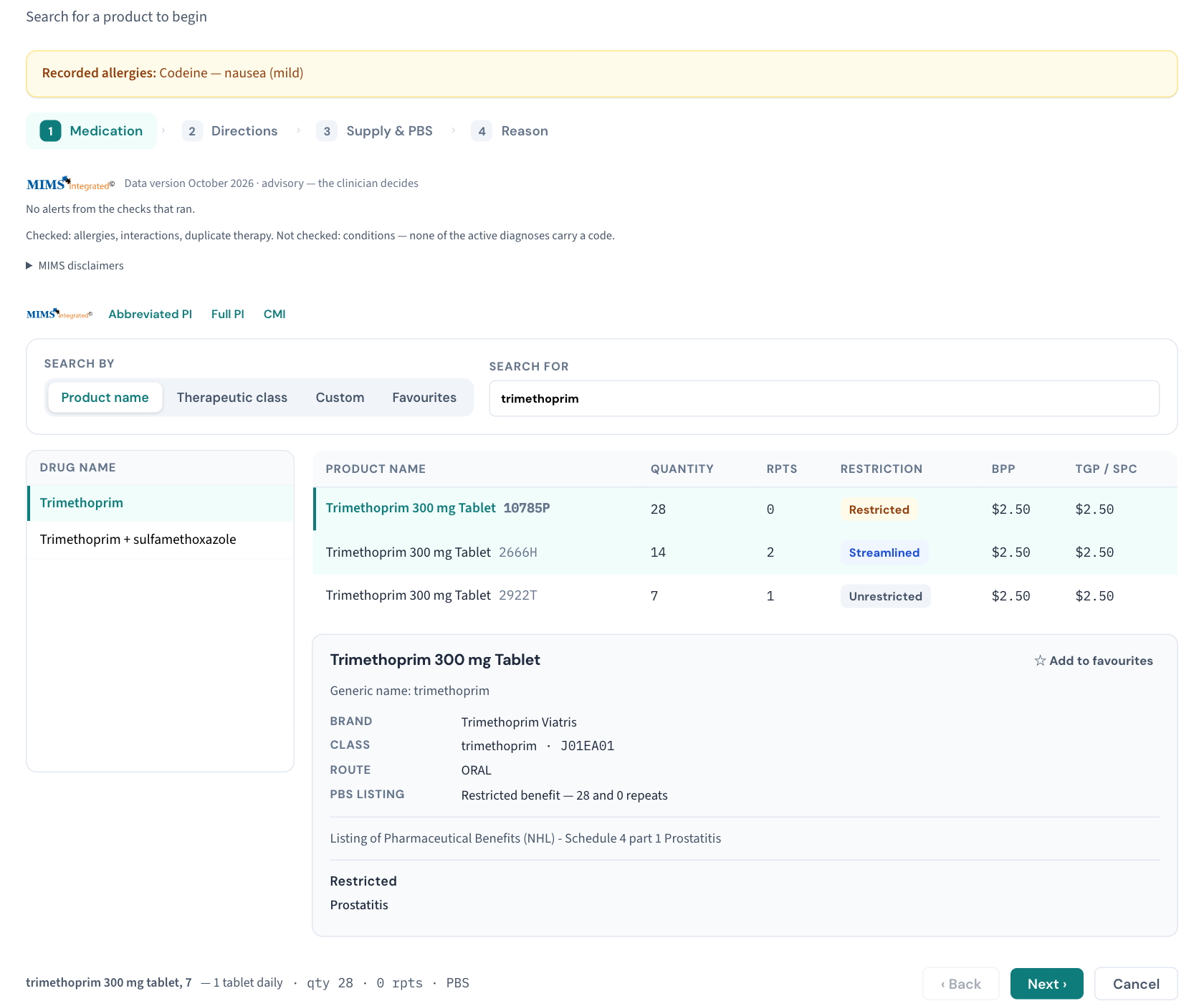
- ☆ Add to favourites keeps a listing under Favourites.
- Custom is for a product the PBS list does not carry. It is written by name with no PBS code, so it can only be a private script. An extemporaneous formula goes in the box beneath it.
- While a search is out the list reads Searching…. No product matches that. is said only once the search has answered.
Step 2: Directions
- Build the direction from the four lists: Dose, Frequency, Food and Other. Tick p.r.n. — as required if it applies, and check Route.
- Read Directions on script. That line is what prints.
- For anything the lists cannot say, such as a tapering course, type in Complex instructions. Once you type there, your text prints instead of the lists. Empty the box to go back. Store keeps the wording for next time.
Dose calculator multiplies a weight by a rate you enter. It does not recommend a dose. Save this dose as the default for this preparation stores the direction, quantity and repeats as your practice's usual dose for that listing.
Step 3: Supply & PBS
Quantity, repeats and schedule
- The quantity and repeats start at the listing's maximum. Type your own, or click the row under Availability to put the maximum back. Repeats run from 0 to 12. Repeat interval (days) is optional and needs at least one repeat.
- Choose the Schedule: S2, S3, S4, S8 or Unscheduled. It is required, and it is yours to set, because scheduling is not in the PBS data.
- Under Prescribe as, choose PBS, RPBS or Private. PBS and RPBS need a listing chosen in step 1.
Restricted, streamlined and authority items
| The listing is | Step 3 asks for |
|---|---|
| Restricted | Nothing more. The restriction wording is shown for you to read |
| Streamlined | Streamlined code |
| Authority | Authority number, from the phone or online approval. Curaeon does not request the approval for you (KB-058 — What Curaeon connects to Services Australia today (AIR, IHI, PBS authorities, Medicare, MyMedicare), and the manual workaround for each) |
| Any listing, where you ask for more than its maximum quantity or repeats | An authority number, under Authority required — increased supply |
Without the number or code, Finish stays off and the foot of the window reads Authority approval not recorded. Enter it, or change the script to Private. An authority or streamlined item must be the only item on its form. The printed form carries an authority prescription number that Curaeon generates and, if you gave a reason in step 4, Indication for Authority.
Schedule 8
- Choosing S8 shows Authorisation Reference Number (S8), for the number your state or territory issues where its law requires one.
- An S8 item must be the only item on its form.
- Curaeon holds a short list of substances that are Schedule 8 in every form. If the drug name matches one and you choose another schedule, the script is refused with a message that names the substance and says it "is a Schedule 8 substance and must be prescribed as S8". The list can contradict what you declare. It cannot confirm it: a medicine that is not on the list is accepted as you declare it, and medicines whose schedule depends on form or strength, such as codeine, are not on it.
- Where a medicine is monitored in your state, a prompt names your state's real-time prescription monitoring system, links to it and offers a tick that you checked it for this patient. The tick is recorded with the script. Curaeon does not query the system, and the prompt never blocks a script.
Brands
- A script is written by active ingredient unless you tick Print brand name on the script and choose the Brand.
- Listings prescribed by brand alone. For a listing on the PBS List of Excluded Medicinal Items, Curaeon ticks the brand box for you and says the listing is written by brand. Choose the brand. Brand only — no active ingredient on the script is offered for these listings.
- Brand consideration. For a medicine on the PBS List of Medicines for Brand Consideration, a note suggests including the brand so the patient stays on the one they know. It is a prompt. It goes when a brand is chosen and never blocks the script.
- Allow brand substitution is ticked by default. Untick it and the form's Brand substitution not permitted box is crossed.
- Where MIMS is set up, the brand you choose here is the one whose product information and CMI come first under the medicine (KB-174 — Open MIMS's product information and the CMI leaflet from the prescriber and the patient's record).
The Active Script List consent
Patient consents to the Active Script List is under My Health Record & supply. The Active Script List is a list of a patient's active prescriptions that the patient registers for. Curaeon does not register patients for it and does not show it.
- The box is ticked on every new script. Leave it ticked unless the patient declines for this script.
- Unticked, the copy of the script that goes to the eRx Script Exchange says the patient declined the Active Script List for that script. Ticked, the copy says nothing about it, which the exchange reads as consent.
- The choice is made for each script. There is no setting on the patient's record, and the screen has no way to change it after Finish.
- The choice is recorded even for a patient who is not registered, because a patient who registers later can bring in the scripts they consented to.
- It reaches the exchange only when the script does: the prescriber must be on eRx and the practice's connection switched on (KB-128 — Is eRx working? Read Settings → eRx Script Exchange: the outbox, the certificate and who is not yet on it). Until then the choice is stored with the script.
The hint under the boxes says neither consent uploads anything. That is true of the tick: Curaeon sends nothing to the Active Script List itself. What travels is the patient's choice, inside the script's copy to eRx.
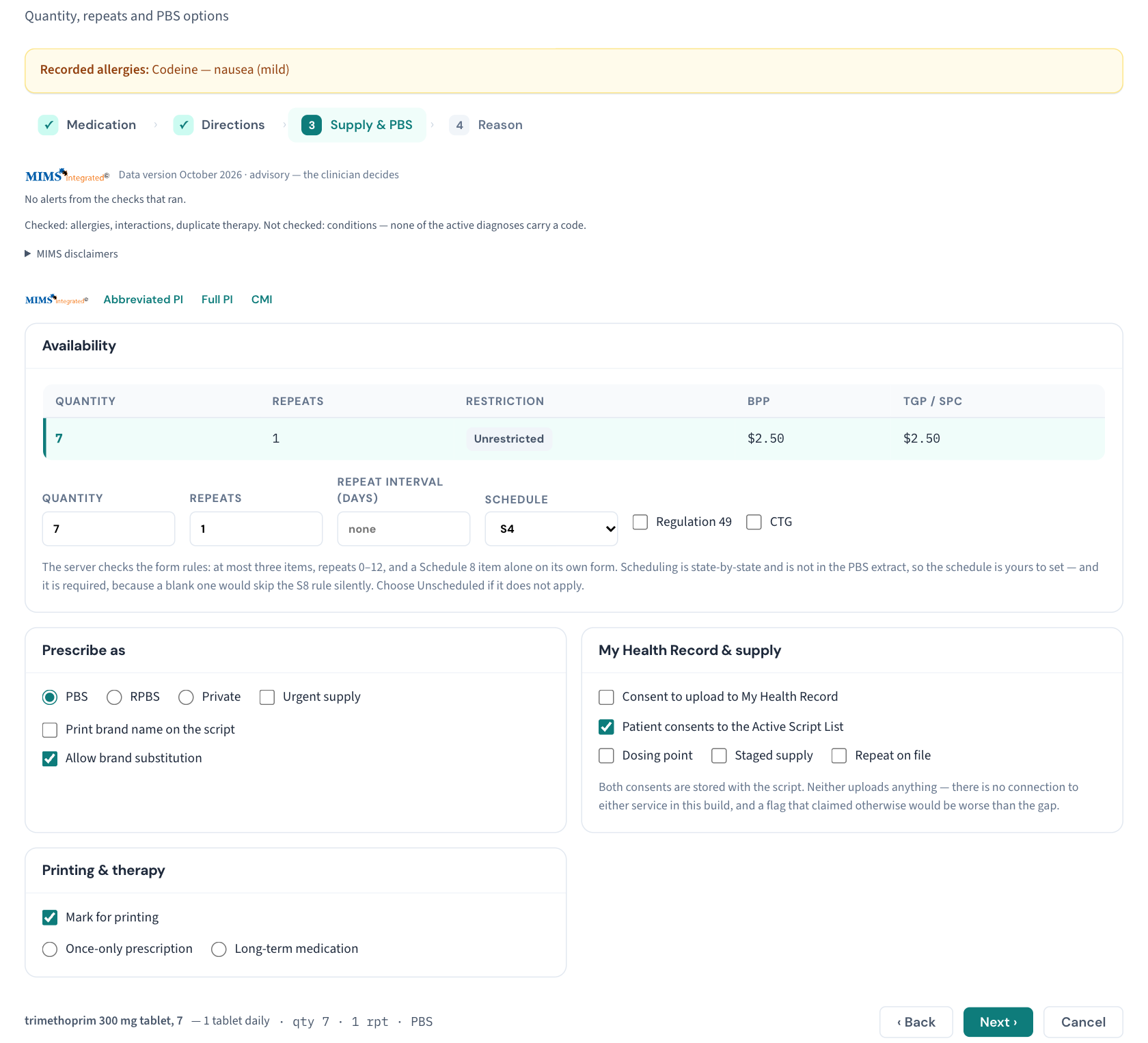
The other tick boxes
| Box | What it does |
|---|---|
| Consent to upload to My Health Record | Not ticked by default. Records the patient's consent with the script, and the copy sent to eRx carries it. Curaeon has no My Health Record connection of its own |
| CTG | Closing the Gap co-payment. Already ticked for a patient registered for it. PBS and RPBS scripts only |
| Regulation 49 | Prints "Regulation 49." beside the item |
| Urgent supply | Prints "Urgent supply." beside the item. The copy sent to eRx marks it as an emergency supply |
| Dosing point, Staged supply, Repeat on file | Recorded with the script |
| Mark for printing, Once-only prescription, Long-term medication | Recorded with the script. None of them prints anything by itself |
Step 4: Reason
- Type the Reason for prescription, or pick it from the list. From existing condition list shows the patient's own conditions. New condition searches the full list, where your practice has one loaded.
- For a new condition, Add to past history adds it to the patient's diagnosis list.
- Choose Finish. To put up to three items on one form, choose Finish & add another after each item and Finish after the last.
Add to past history and the details asked with it belong to the item they were answered on, and the next item starts with them cleared. Each condition asked for is added to the diagnosis list when you choose Finish, after the script is written. If one cannot be added, the script stands and Curaeon says so, naming the condition: Script written, but the condition was not added to the diagnosis list: and the reason. Add it on the Clinical History tab.
Under New condition, the line under the search says where the search stands:
| The line reads | What it means |
|---|---|
| Searching… | The search is still out. Wait for it |
| No match — free text is fine, type it in the Reason box above. | The search answered, from your practice's loaded list, and found nothing |
| Not searched — free text is fine, type it in the Reason box above. | The search failed. A red line under it says "The conditions could not be searched (…) — that is not the same as no match." Choose Try again beside it (KB-170 — When part of a screen says it could not be loaded: Try again, and what Loading… means) |
| Type the condition in the Reason box above — free text is fine. | Your practice has no list of conditions loaded, so there is nothing to search |
A failed search does not stop the script. Type the reason in Reason for prescription as free text.
The reason is kept with the script and shown on its row in the consult. It prints only on an authority script.
Print the script
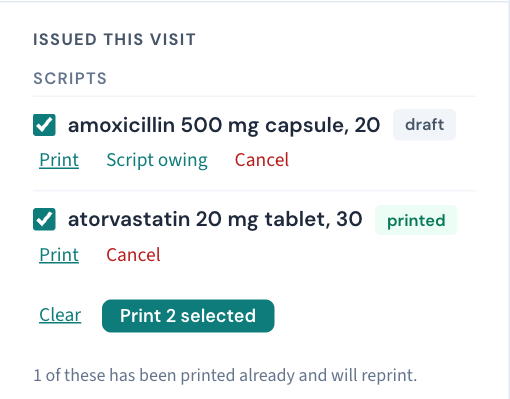
Script created. appears with Print on it, and the script is listed under Issued this visit as draft. A medicine the patient was not already on is added to Current Medications.
- Choose Print on the message, or on the script's row. The script opens in a new tab. If you have set your preferences to open the print view when a script is finished, it opens by itself and the message carries no Print, because the script is already open (KB-132 — Set up your clinical defaults and pathology favourites once, so every consult starts your way).
- Load the paper your practice uses, and choose Print at the top of that page.
Opening that page is what records the script as printed. If the prescriber is on eRx, the copy for the exchange is queued at the same moment (KB-128 — Is eRx working? Read Settings → eRx Script Exchange: the outbox, the certificate and who is not yet on it).
With two or more scripts in the visit, tick the ones you want and choose Print … selected to print them as one job.
Reprint a script
Open Print on the script's row in the consult again, or choose Reprint on its row on the patient's record. The record changes to reprinted, and each opening is recorded, so open it only when you mean to print. To read a script without recording anything, use View on the patient's record.
↻ Reissue is not a reprint. It writes a new script marked as a reissue of the earlier one. A reissue is a second prescription, so that is the prescriber's decision.
Print, view or cancel from the patient's record
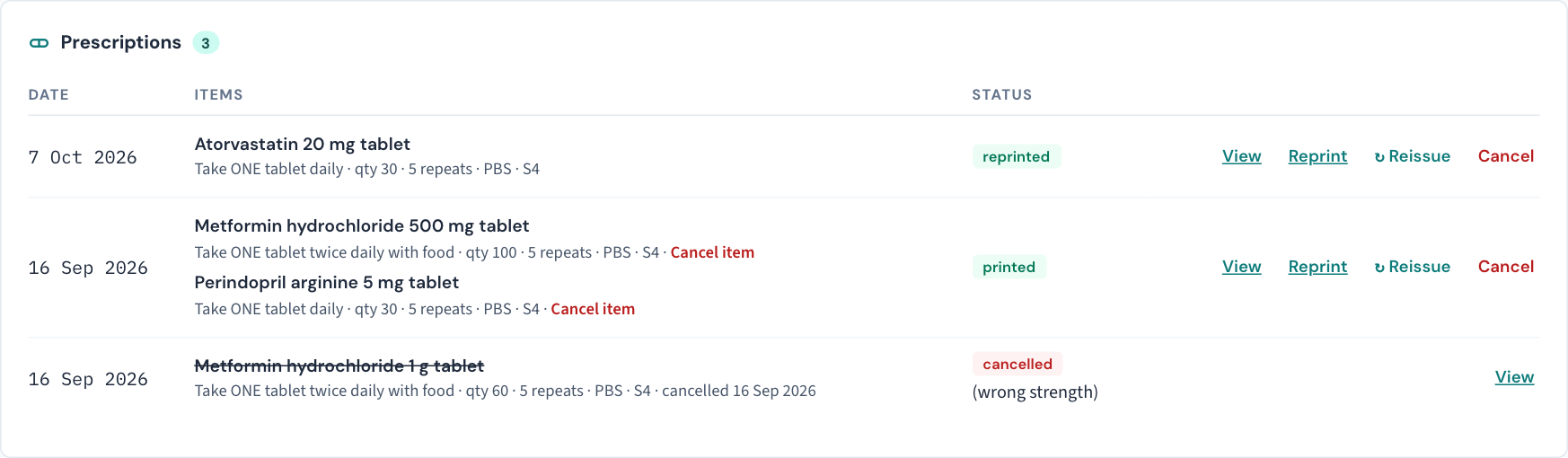
The Prescriptions table on the patient's Medications tab lists every script the practice has written for the patient, whichever consult it came from and whether or not that visit has been completed. A script written from the record is listed nowhere else.
When you finish a script from the record, Script created. appears with Print on it, as it does in a consult. If you have set your preferences to open the print view when a script is finished, it opens by itself here too (KB-132 — Set up your clinical defaults and pathology favourites once, so every consult starts your way).
Each row offers:
| Link | What it does | Who sees it |
|---|---|---|
| View | Opens the script in a new tab to read. Nothing is recorded, however often you open it, and that page does not print | Anyone who can open the record |
| Opens the print page, which records the script as printed | Anyone who can open the record | |
| Reprint | The same link once the script has been printed. Opening it records a reprint | Anyone who can open the record |
| ↻ Reissue | Writes a new script from this one | Staff with the prescribe permission |
| Cancel | Cancels the whole script, with a reason | Staff with the prescribe permission |
| Cancel item | On a printed script with more than one item, cancels that item and leaves the others standing. It is at the end of the item's own line, not with the other links | Staff with the prescribe permission |
| MIMS | At the end of an item's line, for an item written from the PBS list. Opens MIMS's product information and CMI for it, with the script's brand first. Only useful where your practice has MIMS set up (KB-174 — Open MIMS's product information and the CMI leaflet from the prescriber and the patient's record) | Staff with the prescribe permission |
A cancelled script offers View only. When you come back to the record from the print tab, the row shows the new status, and Print has become Reprint.
Mark a script owing
A script not yet printed has Script owing on its row, for a medicine phoned through or supplied before the paper exists. See KB-044 — Record and settle an owing script.
Cancel a script
- On the script's row, choose Cancel. The row is in the consult under Issued this visit, and on the patient's Medications tab under Prescriptions.
- Type the Reason. It is required.
- Choose Cancel script.
The script stays on the record marked cancelled. Its row now offers View in place of Print, and its page reads CANCELLED — DO NOT DISPENSE with your reason. A medicine that this script added to Current Medications comes back off, unless another script still supports it. If a copy went to eRx, the cancellation is sent there too. Cancelling does not recall paper already handed over.
On a printed script with more than one item, Cancel item cancels one and leaves the others standing. In the consult the items are listed on the script's row, each with Cancel item. On the patient's record, Cancel item is at the end of each item's line in the Prescriptions table. It is offered once the script has been printed. A script not yet printed is cancelled whole.
What each message means
| Message | What it means | What to do |
|---|---|---|
| Three items is the limit for one script form. | The form is full, so Finish & add another is off | Choose Finish, then start another script |
| an S8 item must be the only item on its script form | A Schedule 8 item shares the form | Write it on its own script |
| an Authority or Streamlined item must be the only item on its script form | An authority item shares the form | Write it on its own script |
| A message ending needs the authority approval number — enter it, or prescribe it as private | A PBS or RPBS authority item has no approval | Enter the number or code, or choose Private |
| schedule is required — S2, S3, S4, S8, or unscheduled | No schedule was chosen | Choose one. Unscheduled is an answer |
| A message starting the CTG annotation applies to PBS and RPBS supply | CTG is ticked on a private script | Untick CTG |
| This print was not recorded on the chart. | The page opened but the record still shows the script unprinted | Reload the page before printing |
| the note for this consult is signed, so the consult is closed to new scripts | The note was signed after your screen loaded, for example in another tab. Nothing was written, and the window stays open with the script in it | Reload the page. If the script is still needed, choose Complete Visit and write it in a new consult (KB-143 — Write and sign off a consult note) |
| A message starting This patient's allergies and alerts could not be loaded (or current medications) | The prescriber does not have that part of the record, so the script is held | Try again, or tick the acknowledgement. See the section above |
| Whether this patient is registered for Closing the Gap could not be checked, so the CTG box was not set from their registration. Tick it if they are registered. | The registration could not be read, so CTG was left unticked | Choose Try again beside it, or tick CTG yourself if the patient is registered |
| Your favourites could not be loaded. Not the same as none yet., or another line ending in Try again | One of the lists the window fills itself from did not load | Choose Try again beside it (KB-170 — When part of a screen says it could not be loaded: Try again, and what Loading… means) |
| A line in the drug-safety panel saying the drugs were not checked | MIMS screening is not set up, is held for you, or did not complete | See KB-045 — "Not checked": what the drug-safety line says when screening is not set up, is held, or did not complete |
| MIMS have ended the subscription for this account … | Your practice's MIMS screening is on and MIMS have ended your MIMS user, so the script is refused | Ask your practice administrator (KB-172 — Drug-safety alerts from MIMS: what is screened, what an alert shows, and acknowledging one) |
If that didn't work
- Prescribe is greyed out. The note is signed, the note or the patient's details could not be loaded, your role does not have
notes.write, or MIMS have ended your MIMS subscription while your practice's screening is on. The line under Do now says which. - The drug is not found. Check the spelling, try Therapeutic class, or use Custom for a product that is not on the PBS list. If a listing you expect is missing, tell your practice manager: the PBS list is loaded on the server (KB-138 — Read Utilities → Storage and Clinical datasets: how big the database is, and which reference data is loaded).
- You need to reprint or cancel after the consult has been completed. Open the patient's record, choose the Medications tab, and use Reprint or Cancel on the script's row under Prescriptions.
- A script you wrote from the patient's record is not in the consult. It belongs to no visit. Print it from the same Prescriptions table.
Still stuck? Raise a ticket at support.curaeon.com.au or call 1300 XXX XXX. If your clinic can't see patients right now, call and choose option 1. Support is staffed Monday to Friday, 8:00–18:00 Sydney time; outside those hours a call or text to the same number is answered on a best-effort basis.
Related articles
- KB-044 — Record and settle an owing script — Record and settle an owing script
- KB-172 — Drug-safety alerts from MIMS: what is screened, what an alert shows, and acknowledging one — Drug-safety alerts from MIMS: what is screened, what an alert shows, and acknowledging one
- KB-174 — Open MIMS's product information and the CMI leaflet from the prescriber and the patient's record — Open MIMS's product information and the CMI leaflet from the prescriber and the patient's record
- KB-045 — "Not checked": what the drug-safety line says when screening is not set up, is held, or did not complete — "Not checked": what the drug-safety line says when screening is not set up, is held, or did not complete
- KB-153 — Follow up scripts that were never filled: the Unfilled scripts list — Follow up scripts that were never filled: the Unfilled scripts list
- KB-018 — eRx not reaching the pharmacy — checklist — eRx not reaching the pharmacy — checklist
- KB-128 — Is eRx working? Read Settings → eRx Script Exchange: the outbox, the certificate and who is not yet on it — Is eRx working? Read Settings → eRx Script Exchange: the outbox, the certificate and who is not yet on it
- KB-078 — Print a medication summary chart, or a whole aged-care round — Print a medication summary chart, or a whole aged-care round
- KB-132 — Set up your clinical defaults and pathology favourites once, so every consult starts your way — Set up your clinical defaults and pathology favourites once, so every consult starts your way
- KB-143 — Write and sign off a consult note — Write and sign off a consult note