Work the Tasks screen: follow-ups about a patient, due by a date
See what is waiting for you, add a task about a patient, hand one to a colleague, and close it when it is done.
What a task is
In Curaeon a task is one thing someone at the practice has to do about a patient, by a date: chase a specialist's reply, ring about a form, check a referral arrived. It is not a general to-do list. There is no task without a patient, and no personal reminders.
A task writes nothing to the clinical record. It is not the results Inbox (KB-046 — Work the results Inbox: Practitioner vs Assigned to, routing, COPY and corrected results, Follow-up) and not a recall (KB-051 — Run recalls: book from a recall, and why a recall stays open or comes back).
Before you start
- Every role can use Tasks. Reception, nurses, clinicians and administrators can all add, change, complete and cancel a task. No permission is needed.
- Tasks about a patient whose record is restricted are left out of your list unless you are named on that record. The screen says how many were left out (KB-061 — Restrict a patient's record, and open one in an emergency).
Where tasks come from
| Source | How it arrives |
|---|---|
| A letter being filed | In the letter editor, tick Add a follow-up task when it is filed, then set By, For and an optional Note. The task is titled "Follow up:" and the letter's title, and links to the letter. The date starts four weeks ahead. Nothing is added for a draft |
| The patient's record | + Add task on the Tasks panel of the Overview tab |
| Registering a patient | When reception or a nurse notes what the patient says about allergies, Curaeon saves it as a task due that day, for Anyone: Record allergies reported at registration (KB-142 — Register a new patient) |
| Curaeon itself | When a referral sent by secure messaging is refused, given up on, or has had no acknowledgement for three days, Curaeon adds a task due that day, for Anyone, saying what to do next (KB-059 — Secure-messaging referral "Not delivered" or stuck on "Sent — awaiting confirmation") |
Read the screen
Open More in the menu bar, then Tasks (KB-178 — Find your way around Curaeon: the menu bar, More and your account menu). Nothing alerts you when a task is set for you, so open it each day.
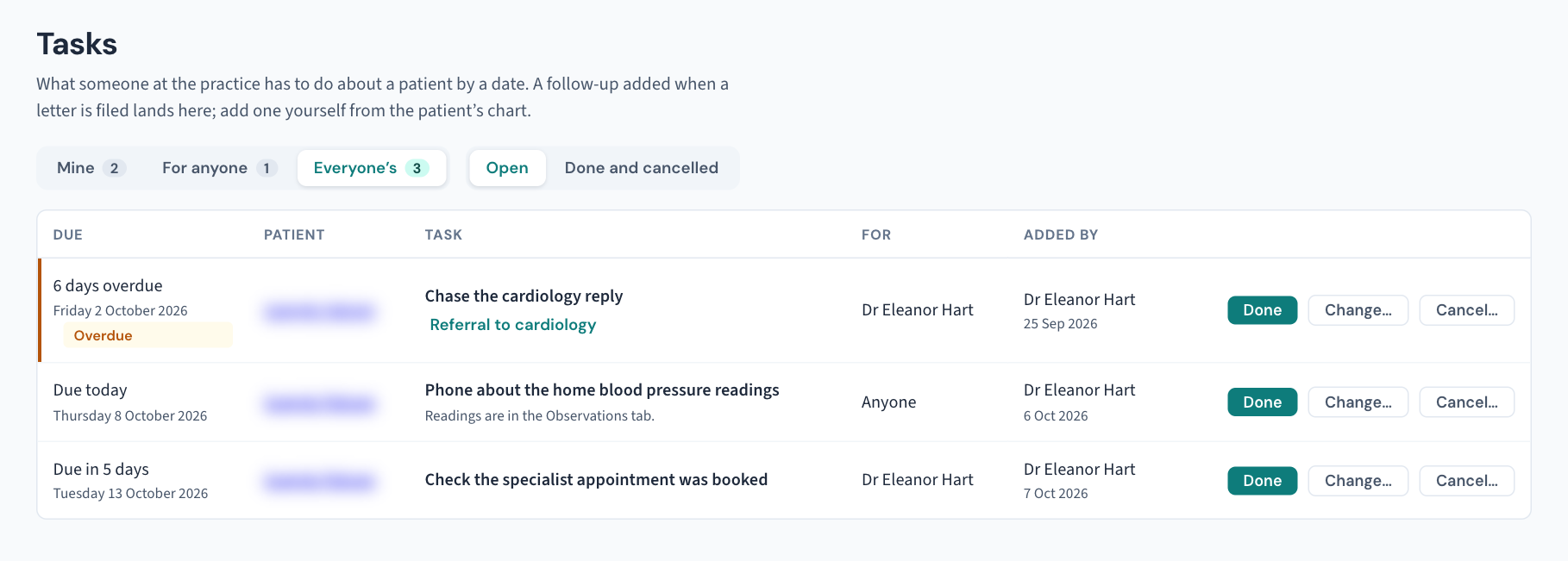
Two switches at the top decide what you see.
| Switch | Choices | Shows |
|---|---|---|
| Whose tasks | Mine | Tasks set for you. The screen opens here |
| For anyone | Tasks set for nobody in particular, waiting for someone to pick them up | |
| Everyone's | Every task at the practice | |
| Open or closed | Open | Tasks still to do, soonest due first |
| Done and cancelled | Closed tasks, most recently closed first |
Each button carries a count once the list has loaded. Mine shows its count only once Curaeon knows who you are. There is no search box and no filter by patient or date. To see one patient's open tasks, open their record.
An open task shows when it is due in words ("Due today", "Due in 5 days", "2 days overdue") with the date beneath. A task past its date has an Overdue badge, and a line above the list counts your overdue tasks. The Task column has the title, any note, and a link to the letter where the task came from one. The patient's name opens their record.
Add a task
- Open the patient's record. The Tasks panel is at the top of the Overview tab.
- Choose + Add task.
- In To do, say what is to be done. Up to 200 characters.
- Set By. It starts a week ahead and cannot be in the past.
- Set For: Me, Anyone, or a colleague by name.
- Choose Add.
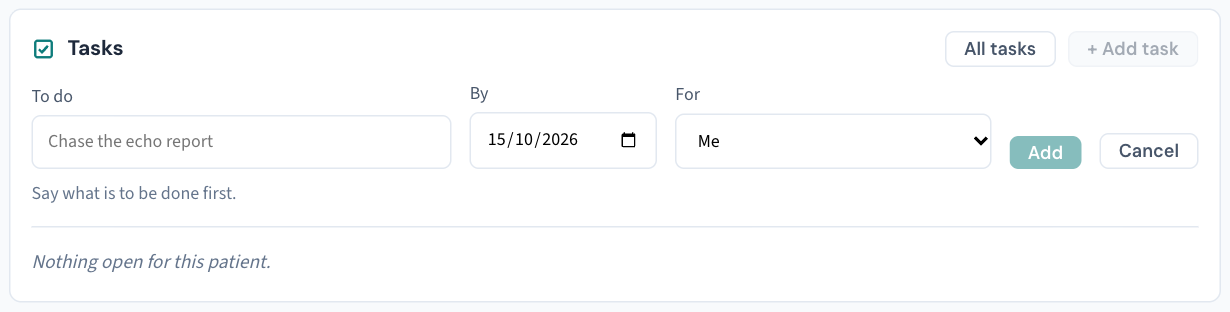
Note: The For list names the practice's doctors and nurses. A receptionist is not in it. To give a task to the front desk, set it For Anyone and say so in the task, or have the receptionist set it for Me.
Complete, change or cancel a task
On an open task, on the Tasks screen:
- Done closes it straight away. There is no confirmation and no undo.
- Change… opens Due and For on the row. Set them and choose Save, or Keep as it was. This is how you hand a task to a colleague or put it back to Anyone.
- Cancel… asks Why is it cancelled? A reason is required. Then choose Cancel the task, or Keep it.
On the patient's record the panel offers Done only. Use the Tasks screen to change or cancel.
One kind of task is closed by a clinician. A task holding what a patient told the front desk about allergies can be marked done or cancelled only by a role that can record allergies (clinicians and administrators by default). Everyone else sees "Closed by a clinician, once the allergy is recorded." in place of Done and Cancel…, and keeps Change…. While that task is open the patient's record shows the note beside their allergies (KB-145 — Record allergies, history and observations), and closing it takes the note away.
A closed task is kept, never deleted. Under Done and cancelled it shows Done or Cancelled, when, and who closed it, with the reason for a cancellation. A closed task cannot be reopened or changed. If it was closed by mistake, add a new one.
Each step is recorded in the Audit log with who did it: Task added, Task changed, Task done, Task cancelled.
What each message means
| Message | What it means | What to do |
|---|---|---|
| Couldn't load the tasks: the reason, then Nothing here is confirmed empty. | The list could not be read. It is not an empty list, and the three buttons show no counts | Choose Try again (KB-170 — When part of a screen says it could not be loaded: Try again, and what Loading… means) |
| Loading… | The list is on its way. The counts appear when it arrives | Wait |
| Under Mine: Who you are could not be read, so your tasks cannot be picked out. The other two lists are whole. | Curaeon could not read who is signed in, so it cannot tell which tasks are yours. It is not "Nothing is waiting for you." Mine shows no count | Choose Try again, or look under Everyone's |
| Who you are could not be read (the reason), so “Me” cannot be saved., or Neither your colleagues’ names nor who you are could be read (the reason) | Under For, when adding a task, changing one, or adding a follow-up to a letter. Me has nobody behind it | Choose Try again beside it |
| Your colleagues’ names could not be read (the reason), so only Me and Anyone are offered. | The list of names did not load | Choose Try again beside it, or set the task for Me or Anyone |
| Who you are could not be read, so this cannot be saved as yours. Try again, or choose a name or Anyone. | For is set to Me, and Add or Save is held until Curaeon knows who you are. Nothing is saved for Anyone in its place | Choose Try again, or choose a name or Anyone |
| Still finding out who you are — a moment. | The same, while the read is still out | Wait |
| Say what is to be done first. | To do is empty | Type the task |
| the due date is in the past; a task is due today or later | The date has passed | Choose today or later |
| this task is already done or already cancelled | A colleague closed it while your screen was open | Nothing. The list reloads |
| that person is not on the practice's staff | The person chosen has left or been deactivated | Choose someone else |
If that didn't work
- A task is missing from Mine. Look under Everyone's. It may be set for a colleague or for Anyone.
- No follow-up appeared when a letter was filed. The box is unticked until you tick it, and nothing is added for a draft.
- A task has no Done button. It holds what a patient said about allergies. A clinician closes it once the allergy is recorded.
- The list seems short. The screen loads up to 500 tasks. Close what is finished to bring the rest into view.
Still stuck? Raise a ticket at support.curaeon.com.au or call 1300 XXX XXX. If your clinic can't see patients right now, call and choose option 1. Support is staffed Monday to Friday, 8:00–18:00 Sydney time; outside those hours a call or text to the same number is answered on a best-effort basis.
Related articles
- KB-106 — Write a letter in the editor: Insert from the record, { } Field, and the formatting that survives print and email — Write a letter in the editor: Insert from the record, { } Field, and the formatting that survives print and email
- KB-059 — Secure-messaging referral "Not delivered" or stuck on "Sent — awaiting confirmation" — Secure-messaging referral "Not delivered" or stuck on "Sent — awaiting confirmation"
- KB-046 — Work the results Inbox: Practitioner vs Assigned to, routing, COPY and corrected results, Follow-up — Work the results Inbox: Practitioner vs Assigned to, routing, COPY and corrected results, Follow-up
- KB-051 — Run recalls: book from a recall, and why a recall stays open or comes back — Run recalls: book from a recall, and why a recall stays open or comes back
- KB-061 — Restrict a patient's record, and open one in an emergency — Restrict a patient's record, and open one in an emergency