Register a new patient
Create a record for someone the practice has not seen before, and know what Curaeon checked for you when you saved.
Before you start
- Any signed-in role can register a patient. No permission is needed.
- Allergies typed on this form go on the allergy list only for roles with the
chart.writepermission, which Admin and Clinician hold by default (KB-121 — Change what each role may do in Settings → Permissions). For everyone else, what the patient says about allergies is saved as a task for a clinician. See Allergies at the front desk. - Search Patients first, and look under Left the practice (KB-041 — Find a departed patient, reactivate them, or record a death or departure). A returning patient is reactivated, not registered again. Type the name either way round, with or without a comma: "Walker, Sam" and "Sam Walker" find the same person. Read what the search says: "Searching…" means the answer is not back yet, and a red message with Try again means the search did not run. Only "No patients match" means nobody was found (KB-170 — When part of a screen says it could not be loaded: Try again, and what Loading… means).
Open the form
- Open Patients.
- Choose + New patient.
The form can also be opened from two other places, each of which hands it something to start from:
- from an online booking request that matches nobody on file. See Register from an online booking request;
- from the Calendar's New appointment window, by Create a new patient record →. See Register from the booking window.
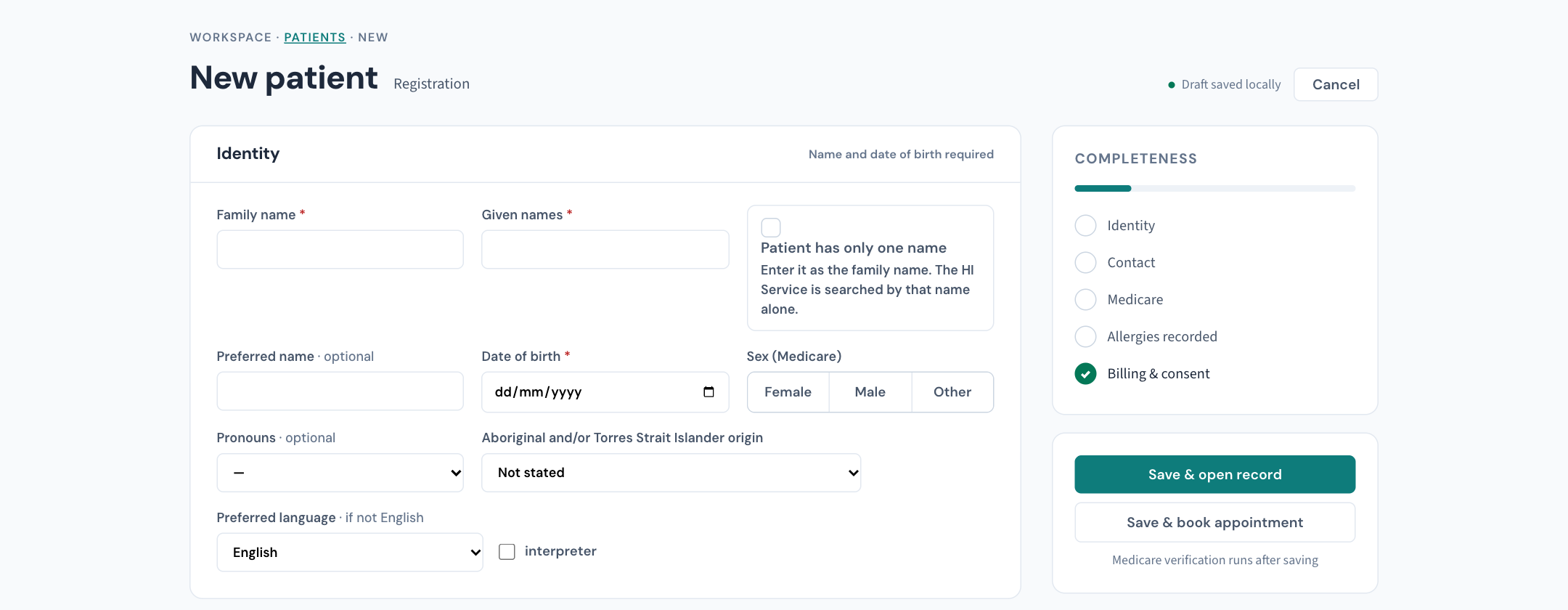
The form has five cards. A Completeness panel on the right ticks each card as you fill it, with the two save buttons under it.
Fill in the five cards
| Card | Fields | Good to know |
|---|---|---|
| Identity | Family name, Given names, the tick Patient has only one name, Preferred name, Date of birth, Sex (Medicare), Pronouns, Aboriginal and/or Torres Strait Islander origin, Preferred language | Origin is Not stated, Neither, Aboriginal, Torres Strait Islander or Both. Language stays on English unless you choose another. Tick interpreter beside it if the patient needs one. For the one-name tick, see "A patient with only one name" below |
| Contact | Mobile, Home phone, Email, Street address, Suburb, State, Postcode, Emergency contact name and phone | State starts on NSW. The emergency contact is saved only if you type a name |
| Medicare & entitlements | Medicare number, IRN, Valid to, Concession / entitlement, Card number | The IRN is the digit beside the patient's name on the card. Valid to is typed as MM/YYYY |
| Clinical flags | Known allergies & adverse reactions, No known allergies, Usual GP, How did they hear about us? | Type an allergy and press Enter to add it. Words left in the box when you save are saved too. For a role that cannot write to the chart the first two read Allergies the patient tells you about and Patient says: no known allergies |
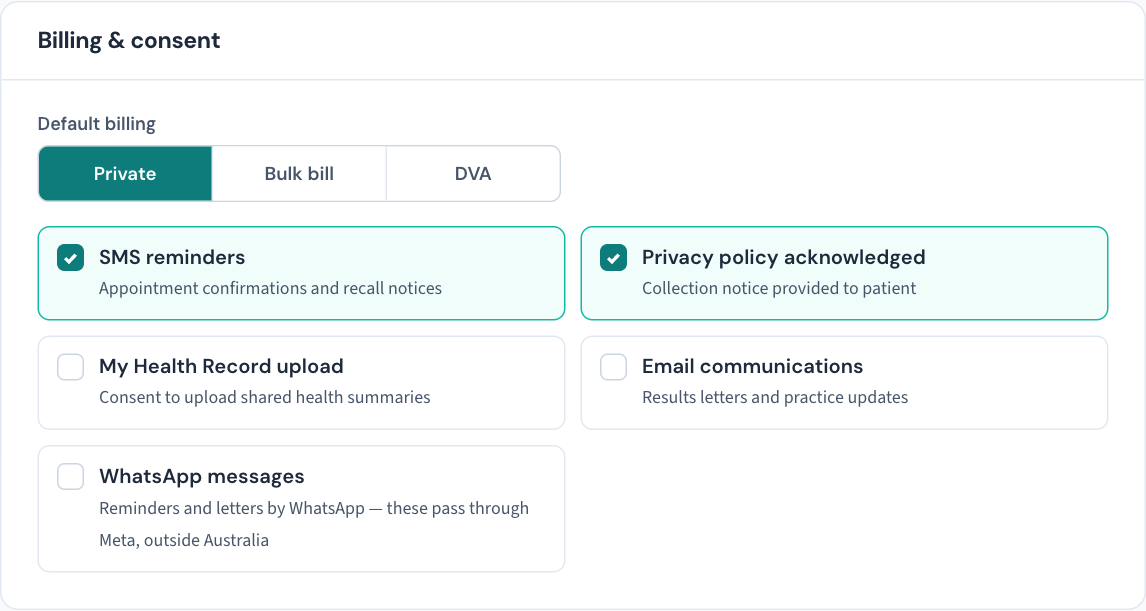
| Billing & consent | Default billing and five consent boxes | Default billing is Private, Bulk bill or DVA, and starts on Private |
Concession / entitlement holds one card: Pensioner Concession Card, Health Care Card, Commonwealth Seniors Health Card, DVA Gold Card or DVA White Card. Type its number in Card number; for a DVA card that is saved as the DVA number. A second card, an Orange DVA card, a Safety Net card, a private health fund or an IHI is added afterwards on the record, under Identifiers & Funding.
The consent boxes are SMS reminders, Privacy policy acknowledged, My Health Record upload, Email communications and WhatsApp messages.
Important: SMS reminders and Privacy policy acknowledged start ticked. Untick them if the patient has not agreed to texts, or has not been given your collection notice. The other three start unticked. WhatsApp is its own question, because those messages pass through Meta, outside Australia.
What is required
Curaeon refuses to save without a family name, given names and a date of birth. Those three carry a red star, and no other field does. If one is missing when you save, the form names it ("Enter the family name and date of birth. Family name, given names and date of birth are required.") and nothing is sent. The one exception is a patient with only one name, below: with the tick on, the name and the date of birth are what is required, and the message says so ("Enter the name. The name and date of birth are required.").
A patient with only one name
Some people have one name, not a family name and given names. Under Given names, tick Patient has only one name. The line under the tick says what to do: Enter it as the family name. The HI Service is searched by that name alone.
- With the tick on, Given names empties, is closed to typing, and reads none: one name only in place of its star. Type the name in Family name.
- Untick it and Given names opens again and is required once more.
- The tick is kept with the draft the form saves in this browser tab, so it survives a reload.
- A patient already on file is corrected from their record: on the Overview tab, edit the Demographics card, where the same tick is. Ticked, the given name is emptied and kept as a previous name. Untick it without a given name and the card says “A given name is required — or tick "Patient has only one name" if there is none.” before anything is sent.
Do not type the name twice, or a dash in Given names, instead of ticking it. The record then says the patient has a given name, and Medicare, through Tyro, and the Healthcare Identifiers Service, once your practice is connected to it (KB-129 — Read Settings → HI Service: the connection, the NASH certificate, and what the HI Service returned and disclosed), are asked by a name the patient does not have and match nobody. The tick is how Curaeon tells them the person has one name.
The Contact card says "A phone number and an address complete the record". They feed the Completeness panel and do not stop the save. A patient with no mobile or no street address can still be registered, and appears on the data-quality list until the gap is filled or confirmed (KB-081 — Fix data-quality gaps before they become rejected claims or lost letters).
A Medicare number is optional. If you type one it must be a real card number: ten digits, beginning with 2 to 6, with a correct check digit. A mistyped number is refused with the reason, and nothing is saved.
The duplicate warning
As you type the family name or date of birth, Curaeon searches existing records, including patients who have left. Matches show above the form as Possible existing record, up to three at a time. Each has the name, date of birth and suburb, says "left the practice" where that applies, and ends in Open record →.
It is a warning, not a block. If the person is already there, use that record. If one person already has two records, see KB-042 — Find and merge duplicate patient records.
Note: The warning comes from a search that runs as you type. If that search fails, the form says so in red above the Identity card: "This name and date of birth could not be checked for an existing record", the reason, and "That is not the same as none: search Patients before you save." Choose Try again beside it, or search Patients yourself before you save (KB-170 — When part of a screen says it could not be loaded: Try again, and what Loading… means).
Save
- Choose Save & open record, or Save & book appointment.
- Read the messages that appear on the screen you are taken to. The first confirms the patient is registered. The rest say what was checked and what did not save.
Save & book appointment goes to the Calendar with the New appointment window already open for the patient you just registered. It starts on their usual practitioner, if the Calendar lists them. Nothing is booked until you choose the time and Book appointment (KB-038 — Book, reschedule and track appointments in the Calendar).
Until the Calendar has its practitioners and appointment types, a line under its toolbar says "A booking for … will open as soon as the calendar has its practitioners and appointment types." If the patient could not be read, the line says so ("The patient to book for could not be loaded (…), so no booking was opened.") with Try again and Dismiss.
The form keeps what you type in this browser tab as you go (Draft saved locally) and gives it back only to the person who typed it. A reload or an idle sign-out does not lose it.
Cancel leaves without saving and clears that copy. If you have typed anything it asks first, Discard this registration? Choose Discard to clear the form and go back to Patients, or Keep editing to stay. Nothing has been saved to a record either way.
Register from an online booking request
When a request in the online booking queue matches nobody on file, the note under it says so and offers register them in Patients (KB-040 — Set up rosters, leave and online-bookable appointment types, and handle online booking requests). Choose it.
- The new-patient form opens with what the requester typed on the booking page: name, date of birth, phone, email and Medicare card, as far as they gave them. A mobile number goes in Mobile; any other number goes in Home phone.
- Read the note above the form. It begins "Filled in from an online booking request received …", lists what was filled in, and says the requester typed it and nobody has checked it. Check each detail against their Medicare card or ID before saving. Everything else on the form is still to be asked.
- Under it, the reason the patient gave for the visit is shown, with "It is not part of the patient's record: it stays with the booking request and goes onto the appointment when the request is confirmed." The form does not save it.
- Fill in the rest of the form.
- Choose Save & back to the booking request. The patient is registered, a message says "Their online booking request can now be confirmed.", and you are back in the queue.
- Choose Confirm & book on the request. The form does not confirm it for you.
What the form says instead:
| The form says | What it means |
|---|---|
| Reading the booking request… | The request's details have not arrived yet |
| "The booking request's details could not be loaded (…). Nothing was filled in — type them in, or" Try again | The read failed. Nothing was filled in |
| "That booking request has already been confirmed or declined, so its details were not filled in." | Somebody has dealt with it since. Go back to the queue |
| "This form already held a registration you had started, so the booking request's details were not filled in over it." with Start again from the booking request | A registration you had begun in this tab was kept. Start again from the booking request clears the whole form and fills it from the request. Save & back to the booking request is not offered until you do |
The web address of the form carries only the request's id, never the person's details.
Register from the booking window
When the patient you are trying to book is not on file:
- In the Calendar's New appointment window, choose Create a new patient record → (under "Patient not registered yet?").
- The form opens. Under its save buttons it says where the booking will reopen, for example "The booking will open on Friday 16 October with Dr … and the same appointment type, as the booking window was."
- Fill in the form and choose Save & book appointment.
You are back on the Calendar with the New appointment window open for the new patient, on the same day, practitioner and appointment type the window was on. The practitioner the window was on wins over the patient's usual practitioner. The time is not kept: the slot may have gone while you registered them, so choose it again.
A day in the past is not reopened; the window opens on the Calendar's own day. A practitioner or type the Calendar no longer lists falls back to the usual practitioner, or the first in the list.
Allergies at the front desk
Recording an allergy is a clinician's entry. If your role cannot write to the chart, the Clinical flags card says so under the box: what you note there is saved as a task on the patient's record, due today, for a clinician to record.
- Type what the patient tells you in Allergies the patient tells you about and press Enter after each one. Words left in the box when you save are saved with them. Or tick Patient says: no known allergies.
- Save the patient.
- Read the message: "What the patient said about allergies is saved as a task for a clinician. It is not on the allergy list yet."
The task is titled Record allergies reported at registration (or Record "no known allergies", reported at registration). Its note holds the words you typed and says they came from the front desk and are not on the allergy list. It is for Anyone, and shows on the Tasks screen and on the record's Tasks panel (KB-147 — Work the Tasks screen: follow-ups about a patient, due by a date). A clinician confirms it with the patient, records it on the record (KB-145 — Record allergies, history and observations) and marks the task done. Only someone who can record allergies can close this task. For you the Done and Cancel… buttons are replaced by "Closed by a clinician, once the allergy is recorded." You can still reword the note or change its date (KB-147 — Work the Tasks screen: follow-ups about a patient, due by a date).
What you typed is not hidden in the task. Until the task is closed, the record shows it in amber under Allergies & Alerts, headed Told to the front desk, not yet recorded by a clinician, with your words, your name and the date. The consult shows the same line under the patient's alerts, and the prescriber shows it under its allergy banner (KB-144 — Write a prescription: repeats, authority, Schedule 8, brands, reprint and cancel).
Important: It is still not on the allergy list. The record goes on saying "None recorded" beside your note until a clinician records the allergy. If you noted it for the wrong patient, ask a clinician to cancel the task.
The Completeness panel reads Allergies noted for a clinician for you, not Allergies recorded.
The Medicare card check
When your practice's Tyro connection is set up, the Medicare & entitlements card says Checked with Medicare on save. Without the connection the line is not there and nothing checks the card. The check runs only when you typed both the Medicare number and the IRN.
When it runs, Curaeon asks Medicare, through Tyro, whether the card belongs to this patient, and gives you the answer in Medicare's words while the patient is still at the counter. If the practice is not connected to Tyro, nothing is checked and no message appears. The same check can be run later from the record (KB-157 — Verify a patient's Medicare card with Medicare).
The IHI search the form describes works the same way: only when the practice is connected to the HI Service (KB-129 — Read Settings → HI Service: the connection, the NASH certificate, and what the HI Service returned and disclosed).
What each message means
| Message begins | What it means | What to do |
|---|---|---|
| Medicare confirmed the card | Medicare matched the card to this patient | Nothing |
| Medicare did not match the card | Medicare's answer and code, and what Medicare holds where it said | Check the card and correct the number, IRN or name on the record |
| Medicare card not checked | The check could not run. The reason follows | Fix what it names, or check from the record later |
| The HI Service found no IHI for these details | No IHI matched the Medicare or DVA details, date of birth and sex | Check those details on the record |
| What the patient said about allergies is saved as a task for a clinician | Your role does not record allergies. The words are on a task, due today. They are not on the allergy list yet | Tell the clinician if the patient is being seen now |
| What the patient said about allergies was NOT saved | The task could not be saved. The message repeats what you typed | Tell a clinician, or add a task on the record (KB-147 — Work the Tasks screen: follow-ups about a patient, due by a date) |
| Not recorded as an allergy: and the names | You may record allergies, and these did not save | Add them from the record (KB-145 — Record allergies, history and observations) |
| "No known allergies" was not recorded | You may record it, and the tick did not save. The reason follows | Set it on the record |
| Emergency contact not saved | The patient is saved, the contact is not | On the record, Relationships & Contacts, + Add contact |
A line under Mobile beginning Needed to bulk bill appears when your practice bulk bills by Tyro's text message and the patient has a Medicare number and no mobile. It is a prompt, not a block (KB-158 — Assignment of benefit for a bulk bill: Tyro's text to the patient, or signed on paper).
If that didn't work
- You registered someone who already had a record. Do not re-type their history into the new one. Ask your practice manager to merge the two (KB-042 — Find and merge duplicate patient records).
- The Usual GP list holds only "No preference". If the practitioners could not be loaded, a red line under the list says so ("The practitioner list could not be loaded", and the reason). Choose Try again beside it. The form keeps what you typed. The usual GP can also be set later on the record.
- Details need adding or changing. Open the record. On the Overview tab each card (Demographics, Identifiers & Funding, Address, Contact) has an edit button. A patient's MyMedicare registration is recorded there too, on the Identifiers & Funding card (KB-176 — Record a patient's MyMedicare registration, and what reads it).
Still stuck? Raise a ticket at support.curaeon.com.au or call 1300 XXX XXX. If your clinic can't see patients right now, call and choose option 1. Support is staffed Monday to Friday, 8:00–18:00 Sydney time; outside those hours a call or text to the same number is answered on a best-effort basis.
Related articles
- KB-041 — Find a departed patient, reactivate them, or record a death or departure — Find a departed patient, reactivate them, or record a death or departure
- KB-042 — Find and merge duplicate patient records — Find and merge duplicate patient records
- KB-081 — Fix data-quality gaps before they become rejected claims or lost letters — Fix data-quality gaps before they become rejected claims or lost letters
- KB-145 — Record allergies, history and observations — Record allergies, history and observations
- KB-147 — Work the Tasks screen: follow-ups about a patient, due by a date — Work the Tasks screen: follow-ups about a patient, due by a date
- KB-157 — Verify a patient's Medicare card with Medicare — Verify a patient's Medicare card with Medicare
- KB-158 — Assignment of benefit for a bulk bill: Tyro's text to the patient, or signed on paper — Assignment of benefit for a bulk bill: Tyro's text to the patient, or signed on paper
- KB-040 — Set up rosters, leave and online-bookable appointment types, and handle online booking requests — Set up rosters, leave and online-bookable appointment types, and handle online booking requests
- KB-038 — Book, reschedule and track appointments in the Calendar — Book, reschedule and track appointments in the Calendar
- KB-176 — Record a patient's MyMedicare registration, and what reads it — Record a patient's MyMedicare registration, and what reads it