Set up rosters, leave and online-bookable appointment types, and handle online booking requests
Get each practitioner's availability, their leave and the appointment types patients may book online set up correctly, so the calendar offers the right slots, and work the queue of online booking requests so each one is booked for the right patient or declined.
Before you start
Rosters and Appointment types are both under Settings, and every Settings page is for practice administrators. Anyone else who opens one sees "Settings are kept by the practice's administrators. Ask one of them to change … for you." Reception does not need either page to book: the calendar reads both. The full walkthroughs are KB-119 — Set up rosters, rotating cycles and leave in Settings → Rosters: the complete walkthrough (rosters, rotating cycles and leave) and KB-117 — Add, change, reorder and retire appointment types in Settings → Appointment types (appointment types).
Working the online booking queue is front-desk work, open to reception.
A booking checks three things: the practitioner's roster, the practice's opening hours (Settings → Practice) and the appointments already in the book. If any is wrong, the calendar offers times you didn't intend, or none at all.
Set up a practitioner's roster
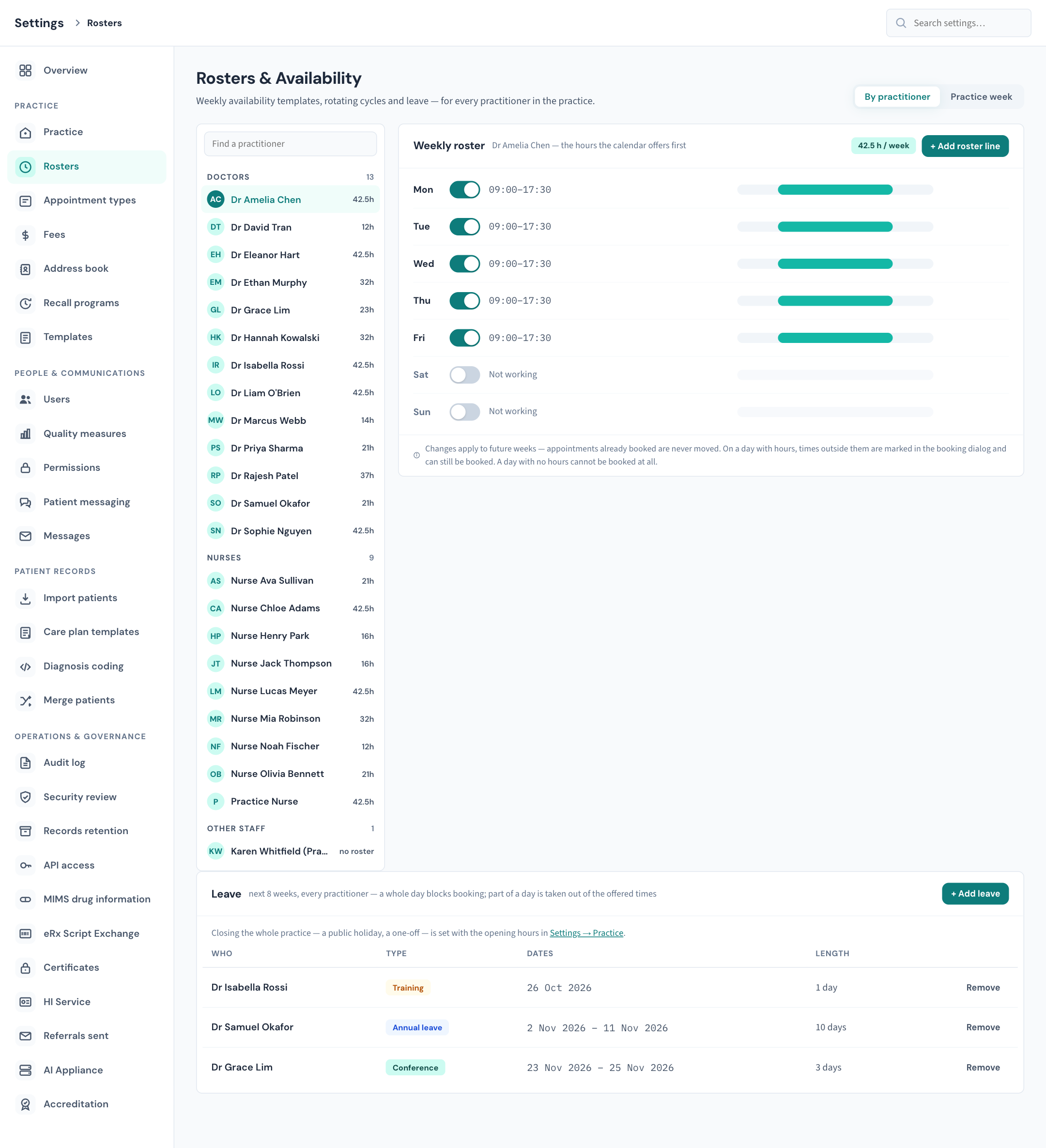
- Open Settings → Rosters. The page has two views, chosen at the top right: By practitioner and Practice week.
- In By practitioner, find the person in the list on the left. It is grouped Doctors, Nurses and Other staff, shows each person's weekly hours or no roster, and has a Find a practitioner box.
- Enter their availability in the Weekly roster card: the days and times they consult.
- Record leave in the Leave card below, as an exception to the roster. Leave is what tells the calendar (and the online booking page) not to offer that practitioner while they're away. Closing the whole practice for a public holiday or a one-off day is not done here: it is set in Settings → Practice (KB-116 — Set up your practice's details, opening hours and closures in Settings → Practice).
- Do the same for nurses. Nurse clinics book like any other appointment: nurses have their own calendar columns and their own rosters.
To check cover, switch to Practice week. It shows everyone against Monday to Sunday for this week or any of the next seven, with their hours on each date, their leave and the practice's closures, and a Working row counting who is on each day. It is read-only: choose a name to open that person in By practitioner (KB-119 — Set up rosters, rotating cycles and leave in Settings → Rosters: the complete walkthrough).
Every roster line and leave entry is recorded in the Audit log with its old and new values.
For a practitioner who calls in sick today, a roster exception is not enough: patients are already booked. Open More in the menu bar, then Utilities → Clear a practitioner's day (KB-039 — Clear a practitioner's day when they call in sick); it cancels the day's bookings and gives you a callback list.
Set up appointment types
- Open Settings → Appointment types.
- Give each type a name and a duration. Duration matters: the time grid offers start times stepped by the type's own length. A 10-minute type offers 9:00, 9:10, 9:20; a 45-minute assessment offers three starts an hour that actually fit.
- Size nurse types for the work: dressings, INR checks, ECGs, spirometry, health assessments.
- Set Held for a type that is normally a phone or video consult. A booking of that type, an online request included, starts that way. The booking page tells the patient before they choose it: "By phone — the practice will call you" or "By video — not at the practice" under the type's name (KB-175 — Book and hold a phone or video consult).
- Switch Online on only for the types you want patients to request themselves. Anything with Online off is never offered on the booking page.
Changes to appointment types are in the Audit log too, so "who switched the long-consult type off?" has an answer.
Handle online booking requests
If your practice runs the public booking page, a separate web address where patients request an appointment, each request waits in a queue until someone at the desk books it or declines it. A request is not in the diary until then.
- On the Calendar, choose Online bookings in the toolbar. The button shows how many requests are waiting.
- The queue, Online bookings, opens on Pending. Confirmed, Declined and All show the rest.
- For each request, read the row and any notes under it (below), then choose Confirm & book or Decline.
Confirm & book matches the request to one patient on file by name and date of birth, and books the slot asked for, with the reason the patient gave. If no single patient matches, it books nothing and says why. Confirming does not change the patient's record.
Decline asks for a reason (optional). It is kept on the request for the record and is never sent to the patient. Choose Decline request to finish, or Keep it to leave the request waiting.
The notes under a request
A pending request can carry a line or two under it, the full width of the table. They tell you what to do before you press anything.
| The note begins | What it means | What to do |
|---|---|---|
| "No patient on file matches this name and date of birth, so Confirm & book will not book this yet." | Nobody on file has those details | If they are new, choose register them in Patients in the note: the new-patient form opens with the request's details filled in (KB-142 — Register a new patient). If they are on file under another spelling or date of birth, correct that, then come back and confirm |
| "More than one patient on file matches …, and Confirm & book will not choose between them." | Two or more people match. It adds "The request gave no date of birth to tell them apart." when there was none | Book it from the Calendar for the right patient, then decline the request |
| "Replaces an earlier request for this time, received …" and what changed | The same person sent a second request for the same time, with something different | Read this one. It names what changed, such as the phone number or the reason, never the values |
| "A newer request from this patient for this time arrived …" | This is the older of two | Read the newer one first |
| "… has been confirmed and booked. This one is left over and can be declined." | The other request is already booked | Decline this one. The patient is not messaged about it |
| "An earlier request … has already been confirmed and booked. This one differs in: …" | A correction arrived after the booking was made | The booking stands. If the phone number is what differs, put it on the record (below) |
| "The phone number on this request is not the one on this patient's record." with Put … on their record | The patient it matches has a different number on file | See "Put the request's phone number on the record" |
A request sent twice is held once. If the patient's page could not tell whether the request arrived and they sent it again, unchanged, the queue still shows one request. A second request with anything different is kept as its own row, and the notes above say which replaces which.
What the patient answered
Where the appointment type asks questions on the booking page (Settings → Appointment types → Questions), the request shows the answers under its row, question by question, beside the reason — read them before Confirm & book or Decline. They stay with the appointment once it is confirmed and the clinician sees them in the consult. Like the reason, they are the patient's own words, checked by nobody. See KB-182 — Ask patients questions when they book online: intake questions on an appointment type.
Put the request's phone number on the record
The number on a request was typed into a public form, and nobody has checked it. So nothing copies it to a record by itself, and confirming a request does not either. A person decides.
- Choose Put … on their record beside the note. A window asks whether to put the number on the patient's record, and says where it came from: that the patient's reminders and messages will go to it, which number it replaces, and that the change is kept on the patient's history under your name.
- Check it is the patient's own number, for example by calling them on it.
- Choose Put it on their record, or Keep the record as it is to change nothing.
A mobile number (04…) replaces the mobile on the record. Any other number replaces the home phone. The record is changed only if exactly one patient matches the request by name and date of birth. Afterwards a message says what the number is now and what it was, and the queue is read again. The patient's history shows the change, with the booking request it came from.
The offer is not made on a request a newer one has replaced, on a request that matches nobody, or once the record already has the number.
Does the patient hear back?
Only if your practice has turned it on: Tell the patient when their online booking request is confirmed or declined, under Settings → Patient messaging (KB-122 — Set up Settings → Patient messaging: email, SMS and WhatsApp channels, DKIM, the bounce mailbox and message wording). With it on:
- Confirm & book sends the patient one appointment confirmation. A phone or video booking's confirmation says so (KB-175 — Book and hold a phone or video consult).
- Decline sends the patient a message saying the appointment could not be booked and asking them to call. The message at the foot of the screen then says either They have been sent a message. or No message could be sent, so please phone them. The second appears when the request does not match exactly one patient in your records, or that patient has no mobile or email that can be used.
- Declining one of two requests from the same person for the same time sends nothing while the other is waiting or booked. The message reads "No message was sent to them: their other request for this time is still waiting" (or "has been booked"). Declining the last one tells them as usual.
With it off, nobody is messaged, and it is up to the front desk to let the patient know. The decline window cannot tell which way your practice has it set, so it describes both.
The booking page's own wording. Your practice can add a note at the top of the booking page and one shown after a request is sent. The practice manager writes them under Online booking page in Settings → Patient messaging (KB-122 — Set up Settings → Patient messaging: email, SMS and WhatsApp channels, DKIM, the bounce mailbox and message wording).
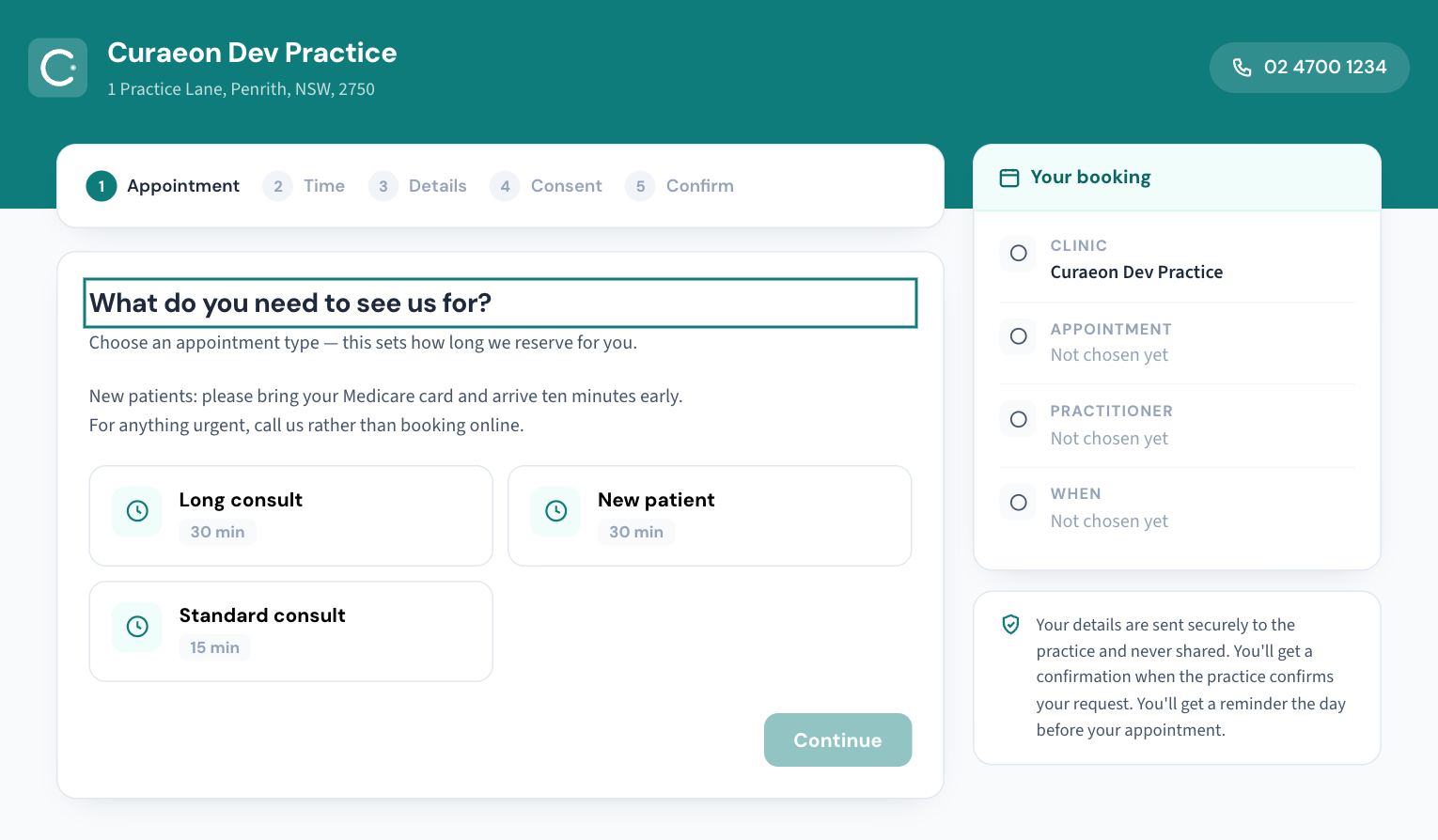
The panel on the right of the booking page only promises what your practice sends:
- It mentions a confirmation only when your practice sends one: that is, when either Tell the patient when their online booking request is confirmed or declined or Send a confirmation when an appointment is booked or moved is ticked.
- It mentions a reminder only when automatic appointment reminders are on for your practice, and says "the day before" only when that is when they go. The practice manager sets the time under Send the reminder in Settings → Patient messaging (KB-122 — Set up Settings → Patient messaging: email, SMS and WhatsApp channels, DKIM, the bounce mailbox and message wording).
The reception dashboard under Reports counts waiting requests, and the Audit log's Nobody signed in filter shows what came in from the public booking page.
If that didn't work
- Patients are booking a GP who is on leave. Check the leave exists in the Leave card in Settings → Rosters for those dates.
- Patients can't see any availability. Check the type still has Online on, then the roster and opening hours.
- A request never reached the diary. It's almost always still in the queue, unconfirmed: see KB-022 — Booking system sync issues — first steps.
- Confirm & book says no single patient matches. Read the note under the request: it says whether nobody or several people match, and what to do.
- The queue shows a red message with Try again where the requests should be. The list could not be loaded. That is not the same as "No online booking requests". Choose Try again (KB-170 — When part of a screen says it could not be loaded: Try again, and what Loading… means).
Still stuck? Raise a ticket at support.curaeon.com.au or call 1300 XXX XXX. If your clinic can't see patients right now, call and choose option 1. Support is staffed Monday to Friday, 8:00–18:00 Sydney time; outside those hours a call or text to the same number is answered on a best-effort basis.
Related articles
- KB-022 — Booking system sync issues — first steps — Booking system sync issues — first steps
- KB-038 — Book, reschedule and track appointments in the Calendar — Book, reschedule and track appointments in the Calendar
- KB-039 — Clear a practitioner's day when they call in sick — Clear a practitioner's day when they call in sick
- KB-117 — Add, change, reorder and retire appointment types in Settings → Appointment types — Add, change, reorder and retire appointment types in Settings → Appointment types
- KB-119 — Set up rosters, rotating cycles and leave in Settings → Rosters: the complete walkthrough — Set up rosters, rotating cycles and leave in Settings → Rosters: the complete walkthrough
- KB-116 — Set up your practice's details, opening hours and closures in Settings → Practice — Set up your practice's details, opening hours and closures in Settings → Practice
- KB-142 — Register a new patient — Register a new patient
- KB-175 — Book and hold a phone or video consult — Book and hold a phone or video consult
- KB-182 — Ask patients questions when they book online: intake questions on an appointment type — Ask patients questions when they book online: intake questions on an appointment type