Raise, correct and claim an invoice, including when "Send to Medicare…" is blocked
Bill a visit, fix an invoice that has already gone out, and queue its Medicare or DVA claim. This article also says what Send to Medicare… shows before your practice's Tyro connection is switched on.
Before you start
Raising an invoice and recording a payment are front-desk work. Voiding or correcting an issued invoice needs the billing.adjust permission, which Reception does not hold unless your practice has given it (KB-148 — Take a payment, give a receipt, void or correct an invoice). The practice's own fee schedule lives in Settings → Fees (KB-118 — Set what your practice charges for private and DVA billing in Settings → Fees), and the items you bill come from the MBS schedule the practice has loaded. DVA's fee schedule and your state's WorkCover rates are loaded on your server too, and Settings → Fees says which are held.
Raise an invoice
When a clinician finishes a consult, Curaeon opens a draft invoice for that visit. Most invoices start there.
- Open Billing in the menu bar. The screen is the list of invoices, the newest 50 first (KB-148 — Take a payment, give a receipt, void or correct an invoice). Choose the draft's row.
- Add the items from the MBS schedule the practice has loaded. Type an item number or a keyword in Search MBS item or keyword… and choose Add + on the item. Curaeon does not suggest item numbers. A Medicare claim is a legal assertion by the billing practitioner, and the software does not put words in their mouth (KB-056 — Why the scribe never writes the Assessment or suggests item numbers).
- Choose Issue invoice. Then record the payment and give the receipt (KB-148 — Take a payment, give a receipt, void or correct an invoice).
Issue invoice waits for anything typed and not yet on the invoice: a WorkCover code chosen and not added, WorkCover claim details not saved, or a correction to the time with the patient not saved. The button is off and a line beside it says what it is: Not on the invoice yet: and the item. Add or save it, or cancel it, then issue. On New claim, Save draft and the issuing button wait the same way, with Not on the claim yet:.
Find the item
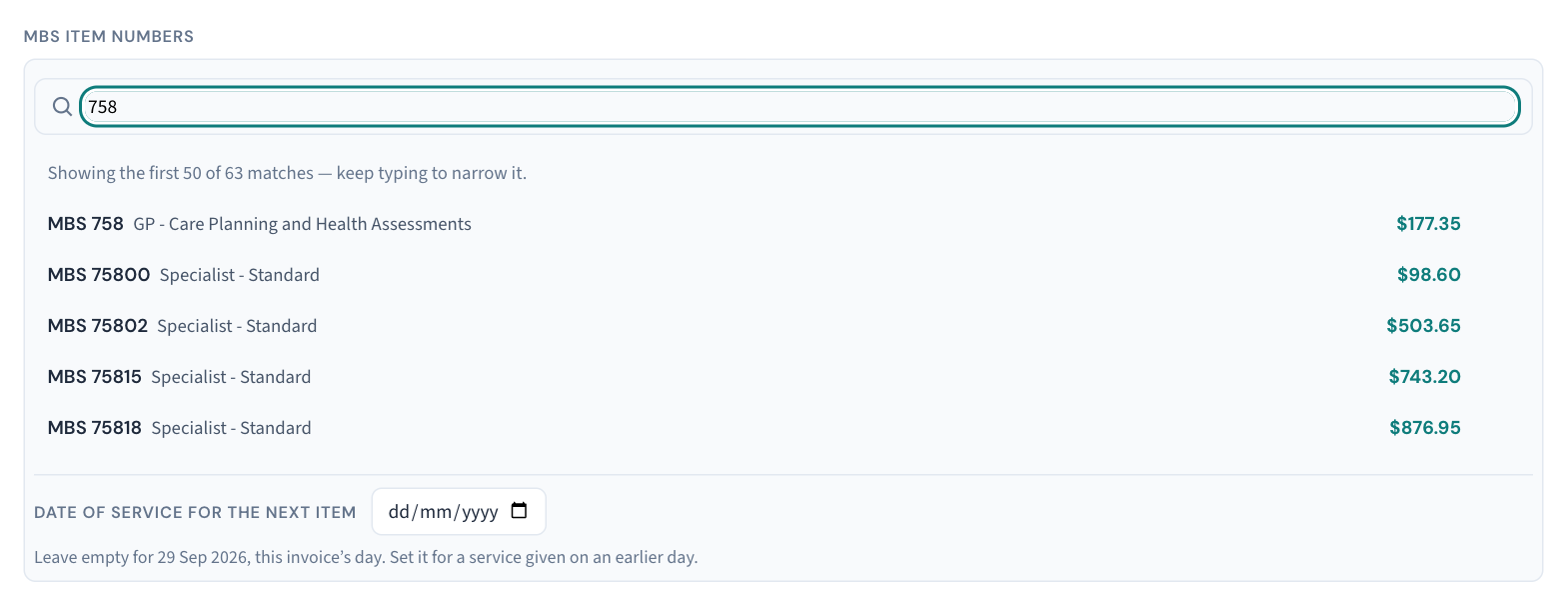
- Items whose number starts with what you type come first, then items whose description contains it. Typing 758 lists the items numbered 758… before any item whose description mentions 758.
- The search shows up to 50 items. When more match, it says so above them: Showing the first 50 of the number that match — keep typing to narrow it. Type more of the number or the keyword.
- No MBS item matches “…” means the schedule on your server has no item matching what you typed. A red message with Try again means the search could not be run (KB-170 — When part of a screen says it could not be loaded: Try again, and what Loading… means).
When Curaeon speaks up about an item
As an item is added (on New Medicare claim, when you save), Curaeon checks it against what the MBS schedule says about claiming items together, how often, and with what before them. A few combinations are refused and the item is not added; on New Medicare claim a refused item means nothing is issued, and the invoice is kept as a draft to put right. Most only warn, quoting the schedule's note, and the item is added. A warning stays on screen until you close it. Nothing is suggested in its place. What each check means, and what it cannot see, is in KB-177 — Why an item is warned about or refused on an invoice: MBS co-claiming rules and the bulk billing incentive.
To bill a completed consult that has nothing billed, do not use New claim: an administrator bills it from Consults to bill, so the invoice is tied to the consult and its claim carries the consult's date (KB-161 — Find consults that were never billed: the Consults to bill list).
To bill something that has no consult behind it, choose New claim on the Billing screen. It opens New Medicare claim, where you choose the patient, the items and the billing type.
To choose the patient, type two or more characters of a name, Medicare number or date of birth in the Patient box. Under the box Curaeon lists the matches, or says Searching… while it looks, or No patients match and what you typed. If it says The search could not be run … That is not the same as no such patient., the search failed and nothing was looked up. Choose Try again beside the message (KB-170 — When part of a screen says it could not be loaded: Try again, and what Loading… means).
The claim type and what each line bills
Under Claim type, choose Bulk Bill, Private, DVA or WorkCover. For a bulk bill or DVA claim the main button reads Issue & queue claim: it issues the invoice and queues its claim. For Private and WorkCover it reads Issue invoice, and no claim is queued. Billing a WorkCover consultation, including the state's own codes, is in KB-179 — Bill a WorkCover consultation: the state's rates and its own codes.
Each item shows its fee on the right:
- Bulk Bill: the Medicare benefit. With bulk billing the benefit is the payment, so the fee cannot be changed.
- Private, DVA and WorkCover: Curaeon asks your server what the line will bill and shows it in the box, with where the price came from under the item's name: The practice's fee, A fee the practice set for this funder, DVA's rate or The state's WorkCover rate, each followed by the MBS fee for comparison. A line priced at the MBS fee reads Schedule fee. The order Curaeon goes through is in KB-118 — Set what your practice charges for private and DVA billing in Settings → Fees.
- The line reads Pricing… while Curaeon asks.
- If the prices cannot be read, the total says The prices could not be read, that each line is priced when saved, and offers Try again (KB-170 — When part of a screen says it could not be loaded: Try again, and what Loading… means). You can still save or issue: each line is priced as it is saved.
- To bill a different amount, type it in the box. The line then says fee changed. Empty the box to go back to the price Curaeon gives it.
- The total is Total benefit for a bulk bill or DVA claim and Amount payable for private and WorkCover. While any line has no price on screen, it reads Priced when saved.
The date of service
Each item on an invoice is claimed for a day. Left alone, that is the invoice's own day: the consult's day when the invoice came from a consult, otherwise the day the invoice is issued. You can say another day.
- A service given on an earlier day. On New Medicare claim, change Date of service before you add the items. It shows today's date until you change it, and then reads Every item is claimed for that day.
- One account for services on different days. Open the invoice while its items can still be changed. Under the item search, set Date of service for the next item, then add the item. Set another day, or choose Clear, before you add the next one. Left empty, the item is for the invoice's own day.
Once the items are not all for the same day, the invoice's Date of service reads On 2 days (or however many), each item reads Service on and its day, and the receipt and the claim summary show a date beside every item.
- A date cannot be after today.
- An item's date cannot be edited. Remove the item and add it again with the right day.
- Curaeon prices an item from the schedule on the server, which holds today's fee. For a service given before a fee changed, Curaeon says so as you add the item: Medicare and DVA pay by the date of the service, so the amount paid may differ from this line. Queue the claim as it is. When a bulk bill or DVA claim is paid, Curaeon brings the invoice to what was paid (KB-156 — Follow a Medicare or DVA claim: its status, Check now and the claims list).
- If the item was not on the schedule that day, Curaeon says was not on the Medicare schedule on that date. Check the date.
- Medicare takes a claim for up to two years after the service. An invoice with an older item cannot be queued as a Medicare claim: Curaeon names the date. Take that line off to claim the rest.
A practice manager can check that nothing was missed: Consults to bill lists completed consults whose billing does not match them, such as a visit with no invoice or an invoice with no item (KB-161 — Find consults that were never billed: the Consults to bill list).
Change a draft's claim type
While an invoice is a draft, Claim type on the invoice is a choice. Choose another type and Curaeon prices each MBS line again for it, unless someone typed the line's fee, which is kept and said. The change is refused while the draft holds a line the new type cannot bill: a WorkCover code on anything but WorkCover, or a bulk-billing incentive on anything but a bulk bill. Once the invoice is issued, the type is fixed.
Correct an invoice
An invoice that has been sent cannot be edited. Correcting it voids and reissues: the original stays on the account as voided, and a fresh invoice carries the correction. That keeps the history honest — nobody can later wonder which version the patient was given.
Void & correct does this in one step. It is offered while no money is recorded on the invoice and no claim on it is with Medicare or DVA, and it needs the billing.adjust permission (KB-121 — Change what each role may do in Settings → Permissions). If the invoice has a payment, refund it first (KB-148 — Take a payment, give a receipt, void or correct an invoice). A queued claim is cancelled by it. A rejected claim stays on the voided invoice, and the corrected invoice is claimed afresh. While a claim is with Medicare or DVA, or once one is paid, the button is not shown; see KB-156 — Follow a Medicare or DVA claim: its status, Check now and the claims list.
Claim through Tyro Health Online
Claiming goes through Tyro Health Online. Medicare Online is not integrated (KB-058 — What Curaeon connects to Services Australia today (AIR, IHI, PBS authorities, Medicare, MyMedicare), and the manual workaround for each).
- On an issued bulk-bill invoice, choose Queue Medicare claim. On an issued DVA invoice the button reads Queue DVA claim.
- For a bulk bill, a window asks how the patient agreed to assign the benefit (KB-158 — Assignment of benefit for a bulk bill: Tyro's text to the patient, or signed on paper). Choose Queue claim. For a DVA claim, a window asks where the service was given and, for a White Card holder, the accepted disability treated (KB-159 — Claim for a DVA patient, and lodge a private patient's Medicare claim for them).
- The claim appears in the invoice's Medicare claims block (DVA claims on a DVA invoice) as Queued — ready to send.
When the doctor has no provider number
Medicare and DVA pay a claim only under the provider number of the doctor who gave the service, so Curaeon does not queue a claim without one. It says why, and no claim is queued:
- On New Medicare claim, as soon as you choose a doctor with no provider number, a line under Provider says Dr … has no provider number, and Medicare and DVA pay a claim only under one. Add it on their staff account in Settings › Users, then queue the claim. Issue & queue claim says the same and raises no invoice. With Provider left at Not recorded, it says This account names no provider, and Medicare and DVA pay a claim only under the provider number of whoever gave the service. Choose the provider who gave the service.
- On an issued invoice, the queue window opens with Queue claim greyed out and the same sentence beside it. On an invoice that names no provider, it says This account names no provider, and Medicare and DVA pay a claim only under the provider number of whoever gave the service. Void & correct the invoice to reissue it under that provider, then claim.
An invoice that names nobody cannot be issued. One raised from a consult names the doctor who saw the patient, and New Medicare claim will not raise one under Not recorded; one that arrives from another system or an import can name nobody. On its page, a draft's Provider is a list of the practice: choose who provided the service, and the page says … named on this invoice. Until then Issue invoice is off, with Nobody is named as the provider. Choose who provided the service, under Provider, before issuing. On an issued invoice the provider cannot be changed; that is Void & correct.
An administrator adds the number under Settings → Users (KB-162 — Register each provider with Tyro before the first claim). Then queue the claim. The invoice does not need correcting when only the number was missing: the claim takes the number recorded at the moment it is queued.
A referral on the claim
A general practitioner's attendance is claimed with no referral, and Curaeon sends none unless you say. Each window that queues a claim has a Referral section. It is closed and reads none stated; leave it that way for a GP.
For a service that is claimed against a referral, such as a specialist's, or allied health, imaging or pathology:
- In the queue window, choose Referral to open it.
- Choose The service was given under a referral.
- Enter the Referring practitioner's provider number and name, and the Date on the referral.
- Choose who referred (A general practitioner or A specialist) and what the referral is for.
- Under How long the referral runs, choose Standard, Non-standard or Indefinite. For non-standard, enter the Months. For non-standard and indefinite, enter The reason, as it is written on the referral.
- Choose Queue claim.
Where a referral is usual and there is none, choose A referral is usual for this service, and there is none and pick the reason: Emergency, Hospital in-patient (with the hospital's name), Referral lost (with what is known of it) or Not required. A DVA claim also offers Remote area.
The window says what is missing before it queues the claim, for example Say how many months the referral runs, from 1 to 99. The referring practitioner's number is checked for a mistyped character.
The claim's line then reads referred by with the practitioner, their number and the date, or no referral and the reason. The claim summary says the same (KB-169 — Print the form for a patient, or a summary, for a Medicare or DVA claim).
The reason for a non-standard or indefinite referral can be up to 50 characters. The window says it is Sent to the funder with the claim. A claim that carries a reason is looked at by a person there, so it may take longer.
Warning: Medicare and DVA take a referral only from a provider registered with Tyro Health as a specialist, allied health, imaging or pathology provider. If the doctor is registered as a general practitioner, Tyro Health refuses a claim that carries a referral, with A specialist claim is required when referral type is set to D - diagnostic imaging or S - specialist, and the funder declines one that gives a no-referral reason. The claim's line shows the refusal. How each doctor is registered is in KB-162 — Register each provider with Tyro before the first claim.
What has been seen in Tyro Health's test system, from providers registered as a specialist and as a physiotherapist (20 to 24 October 2026):
- A specialist's claims with a referral were taken. A standard referral, a non-standard one and Referral lost were each lodged, on a bulk bill, a patient claim and a DVA claim. A patient claim giving Referral lost was assessed and accepted at once. Medicare's final answer on the others was not yet known.
- Tyro checks each item against the provider's registered specialty. An item that specialty does not claim is refused before it reaches Medicare, with Unable to find Medicare item code (or DVA item code) … for the specified specialties. Check the item, and how the provider is registered with Tyro (KB-162 — Register each provider with Tyro before the first claim).
-
A physiotherapist's DVA claim is made with the MBS item. DVA took item 10960 from a physiotherapist. Curaeon's item search offers MBS items only.
-
A claim queued from New Medicare claim says nothing about a referral: Issue & queue claim sends it at once without one. Use Save draft there, choose Issue invoice on the draft, and queue the claim from the invoice.
- A referral cannot be changed on a claim that is already queued. Choose Void & correct on the invoice, which cancels the queued claim, then queue it again.
- A claim that carries a referral is filed by Curaeon itself. Send to Medicare… says Nothing is wrong with this claim and does not send it from that window.
What happens next depends on whether your practice's Tyro connection is switched on. It is switched on for each practice once Tyro has certified Curaeon and the practice has finished Tyro's onboarding.
Once the connection is switched on, Curaeon files the queued claim itself, in the background, within moments. Nobody presses anything. The claim's line then says where it is: waiting for the patient to agree, with Medicare, approved, paid or rejected. Following a claim, Check now and the claims list are in KB-156 — Follow a Medicare or DVA claim: its status, Check now and the claims list. A queued claim has no button to press: its line says Curaeon sends it on its own. Once the claim has been sent, Statement on its row prints a one-page claim statement for the patient or the file (KB-169 — Print the form for a patient, or a summary, for a Medicare or DVA claim).
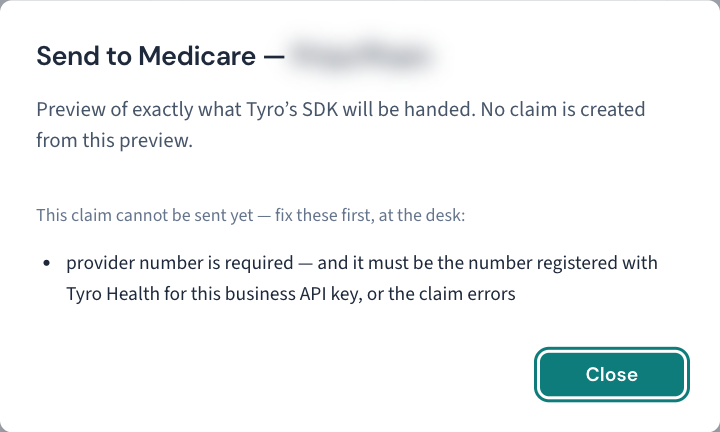
Until the connection is switched on, the claim stays queued and nothing is sent. It is not lost. Send to Medicare… on the queued claim opens a preview headed "Preview of exactly what Tyro's SDK will be handed. No claim is created from this preview." It shows the claim as it would be sent, and says what the server is still missing. Use it to check the claim is complete. Administrators also see a banner at the top of Billing saying the queued claims will keep queuing and none will be sent. The Tyro Health line above the Billing screens says which state your server is in: Filing automatically, Claims held in outbox or Not connected. New Medicare claim does not show that line: the box at the top of its right-hand column says the same, with a badge beside the screen's heading (KB-156 — Follow a Medicare or DVA claim: its status, Check now and the claims list).
When "Send to Medicare…" is blocked
When a detail is missing, the preview does not show the claim. It says This claim cannot be sent yet — fix these first, at the desk: and names each fact in plain words.
| The preview says | Fix it here |
|---|---|
| provider number is required … | Only a claim queued before 26 October 2026 can say this: since then Curaeon does not queue a claim without a provider number (see "When the doctor has no provider number", above). Record the doctor's Provider number in Settings → Users (KB-162 — Register each provider with Tyro before the first claim). A claim keeps the number that was recorded when it was queued, so use Void & correct and queue the claim again. |
| a Medicare claim needs the patient's card number | Medicare number on the patient's Identifiers & Funding card. |
| a Medicare claim needs the individual reference number — the digit beside the patient's name on the card | Medicare IRN on the same card. |
| a DVA claim needs the patient's DVA file number | DVA number on the same card. |
| patient last name and date of birth are required | The patient's Demographics card. |
Fix the missing detail, return to the invoice, and open Send to Medicare… again.
Once your connection is switched on, the same missing facts stop a claim in a different place: Curaeon tries to file it, cannot, and shows it as rejected with the same words. Those are listed in KB-017 — Medicare claim rejections — common causes and fixes. Fix the detail, then choose Send again… on the rejected claim (KB-156 — Follow a Medicare or DVA claim: its status, Check now and the claims list).
Other things the window can say
Before the window shows the preview, it puts the claim together and asks your server for a Tyro token. Where Tyro's own form opens in the window, it then loads that form. Each of these steps can fail, and each failure has Try again beside it (KB-170 — When part of a screen says it could not be loaded: Try again, and what Loading… means). Nothing has been sent at any of these points, so trying again is safe.
| The window says | What it means | What to do |
|---|---|---|
| Assembling the claim…, Asking for a Tyro token… or Checking whether this claim can be sent from here. Nothing has been sent. | The window is still working. | Wait. |
| The claim could not be assembled … Nothing has been sent. | Curaeon could not read the claim. | Choose Try again. |
| Tyro is not configured on this server — no credentials are set, so no token can be minted. | Your practice's Tyro connection is not switched on. | Nothing. This is expected until it is. The preview underneath is still right. |
| The token request could not be made … That is this server not answering, and says nothing about Tyro. | Your own Curaeon server did not answer. | Choose Try again. If it repeats, raise a ticket. |
| Tyro did not answer the token request — the credentials exist but minting failed. | Your server asked Tyro, and Tyro did not answer. | Choose Try again, now or a little later. |
| The Tyro SDK script failed to load. … | Tyro's form could not be loaded into the window. | Choose Try again. If it repeats, raise a ticket. |
A claim that Medicare rejects after it was sent is a different question, covered in KB-017 — Medicare claim rejections — common causes and fixes. Checking a patient's card with Medicare before you bill is in KB-157 — Verify a patient's Medicare card with Medicare, and taking a card payment on the Tyro terminal is in KB-160 — Take a card payment on the Tyro terminal.
Good to know: looking at a patient's invoices, or the details a claim is sent with, is recorded on their access history as Billing viewed or Medicare claim details viewed — not as opening their chart. Opening a claim statement is recorded as Claim statement opened. The practice-wide invoice list is not recorded.
If that didn't work
If the preview names a detail that is present on the record, or an issued invoice refuses to void, raise a ticket with the invoice number — never the patient's name or Medicare number.
Still stuck? Raise a ticket at support.curaeon.com.au or call 1300 XXX XXX. If your clinic can't see patients right now, call and choose option 1. Support is staffed Monday to Friday, 8:00–18:00 Sydney time; outside those hours a call or text to the same number is answered on a best-effort basis.
Related articles
- KB-156 — Follow a Medicare or DVA claim: its status, Check now and the claims list — Follow a Medicare or DVA claim: its status, Check now and the claims list
- KB-157 — Verify a patient's Medicare card with Medicare — Verify a patient's Medicare card with Medicare
- KB-158 — Assignment of benefit for a bulk bill: Tyro's text to the patient, or signed on paper — Assignment of benefit for a bulk bill: Tyro's text to the patient, or signed on paper
- KB-159 — Claim for a DVA patient, and lodge a private patient's Medicare claim for them — Claim for a DVA patient, and lodge a private patient's Medicare claim for them
- KB-169 — Print the form for a patient, or a summary, for a Medicare or DVA claim — Print the form for a patient, or a summary, for a Medicare or DVA claim
- KB-160 — Take a card payment on the Tyro terminal — Take a card payment on the Tyro terminal
- KB-162 — Register each provider with Tyro before the first claim — Register each provider with Tyro before the first claim
- KB-053 — Month-end and end of day: aged debtors, statement runs and bank reconciliation — Month-end and end of day: aged debtors, statement runs and bank reconciliation
- KB-017 — Medicare claim rejections — common causes and fixes — Medicare claim rejections — common causes and fixes
- KB-058 — What Curaeon connects to Services Australia today (AIR, IHI, PBS authorities, Medicare, MyMedicare), and the manual workaround for each — What Curaeon connects to Services Australia today (AIR, IHI, PBS authorities, Medicare, MyMedicare), and the manual workaround for each
- KB-108 — Bank lines that won't match, statement reprints and brought-forward balances: the ledger FAQ — Bank lines that won't match, statement reprints and brought-forward balances: the ledger FAQ
- KB-118 — Set what your practice charges for private and DVA billing in Settings → Fees — Set what your practice charges for private and DVA billing in Settings → Fees
- KB-179 — Bill a WorkCover consultation: the state's rates and its own codes — Bill a WorkCover consultation: the state's rates and its own codes
- KB-177 — Why an item is warned about or refused on an invoice: MBS co-claiming rules and the bulk billing incentive — Why an item is warned about or refused on an invoice: MBS co-claiming rules and the bulk billing incentive