Find, open and upload documents on the Reports tab of a patient's record
Find a letter, scan or certificate kept on a patient's record, open it, and add a file of your own. On the record, the tab that holds a patient's documents is called Reports.
Before you start
- Anyone who can open the record can see the list and open a document.
- Uploading needs both the
chart.writeandnotes.writepermissions. The Admin and Clinician roles hold both by default. Reception and nurses do not, so they see the list without the upload controls (KB-121 — Change what each role may do in Settings → Permissions). - Reception adds paper another way: scan it and file it from Utilities → Scanning (KB-047 — Scan and file paper letters, including the appliance's pre-filled suggestions). A filed scan lands on this tab.
- Document storage must be set up on your server. See "If the tab shows an error" below.
What the tab shows
Open the patient's record and choose the Reports tab. The number beside the heading is how many documents the record holds.
Documents are grouped by direction. A group with nothing in it is not shown.
| Group | What is in it |
|---|---|
| Outgoing correspondence | Letters and referrals this practice sent |
| Incoming correspondence | What the practice received: specialist replies, discharge summaries, scanned letters |
| Issued to the patient | What was given to the patient here |
| Unfiled documents | Documents with no direction recorded |
Each row has the document's title, its type, the date it was added to Curaeon, and its file format (PDF, PNG and so on). Two marks can appear beside it:
- Imported from and a source name: the document came across from your previous system (KB-070 — Import patients, documents, appointments and balances from your previous system, and read the reconciliation report).
- Draft: a letter saved to finish later. It is not sent and not final.
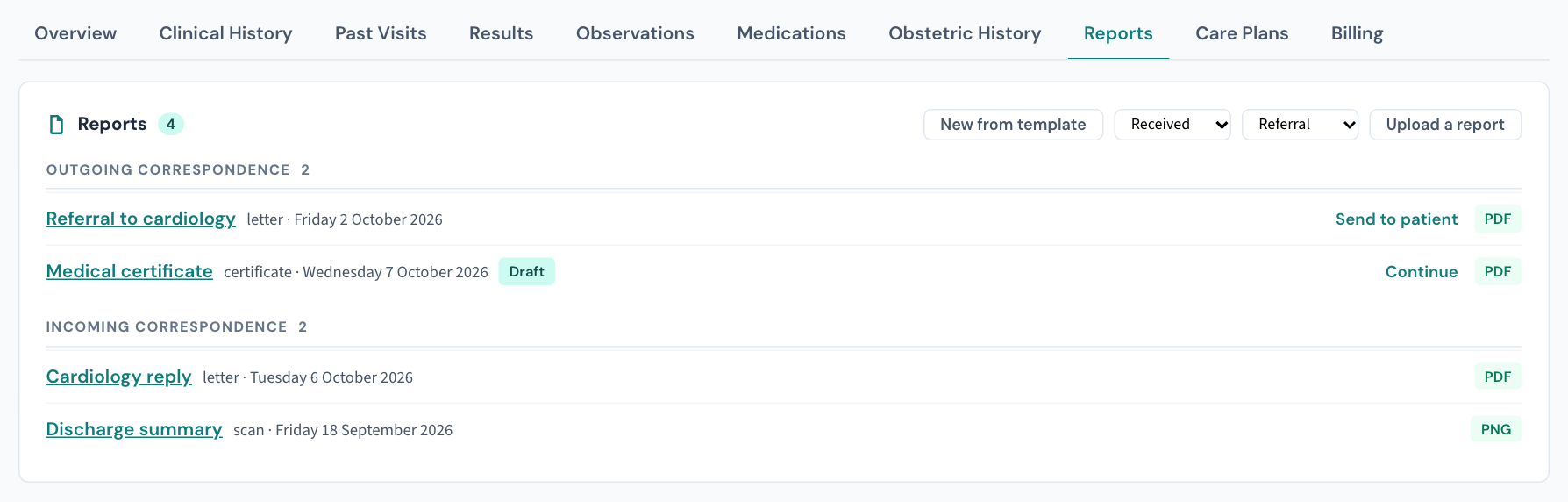
Note: Within a group, documents are ordered by the date on the document where one was recorded, newest first. The date printed on the row is the day it was added to Curaeon. A letter dated last month and scanned today shows today's date and sits among last month's letters.
A document reaches this tab five ways: uploaded here, filed from the letter editor (KB-106 — Write a letter in the editor: Insert from the record, { } Field, and the formatting that survives print and email), filed from Utilities → Scanning, filed to the record from the Inbox, or imported from your previous system.
Open a document
- Choose the document's title.
- It opens in a new browser tab. Print or save it from there with your browser.
Opening a document is recorded in the Audit log as Document opened, with your name.
Upload a file
Set the two lists first. The upload starts the moment you pick the file.
- Rename the file on your computer to what the document should be called. The title is taken from the file name, without its ending.
- On the Reports tab, set the first list to Received, Sent or Issued here. It starts on Received.
- Set the second list to the type: Referral, Letter, Care_plan, Scan, Certificate, Receipt, Script or Other. It starts on Referral.
- Choose Upload a report and pick the file.
- Wait for Uploaded and the title. The document appears in its group.
Curaeon accepts PDF, PNG, JPEG, TIFF, plain text and RTF files, up to 25 MB each.
Important: Check you are on the right patient before you pick the file. An upload cannot be moved or removed afterwards.
An upload here does not put anything in a doctor's Inbox. If a doctor needs to review a letter that arrived on paper, file it from Utilities → Scanning, which does (KB-047 — Scan and file paper letters, including the appliance's pre-filled suggestions).
The upload is recorded in the Audit log as Document added to the record.
The other buttons
Staff who can upload also see New from template, which starts a letter from one of the practice's templates (KB-049 — Build and import letter templates: Word upload, merge fields, pronoun fields, snippets); Continue on a draft, which reopens it; and Send to patient on a finished outgoing document and on a certificate under Issued to the patient (KB-050 — Email a letter to a patient: password, refused characters, "I can't open it", KB-154 — Write a medical certificate, and the other built-in letter templates).
Send to patient is not offered on:
- Incoming correspondence. A specialist's letter is not the practice's to forward, and Curaeon refuses to send one to the patient however it is asked.
- Unfiled documents. A document with no direction recorded may be something the practice received.
- A draft, a receipt or a script.
- A care plan document. A copy on the record cannot say whether its plan has changed or been withdrawn since. A care plan is sent from the plan's own page, which files a new copy here under Issued to the patient each time it is sent (KB-102 — Start a care plan from a template, share templates between sites, and keep Plan reviews and INR clear).
A care plan uploaded here with the first list set to Sent is outgoing correspondence, and is sent as a letter like any other outgoing document. Nothing then checks whether a plan behind it is still current.
Every document sent to the patient is listed on this tab under Sent to patient, with what was said and whether it went.
What you cannot do, and why
| You cannot | Why | Do this |
|---|---|---|
| Delete a document | Curaeon does not delete records. A document on a patient's record stays until the record reaches the end of its retention period (KB-066 — Keep, hold or destroy patient records past retention) | Leave it. If it is on the wrong patient's record, call support |
| Rename a document, or change its type or direction | There is no edit for a filed document | Get the file name and the two lists right before you upload |
| Move a document to another patient | There is no move | Upload it to the right record, and call support about the copy on the wrong one |
If the tab shows an error
| What you see | What it means | What to do |
|---|---|---|
| Not found. where the list should be, on every patient | Document storage is not set up on the server, so the server has no documents to list | Tell whoever looks after your server, or raise a ticket. The document store is set up when Curaeon is installed, and staff cannot switch it on from a screen |
| A sentence beginning unsupported file type | The file is not one of the six accepted kinds | Save it as a PDF and upload that |
| file exceeds the 25 MB limit | The file is too large | Scan at a lower resolution, or split it |
| your role does not permit this action | You can see the upload controls but your role lacks notes.write |
Ask your practice manager (KB-121 — Change what each role may do in Settings → Permissions) |
| document file is missing when opening | The entry is on the record but the stored file cannot be found | Raise a ticket with the document title and the date, not the patient's name |
| Any other red message where the list should be, with Try again beside it | The list of documents could not be loaded. That is not "No documents filed yet." | Choose Try again. If it repeats, see KB-170 — When part of a screen says it could not be loaded: Try again, and what Loading… means |
If that didn't work
If a page you scanned is not on the tab, check it was filed and not left in the tray (KB-092 — Documents and scanning FAQ). If the record is restricted and you are not named on it, you will not reach the tab at all (KB-061 — Restrict a patient's record, and open one in an emergency).
Still stuck? Raise a ticket at support.curaeon.com.au or call 1300 XXX XXX. If your clinic can't see patients right now, call and choose option 1. Support is staffed Monday to Friday, 8:00–18:00 Sydney time; outside those hours a call or text to the same number is answered on a best-effort basis.
Related articles
- KB-047 — Scan and file paper letters, including the appliance's pre-filled suggestions — Scan and file paper letters, including the appliance's pre-filled suggestions
- KB-092 — Documents and scanning FAQ — Documents and scanning FAQ
- KB-106 — Write a letter in the editor: Insert from the record, { } Field, and the formatting that survives print and email — Write a letter in the editor: Insert from the record, { } Field, and the formatting that survives print and email
- KB-050 — Email a letter to a patient: password, refused characters, "I can't open it" — Email a letter to a patient: password, refused characters, "I can't open it"
- KB-121 — Change what each role may do in Settings → Permissions — Change what each role may do in Settings → Permissions
- KB-102 — Start a care plan from a template, share templates between sites, and keep Plan reviews and INR clear — Start a care plan from a template, share templates between sites, and keep Plan reviews and INR clear
- KB-154 — Write a medical certificate, and the other built-in letter templates — Write a medical certificate, and the other built-in letter templates