Scan and file paper letters, including the appliance's pre-filled suggestions
Get the day's paper into the right patient's record and in front of the right doctor — using the appliance's suggestions to go faster, without ever letting it decide for you.
Before you start
Scanning is a section of Utilities: open More in the menu bar, then Utilities. Anyone who can file correspondence can open it. Reception scans and files — the clinical judgement stays with whoever works the Inbox (KB-046 — Work the results Inbox: Practitioner vs Assigned to, routing, COPY and corrected results, Follow-up).
Scan and file a page
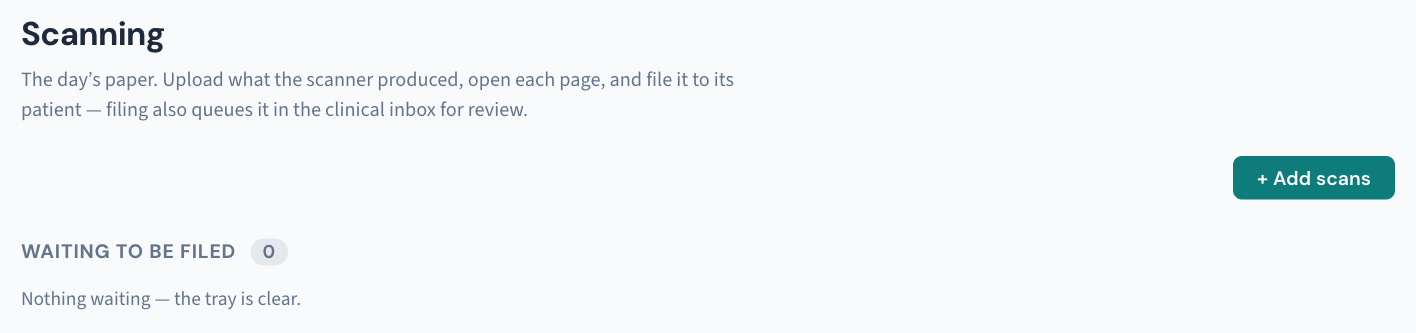
- Scan the paper and upload what the scanner produced to the tray.
- Open each page.
- Check the patient. If the appliance matched one, the row says why — it matches only when the page's Medicare number, or full name and date of birth, match exactly one record. Read the page and confirm.
- Check the kind of document and the title.
- Check the date. This is the date on the letter, not today: a referral dated last week files as last week. Correct the appliance's reading if it's wrong.
- Choose which doctor it's for. The picker is pre-filled with the patient's usual GP when that doctor is still at the practice; if the letter is addressed to someone else, change it — the software only suggests. "For any doctor" leaves it in the practice pool. Only clinicians who can action Inbox items can be chosen.
- File it. That does three things at once: the page lands in the patient's documents, it's dated by the letter's date, and it appears in the clinical Inbox for review.
What the appliance does — and doesn't
The practice's AI appliance pre-reads every waiting page, PDFs and images included, and the filing form arrives filled with its best reading: patient, document kind, title, date. Every field stays editable, and nothing is ever filed by a machine — a person reads the page and decides. A page the appliance could not read simply says so and waits as before; file it by hand. If suggestions stop altogether, check the appliance (KB-011 — Appliance appears offline — five checks before you call) — filing by hand still works meanwhile.
File all suggested
When the appliance has matched waiting pages to patients, File all suggested appears above the tray, with the number of pages, for example File all suggested (6). It files them in one press, but only after you have seen the list.
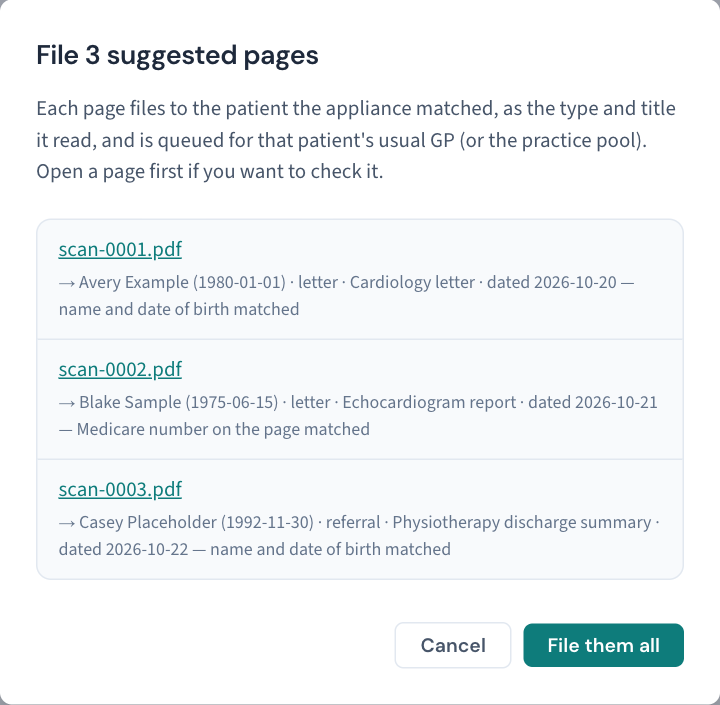
- Choose File all suggested. A window lists every matched page: its file name, the patient and date of birth, the kind of document, the title, the date it read, and why it matched.
- Open any page from its file name to check it against the paper. Whatever is on the list is what will be filed.
- Choose File them all. Each page files exactly as its pre-filled form would have: to the matched patient, with the kind, title and date the appliance read, and queued for the patient's usual GP — or the practice pool when that GP cannot action Inbox items.
Pages that could not be filed stay in the tray, and are named on the screen above the tray with the reason, such as "the matched patient is no longer active — file it by hand" or "already filed". File those one at a time.
File all suggested does not ask which doctor each page is for. If a page on the list is addressed to someone other than the patient's usual GP, either file that page on its own first, or reassign it from the Inbox afterwards. The approval is yours; the reading is the appliance's.
Fix a mistake
- Wrong doctor: reassign it from the Inbox — you don't refile.
- Uploaded in error: a page is never deleted. Don't file it; it stays in the queue's history with its name and who uploaded it.
- Restricted record: filing is refused unless you are named on the restriction, and so is File all suggested while a page matched to that record is on its list. Hand the page to someone who is named (KB-061 — Restrict a patient's record, and open one in an emergency).
Keep an eye on the tray
- Settings → AI Appliance, an administrators' page, shows how the mail is going: pages read today, what the appliance suggested, what it couldn't read, the oldest page still waiting, and the typical time from scan to filed. The counts come from the queue's own rows, not the appliance's claims.
- Utilities → Data clean-up lists scans unfiled for a fortnight.
If that didn't work
| What you see | What to do |
|---|---|
| A document won't upload | Check the type (PDF, PNG, JPEG, TIFF, plain text, RTF) and size |
| A filed document opens as a blank page | The stored file is missing or unreadable — report it with the document title, not the patient's name. The record entry is kept. |
| A red message with Try again where the tray should be | The scanning queue could not be loaded. That is not "Nothing waiting — the tray is clear." Choose Try again (KB-170 — When part of a screen says it could not be loaded: Try again, and what Loading… means) |
Still stuck? Raise a ticket at support.curaeon.com.au or call 1300 XXX XXX. If your clinic can't see patients right now, call and choose option 1. Support is staffed Monday to Friday, 8:00–18:00 Sydney time; outside those hours a call or text to the same number is answered on a best-effort basis.
Related articles
- KB-046 — Work the results Inbox: Practitioner vs Assigned to, routing, COPY and corrected results, Follow-up — Work the results Inbox: Practitioner vs Assigned to, routing, COPY and corrected results, Follow-up
- KB-011 — Appliance appears offline — five checks before you call — Appliance appears offline — five checks before you call
- KB-057 — Check appliance health and link security in Settings → AI Appliance, and revoke a certificate — Check appliance health and link security in Settings → AI Appliance, and revoke a certificate