Book, reschedule and track appointments in the Calendar
Run the appointment book from the front desk: book into the right slot, follow a patient through the day's statuses, and know what a cancellation or no-show does behind the scenes.
Before you start
The Calendar is part of the Reception role, so any front-desk account can do all of this. Practitioners appear as columns once they have a roster (Settings → Rosters); durations come from Settings → Appointment types. A doctor missing from the Calendar is a roster question for an administrator. Every time on the Calendar is the practice's clock, not your computer's.
Book an appointment
- Open the Calendar for the day. It shows the day's appointments per practitioner.
- Pick the practitioner's column and the appointment type.
- Choose a start time. The time grid steps by the appointment's own length — a 10-minute type offers 9:00, 9:10, 9:20; a 45-minute assessment offers three starts an hour that actually fit. If you only see 9:00 and 9:20, the type you chose is 20 minutes long: change the type, not the clock.
- Check How it is held: In person, Video or Phone. It starts on the appointment type's own setting. Change it for a phone or video consult (KB-175 — Book and hold a phone or video consult).
- Choose Book appointment. Booking checks the practitioner's roster, the practice's opening hours and existing appointments.
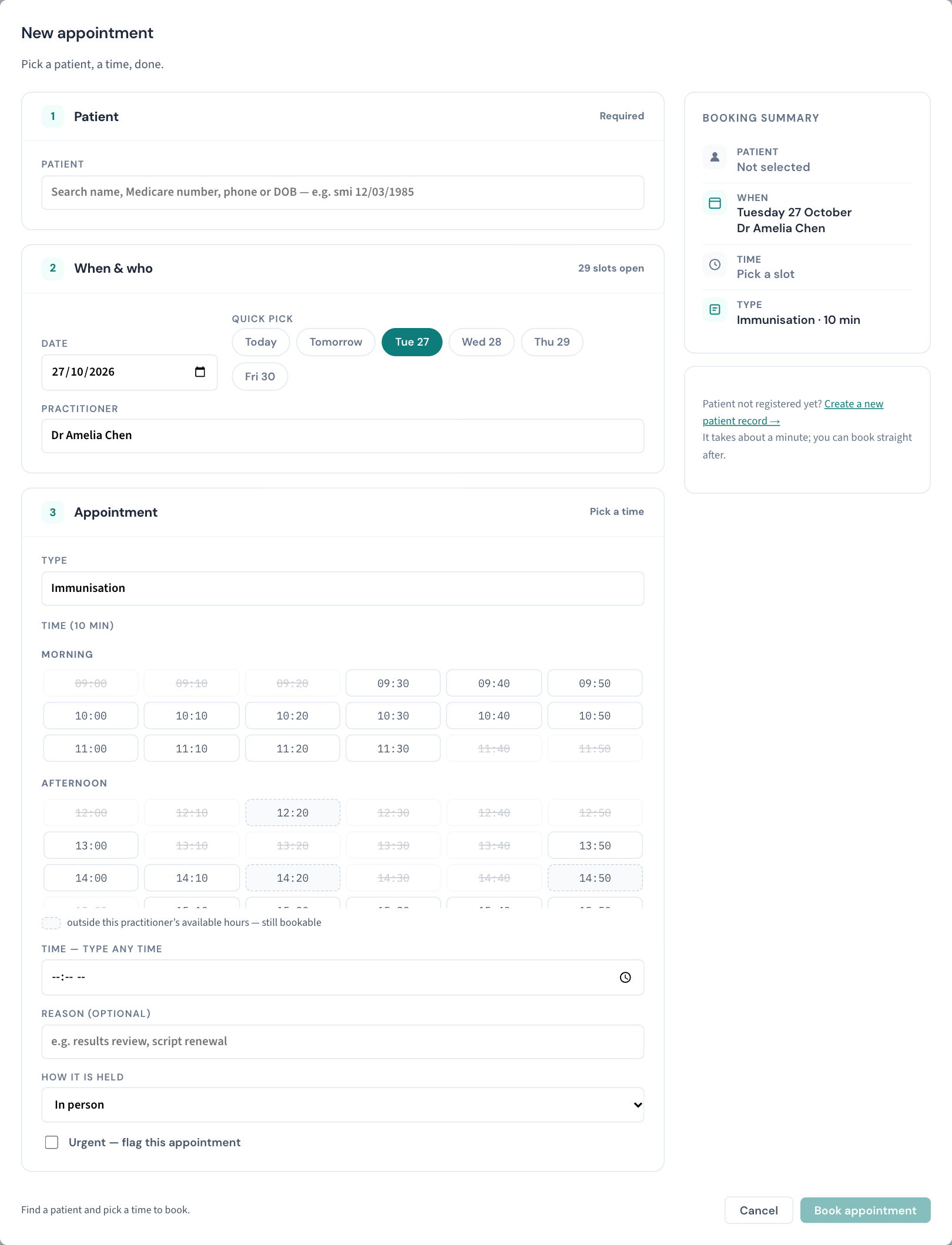
A run of appointments — weekly dressings, a monthly review — is booked in one go: under Repeat in the same window, choose how often and how many (KB-180 — Book, move or cancel a repeating appointment: the same time every few weeks).
Double-booking is possible on purpose — it is reception's call — but Curaeon tells you that you are making one.
Nurse clinics book the same way: nurses have their own columns, rosters, and appointment types sized for the work — dressings, INR checks, ECGs, spirometry, health assessments.
Booking from a recall (Book appointment on the recall) links the two, and the recall closes itself when the visit is completed (KB-051 — Run recalls: book from a recall, and why a recall stays open or comes back).
A patient who is not on file yet. In the New appointment window, choose Create a new patient record →. Register them and choose Save & book appointment: you come back to the window on the same day, practitioner and appointment type, with the new patient chosen. Choose the time again (KB-142 — Register a new patient).
Phone and video appointments show Phone · or Video · before the patient's name on the grid. The patient's confirmation and reminder say how it is held (KB-175 — Book and hold a phone or video consult).
Where the Calendar opens
- Today opens at the current time: the grid is scrolled to an hour before now, so the line marking the time sits a little way down and the next patient is in view. The same applies to a week that holds today.
- Any other day opens at the practice's opening hour.
- To have today open at the opening hour as well, set Today opens at to Opening time in Preferences → Calendar (KB-131 — Set up Preferences: your start screen, calendar view, colours, notifications and privacy). It is your choice, in this browser only.
When a clinician completes a consult and issues its invoice, Curaeon takes them back to the Calendar, which opens at the current time.
Follow the patient through the day
Statuses run in one direction. The manual describes them as:
pending → confirmed → arrived → in progress → at reception → completed
The Calendar's own legend uses front-desk words for the same steps — Booked, Confirmed, Arrived, In consult, At reception, Done — with Cancelled and No show beside them. Read across:
- Booked (pending) then Confirmed — the booking exists, then it stands.
- Arrived — mark this from the Calendar when the patient checks in.
- In consult (in progress) — the clinician has started the consult.
- At reception — the gap between the clinician finishing and the patient paying and rebooking, so the desk can see who is standing in front of them.
- Done (completed) — a linked recall closes here.
The appointment's own history records who took the patient in and who sent them to reception. The full table, and what each status means for the desk, is in KB-076 — Appointment statuses from pending to completed, and what "At reception" means.
Reschedule, cancel or record a no-show
Reschedule and cancel from the appointment in the Calendar. Two things happen behind a cancellation or a no-show:
- Any recall the appointment was answering goes back on the recalls worklist, so somebody rebooks it (KB-051 — Run recalls: book from a recall, and why a recall stays open or comes back).
- A reminder or a confirmation not yet sent for that appointment is withdrawn.
- If your practice has turned it on, the patient is told: a cancellation sends a message saying the appointment has been cancelled, and a no-show sends one saying they were missed, each asking them to call to rebook. Both are off unless your practice manager ticks them (KB-122 — Set up Settings → Patient messaging: email, SMS and WhatsApp channels, DKIM, the bounce mailbox and message wording). A visit marked Done can send a short thank-you the same way.
When you move an appointment to a new time or practitioner, a patient who was sent a confirmation is sent a new one with the new time. You do not need to choose Send confirmation again. A patient who was never sent one is not messaged by the move, unless your practice confirms appointments automatically (KB-122 — Set up Settings → Patient messaging: email, SMS and WhatsApp channels, DKIM, the bounce mailbox and message wording). The reminder for the new time goes out ahead of it as usual. Changing only the length or the room of an appointment sends nothing.
An appointment that is one of a repeating run shows ↻ Repeats in its panel, and its Cancel window offers to cancel the later ones in the run as well (KB-180 — Book, move or cancel a repeating appointment: the same time every few weeks).
If a whole day needs clearing because a practitioner is unwell, do not cancel one by one — open More in the menu bar, then Utilities → Clear a practitioner's day (KB-039 — Clear a practitioner's day when they call in sick).
Tell the patient it is booked
Open the appointment. While it is Booked or Confirmed, two messages are offered:
- Send confirmation tells the patient the appointment is booked: who with, the date and time, and the practice's number to call. Use it when you book for someone who is not in front of you.
- Send reminder sends the reminder now, rather than waiting for the automatic one that goes out ahead of the appointment.
Each goes on the channel your practice has chosen for it in Settings → Patient messaging (KB-122 — Set up Settings → Patient messaging: email, SMS and WhatsApp channels, DKIM, the bounce mailbox and message wording), by text unless something else is ticked. Choosing either twice while the first is still waiting to send does not send two. If the patient cannot be reached on those channels, you are told so and nothing is queued. What was sent is on the appointment's history and in Settings → Messages (KB-123 — Read the reminder queue in Settings → Messages, and know which messages screen you need).
Note: Send confirmation is not Confirm booking. Confirm booking changes the appointment's status from Booked to Confirmed and messages nobody.
Your practice manager can have a confirmation sent by itself whenever an appointment is booked. It is off unless they turn it on (KB-122 — Set up Settings → Patient messaging: email, SMS and WhatsApp channels, DKIM, the bounce mailbox and message wording).
Online requests
If the practice runs the public booking page, requests wait in a queue. Choose Online bookings in the Calendar's toolbar to open it; the button shows how many are waiting. Choose Confirm & book or Decline on each one. Patients only request there; nothing lands in the Calendar until someone confirms it (KB-040 — Set up rosters, leave and online-bookable appointment types, and handle online booking requests).
What an appointment's panel offers
Select an appointment in the Calendar to open its panel. The buttons depend on its status.
| Status | Buttons |
|---|---|
| Booked | Confirm booking, Send confirmation, Send reminder, Reschedule, Cancel. Once its time has come: Mark attended and No show |
| Confirmed | Mark arrived, Send confirmation, Send reminder, Reschedule, No show, Cancel. Once its time has come: Mark attended |
| Arrived | Start consult (clinicians only) and Cancel. Once its time has come: Mark attended |
| At reception | Mark visit done and Book follow-up |
| Done, No show, Cancelled | Book follow-up |
Reschedule opens a window with the date, the time and the practitioner. A Booked or Confirmed appointment can also be dragged to a new time on the grid. Neither is offered once the patient has arrived. If the new time overlaps another booking, the window says so and the button reads Move anyway.
Send confirmation and Send reminder are not offered once the appointment's end time has passed.
While the appointment is Booked, Confirmed or Arrived, a list beside its status badge says how it is held: In person, Video or Phone. Pick another to change it; it saves at once and the history reads, for example, Mode changed to phone (KB-175 — Book and hold a phone or video consult).
Mark attended: a booking nobody closed
An appointment moves to Done when its consult is started from it and finished. If the patient was seen another way, for example in a consult opened from their record, or the booking came across from your previous system, the appointment stays Booked, Confirmed or Arrived on its day. Close it with Mark attended.
- Select the appointment. Mark attended is offered once the appointment's start time has passed.
- Choose Mark attended, read the window, then choose Mark attended again. To leave it, choose Leave it.
The appointment moves to Done. Its history, under the buttons, reads Marked attended afterwards with your name. It cannot be changed back.
Note: Marking an appointment attended records no consult and raises no invoice. If the visit has not been billed, raise it from Billing (KB-052 — Raise, correct and claim an invoice, including when "Send to Medicare…" is blocked).
If the patient did not come, choose No show. If the booking should not have stood, choose Cancel.
There is no separate walk-in button. A walk-in is booked with + New appointment, like any other appointment.
If the Calendar or the booking window could not load something
The Calendar and the New appointment window each read several things from the server. When one of them fails, that part says so and has Try again beside it. The rest of the screen is still good to use (KB-170 — When part of a screen says it could not be loaded: Try again, and what Loading… means).
| What you see | What it means | What to do |
|---|---|---|
| Loading… where the grid should be | The day has not arrived yet. An empty grid is not drawn in the meantime, because that is how a free day looks | Wait |
| Week view: a strip naming a day, "… could not be loaded — that day is shown empty, not free.", and "not loaded" in that day's header | That day's appointments were not read. The empty column is not a free day | Try again before booking into that day |
| "The practitioners could not be loaded, so the calendar has no columns to draw" | Nobody could be read to head the columns. It does not mean nothing is booked | Try again |
| "The roster could not be loaded, so only practitioners with appointments have a column." or "The practice's closures could not be loaded, so a day it is shut is not marked." | The calendar is drawn from what it has | Try again |
| Under the patient box: "Searching…" | The search for what you typed has not answered yet | Wait |
| "The search could not be run (…). That is not the same as no such patient." | The search failed. The patient may well be on file | Try again. Do not create a new patient record |
| "No patients match" and what you typed | The search ran and found nobody | Check the spelling, or search by Medicare number, phone or date of birth |
| "open slots not known", and above the times "The appointments already booked on this day could not be loaded, so times that are taken are NOT marked below." | Every time is drawn as open because nothing is known to be in the way | Try again. You can still book: the server checks for a clash when you choose Book appointment and tells you |
| "This practitioner's available hours could not be loaded, so times outside them are NOT marked below." | The marks for times outside the practitioner's hours are missing | Try again |
| "Whether … is working on … could not be checked", and in the footer "This day's roster could not be checked — Book will say if the day cannot be booked." | Leave, days off and closures were not read for that day. The footer says "Everything looks good — book it." only once the roster has answered | Try again, or book and read the answer |
| "This patient's open recalls could not be loaded, so this booking cannot be linked to one here." | The This booking is for… list is missing. Booked without it, a recall this visit answers stays on the worklist | Try again before booking a recall visit (KB-051 — Run recalls: book from a recall, and why a recall stays open or comes back) |
The same three lines appear under the patient box in Add to waiting list.
Still stuck? Raise a ticket at support.curaeon.com.au or call 1300 XXX XXX. If your clinic can't see patients right now, call and choose option 1. Support is staffed Monday to Friday, 8:00–18:00 Sydney time; outside those hours a call or text to the same number is answered on a best-effort basis.
Related articles
- KB-170 — When part of a screen says it could not be loaded: Try again, and what Loading… means — When part of a screen says it could not be loaded: Try again, and what Loading… means
- KB-039 — Clear a practitioner's day when they call in sick — Clear a practitioner's day when they call in sick
- KB-040 — Set up rosters, leave and online-bookable appointment types, and handle online booking requests — Set up rosters, leave and online-bookable appointment types, and handle online booking requests
- KB-051 — Run recalls: book from a recall, and why a recall stays open or comes back — Run recalls: book from a recall, and why a recall stays open or comes back
- KB-076 — Appointment statuses from pending to completed, and what "At reception" means — Appointment statuses from pending to completed, and what "At reception" means
- KB-122 — Set up Settings → Patient messaging: email, SMS and WhatsApp channels, DKIM, the bounce mailbox and message wording — Set up Settings → Patient messaging: email, SMS and WhatsApp channels, DKIM, the bounce mailbox and message wording
- KB-123 — Read the reminder queue in Settings → Messages, and know which messages screen you need — Read the reminder queue in Settings → Messages, and know which messages screen you need
- KB-175 — Book and hold a phone or video consult — Book and hold a phone or video consult
- KB-142 — Register a new patient — Register a new patient
- KB-180 — Book, move or cancel a repeating appointment: the same time every few weeks — Book a repeating appointment: the same time every few weeks