What to do when Curaeon cannot be reached
Work out in a few minutes whether the fault is one computer, the practice network or the server, keep the clinic running on paper, and bring the record up to date afterwards.
Important: Curaeon has no offline mode. It runs on your practice's own server, and a workstation keeps nothing: it is only a browser. While the server cannot be reached, no record can be opened and nothing can be recorded in Curaeon. Plan for paper.
Before you start
- Anyone can do the first checks. The standalone console needs a practice administrator. The day sheet needs the front-desk utilities permission, which reception and practice managers have in the standard roles.
- Know who looks after your server, and keep their number and the support number on paper.
- Know the two boxes. The practice server runs Curaeon: records, calendar, prescribing, billing. The scribe appliance runs the AI scribe. If the appliance is off, the scribe stops and Curaeon carries on.
Get ready before the bad day
- Print tomorrow's day sheet each afternoon. Utilities → Day sheets prints each practitioner's list with times and phone numbers (KB-134 — Print a day sheet for the front desk). It is a copy at the moment you print, so a later booking is not on it.
- Bookmark the standalone console on the practice manager's computer:
http://<practice-server>:8080/admin(KB-068 — Use the standalone admin console when the main app won't load). Finish your first sign-in in the main app first. - Keep the paper you would need at the desk and in each room.
Step 1: find where the fault is
Start at the top and stop at the first row that matches.
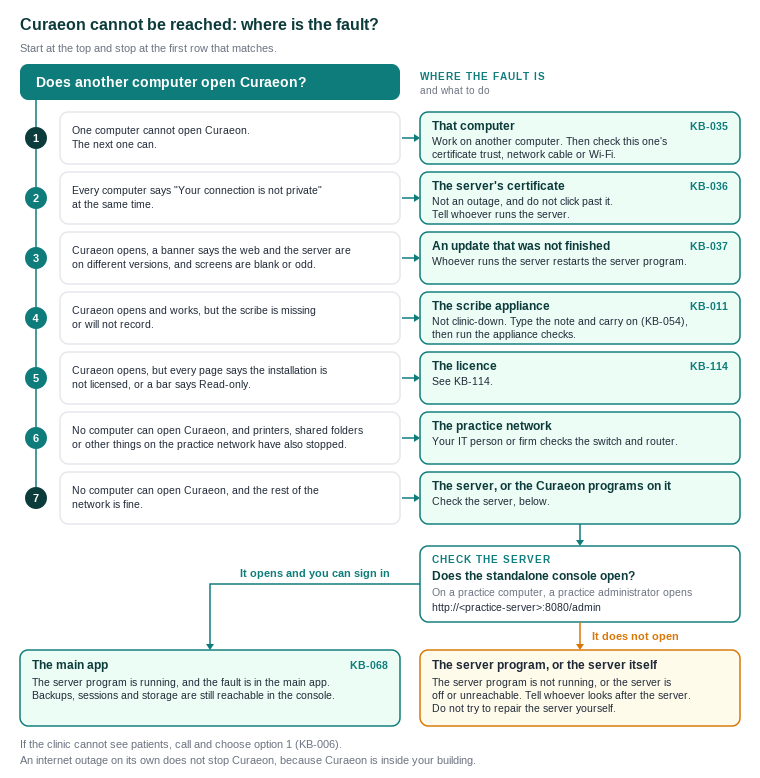
| What you see | Where the fault is | What to do |
|---|---|---|
| One computer cannot open Curaeon. The next one can | That computer | Work on another computer. If the browser says "Your connection is not private", that computer does not trust the practice's certificate (KB-035 — Make a new PC, Mac or locum laptop trust Curaeon ("Your connection is not private")). Otherwise check its network cable or Wi-Fi |
| Every computer says "Your connection is not private" at the same time | The server's certificate | Not an outage, and do not click past it. Tell whoever runs the server (KB-036 — A certificate is red in Settings → Certificates: what it means and who to tell) |
| Curaeon opens, but screens are blank or odd on every computer, and it started straight after an update | An update that was not finished | Whoever runs the server restarts the server program (KB-037 — Screens blank or behaving oddly after an update: restart the server program) |
| Curaeon opens and works, but one part of a screen says it could not be loaded, with Try again beside it | One request to the server | Not an outage. Choose Try again. The rest of the screen is good to use (KB-170 — When part of a screen says it could not be loaded: Try again, and what Loading… means) |
| Curaeon opens and works, but the scribe is missing or will not record | The scribe appliance | Not clinic-down. Type the note and carry on (KB-054 — Scribe option missing, "appliance is busy", or the draft never arrives), then run the appliance checks (KB-011 — Appliance appears offline — five checks before you call). If the consult says "The AI scribe is switched off for you", it is not the appliance: an administrator has switched the scribe off for your account, and switches it back on in Settings → Users |
| Curaeon opens, but every page says the installation is not licensed, or a bar says Read-only | The licence | See KB-114 — Your Curaeon licence: seats, renewal, and requesting more from Settings → Practice |
| No computer can open Curaeon, and printers, shared folders or other things on the practice network have also stopped | The practice network | Your IT person or firm checks the switch and router |
| No computer can open Curaeon, and the rest of the network is fine | The server, or the Curaeon programs on it | Go to "Check the server" below |
An internet outage on its own does not stop Curaeon, because Curaeon is inside your building. What has to leave the building, such as text messages, emails and anything sent to Medicare, cannot go until the internet returns.
A red error message in place of a list means the list could not be loaded. Curaeon does not show an empty list when it failed to fetch one, so do not read an error as "nothing booked". What the notice means, and what Try again beside it does, is in KB-170 — When part of a screen says it could not be loaded: Try again, and what Loading… means.
Check the server
- On a practice computer, a practice administrator opens
http://<practice-server>:8080/admin. - It opens and you can sign in. The server program is running, and the fault is in the main app. Backups, sessions and storage are still reachable here (KB-068 — Use the standalone admin console when the main app won't load).
- It does not open. The server program is not running, or the server is off or unreachable. Tell whoever looks after the server. Do not try to repair the server yourself.
Note: On a Windows Server installation, patient documents and scribe audio are kept on the appliance. If the appliance is off, the scribe stops and stored documents may not open, while the rest of Curaeon keeps working.
Step 2: report it
If the clinic cannot see patients, call 1300 XXX XXX and choose option 1 (KB-006 — How to report a clinic-down emergency (and what happens next)). Say since when, whether it is one computer or all of them, and what you found in Step 1. Never gather patient examples (KB-007 — Why we never need patient details in a support ticket).
Step 3: run the clinic on paper
- The day. Work from the printed day sheet. Write new bookings, arrivals and cancellations on it.
- Notes. Each clinician writes their own notes on paper, with the time.
- Scripts. Paper scripts remain legally valid (KB-006 — How to report a clinic-down emergency (and what happens next)).
- Payments. A card terminal keeps working independently of Curaeon. Keep each receipt.
- A running list. One person keeps a list of everything done on paper: time, who did it and what it was. It is the checklist for Step 4.
You cannot look up a record, an allergy, a medicine list or a result while the server is unreachable. Your team's judgement on clinical safety comes first.
Step 4: afterwards
- If Curaeon was updated or restarted to bring it back, open a few screens and check they load properly before you start (KB-037 — Screens blank or behaving oddly after an update: restart the server program).
- Work down the running list. Curaeon has no late-entry screen: everything is entered the ordinary way, by the person who did it.
- Appointments already in the book. For a patient who did not come, reception marks the appointment did not attend, or cancels it. For a patient who was seen, the appointment's status follows the consult: it moves on when the clinician writes the consult up from that appointment, and reception completes it afterwards (KB-076 — Appointment statuses from pending to completed, and what "At reception" means). Reception cannot mark an appointment as attended by hand.
- Walk-ins and bookings taken on paper. Book the future ones as usual (KB-038 — Book, reschedule and track appointments in the Calendar). Curaeon refuses a booking in the past, so a visit that has already happened and was never in the book cannot be added to the calendar. Its record is the consult note.
- Consult notes. Each clinician writes up their own. For a patient with no appointment in the book, open the patient's record and choose Start Consult. The consult is dated when you write it up, so say in the note when the patient was seen (KB-143 — Write and sign off a consult note).
- Invoices and payments. Raise the invoices and record the payments taken, using the receipts (KB-148 — Take a payment, give a receipt, void or correct an invoice).
- The paper itself. Scan the paper notes and file each to its patient, so the original is in the record (KB-047 — Scan and file paper letters, including the appliance's pre-filled suggestions).
- Tick each line off the running list, then put the paper in the confidential waste or the file your practice keeps.
Appointment reminders that fell due while the server was down are not sent late for appointments that have already passed.
A restore is not the fix for an outage. A restore replaces the practice database with the copy in a chosen backup, so anything entered after that backup is gone. It is for a database that is damaged or lost, it needs two approvals, and it is never done from the browser or by hand. Ask for one only through KB-069 — Request a restore from backup.
If that didn't work
If the standalone console will not open and whoever runs the server cannot start the server program, that is a call to us, not something to work around.
Still stuck? Raise a ticket at support.curaeon.com.au or call 1300 XXX XXX. If your clinic can't see patients right now, call and choose option 1. Support is staffed Monday to Friday, 8:00–18:00 Sydney time; outside those hours a call or text to the same number is answered on a best-effort basis.
Related articles
- KB-006 — How to report a clinic-down emergency (and what happens next) — How to report a clinic-down emergency (and what happens next)
- KB-068 — Use the standalone admin console when the main app won't load — Use the standalone admin console when the main app won't load
- KB-134 — Print a day sheet for the front desk — Print a day sheet for the front desk
- KB-037 — Screens blank or behaving oddly after an update: restart the server program — Screens blank or behaving oddly after an update: restart the server program
- KB-170 — When part of a screen says it could not be loaded: Try again, and what Loading… means — When part of a screen says it could not be loaded: Try again, and what Loading… means
- KB-035 — Make a new PC, Mac or locum laptop trust Curaeon ("Your connection is not private") — Make a new PC, Mac or locum laptop trust Curaeon ("Your connection is not private")
- KB-011 — Appliance appears offline — five checks before you call — Appliance appears offline — five checks before you call
- KB-069 — Request a restore from backup — Request a restore from backup