Replace or rebuild your server and keep the licence
Move Curaeon to a new or rebuilt server without paying twice or being locked out: know which replacements keep the licence by themselves, and what to send Curaeon Billing when one does not.
Before you start
- This is for the practice manager (an administrator in Curaeon) and whoever runs the server. The licence card is under Settings → Practice → Curaeon licence, and only an administrator sees it (KB-114 — Your Curaeon licence: seats, renewal, and requesting more from Settings → Practice).
- Tell Curaeon Support before a planned replacement, so Billing is ready on the day.
- Write down the Installation ID and the licence id from the card on the old server while it still runs. Press Copy beside the Installation ID. It is an identifier, not a password, so it is safe to send.
Why the server matters to the licence
Every Curaeon server has an Installation ID. It is set once, the first time the server is started, and never changes. Your licence is issued to that ID and will not install on any other.
The ID is kept in the practice database. That one fact decides everything below: where your database goes, the ID and the licence go with it.
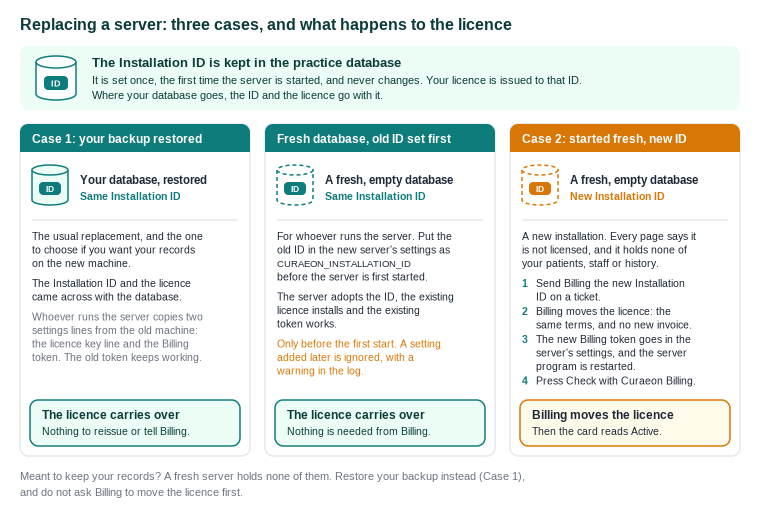
Case 1: you restored your own backup
This is the usual replacement, and the one to choose if you want your records on the new machine.
- Whoever runs the server restores the practice's backup onto the new machine. A restore goes through KB-069 — Request a restore from backup.
- Sign in and open Settings → Practice → Curaeon licence.
- Check that the Installation ID is the one you wrote down, and that the status reads Active.
The Installation ID and the licence came across with the database. There is nothing to reissue and nothing to tell Billing.
Two lines in the server's own settings file do not travel with the database, and whoever runs the server copies them from the old machine: the licence key line (CURAEON_LICENCE_KEYS), without which the server program will not start, and the Billing token (CURAEON_ACCOUNTS_TOKEN). The old token keeps working, because it belongs to the Installation ID and the ID has not changed.
Case 2: the server was started fresh
A server started with an empty database is a new installation. It gives itself a new Installation ID, and every page says "This Curaeon installation is not licensed". If you paste your old licence into it, the card refuses it: "this licence was issued for another installation".
Important: A fresh server holds none of your patients, staff or history. If you meant to keep your records, stop here and restore your backup instead (Case 1). Do not ask Billing to move the licence first.
You cannot move the licence yourself. Curaeon Billing does it, in one step, once you send the new ID.
What to send Billing
- On the new server, sign in as an administrator. On the not-licensed page, choose Open the licence under Settings → Practice.
- Beside Installation ID, press Copy.
- Raise a ticket at support.curaeon.com.au for Curaeon Billing. Include:
- the new Installation ID;
- your practice's name as it reads on the licence, and the licence id if you have it;
- one line saying the server was replaced and started fresh.
Never include a patient's details (KB-007 — Why we never need patient details in a support ticket).
What happens next
- Billing moves the licence to the new Installation ID. The same terms are issued to it: the same seats, prices and term. If your old licence was confirmed, the new one is confirmed in the same step.
- The old licence document is superseded. It stays in Billing's records, and the new one has its own licence id.
- No new invoice is raised. The year is already invoiced.
- Billing gives whoever runs the server a new Billing token for the new server, by a private channel. It is shown once.
- Whoever runs the server puts the token in the server's settings as
CURAEON_ACCOUNTS_TOKENand restarts the server program. - On the card, press Check with Curaeon Billing. The licence arrives and the page reloads into the working application. Otherwise it arrives by itself within the hour.
If the server has no route to the internet, Billing sends two codes instead. Paste the licence, beginning CL1., into Licence document and choose Install licence. Then paste the confirmation, beginning CLC1., into the confirmation box and choose Confirm licence (KB-114 — Your Curaeon licence: seats, renewal, and requesting more from Settings → Practice).
Afterwards, check the card: Active, the right practice name, and the seats you expect. Then set up your doctors' accounts and seats under Settings → Users (KB-120 — Manage staff accounts in Settings → Users: add, change a role, seats, provider numbers, deactivate).
For whoever runs the server: avoid Case 2
A fresh database can keep the old Installation ID, and with it the licence and the Billing token, if the ID is set before the server is first started:
- Find the old ID: the card on the old server, the old server's start-up log (the line beginning
licensing: installation), or ask Billing. - Put it in the new server's settings as
CURAEON_INSTALLATION_ID. - Start the server for the first time.
The server adopts the ID, the existing licence installs and the existing token works. Nothing is needed from Billing.
This only works before the first start. A server keeps the ID it first started with, and a setting added later is ignored with a warning in the log. After that, Case 2 is the only way.
What each message means
| Message | What it means | What to do |
|---|---|---|
| "This Curaeon installation is not licensed" | The server has no confirmed licence. Expected on a fresh server | Follow Case 2, or restore your backup |
| "this licence was issued for another installation" | The document names the old server's ID | Send Billing the new Installation ID. Do not ask for the old document again |
| "Last check with Curaeon Billing … failed" with "this token belongs to another installation" | The server is using the old server's Billing token | Set the new token Billing sent, then Check with Curaeon Billing |
| "Last check with Curaeon Billing … failed" with "This server's Billing token is not valid" | The token was mistyped, or has been disabled | Copy it again from what Billing sent, or ask for a new one |
| The card reads Awaiting confirmation | The licence is installed and Billing has not confirmed it | Tell Billing on the same ticket |
If that didn't work
If the new server shows the old Installation ID and Active, you are in Case 1 and nothing is wrong. If the ID on the card does not match the one you sent Billing, send the one on the card: it is the only one the licence can be issued to.
Still stuck? Raise a ticket at support.curaeon.com.au or call 1300 XXX XXX. If your clinic can't see patients right now, call and choose option 1. Support is staffed Monday to Friday, 8:00–18:00 Sydney time; outside those hours a call or text to the same number is answered on a best-effort basis.
Related articles
- KB-114 — Your Curaeon licence: seats, renewal, and requesting more from Settings → Practice — Your Curaeon licence: seats, renewal, and requesting more from Settings → Practice
- KB-069 — Request a restore from backup — Request a restore from backup
- KB-067 — Set up nightly backups, a second copy and a monthly restore drill — Set up nightly backups, a second copy and a monthly restore drill
- KB-120 — Manage staff accounts in Settings → Users: add, change a role, seats, provider numbers, deactivate — Manage staff accounts in Settings → Users: add, change a role, seats, provider numbers, deactivate
- KB-164 — What to do when Curaeon cannot be reached — What to do when Curaeon cannot be reached