Clear a practitioner's day when they call in sick
Cancel a whole day's bookings in one step at 8 am, come away with a callback list, and leave every recall and reminder in the right state.
Before you start
Utilities → Clear a practitioner's day is available to admin and reception (the utilities.run permission, which an administrator can grant to another role in Settings → Permissions — KB-034 — Choose the right role and permissions for a new staff member). You need the practitioner's name and one sentence you are happy for every affected patient to hear. The clearing takes a couple of minutes; the phone calls afterwards are the real job.
Steps
- Open More in the menu bar, then Utilities, and choose Clear a practitioner's day.
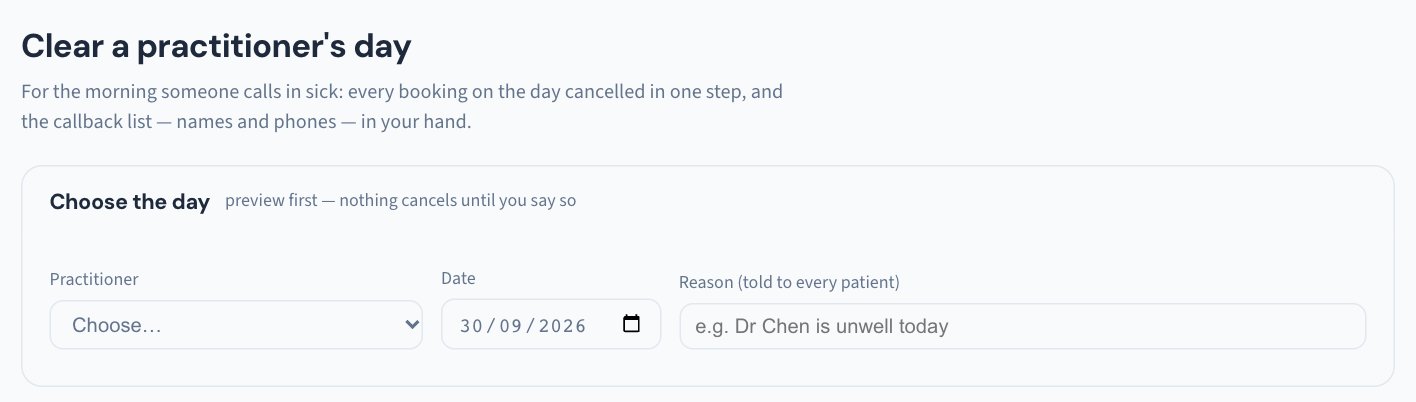
- Pick the practitioner and the day.
- Preview the day's bookings first. Read the list before you go on — this is where you notice the patient already in the waiting room, or the one booked for something that cannot wait a week.
- Enter one reason. It is told to every patient, so write it the way you would say it at the desk.
- Clear the day. It is one step.
- Work the callback list that appears — names and phone numbers — and rebook each patient.
What Curaeon does behind the button
Each booking is cancelled exactly as it would be from the Calendar (KB-038 — Book, reschedule and track appointments in the Calendar):
- the appointment's history shows who cleared it, and the reason;
- a reminder not yet sent is withdrawn, so nobody is texted about an appointment that no longer exists;
- if your practice has ticked Tell the patient when their appointment is cancelled in Settings → Patient messaging (KB-122 — Set up Settings → Patient messaging: email, SMS and WhatsApp channels, DKIM, the bounce mailbox and message wording), each patient is sent a message saying their appointment has been cancelled and asking them to call to rebook. It does not include the reason, and a patient with no mobile or email on file gets nothing, so the callback list still matters;
- a recall booked into that appointment goes back on the recalls worklist, so it is chased again rather than lost (KB-051 — Run recalls: book from a recall, and why a recall stays open or comes back).
Patients already in the waiting room are never cancelled from here. They are listed separately so the desk can speak to them face to face — a patient who has driven in deserves a conversation, not a text.
After the day is cleared
- Stop new bookings landing. Clearing the day removes what was booked; it does not tell the roster the practitioner is away. Have an administrator add the day as leave in Settings → Rosters so nobody — including the online booking page, if you run one — books into it (KB-119 — Set up rosters, rotating cycles and leave in Settings → Rosters: the complete walkthrough). Settings pages are for administrators only.
- Look at the recalls worklist for the recalls that just came back, so they are rebooked while the reason is fresh.
Good to know
- The result is a callback list, not a broadcast. A message goes out only if your practice has ticked Tell the patient when their appointment is cancelled, as described above. It never carries the reason, and it reaches nobody without a mobile or email on file. Plan on ringing.
- It is all audited, under the name of whoever cleared the day.
If that didn't work
If Utilities is missing from More, or the option is missing from Utilities, your role does not have utilities.run — an administrator can grant it. If the preview shows appointments you did not expect, or a cleared appointment still shows on the Calendar, note the practitioner, day and time and raise a ticket.
The Practitioner list holds only "Choose…". If the practitioners could not be loaded, a red line under the list says so: "The practitioner list could not be loaded", the reason, and "so there is nobody to choose." Choose Try again beside it. A red message under the form is the preview failing to read the day: nothing has been cancelled. Choose Try again beside that message. For what a part that could not be loaded means elsewhere in Curaeon, see KB-170 — When part of a screen says it could not be loaded: Try again, and what Loading… means.
Still stuck? Raise a ticket at support.curaeon.com.au or call 1300 XXX XXX. If your clinic can't see patients right now, call and choose option 1. Support is staffed Monday to Friday, 8:00–18:00 Sydney time; outside those hours a call or text to the same number is answered on a best-effort basis.
Related articles
- KB-122 — Set up Settings → Patient messaging: email, SMS and WhatsApp channels, DKIM, the bounce mailbox and message wording — Set up Settings → Patient messaging: email, SMS and WhatsApp channels, DKIM, the bounce mailbox and message wording
- KB-038 — Book, reschedule and track appointments in the Calendar — Book, reschedule and track appointments in the Calendar
- KB-051 — Run recalls: book from a recall, and why a recall stays open or comes back — Run recalls: book from a recall, and why a recall stays open or comes back
- KB-040 — Set up rosters, leave and online-bookable appointment types, and handle online booking requests — Set up rosters, leave and online-bookable appointment types, and handle online booking requests
- KB-119 — Set up rosters, rotating cycles and leave in Settings → Rosters: the complete walkthrough — Set up rosters, rotating cycles and leave in Settings → Rosters: the complete walkthrough
- KB-134 — Print a day sheet for the front desk — Print a day sheet for the front desk
- KB-133 — Find your way around Utilities: every section, what it is for and who can open it — Find your way around Utilities: every section, what it is for and who can open it