Screens blank or behaving oddly after an update: restart the server program
If screens went blank or started behaving oddly straight after Curaeon was updated, the usual cause is an update that was not finished, and the fix is a restart of the server program, not a support call.
What has happened
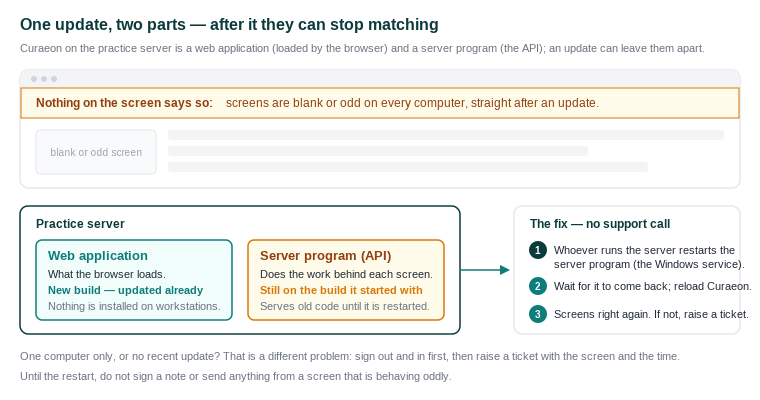
Curaeon is two parts on your practice server: the web application your browser loads, and the server program (the API) that does the work behind each screen. On a Windows Server installation each runs as its own Windows service.
After an update the web application can be new while the server program is still running the build it started with. The two then no longer match. Screens can behave oddly until that is fixed: a page that loads but shows nothing, a button that does nothing, a list that will not fill. The server looks healthy the whole time.
Note: Nothing on the screen announces this. Earlier versions of this article described a banner at the top of every screen that names the two versions. A practice's server does not show that banner, so do not wait for one.
How to recognise it
All three of these point to an unfinished update:
- It started straight after Curaeon was updated.
- It happens on every computer, not one.
- More than one screen is affected, or a notice on the screen says so itself. One example is a list read from the address book, which can say "The address book could not be read in full: the server did not say how many entries it holds. Reload the page; if this continues, the server needs restarting."
If that is not what you are seeing, it is a different problem:
| What you see | Where to go |
|---|---|
| One part of one screen has a notice that it could not be loaded, with Try again beside it, and the rest works | That is one failed request. See KB-170 — When part of a screen says it could not be loaded: Try again, and what Loading… means |
| Curaeon will not open at all, on any computer | The server cannot be reached. See KB-164 — What to do when Curaeon cannot be reached |
| Only one computer is affected | Reload the page on that computer, then sign out and in again: Sign out is in the menu under your name, at the right of the menu bar (KB-033 — Change how long Curaeon waits before signing you out, and end a session left open explains what a sign-out preserves) |
| Nothing was updated recently | Sign out and in again, then raise a ticket with the screen name and the time |
The fix
- Reload the page once. If the screen is right again, stop here.
- Tell whoever looks after your server that screens have misbehaved since the update, on every computer.
- That person restarts Curaeon's services on the server: the server program and the web application.
- Wait for the server to come back, then reload Curaeon in the browser.
- Check the screens that were wrong. If they still misbehave, raise a ticket rather than restarting again and again.
Staff do not need to do anything on their own computers. Nothing is installed on a workstation, so there is nothing there to update.
Until the restart, do not sign a note or send anything from a screen that is behaving oddly. Wait, reload, then carry on.
Why a restart and not a support call
Your server runs in your own practice. Curaeon's status page (KB-009 — Subscribe to status updates for your clinic) covers the services we run and national ones, not your server, and the person who ran the update is the one who can finish it. A restart is quick, changes no records, and is the first thing support would ask for.
If that didn't work
If screens still misbehave after a restart, note which screens, the exact wording of any message, when the update was applied and who applied it, and the Server build shown under Preferences → About Curaeon (KB-131 — Set up Preferences: your start screen, calendar view, colours, notifications and privacy), and raise a ticket. Please do not keep restarting the server during clinic hours hoping for a different result.
Still stuck? Raise a ticket at support.curaeon.com.au or call 1300 XXX XXX. If your clinic can't see patients right now, call and choose option 1. Support is staffed Monday to Friday, 8:00–18:00 Sydney time; outside those hours a call or text to the same number is answered on a best-effort basis.
Related articles
- KB-170 — When part of a screen says it could not be loaded: Try again, and what Loading… means — When part of a screen says it could not be loaded: Try again, and what Loading… means
- KB-164 — What to do when Curaeon cannot be reached — What to do when Curaeon cannot be reached
- KB-068 — Use the standalone admin console when the main app won't load — Use the standalone admin console when the main app won't load
- KB-006 — How to report a clinic-down emergency (and what happens next) — How to report a clinic-down emergency (and what happens next)
- KB-097 — Release notes: Curaeon 1.0, the first release — Release notes: Curaeon 1.0, the first release