Ask patients questions when they book online: intake questions on an appointment type
Put a few questions on an appointment type — "Is this for a travel vaccine?", "Which arm?", "What country are you travelling to?" — and the online booking page asks them once a patient chooses that type. The answers arrive with the request, stay with the appointment, and the clinician reads them in the consult.
Before you start
- Questions belong to an appointment type (KB-117 — Add, change, reorder and retire appointment types in Settings → Appointment types). A type with no questions books exactly as it did.
- Only an administrator can add or change questions (Settings is administrators' — KB-115 — Find your way around Settings: every section, who can open it, and where to read more). Anyone who handles the Online bookings queue or opens the appointment can read the answers.
- The answers are the patient's own words, typed on the booking page and checked by nobody. They are read beside the appointment; nothing copies them into the clinical record by itself. The clinician writes the note, and can add the answers to it with one press (Add to History, below).
- A question asked on the desk's own New appointment window is not asked: these are for the online page only. A booking made at the desk carries no answers.
Add questions to an appointment type
- Open Settings → Appointment types and choose Questions on the type's row.
- Choose + Add question and type the question as the patient will read it.
- Choose how it is answered: Yes or no, A short answer, A longer answer, or One of a list — for a list, type the choices under Options, one per line, two to ten of them.
- Tick Must be answered to book if the booking should not go through without it. Leave it unticked for an optional question.
- To ask it only of some bookings, use the two choices under that:
- Ask it for bookings with — one practitioner, or Any practitioner. "Have you seen Dr Chen before?" is asked only when the patient books with Dr Chen.
- Ask it — Always, or Only when an earlier yes-or-no or one-of-a-list question is…, then the answer that makes it asked. "Which arm?" is asked only when "Is this for a vaccine?" is answered Yes.
- Choose Add (or Save when editing), and repeat for up to twelve questions. Use ▲ ▼ to set the order the patient sees them in. Choose Done.
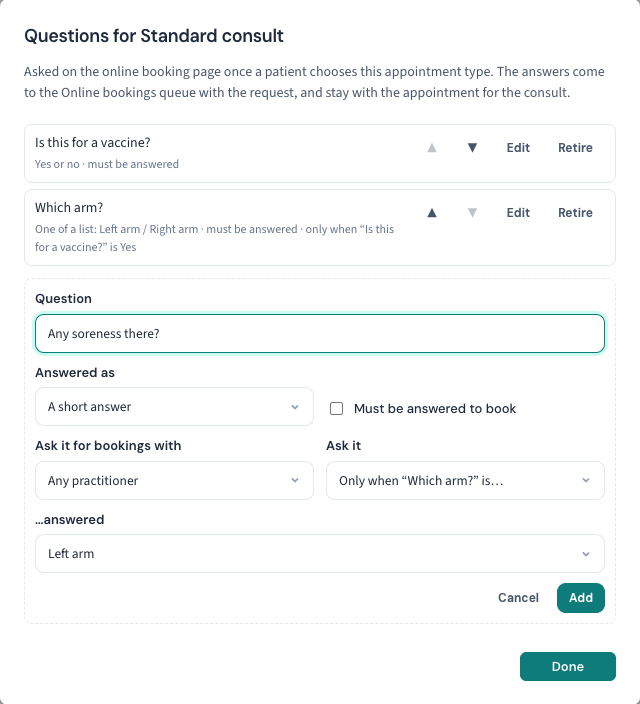
A question that waits on another has to come after it, and can wait on a question that itself waits on one. Each question's row says who it is for and what it waits on. The booking page hides a question that is not asked for this booking, does not require it, and does not send an answer the patient gave before changing the earlier one.
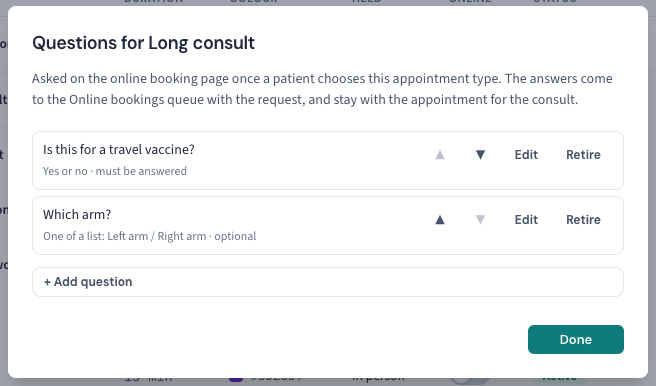
Edit changes a question's words or whether it must be answered; the kind of answer is fixed once the question has been asked. Retire takes a question off the page; it is never deleted, because answers already given name it, and it can be restored. Every answer keeps the words of the question as it read when it was answered, so changing the words later changes nothing already on file.
What the patient sees
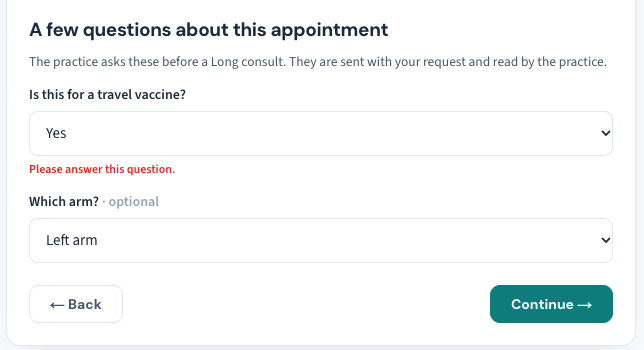
Once the patient chooses a type that asks questions, the booking page shows A few questions about this appointment under their details, with the type named. A required question left blank is said beside itself — Please answer this question — and the page does not go on until it is answered. Optional questions are marked. The answers are shown again on the review step before the request is sent.
The Easy Read booking page is not open for booking yet, so it asks no questions and sends the practice nothing. A patient who opens it reads You can not book on this page yet., the practice's name, You can book by phone. and Call with the practice's phone number, which they can press to call. The number is the practice's phone in Settings → Practice (KB-116 — Set up your practice's details, opening hours and closures in Settings → Practice). If the page has no number to show, it reads Please call the clinic when it is open. and The number is on our website and on the clinic door. in its place.
Read the answers
In the Online bookings queue (KB-040 — Set up rosters, leave and online-bookable appointment types, and handle online booking requests), each request that carries answers shows them under the row, question by question, beside the reason for the visit — so you read what the patient said before pressing Confirm & book or Decline.

In the consult. The strip under the consult's toolbar has Add to History. Pressing it types each answer into History of Presenting Complaint on its own line, marked Patient's answer when booking online, and saves it the way typing does. Nothing adds them by itself; pressing twice adds nothing twice, and the button reads In History once they are there. It is not offered on a signed note.
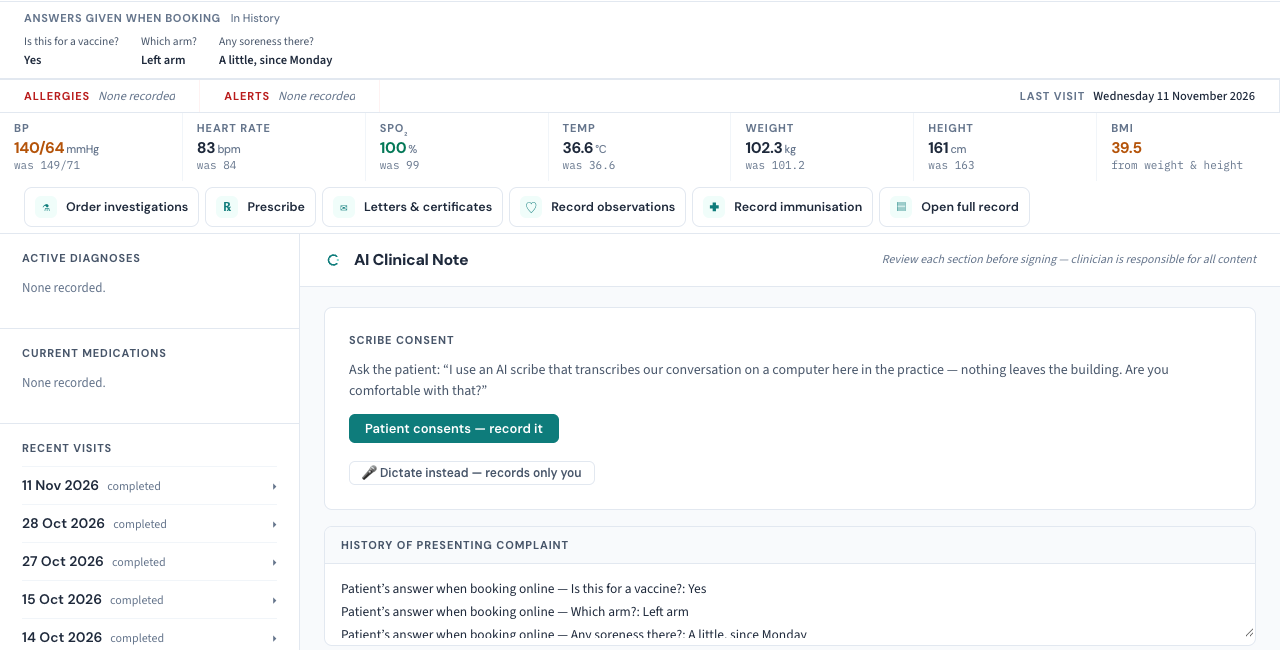
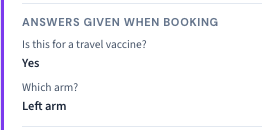
On the appointment. Once the request is confirmed, the appointment keeps the answers. The Calendar's appointment panel shows them under the actions as Answers given when booking, and the consult shows the same strip under its toolbar. If the answers cannot be read, the panel says so with Try again (KB-170 — When part of a screen says it could not be loaded: Try again, and what Loading… means) rather than showing nothing.
What each message means
| Message | What it means | What to do |
|---|---|---|
| Please answer this question. (on the booking page) | A question marked must-be-answered was left blank | The patient answers it; the request cannot go without it |
| A sentence naming a question, when the request is sent | The answer did not fit the question — a list answer not among its choices, a yes/no that was neither, or an answer longer than the page allows | The page asks the patient to look at that question again |
| No questions shown for a type that has some | The question has been retired, is for another practitioner, or waits on an answer the patient did not give | Check Questions on the type in Settings: each row says who it is for and what it waits on |
| "…" is asked only on an answer to this question — change or retire that question first | You tried to retire a question another one waits on, or remove the option it waits for | Change or retire the question that waits, then try again |
| "…" is asked only on an answer to "…", so it has to stay below it | You tried to move a question above the one it waits on | Leave it below, or clear what it waits on first |
What this does not do
- It does not ask different questions on different days; a question can be for one practitioner, not for a day of the week.
- A question can wait on a yes-or-no or one-of-a-list answer, not on something typed.
- It does not take files or photos.
- It does not write anything into the clinical record by itself. The answers are read beside the appointment; the clinician decides what goes in the note, and Add to History is their press.
Related articles
- KB-117 — Add, change, reorder and retire appointment types in Settings → Appointment types — Add, change, reorder and retire appointment types in Settings → Appointment types
- KB-040 — Set up rosters, leave and online-bookable appointment types, and handle online booking requests — Set up rosters, leave and online-bookable appointment types, and handle online booking requests
- KB-038 — Book, reschedule and track appointments in the Calendar — Book, reschedule and track appointments in the Calendar
- KB-170 — When part of a screen says it could not be loaded: Try again, and what Loading… means — When part of a screen says it could not be loaded: Try again, and what Loading… means