Book, move or cancel a repeating appointment: the same time every few weeks
Book a run of appointments in one go — weekly dressings, fortnightly INR checks, a monthly review — and move or cancel the rest of the run from any one of them.
Before you start
- Book the first one the way you book any appointment (KB-038 — Book, reschedule and track appointments in the Calendar): patient, practitioner, type, time.
- Every appointment in the run is an ordinary appointment. Arriving, reminders, billing and the worklists treat each one on its own.
- The run is booked at the same time of day on the practice's clock, so a 10:00 booking stays 10:00 across the daylight-saving change.
Book the run
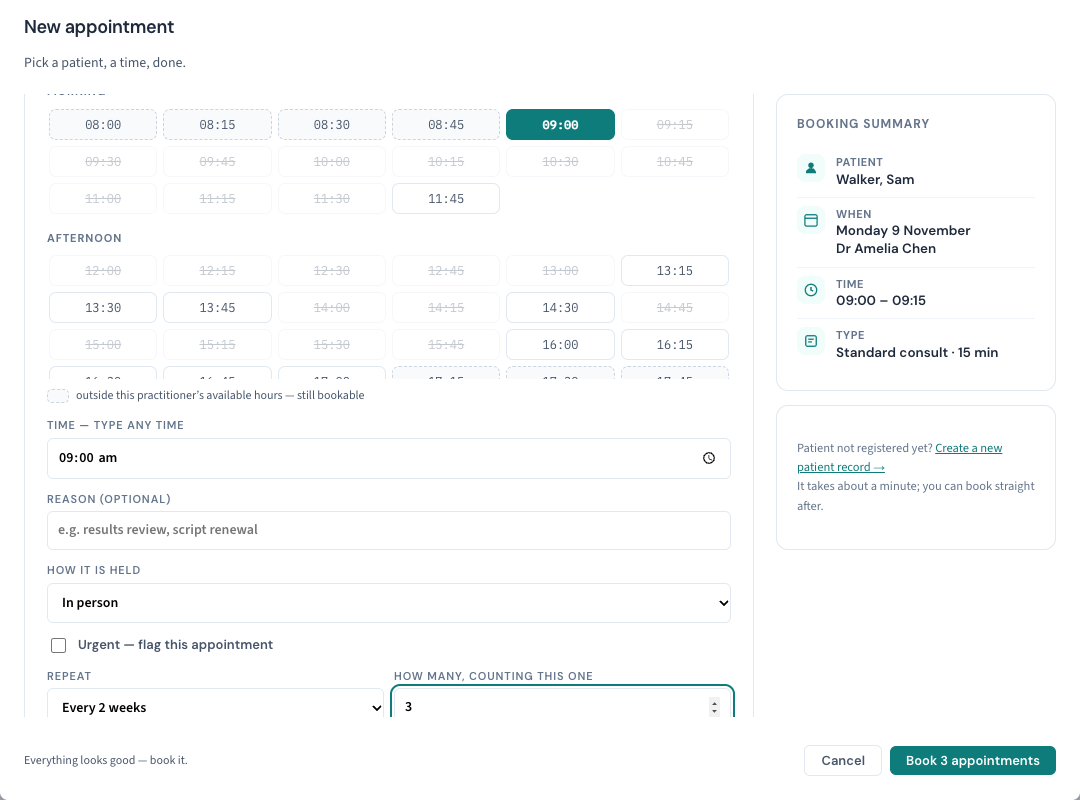
- Open New appointment, choose the patient, practitioner, type and the first time.
- Under Repeat, choose Every week, Every 2 weeks, and so on up to Every 12 weeks — or Every month, Every 2 months, Every 3 months or Every 6 months.
- For a monthly run, On asks which day: the same day of the month as the first appointment (On the 15th of each month) or the same weekday of the month (On the 2nd Tuesday of each month). The choices are worded from the date you picked.
- To share the run between two practitioners — the doctor one visit, the nurse the next — choose the other one under Every second one with. Leave it on the first practitioner for a run with one person.
- Under How many, counting this one, type the number of appointments, 2 to 52. The run has to end within a year: every 12 weeks allows up to 5, every 4 weeks up to 14, every month up to 13, every 6 months up to 3.
- Choose Book N appointments.
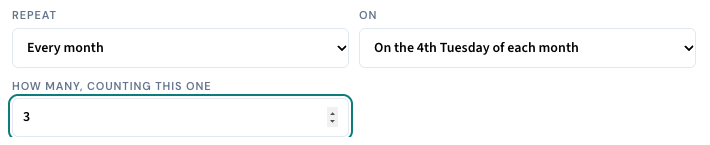
By the month. A month that does not have the day takes its last day: a run from the 31st is the 31st, the 28th (or 29th), the 31st, the 30th. A month without a fifth such weekday takes its last one. The On choice says so when it applies. A date that falls on a public holiday or a day the practitioner is not rostered is left out and named, like any other.
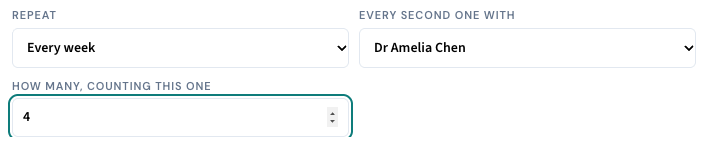
Alternating. The first, third, fifth appointments are with the practitioner you are booking; the second, fourth and so on are with the one chosen under Every second one with. Each is checked against that practitioner's own day.
The first appointment is checked the way a single booking is: a closed day, a day the practitioner is not rostered, or a clash is refused the same way, and Book anyway applies to it alone.
A later date the practitioner cannot take is left out, and you are told. The window says how many were booked and lists each date that was not, with the reason — already booked, closed, or not rostered. The same list shows as a message, because a booking opened from a patient's record closes the window as soon as it succeeds. Nothing is booked over an existing appointment: nobody has looked at that day to say so. Book those dates by hand, at another time if need be.
What the patient is sent
The patient is told once for the whole run, not once per appointment:
- Booking it, when your practice confirms bookings: one confirmation for the first appointment, then "Also booked:" and every other date.
- Moving the rest of it: one message with the new time, then "The later ones move the same way:" and their new dates, and "These stay as they were:" for any that could not move.
- Cancelling the rest of it, when your practice tells patients about cancellations: one message, then "Also cancelled:" and the other dates.
The message uses your practice's own wording for the first appointment, if you have written one (KB-122 — Set up Settings → Patient messaging: email, SMS and WhatsApp channels, DKIM, the bounce mailbox and message wording). In a run shared between two practitioners, each other date says who it is with where that is not the first appointment's practitioner — "Mon 30 Nov 8:00am with Dr Chen". Past ten dates it says how many more there are and when the last is. A patient whom only WhatsApp reaches is still sent one message per appointment: WhatsApp can only send the one-appointment templates Meta approved. Each appointment's history still says the patient was told about it, and which message told them.
See that an appointment is one of a run
On the Calendar, the appointment's panel shows ↻ Repeats beside its status. Each appointment in the run can be confirmed, moved, marked arrived or cancelled on its own. Reschedule moves that one, and offers to move the later ones with it (below). Dragging an appointment on the Calendar moves that one only; it stays part of the run.
Move the rest of the run
Use this when the patient's day or time changes for the whole run: Tuesdays at 4:00 pm become Thursdays at 11:15 am.
- Open one appointment of the run on the Calendar — the first one to move — and choose Reschedule.
- Choose the new date and time, and the practitioner if that changes too.
- Tick Also move the N later appointments in this series the same way. The window lists each later appointment, where it is now and where it will go.
- Choose Move N appointments.
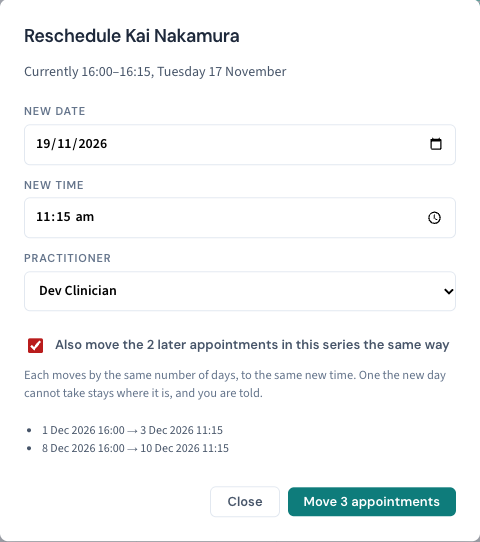
Each later appointment moves by the same number of days as the one you moved, to the same new time, and keeps its own length. A new practitioner applies to the later appointments that were with the one you moved: in a run shared between two practitioners, the other one's appointments stay theirs. Earlier appointments in the run are not touched, and neither are later ones already cancelled, arrived or completed.
The one you opened is checked the way a single move is: a closed day, a day the practitioner is not rostered, or a clash is refused, and nothing in the run moves. Move anyway double-books that one alone.
A later one the new day cannot take stays where it is, and you are told. A message names each appointment that did not move, still at its old time, with the reason. Move it by hand, or tell the patient it is unchanged.
Each appointment moved is an ordinary reschedule: a reminder not yet sent is withdrawn and written again for the new time, the history says who moved it and from when, and if the practice sends a message when an appointment moves, the patient gets one message for the whole run (above).
If the window says the rest of the run could not be read, choose Try again. Until it can be read, only the one appointment can be moved there.
Cancel the rest of the run
- Open the appointment on the Calendar and choose Cancel.
- The window reads the rest of the run and lists the later appointments still booked, with their dates. Tick Also cancel the N later appointments in this series.
- Choose Cancel N appointments.
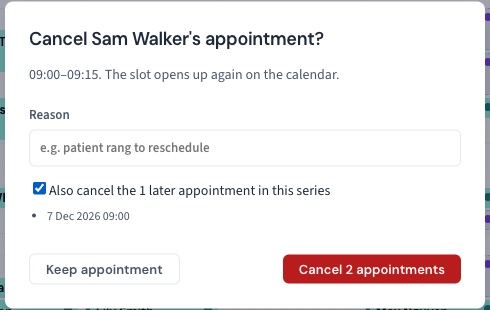
Earlier appointments in the run are not touched, and neither are later ones already cancelled or completed. Each cancellation is a full one: a reminder not yet sent is withdrawn, a recall the appointment was answering goes back on the worklist, and the patient is told — once, for all of them — if your practice has that switched on (KB-038 — Book, reschedule and track appointments in the Calendar).
If the window says the rest of the run could not be read, choose Try again. Until it can be read, only the one appointment can be cancelled there.
What each message means
| Message | What it means | What to do |
|---|---|---|
| Not booked, 1 of 4: a date and overlaps an existing booking | That date was skipped because the practitioner already has a booking then | Book that date at another time, or beside the other booking on purpose |
| A date and the practice is closed or not rostered | The run reached a day the practice is shut or the practitioner is away | Book that date by hand on a day they work |
| a series has to end within a year | The number of times, at that interval, runs past a year | Lower the number or shorten the interval |
| This is the last of its series: nothing later is booked. | There are no later appointments to cancel or move with this one | Cancel or move it as a single appointment |
| 1 not moved, still at the old time — a date and overlaps an existing booking | The run was moved, but the practitioner already has a booking at that one's new time | Move that one by hand to another time, or leave it and tell the patient |
| This appointment is not part of a repeating series. Move it on its own. | The run was asked of an appointment booked by itself | Move it as a single appointment |
Related articles
- KB-038 — Book, reschedule and track appointments in the Calendar — Book, reschedule and track appointments in the Calendar
- KB-051 — Run recalls: book from a recall, and why a recall stays open or comes back — Run recalls: book from a recall, and why a recall stays open or comes back
- KB-076 — Appointment statuses from pending to completed, and what "At reception" means — Appointment statuses from pending to completed, and what "At reception" means
- KB-170 — When part of a screen says it could not be loaded: Try again, and what Loading… means — When part of a screen says it could not be loaded: Try again, and what Loading… means