Draft. This article is awaiting technical review and may change — if anything here conflicts with advice from our team, follow the team.
Appliance status lights and what they mean
Your Curaeon appliance has one status light on the front panel. Here's how to read it — and what (if anything) to do.
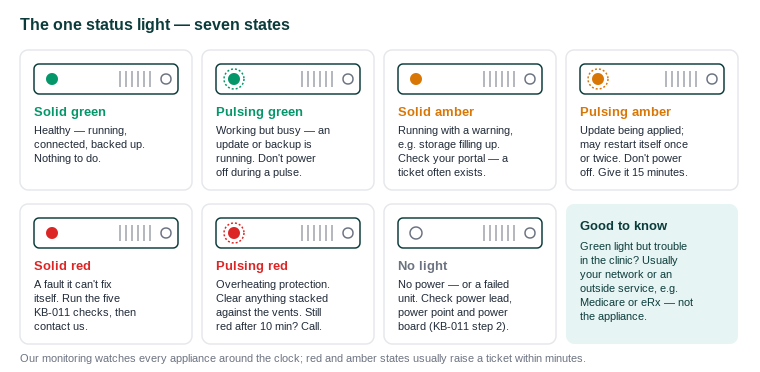
| Light | Meaning | What to do |
|---|---|---|
| Solid green | Healthy — running, connected, backed up | Nothing. |
| Pulsing green | Working normally but busy — an update or backup is running | Nothing; don't power off during a pulse. |
| Solid amber | Running with a warning — for example storage filling up or one earlier backup missed | Usually nothing: our monitoring sees the same warning and a ticket often already exists. Check your portal. |
| Pulsing amber | Update being applied | Don't power off. Give it 15 minutes. The appliance does not restart itself to finish an update — see below. |
| Solid red | A fault the appliance can't fix itself | Run the five checks in KB-011 — Appliance appears offline — five checks before you call, then contact us. If your clinic can't consult, call 1300 XXX XXX, option 1. |
| Pulsing red | Overheating protection | Check airflow around the unit (KB-013 — Preparing your comms cupboard — appliance environment guide) — clear anything stacked against the vents. If it persists 10 minutes, call us. |
| No light | No power — or a failed unit | Check power lead, power point and any power board, then KB-011 — Appliance appears offline — five checks before you call step 2. |
Three things worth knowing:
- The appliance never restarts by itself. It installs security updates overnight, and when one needs a restart, Settings → AI Appliance → Operating system says "A restart has been waiting to finish installing updates since …" (KB-057 — Check appliance health and link security in Settings → AI Appliance, and revoke a certificate). Restart it out of hours. A restart left waiting more than 14 days raises a security alert for your administrators. Its disk is encrypted, so after any restart or power cut it waits for its disk passphrase before it starts: have somebody there who has it, and keep it in the practice's safe.
- The light reports the appliance's own view. Green light + problems in the clinic usually means the issue is in your clinic network or an outside service (Medicare, eRx) rather than the appliance.
- Our monitoring watches every appliance and raises a ticket when one stops reporting; a person picks that up in support hours (Monday to Friday, 8:00–18:00 Sydney time). Red and amber states usually raise a ticket automatically within minutes — check support.curaeon.com.au before assuming we don't know.
Still unsure? Raise a ticket at support.curaeon.com.au or call 1300 XXX XXX. If your clinic can't see patients, choose option 1. Support is staffed Monday to Friday, 8:00–18:00 Sydney time; outside those hours a call or text to the same number is answered on a best-effort basis.
Related articles
- KB-011 — Appliance appears offline — five checks before you call — Appliance appears offline — five checks before you call
- KB-013 — Preparing your comms cupboard — appliance environment guide — Preparing your comms cupboard — appliance environment guide
- KB-057 — Check appliance health and link security in Settings → AI Appliance, and revoke a certificate — Check appliance health and link security in Settings → AI Appliance, and revoke a certificate