Find patients by clinical criteria and export the list
Build the list a PHN, an accreditation surveyor or a clinic mailout asks for — patients matching a combination of clinical criteria — and take it out as a CSV, knowing exactly who is left out and why.
Before you start
Find patients is a report under Reports, in the menu bar. It is available to clinicians and practice managers; reception does not query patients by diagnosis, and the server enforces that (KB-034 — Choose the right role and permissions for a new staff member). Two things to know before you run it:
- Confidential diagnoses never match and never appear, and the list does not say so.
- Restricted records are left out for anyone not named on them, and the report says how many it left out. The count still includes those rows (KB-061 — Restrict a patient's record, and open one in an emergency).
Steps
- Open Reports. Under All reports, in the Patients group, choose Find patients. (Browse all reports at the top right jumps down to the cards.) The report opens full width, with ← All reports to go back.
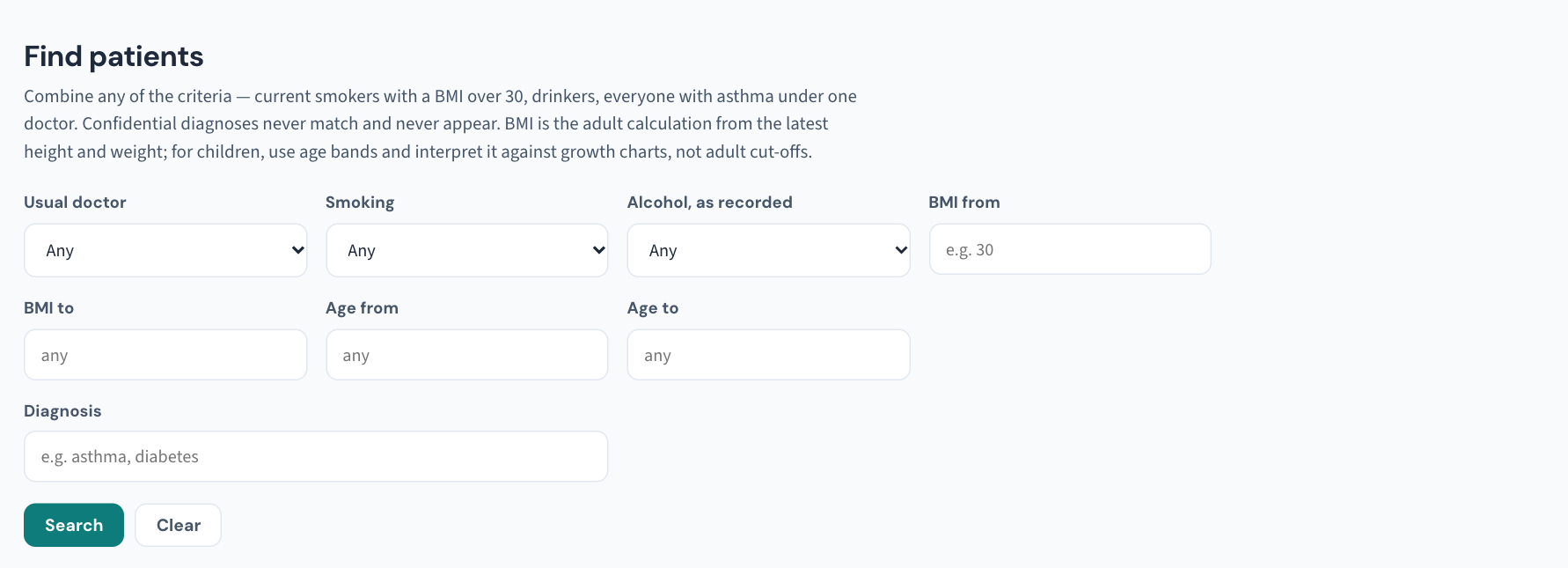
- Choose the criteria. They combine: usual doctor, smoking and alcohol status, a BMI band, an age band, and active diagnosis. The manual's examples are current smokers with a BMI over 30, and everyone with asthma under one doctor.
- Run the search and read the count and the "left out" note at the top.
- Choose Export CSV, at the top right, to take the list out for the PHN, the surveyor or the mailout.
Your criteria and results stay put while you go back to the Reports home and return.
What Curaeon records when you export
Every export is recorded in the Audit log with how many rows left, and the file is not made if it cannot be recorded. Exports appear in the weekly Security review.
Important: An export by someone who is not an administrator raises a security alert at once, for an administrator to acknowledge with what was found. A clinician exporting their own asthma list is legitimate — tell the practice manager before the alert does (KB-064 — Sign off the weekly Security review, and act on alerts and audit-log check warnings).
Running the search is itself recorded as a report that lists patients, export or not.
Handle the file like patient data
The CSV holds names and clinical facts. It is patient data the moment it leaves Curaeon: keep it on encrypted storage, send it only by a route the recipient has agreed, and never attach it to a support ticket (KB-007 — Why we never need patient details in a support ticket).
Tip: If the request is for a number rather than a list, look at Settings → Quality first (practice administrators only, like every Settings page). It shows what the practice is and is not recording — and says at the top that it is deliberately not the PIP QI extract, because a number that looks official but is not is worse than no number.
If a patient you expected is missing
- A confidential diagnosis never matches — by design, and the list does not flag the omission.
- A restricted record is in the "left out" count; someone named on it runs the same search.
- The diagnosis is not active, or not recorded as a diagnosis. Check the patient's Diagnoses tab.
Where the manual is silent
The manual does not say whether Find patients includes departed or deceased patients, whether an uncoded diagnosis (still on the Settings → Diagnosis coding backlog) matches, which columns the CSV contains, or whether a search can be saved. New custom report, the report builder for practice administrators under All reports, has CSV export and can save a report to Your reports, but only in the browser you saved it in (KB-023 — Requesting a data export or report, KB-163 — Read the Reports screen: My dashboard, Performance and the Billing & claims summary). If your list needs more, raise a ticket under Clinical software describing the purpose, not just the columns.
Still stuck? Raise a ticket at support.curaeon.com.au or call 1300 XXX XXX. If your clinic can't see patients right now, call and choose option 1. Support is staffed Monday to Friday, 8:00–18:00 Sydney time; outside those hours a call or text to the same number is answered on a best-effort basis.
Related articles
- KB-023 — Requesting a data export or report — Requesting a data export or report
- KB-163 — Read the Reports screen: My dashboard, Performance and the Billing & claims summary — Read the Reports screen: My dashboard, Performance and the Billing & claims summary
- KB-061 — Restrict a patient's record, and open one in an emergency — Restrict a patient's record, and open one in an emergency
- KB-064 — Sign off the weekly Security review, and act on alerts and audit-log check warnings — Sign off the weekly Security review, and act on alerts and audit-log check warnings
- KB-105 — Read Quality measures, registers and preventive care due — and why they are not the PIP QI extract — Read Quality measures, registers and preventive care due — and why they are not the PIP QI extract
- KB-135 — Export the patient list, billing history or the whole database from Utilities → Import & export — Export the patient list, billing history or the whole database from Utilities → Import & export